
Working with the CI map
The Configuration Item (CI) map displays a CI or a service in a visual workflow. You can view related services or connected CIs (upstream and downstream). You can also view the relationships between CI's such as Dependent on, Hosted on, or Managed by in your organization.
The CI map provides a holistic view of the CI, its related services, and the relationships between connected CIs. Each block in the CI map represents a related CI.
This map of relationships provides insight into the impact of service interruptions at upstream and downstream points. It enables you to better manage your service network and quickly isolate potential points of service failure.
Sign in to the application as a Configuration Manager, Discovery Manager, or Discovery Analyst to work with CI maps.
These instructions refer to several different workspaces with similar names. The CI Service workspace reflects services available for CIs. The Configuration Item and CI workspaces search for assets rather than for services. Some of these procedures can be performed from any of these workspaces while others (for example, the CI map tree) can only be accessed from the CI Service workspace.
Icons on the CIs in the map indicate links to other records and their potential impact on related items. Hover over an icon to see how many Changes, Incidents, or Problems are linked to the CI. These icons do not reflect the status of the CIs. They indicate the types of items linked to the CI.
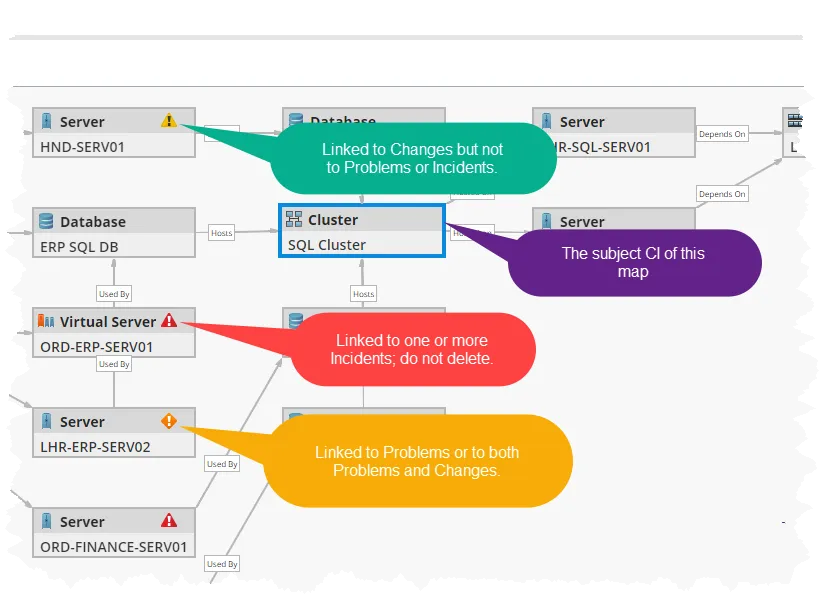
- Yellow triangle: The CI links to Changes, but there are no linked Incidents or Problems.
- Red triangle: The CI links to Incidents; do not delete this CI. The CI might also link to Changes or Problems.
- Orange diamond: The CI links to Problems or Changes.
- Blue outline: The CI is the subject CI of this map.
- Open a CI workspace.
You can view the CI map from the CI, Configuration Item, or CI Service workspaces. The application displays a list of CIs.
- Select an appropriate asset and double-click an item to view the record details.
- Select Service Map.
- Hover over the CI to view its type and sub-type.
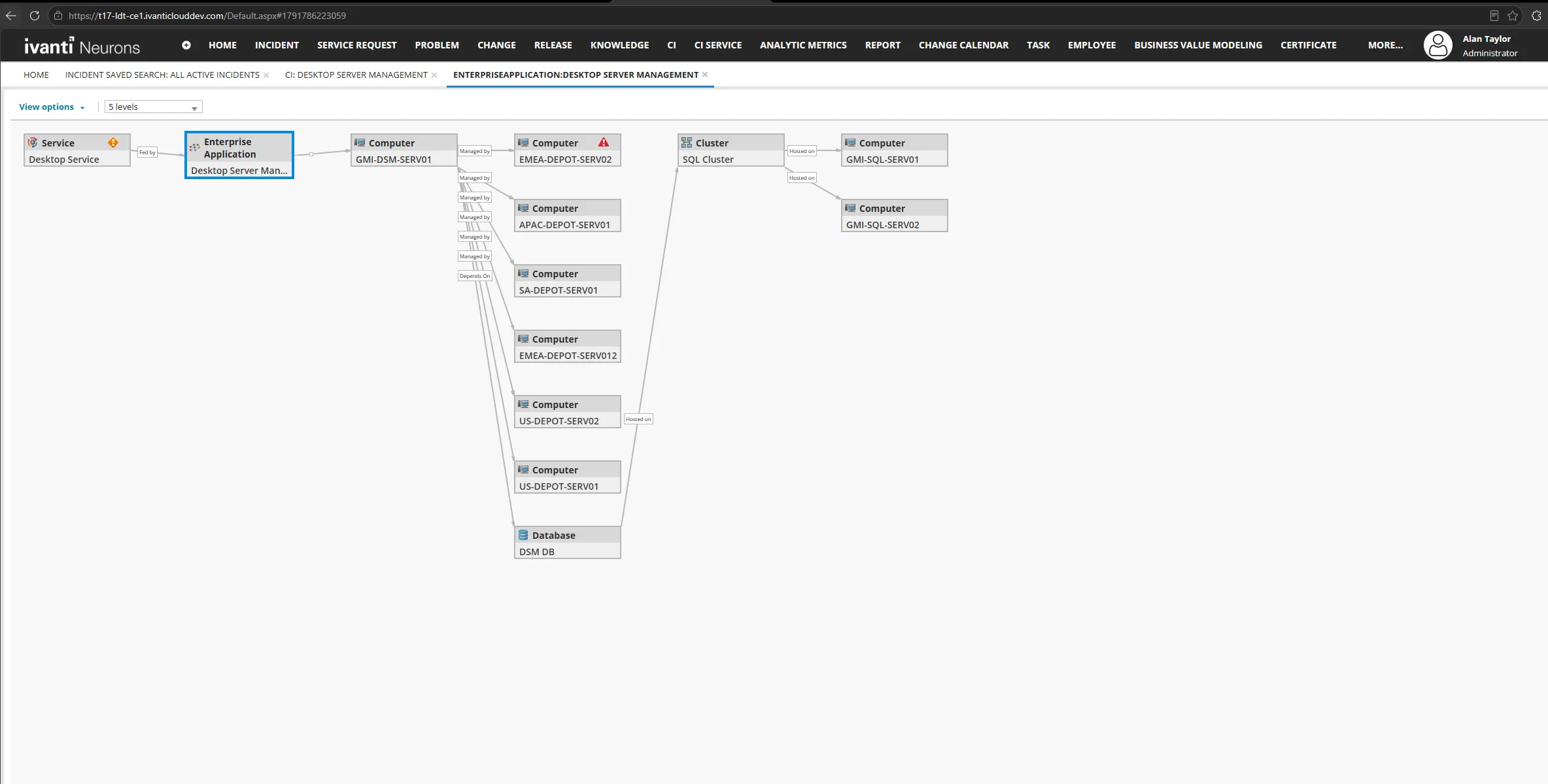
Sample CI map
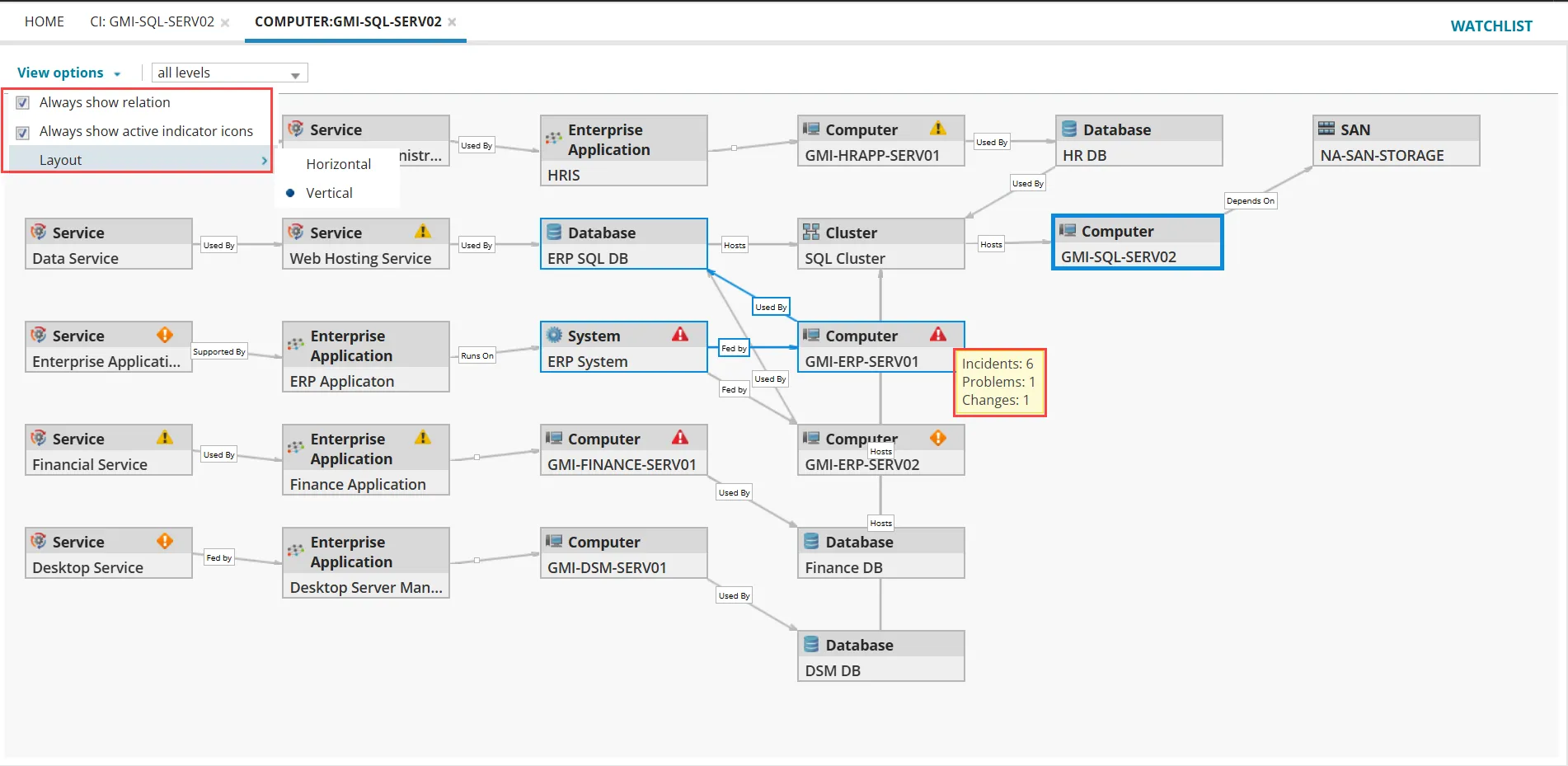
CI maps should have no more than 350 links; additional links degrade performance.
- Select View Options to change the layout or show relationships:
This option is available only if the global constant CIServiceMapIncidentStatus is set to true. For more information, see Default_Global_Constants.
- Select the number of levels to view. In large CI maps, you might want to view only one or two levels.
- Select an item on the CI map to view its details.
To center the CI map on a specific item without leaving the current map, right-click the item, then select Centralize and Redraw. The application redraws the map with a blue line around the CI you selected to indicate that it is now the central focus of the map.
- Select a layout - select horizontal or vertical layout.
- Always show active indicator icons: Select to display only the incidents with only active status in the CI.
- Always show relation: Select to show relationships among items on the map.
To view the impact of a CI outage from the CI map:
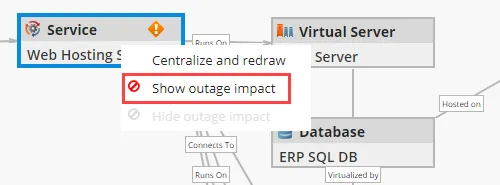
- Right-click a CI, and select Show outage impact.
The application shows the impact of an outage.
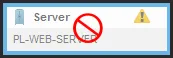 | This service is disabled. |
|---|---|
 | This service is impacted. |
- To revert to the original view, right-click the CI and choose Hide outage impact.
To view the upstream and downstream relations for a given CI:
- Open the CI Service workspace.
The application displays a list of CIs.
Only the CI Service workspace allows you to access the CI map tree.
- Double-click an item to view the record details.
- Within a CI record, select the CI Service Map Tree tab.
CIs that are downstream of the current CI are listed on the left side, while upstream CIs are on the right.
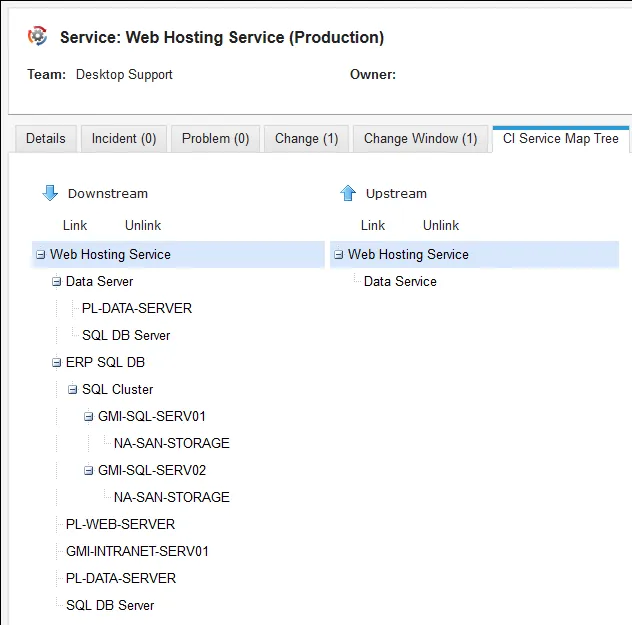
Refer to Working with Dependency Mapping.
Levels in the CI relationship map show the depth of relationships from the selected Configuration Item (CI). Each connection in the path represents one relationship stage.
Higher levels show more related CIs. Lower levels show only CIs that are closer to the selected CI.
By default, the map displays up to five levels of related CIs.
To view CI Relationships by level:
- Open the CI Service workspace.
- Double-click a CI to open the record.
- Open the CI relationship map.
- From the Levels list, select the number of relationship levels to display.
Example: The following path shows five levels from the root CI.
Desktop Service(root) -> Desktop Server Management → GMI-DSM-SERV01 → DSM DB -> SQL Cluster → GMI-SQL-SERV01
Increasing the level value displays additional related CIs that are further away from the selected CI in the relationship chain. Decreasing the level value limits the map to CIs that are closer to the selected CI.
For more details, refer to List of Global Constants.
Link or unlink upstream and downstream relations to a given CI under the CI Service Map Tree tab.
On a CI map, outages propagate upstream. It's important that you take this into account when deciding if you should create a downstream or upstream link.
- Open the CI Service workspace. The list of objects appears.
Only the CI Service workspace allows you to access the CI map tree.
- Within a CI record, select the CI Service Map Tree tab.
- Click the link icon
 under Downstream or Upstream. The relationship window appears.
- Select the relationship to create a link and click Link.
- The CI record that you selected appears in the tree view. Any related CIs appear as parents or children (as defined when the CIs were linked) to the CI in the tree.
When you search for a CI to link while mapping, only CIs defined in the CI Named Rel Constraints and which can be logically linked are displayed. Refer to Defining constraints for CI relationships.