
Working with Tasks
A task is a unit of work that must be completed while an incident or a problem is being resolved, or while a change or release is being implemented.
While working on an incident, change, problem, or release you might need to create or work on tasks as part of the business object resolution or implementation. A task is a "to-do" item of work that is a step toward resolving a parent business object.
When you create a task from within a parent business object, the system displays an Open in Parent button on the toolbar. Click the button to open the parent record to which the task is associated.
Task
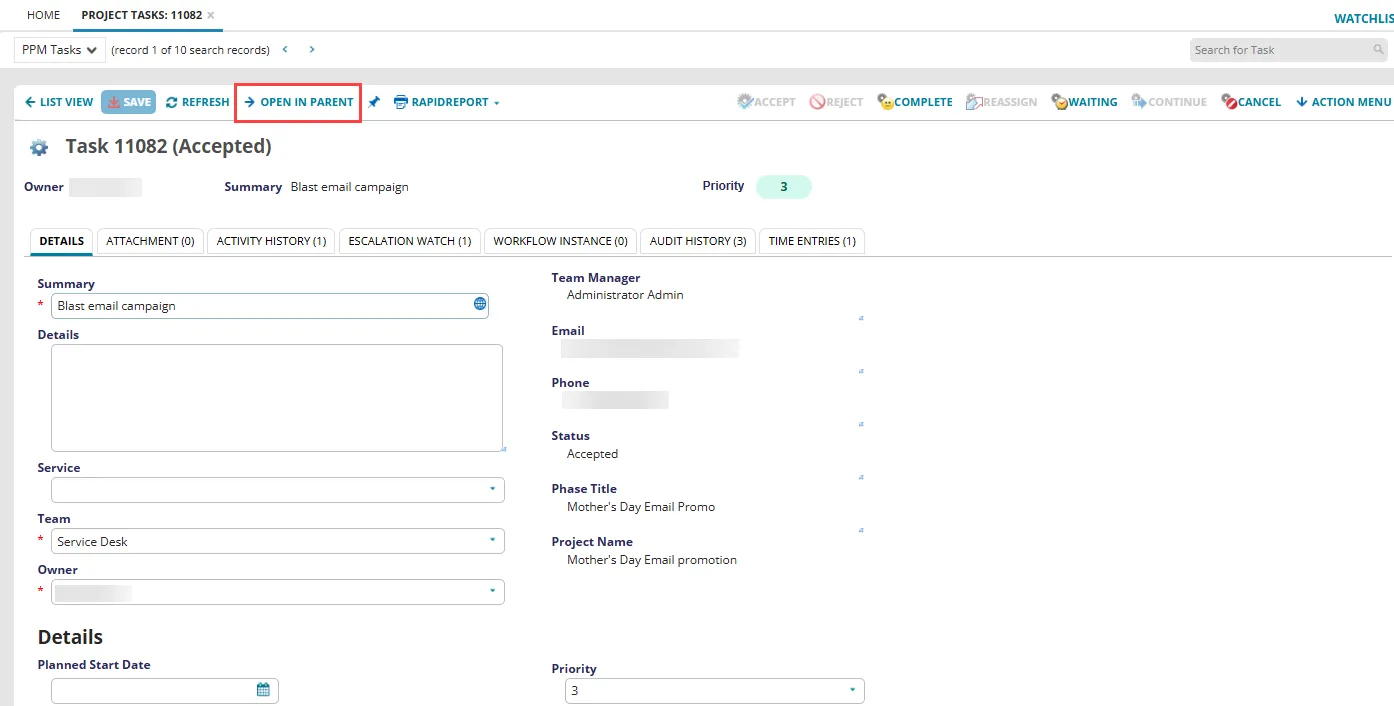
Task Status
You assign tasks to a team and to an owner from the assigned team, which is usually not the same team and owner as the parent business object.
We recommend that you complete all tasks before setting the parent business object to resolved. In some business objects, such as major changes or releases created from templates, the default workflow drives the requirement for task completion.
Tasks are driven by status constraints. When you are in the Tasks tab of a parent workspace and select a specific task record, the buttons on the toolbar show you which of the next states are available, based on the current lifecycle of the task.
Task Status
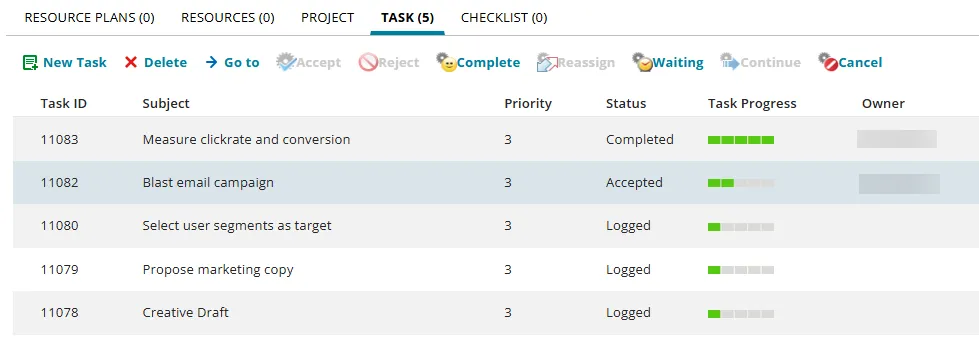
In the example above, the highlighted task is in the Accepted state and the task toolbar buttons Complete and Waiting are available.
Viewing a Task
- Log into the Service Desk Console.
- Open the Task workspace. The system displays a list of tasks for all records.
- Open a task to view its details or to change the status of a task. The system displays the following tabs:
- Details: See Creating a Task.
- Attachment: To attach a file or URL, see Working With Attachments and URLs.
- Activity History: See About Activity History.
- Escalation Watch: See Watching Escalations.
- Workflow Instance
- Audit History: See About Accessing the Audit History.
- To view a task in the parent business object, click Open In Parent. The system opens the parent record and displays the task under the Task tab of the parent business object.