
Changing and Recovering Passwords
The application creates a user password whenever a user record is created. Internal user passwords are stored in the user database, but external user passwords are not.
Changing Your Password
- Log in to Neurons for ITSM.
- Click on your user name or image in the header bar and then select Change Password.
The Change Password dialog box is displayed.
- Enter your old password.
- Set your new password and confirm it.
- Click Change.
- Log out and log in again to use the new password.
Recovering Your Password
- By default, the password recover feature is disabled; the Administrator has to enable it from the Configuration console. If you forget your password and are unable to recover it, reach out to your Administrator.
- Password recovery is applicable for internal authorization and does not work for external logins. Ask your administrator about recovering a password when using external authentication.
If you forget your password, do the following:
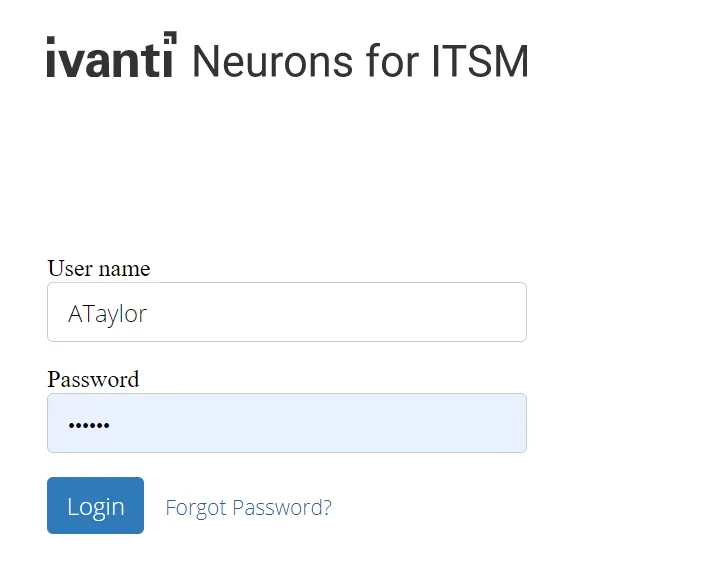
- Click Forgot password? from the main login window.
Forgot Password
- Enter your user name or email address and click Submit.
You will receive a one-time reset link to your registered email address. The link will expire in 20 minutes or as configured by your administrator.
- Click the link. You will be re-directed to the Reset Password page.
- Enter your User ID, New Password and Confirm Password. If you do not know your User ID, contact your organization's administrator.
- Select Submit.
If you get this message - "Login Failed. The username or password is incorrect. Please re-type the details and try again." when trying to change or recover your password , then your password might have not reached the minimum age to change. In such a case, reach out to your organization's Administrator to help you recover or change the password.