
Knowledge base agent
Minimum Version: Ivanti Neurons for ITSM 2026.1
Prerequisites: Reach out to your Ivanti Account Manager to enable the feature flag EnableKnowledgeRepositories to use SharePoint as an external source.
The Knowledge base agent searches knowledge sources to provide clear and helpful answers, allowing users to solve issues quickly and reduce ticket creation.
To enable and configure the Knowledge base agent, do the following:
- Log in to Neurons for ITSM as an Administrator.
- Open the Configuration console and select AI Configuration Hub > Agentic AI > Agent Settings.
- Enable the Knowledge base agent using the toggle button.
An additional toggle button with the same function is available in the upper-right corner of the agent page.
- Click Configure to further set up the agent.
- Enable the Use internal knowledge source toggle button to allow Agentic AI to utilize internal Knowledge base for decision-making and providing responses to user queries.
Click View knowledge base to view all the Knowledge business records.
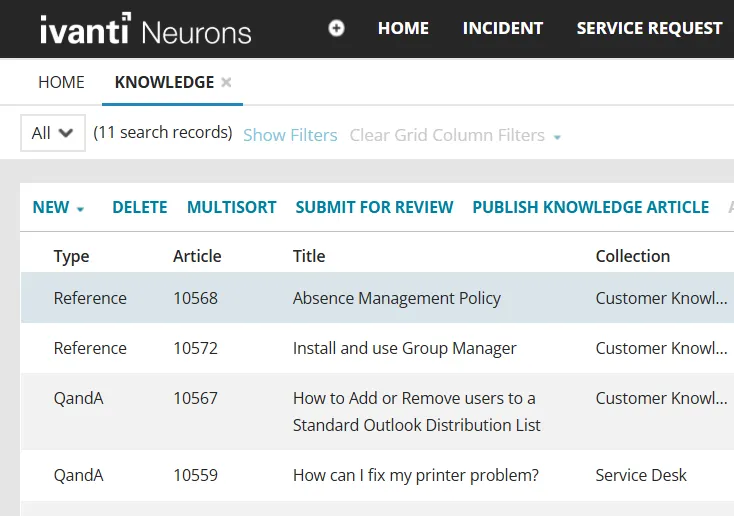
Only Published internal knowledge sources are used for knowledge search.
- Enable the Use external sources toggle button to allow Agentic AI to utilize external resources for decision-making and providing responses to user queries.
- Click Manage external sources to add relevant links to external resources.
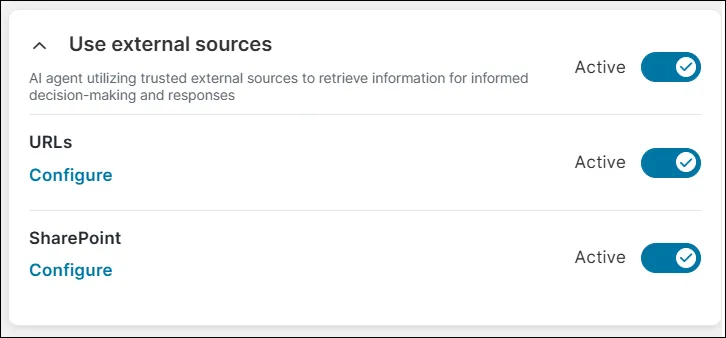
You can connect knowledge sources through external source URLs, SharePoint, or both.
Add external source URLs
To add external source URLs, do the following:
- Enable the URLs toggle and then click Configure.
- Enter the supported domains in the text field and click Add.
You can specify either a domain or a domain path. To include subpages in the search, the configured path can contain up to two subfolders. In this case, the search includes content at the specified path and all subordinate paths.
For example:
www.microsoft.com/windows/ → 1 subfolder
www.microsoft.com/windows/security/ → 2 subfolders
Only publicly accessible content that has already been indexed can be returned.
If you specify a deeper path than supported, subpages are not included in the search for that path. As a result, child pages under that path are not searched. To search a section and its child pages, use a higher-level path that meets the two-subfolder limit, or specify an individual webpage if you want to target a single page.
For example:
www.microsoft.com/windows/security/update/ → 3 subfolders, so subpages are excluded in the search.
- Click Remove to delete any URL from the added list.
Add SharePoint sources
To add SharePoint sources, do the following:
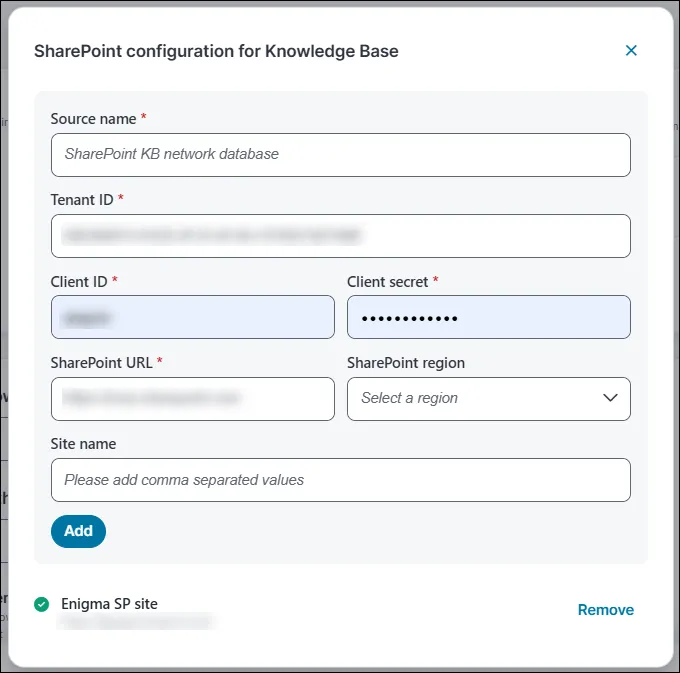
- Enable the SharePoint toggle and then click Configure.
- Enter the following details:
Field | Description |
|---|---|
Source name | It is a unique name for your SharePoint source, making it easier to distinguish between multiple configured sources. |
Tenant ID / Client ID / Client secret | Refers to the Tenant ID, Client ID, and Client Secret from the Microsoft Entra ID app registration. These are required for integrating SharePoint with Microsoft resources. The app registration must also have necessary permissions enabled. For information about obtaining these details and configuring the required permissions, refer to Scenario 1 and Scenario 2 in Importing Employees using the Azure AD Connector. |
Sharepoint URL | Actual web address of your SharePoint site that is used to connect and integrate with the agent, allowing access to documents and resources for knowledge search. |
Sharepoint region | Refers to the geographic location where the SharePoint tenant is hosted. Specifying the region allows faster API queries by targeting the correct tenant location. |
Site name | Specific SharePoint subfolders within your organization. When you enter a site name, the search will only look for information in that site, not in other sites. For example, https://corp.sharepoint.com/project Here project is the site name, and the agent get results only from this SharePoint’s site. Note: You can use commas to separate site names. |
- Click Add to save the entry.
- Under Conversation setup > Articles used in knowledge summarization, enter the number of most relevant articles that should be used to generate the knowledge summary.
- Under Conversation setup > Max response length, set the maximum length of a response to a knowledge search article.
- Allow transfer to live agent: Enable the toggle button to transfer the interaction to your Service Desk Human Agent in case the Agentic AI bot cannot solve the user's request.
Along with this toggle, you must also enable the Allow transfer to live agent toggle in Global Settings > Escalation Handling.
- Under Advanced settings > Knowledge base description, define the scope of the Knowledge base agent by detailing the types of queries the agent can handle. You can also provide some example queries related to the Knowledge base to help the agent better understand the context. When users ask queries other than those defined here, the agent considers them out of context and replies to users accordingly.
Modifying the intent description might result in unpredictable agent behavior. We recommend that only users with experience in LLM prompt engineering make these changes.
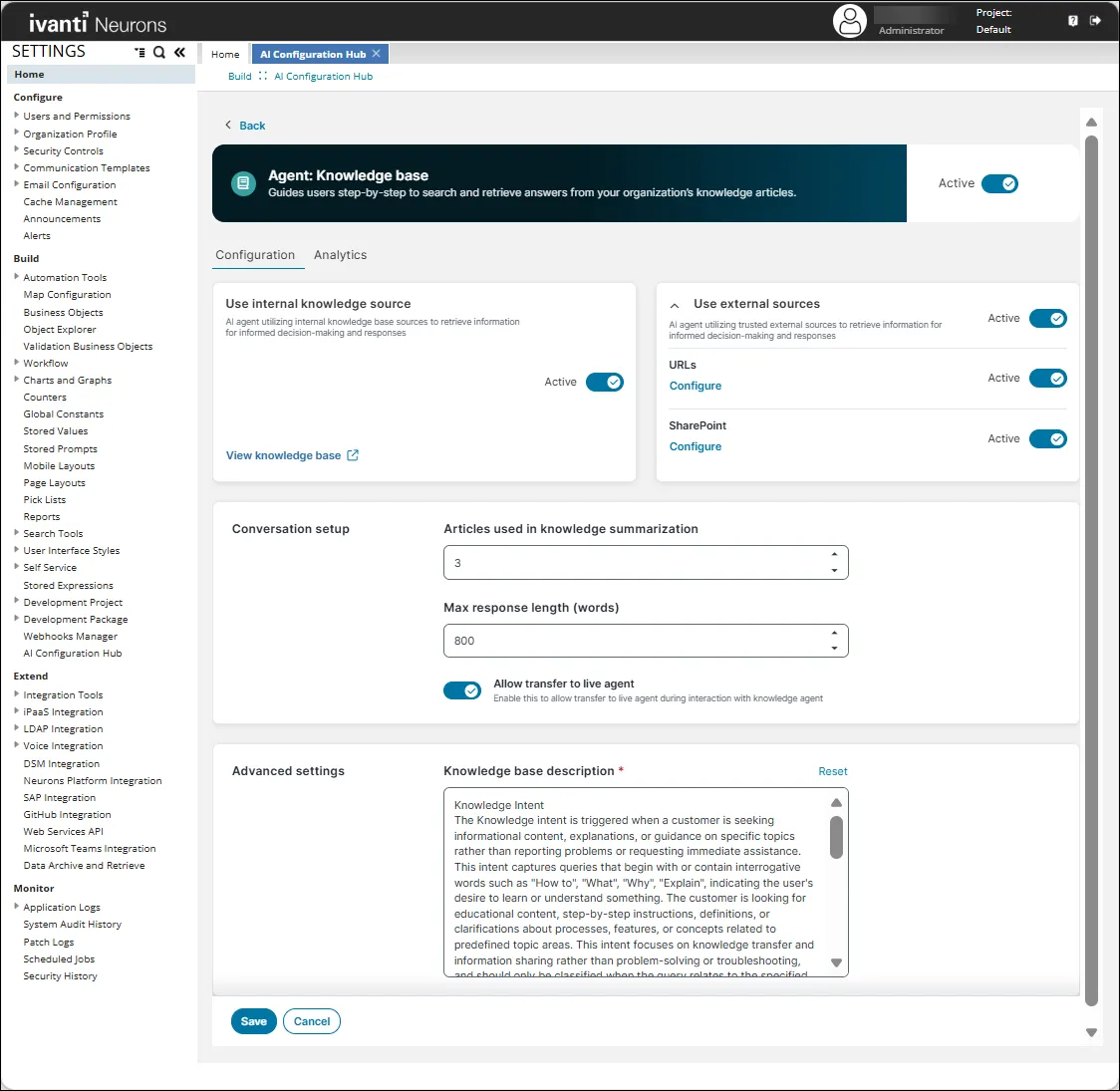
Fields marked with an asterisk (*) are mandatory.
Analytics
To view the performance metrics and usage statistics for your Knowledge base agent, open the Configuration console and select AI Configuration Hub > Agentic AI > Agent Settings > Knowledge base agent > Configure > Analytics.
The Analytics page provides the performance of the Knowledge base agent. It helps you monitor the following metrics:
- Total KB Requests: Shows how many times users requested or received knowledge article recommendations from the KB Agent.
- Successful KB Article deflections: Shows the number of user issues resolved through knowledge articles without requiring additional support actions.
The Time Range filter allows users to specify the period for which analytics data is displayed. Metrics on the Analytics page are updated based on the selected time range.
Limitations
- The Knowledge base agent does not support attachments associated with internal business objects. Therefore, the PDF and text files attached to knowledge business objects are excluded from knowledge search results.
- When the Use internal knowledge source toggle is enabled, all internal knowledge business objects are referenced. However, only published internal sources are used.
- During Live Agent Transfer, a conversation summary should be sent to the Live Agent at the beginning of the session. This functionality is currently not working.
- At the end of a Live Agent Transfer session, users are not informed about what to do next. However, when the session ends, the Agentic AI is reset and users should initiate a new prompt, even if no live agent was available.
- The Agentic AI handles only IT‑related issues. Other Line of Business (LoB) queries, such as HR, Facilities, and other non‑IT requests are not supported.