
Auto-translation
Role: Administrator
Minimum Version: Ivanti Neurons for ITSM 2025.4.
Prerequisite: You must enable the Translation service feature to use Auto-translation. Refer Translation service for more information.
The Auto-translation capability is a feature that enables access to AI-powered localization and auto-translation of content based on user's selected locale. It functions in the following areas:
- Localization Workbench
- Field-Level Translation
Enable and Configure Auto-translation
- Log in to Neurons for ITSM as an Administrator.
- Go to the Configuration console > AI Configuration Hub.
- Set Auto-translation to Active using the toggle button.
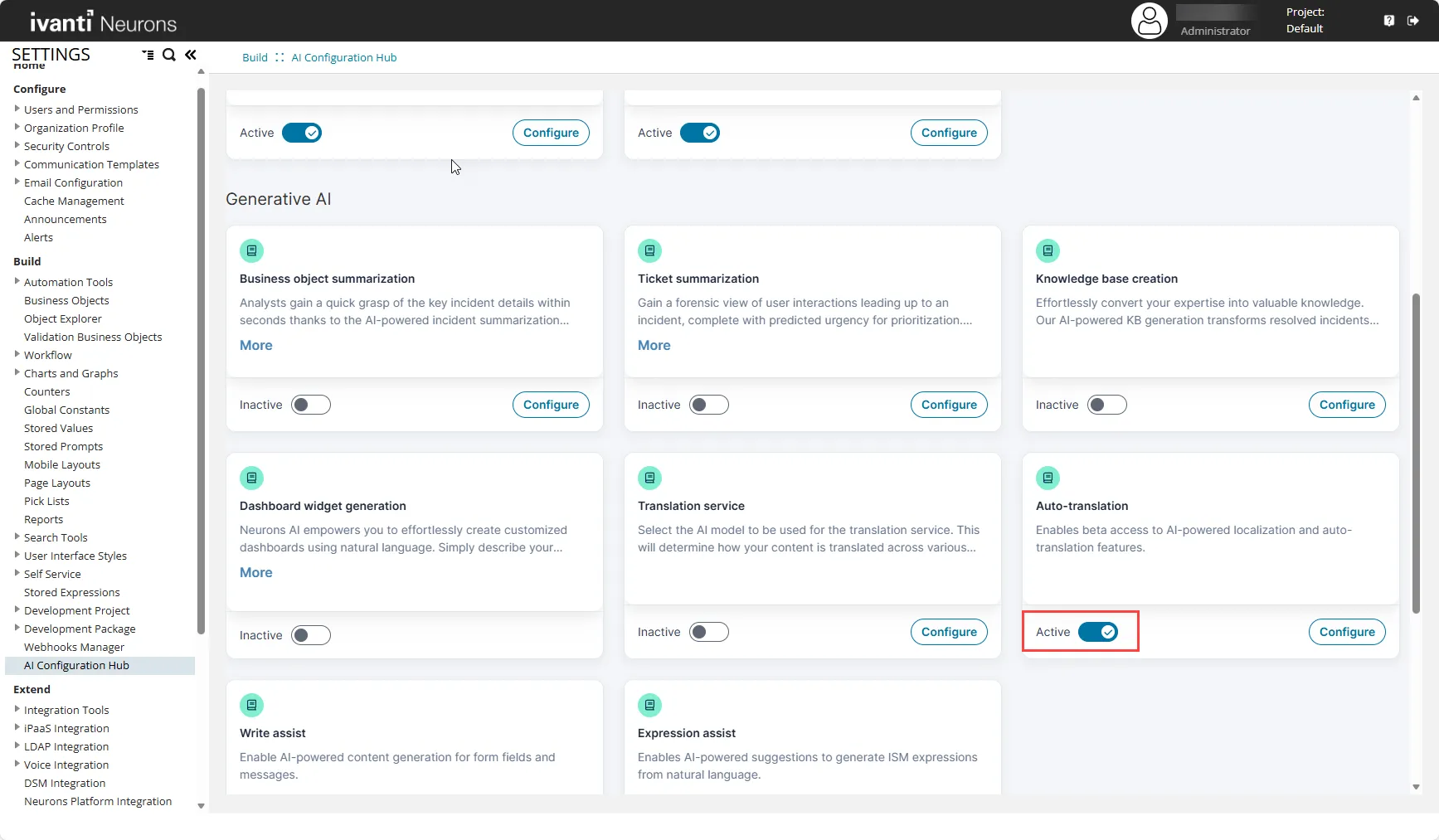
- Click Configure.
- Under Enable AI Translate for the feature, enable one or both of the following options:
- Localization Workbench
- Field level translation
- Click Save.
Translating Strings Using AI in the Localization Workbench
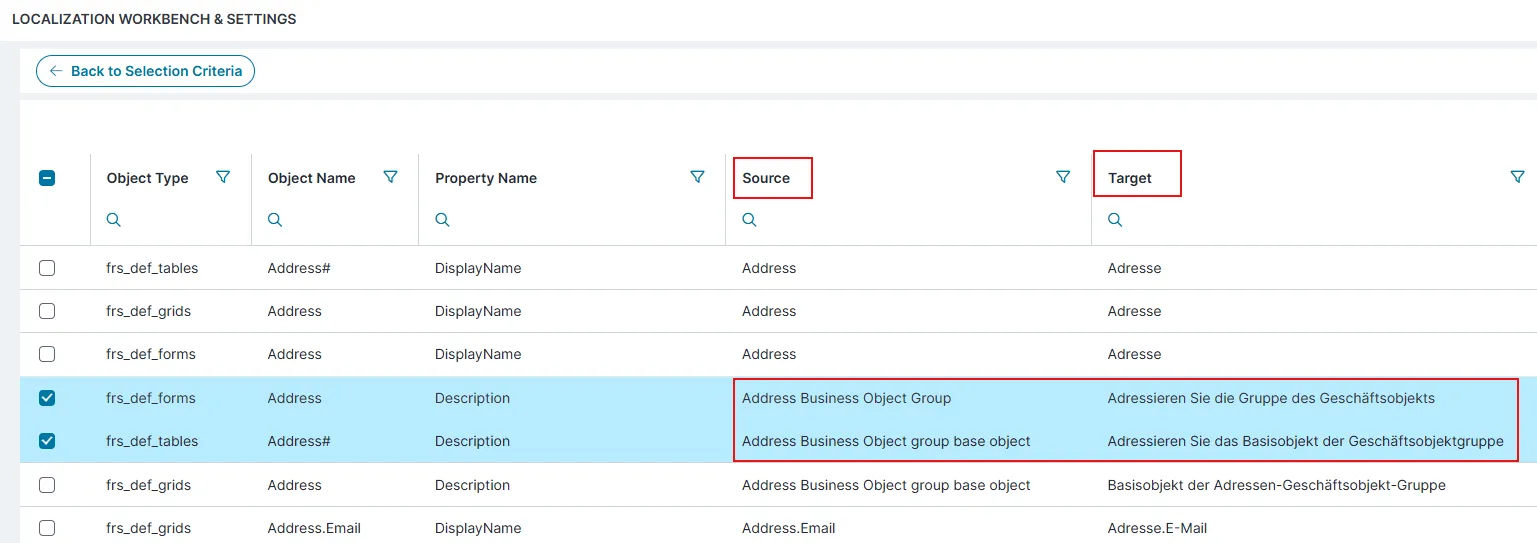
AI Translation in the Localization Workbench is an automated, AI-driven capability that translates platform UI strings into target languages directly within the Localization Workbench interface, eliminating the need for manual, string-by-string translation.
To enable AI to automatically translate content for the Localization Workbench, do the following:
Prerequisites:
- Enable Auto-translation feature and configure it for Localization Workbench. Refer to Enable and Configure Auto-translation.
- Ensure that the Localization Workbench feature is enabled. Refer to Enable Localization Workbench for instructions.
- Log in to Neurons for ITSM as an Administrator.
- Go to Configuration console > Organization Profile > Languages.
The Languages workspace displays a table of language files.
- For the language you want to edit, click Edit under the Edit Live Data column.
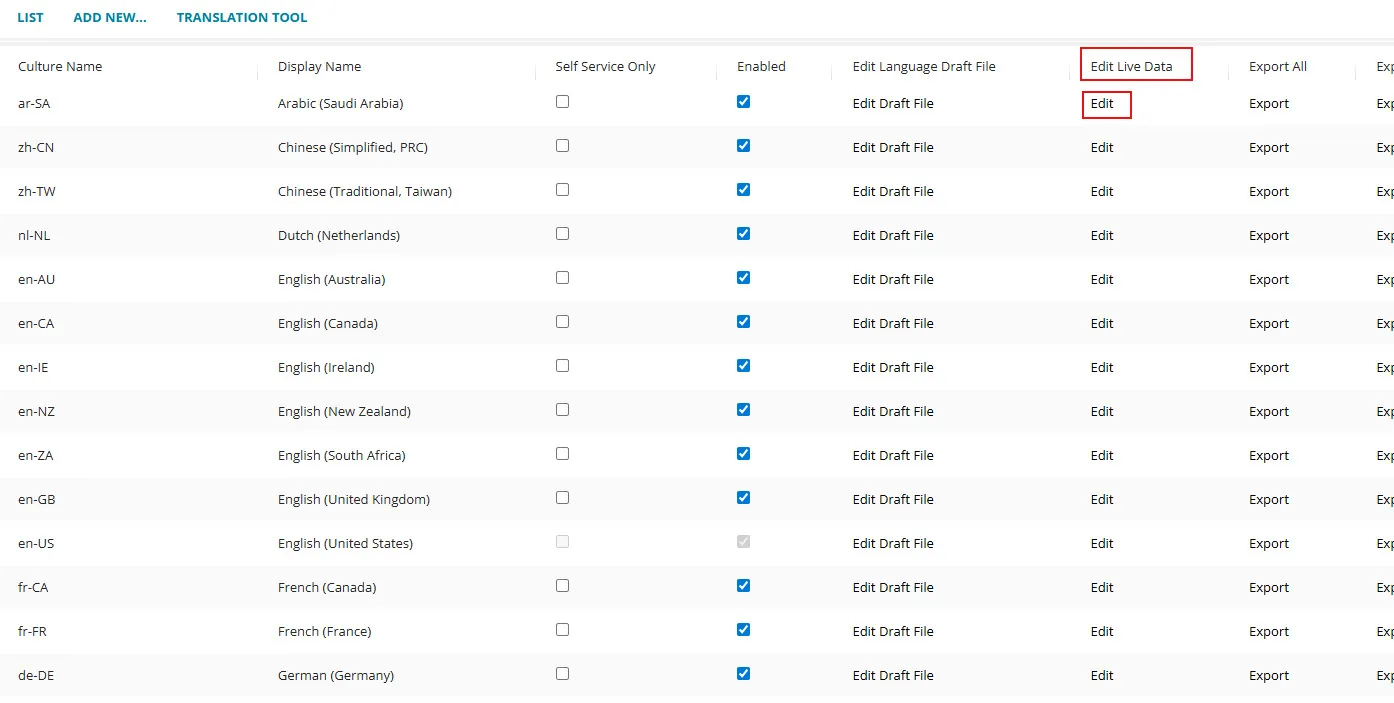
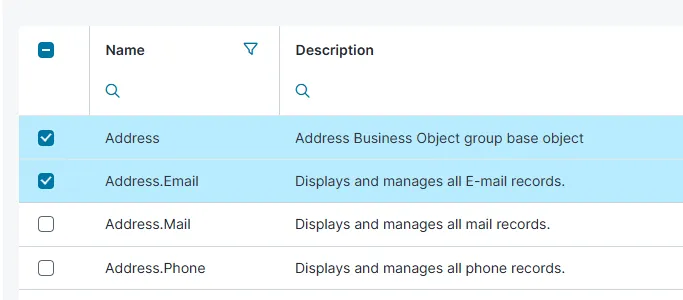
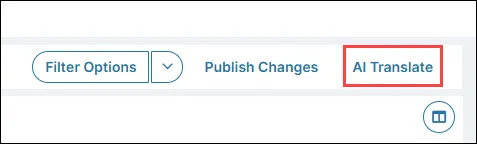
- In the Localization Workbench and Settings page, choose one of the following:
- Content Strings
- Picklist Strings
Field-Level Translation for HTML Fields
Field-Level Translation is an AI-powered capability that enables users to translate text within the HTML fields of any business object record. The translation applies only to fields with HTML as the field type.
To enable AI to automatically translate content within the HTML fields of any business object record, do the following:
- Log in to Neurons for ITSM as an Administrator.
- Enable Auto-translation feature and configure it for Field level translation. Refer to Enable and Configure Auto-translation.
Once enabled, the HTML field properties include an AI Translate option.
- Open any workspace. Example: Incident workspace.
- Open a record containing an HTML field. Example: Description, Resolution.
- In the HTML field’s control properties, click AI Translate.
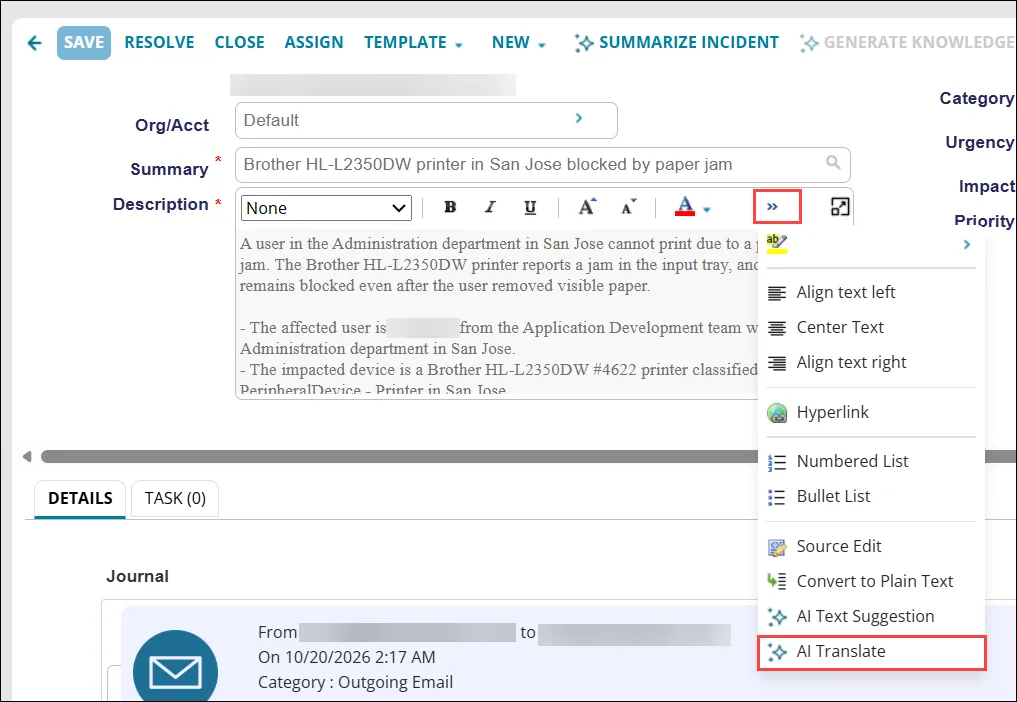
Selecting this option opens a pop-up that suggests translations based on the user’s input.
- Select the target language from the dropdown.
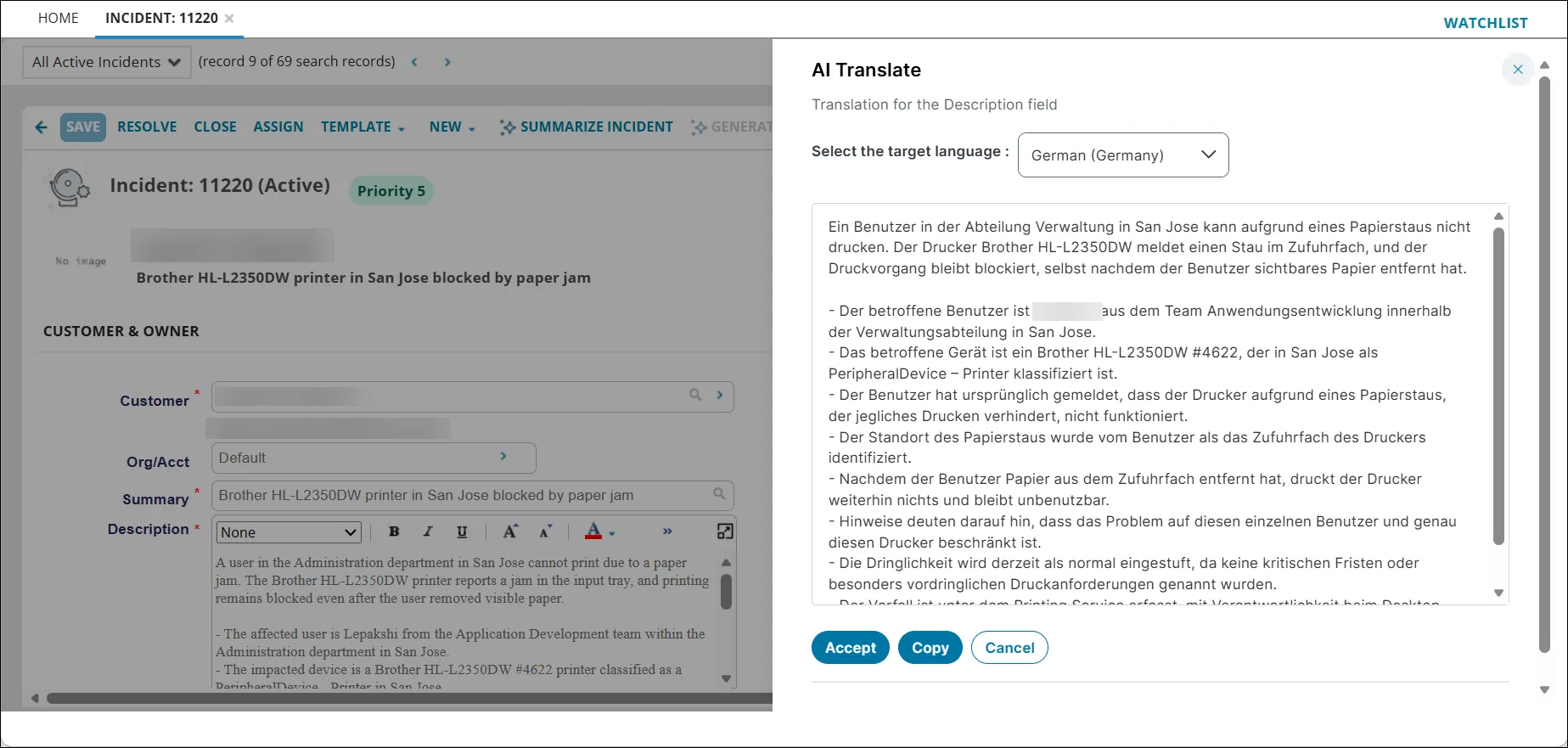
- Click Accept.
The content is translated and saved in the HTML field.