
Knowledge Management
About Knowledge Management
ITIL defines knowledge management as the one central process responsible for providing knowledge to all other Neurons for ITSM processes. In Neurons for ITSM, knowledge works with incident management and problem management and is a powerful feature in the Self-Service Portal.
The Knowledge Management process aims to make sure that all of the information used within Neurons for ITSM is readily available. In Neurons for ITSM, object matching with knowledge while working on an incident or problem makes relevant knowledge articles readily available to the Service Desk Analyst or Problem Manager. Using object matching, relevant knowledge articles can be used to resolve incidents or problems.
Knowledge Management is also integrated with the Self-Service Portal. Users can search for published articles and use them to resolve an incident. Users can also provide feedback and ratings on an article.
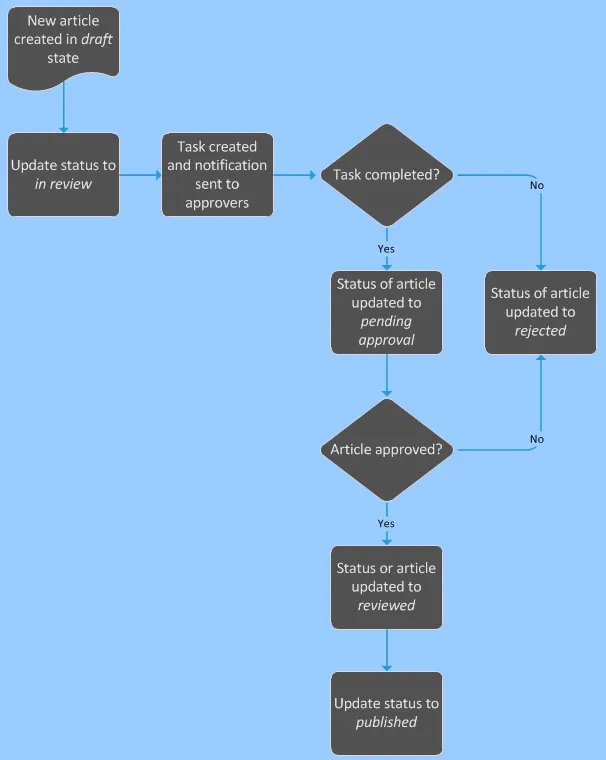
By default, all knowledge articles are set up to go through the approval workflow and only approved articles are updated to reviewed status. It is at the discretion of the Knowledge Manager to update the status to published. A Knowledge Advisory Board contact group is available to review articles and approve or deny articles.
The Knowledge Overview and Knowledge Activity Levels dashboards are provided to help the Knowledge Manager oversee and manage the key indicators of all knowledge articles, including ratings and feedback from the Self-Service Portal.
Knowledge Article Scenarios
- Service Desk Analysts using knowledge management most likely create a new knowledge article from the incident they are working on.
- Users can create knowledge articles from their email if the Neurons for ITSM email configuration supports creating knowledge articles.
- Users can create knowledge articles from the Social Board and business objects, such as incidents, problems, and changes.
- Users can create knowledge articles from certain events. For example, you can create a knowledge article to log an event using the Issue and resolution template.
- Users can link configuration items to knowledge articles from the CI tab.
- As with all business objects, users can attach or reference documents, files, images, and URLs to each knowledge article. For example, you can add copyright information or relevant legislation (such as SOX or ISO 20000) to a knowledge article. See Working With Attachments and URLs and also see Working with Attachment Types for a list of supported media formats.
- Users can make some documents searchable.
Only Knowledge Managers can edit articles that you create or own (articles in which your user name is in the Owner field).
Knowledge Management Workflow
The following diagram shows the typical workflow for a knowledge article:
Sample Knowledge Article Workflow
Viewing Knowledge Articles
Only a Knowledge Manager can view articles that you create or own (articles in which your user name is in the Owner field). In addition, the application of the data-segregation security organizational unit constraint to a role can affect the list of records that appear by default. If you do not see the default list of records in the search results list, you might need to select a different search from the Saved Searches menu.
- Log in to the Service Desk console.
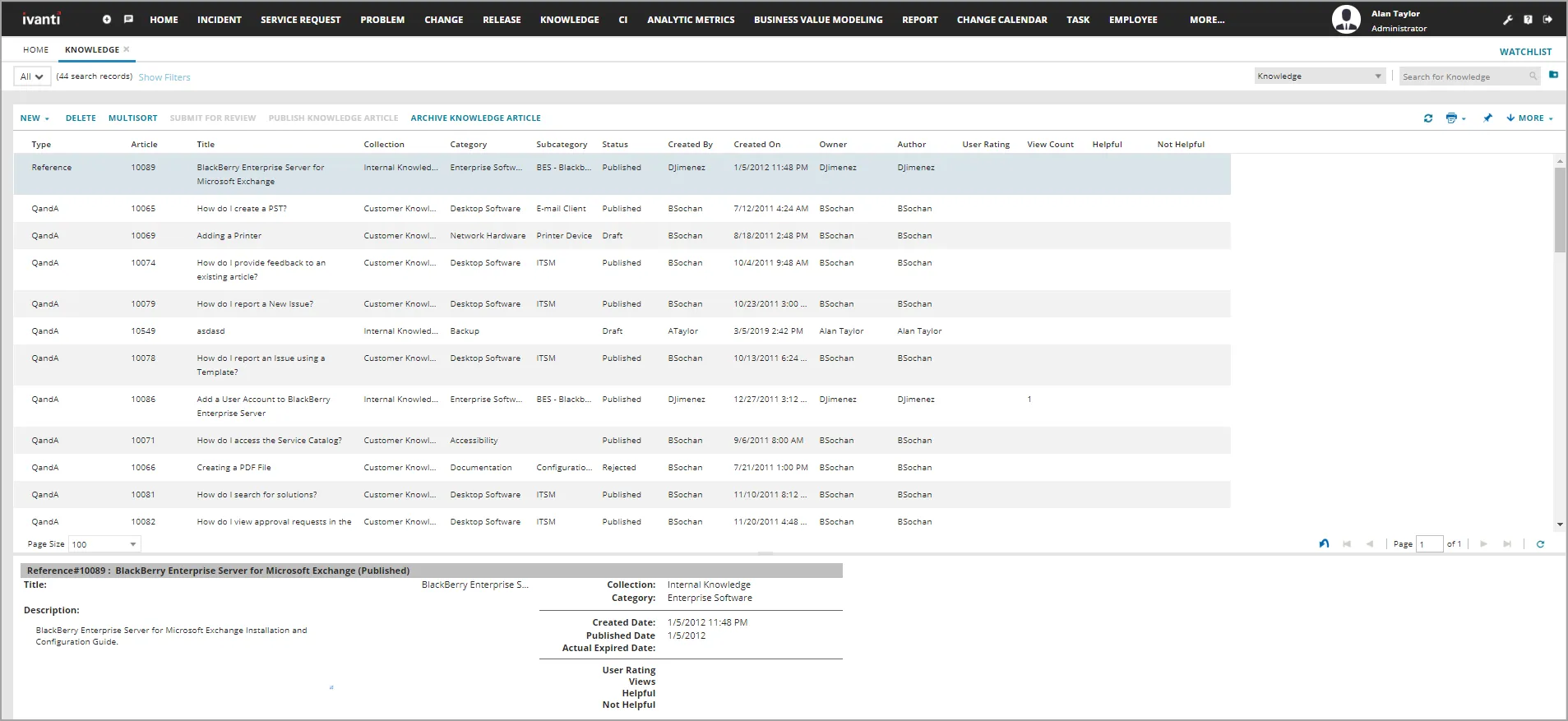
- Open the Knowledge workspace. The list of knowledge articles is displayed, arranged from the highest knowledge ID.
- Click an article to view details.
Knowledge Workspace
Viewing Knowledge Articles From an Incident or Problem
- Log in to the Service Desk console.
- Open an incident or problem record.
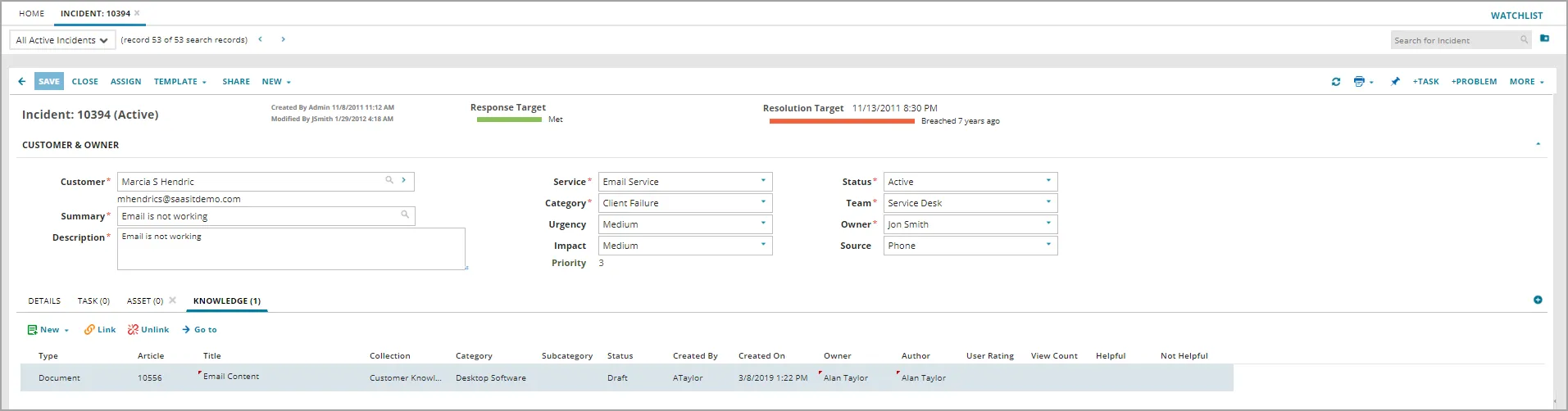
- Select the Knowledge tab.
The system displays a list of linked knowledge articles.
If the Knowledge tab is not visible, click the add icon  to the right of the tabs and choose Knowledge from the drop-down list.
- Double-click an article from either list to view details.
Sample Knowledge Articles Within an Incident Record
- (Optional) To see additional articles, click the link icon
 .
.