Business Object Summarization
Role: Administrator.
Platform: SaaS only.
Minimum Version: Ivanti Neurons for ITSM 2024.2.
Feature Eligibility: Ivanti's AITSM capabilities are available to customers who have subscribed to Premium or Enterprise Premium license. To know your eligibility, reach out to your Ivanti Account Manager.
Package Installation: Existing customers - import the latest package.
The Business Object Summarization capability delivers AI-powered efficiency through advanced summarize AI technology, enabling summarize functionality for faster decision-making. With a single click, the system generates an AI summary by analyzing key fields such as Summary, Description, Urgency, Category, and Journal, creating a clear and concise summary.
This feature helps Service Desk Analysts save time by eliminating the need to manually review multiple fields. Instead, they can quickly understand the context and focus on resolving the issue faster. By reducing effort and improving accuracy, this capability streamlines workflows and enhances overall service desk productivity.
Configuring the AI Summary button
The AI Summary button is not available by default for existing customers; the Administrator must specifically add it to the Business Object layout. However, for new users, the AI Summary button is available out-of-the-box by default.
Adding the AI Summary button to the Business Object Layout
- Log in to Neurons for ITSM as an Administrator.
- To open a business object, go to Configuration Console > Build > Business Objects, and then open your preferred business object.
- Click the Layouts tab.
- Select the Business Object layout used for the role you want the AI Summary button implemented.
- Click formView to edit the form.
- Click Edit under the Toolbar field. The Toolbar Editor page is displayed.
- Drag the AI Summary into the toolbar.
The Toolbar Button Editor window is displayed.
- Optionally, under General tab, you can customize the AI Summary button according to your preference.
- Click Advanced and enter the following expression:
$(!IsRegexMatch(GetGlobal("IsAIITSMEnabled"),/"IncidentSummarization":\s*[tT]rue/))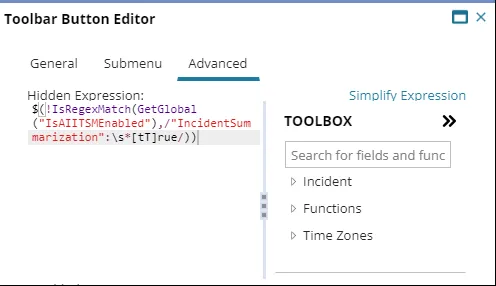
- Click Save to apply the changes.
- Open a workspace record of the business object for which you have implemented the AI Summary button.
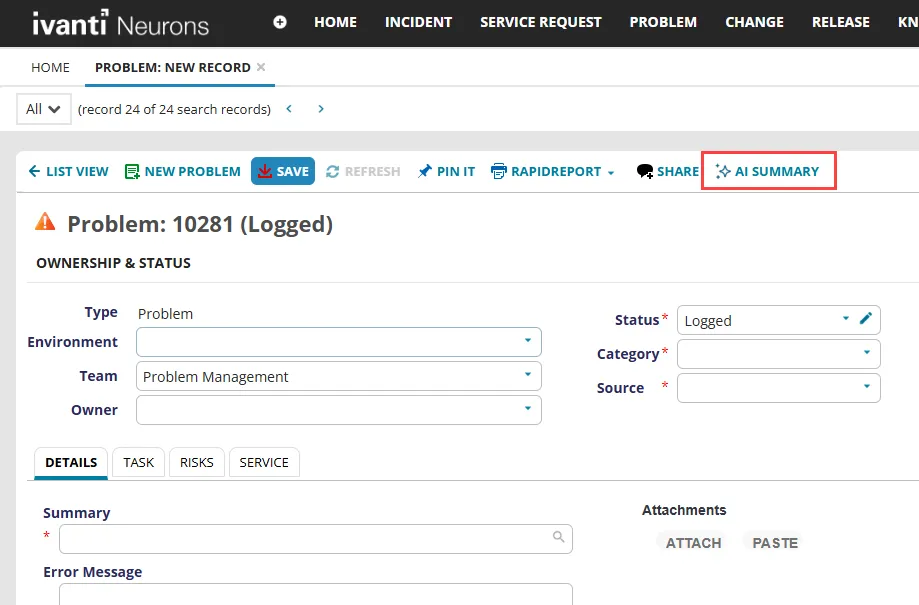
You can see the AI Summary button.
For example, see the following image of the Problem business object.
AI Summary button
Using Business Object Summarization
- Log in to Neurons for ITSM as an Administrator.
- Open an Active business object.
- Click the AI Summary button.
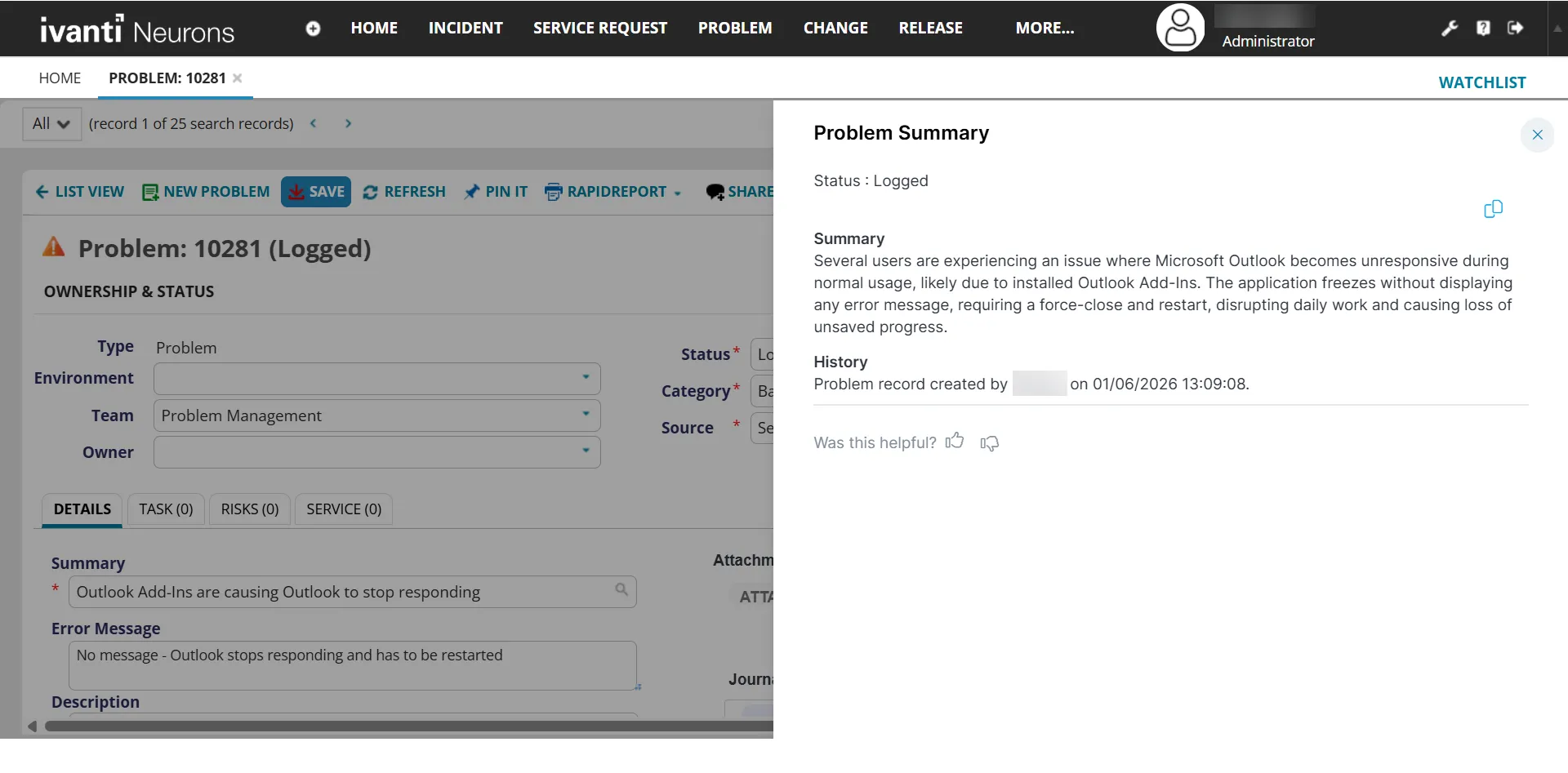
The AI-generated summary is displayed on the side panel. The Summary section explains the issue and the History section details all the interactions to date.
- The application takes up to ten seconds to generate the summary.
- Ensure you provide sufficient details in the Description and Summary fields to be able to generate the summary.
- Click the Copy icon
 to copy the content to the clipboard in case you wish to use copy and paste the content into another application or document.
- Click thumbs up or thumbs down at the end of the page and enter your comments in the feedback box. Sharing your feedback helps us improve the capability.
AI Generated Summary