
Using Keyboard Shortcuts
The application has many keyboard shortcuts for navigating. Using keyboard shortcuts, you can perform searches, navigate through the application, create new incidents, run quick actions, and more.
These keyboard shortcuts are specific to the application and do not interfere with the keyboard shortcuts in your web browser. The keyboard shortcuts are consistent across languages, and only use English characters.
The keyboard shortcuts use two modifiers: either Alt or Ctrl + Shift, you may use any one of the modifier and the modifier is not configurable.
- For Mac users, the Alt key is also called the option key.
- By default, tab access is disabled in the Safari web browser. To enable it, go to Preferences > Advanced and select Press tab to highlight each item on a page.
In addition to the keyboard shortcuts, you can also use the up arrow, down arrow, page up, and page down keys on your keyboard.
If you are in a read-only control where you cannot enter any text, such as a list view, you do not need to use a modifier. You can just click the keyboard shortcut without the modifier and achieve the same result.
Keyboard shortcuts apply to the active panel, which is where the cursor is. The available shortcuts vary depending on which panel the cursor is in.
Previewing the Keyboard Shortcuts
To preview the keyboard shortcuts, hold down the Alt key; however, this does not work if you are in an HTML field. You may need to refresh the page if the keyboard shortcuts are not displayed.
Browser-Specific Keyboard Shortcuts
The following keyboard shortcuts are used by one or more web browsers:
- Alt-Tab
- Alt-F
- Alt-E
- Alt-V
- Alt-A
- Alt-T
- Alt-H
- Alt-B
Do not create new keyboard shortcuts using these letters. If you create a new keyboard shortcut and use one of these letters, the application could potentially implement either the browser-specific shortcut or the user-defined shortcut.
Creating and Modifying Keyboard Shortcuts
You can create new keyboard shortcuts and edit existing ones for quick actions, including the default keyboard shortcuts that are part of the default the application.
If you create a new toolbar item, but do not specify a keyboard shortcut, the application creates a default shortcut which is the first unique letter of the label that is not reserved by a standard, reserved, or overridden shortcut, and uses ALT as the modifier.
Follow these steps to create a new keyboard shortcut:
- From the Configuration Console, click Build > Page Layouts.
- Select a layout. The Edit Layout page is displayed.
- Click gridView. The List View Editor is displayed.
- Click edit next to the toolbar area. The Toolbar Editor is displayed.
- Click any toolbar item. The Toolbar Button Editor is displayed.
- Enter a letter in the Shortcut field. You can only assign one letter or number to a shortcut. You cannot assign special characters.
- Click Save to close the Toolbar Button Editor.
- Click Save to close the Toolbar Editor.
- Click Save from the toolbar.
Keyboard Shortcuts
The following are the keyboard shortcuts available in the application.
Toggle
Keyboard Shortcut | Action |
|---|---|
Alt+T | Toggles between the active panel and the toolbar. |
Top-Level Menus
Keyboard Shortcut | Action |
|---|---|
Alt+W | Opens the More... menu from the top-level header bar. This is where you see all the workspaces available to you. This does not work from inside dashboards. |
Business Object Workspaces
These keyboard shortcuts may or may not be available, depending on the specific business object workspace.
Keyboard Shortcut | Action |
|---|---|
Alt+A | Opens the Action Menu. |
Alt+C | Closes the record. |
Alt+D | Deletes the record. |
Alt+E | Starts a remote control session. |
Alt+G | Opens the Go To... menu. |
Alt+H | Posts a message to the Social Board with the record. |
Alt+I | Pins the record to the watch list. |
Alt+L | Shows the list view. |
Alt+N | Creates a new record. |
Alt+Shift+N | Shows the New... menu, which allows you to create a new record from a template. |
Alt+P | Adds a problem to the record. |
Alt+R | Refreshes the workspace. |
Alt+Q | Requests a change. |
Alt+T | Prints the record. |
Alt+U | Attaches an issue and resolution article. |
Alt+/ | Opens the quick search menu. |
Alt+\ | Opens the saved search menu. |
Alt+Tab | Moves to the next control. |
Alt+Shift+Tab | Moves to the previous control. |
Keyboard Shortcuts in a Workspace
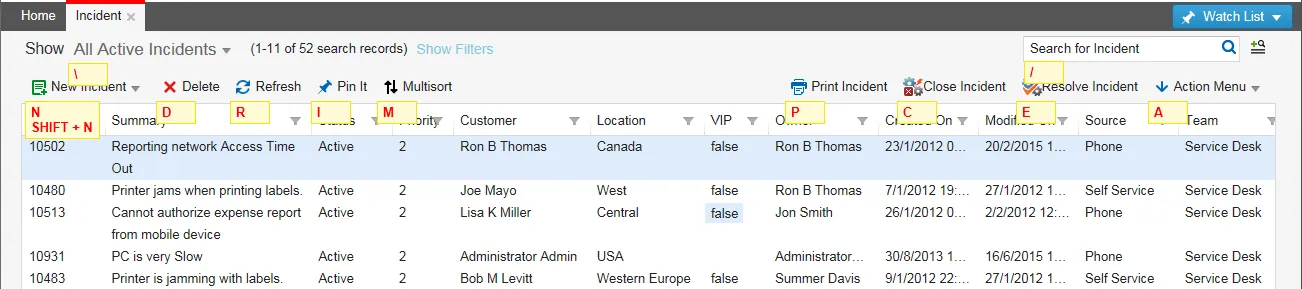
List View
All keyboard shortcuts available in the business object workspaces, plus the following additional keyboard shortcuts:
Keyboard Shortcut | Action |
|---|---|
Alt+D | Deletes a record. |
Alt+E | Resolves the record. |
Alt+P | Prints the record. |
Form View
Keyboard Shortcut | Action |
|---|---|
Alt+C | Closes a record. |
Alt+D | Deletes a record. |
Alt+H | Shares the record. |
Alt+L | Opens the list view. |
Alt+S | Saves the record. |
Alt+Shift+ right arrow | Moves to the next record. |
Alt+Shift+left arrow | Moves to the previous record. |
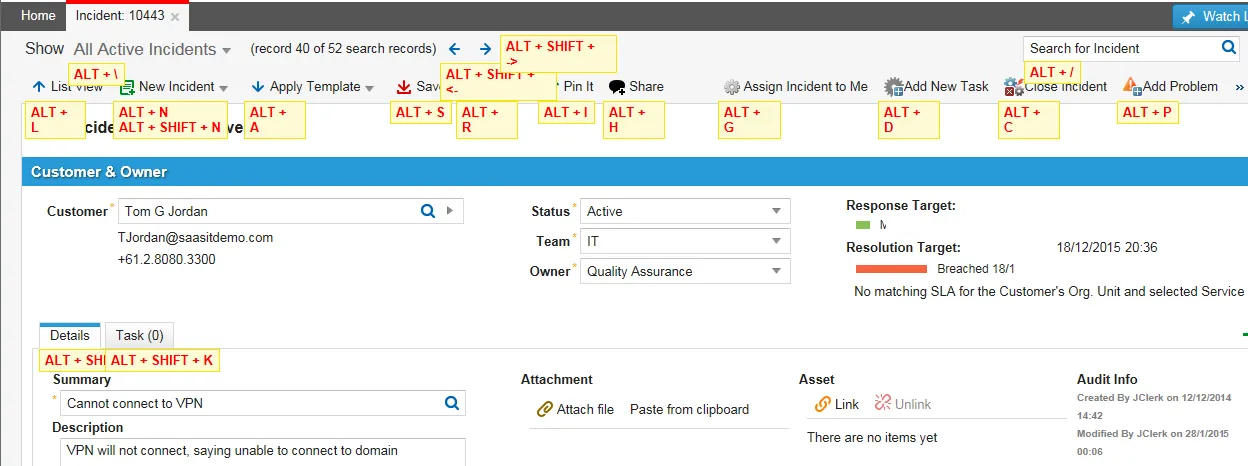
Alt+Shift+K | Used for forms that have tabs. Moves to the next child panel or header form. This is the same as clicking on the next tab. For example, in the screen below, if you are currently viewing the Details tab, if you click Alt+Shift+K, you move to the Resolution Details tab.  |
Alt+Shift+J | Moves to the previous child panel or header form. This is the same as clicking on the previous tab. |
Tab | Moves to the next control. |
Shift+Tab | Moves to the previous control. |
Tab | Moves the navigation from the list of tabs to inside the child panel. |
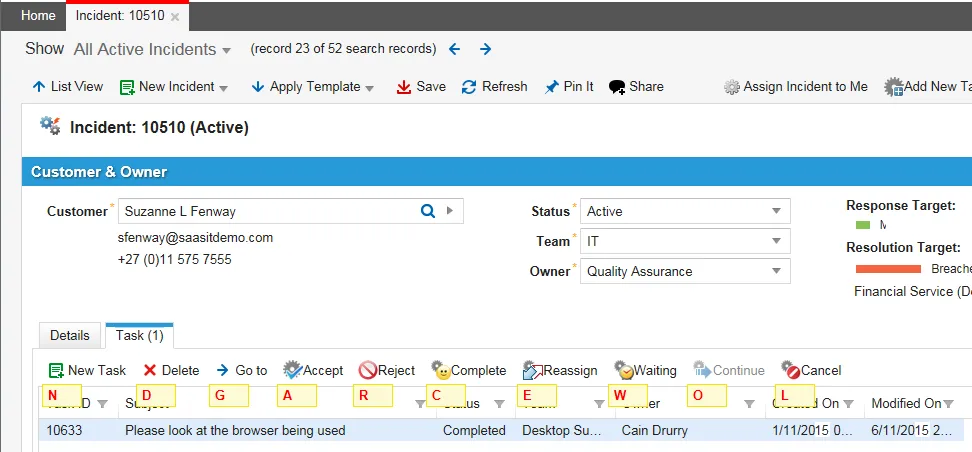
When you are in a read-only control where you cannot enter any text, such as the child panel below, you do not need to use a modifier. You can just click the keyboard shortcut without the modifier and achieve the same result. For example, below, if you click N in the incident list, the application displays the New Incident window. If you click Alt+N, the application also opens the New Incident window.
Keyboard Shortcuts in a Read-Only Child Panel
However, if you are in a child panel that is not read-only, which means you can enter data into the form, as shown below, you must use a modifier. Below, if you click Alt+N, the application opens the New Problem window. You cannot access the New Incident form from here.
Keyboard Shortcuts in a Not Read-Only Child Panel
Popup Menus
Keyboard Shortcut | Action |
|---|---|
Esc | Closes the popup menu without saving the data. |
Ctrl+Enter | Saves the data and closes the popup menu. |
Tab | Moves to the next control. |
Shift+Tab | Moves to the previous control. |