Working with Pending Service Requests
3 min
You might want to create a service request, but do not have all the required information. If you do not enter all of the required information, you cannot save the service request. However, you can save a draft, or pending, version of the service request.
Creating a Pending Service Request
- Log in to the application as a service owner.
- Open the Service Catalog workspace. The list of services appear.
- Click an item to create a new service request. The Service Request Wizard appears.
- Enter as much information as you can.
- At the bottom of the page, click Save for later. The service request is now saved in the pending state.
- At the bottom of the page, click Cancel to close the window and return to the Service Catalog workspace.
Service Catalog Workspace
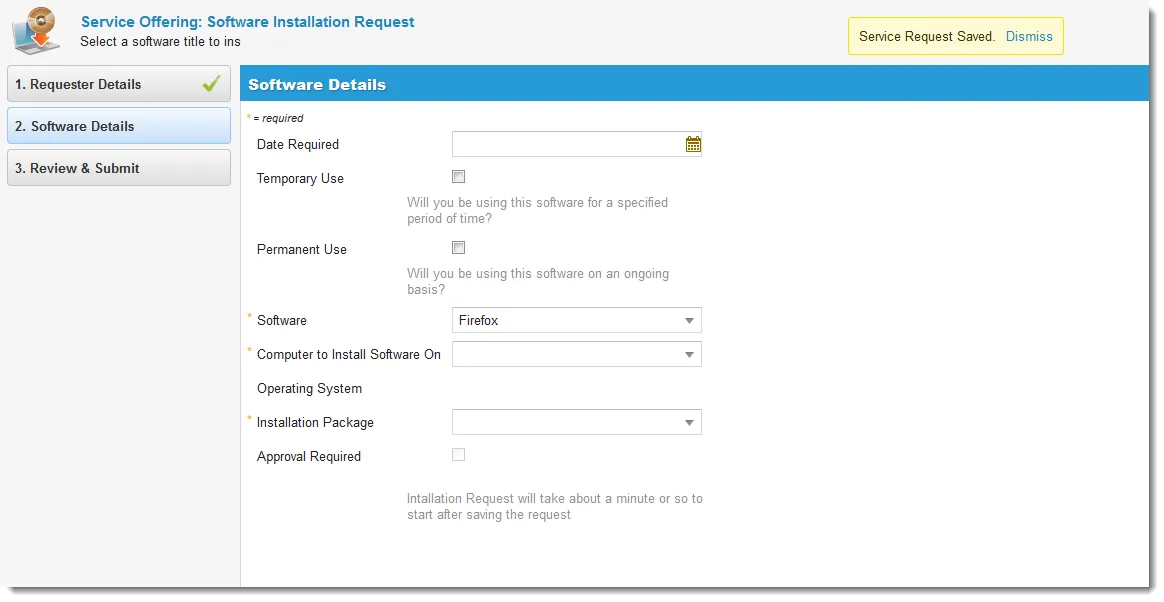
Pending service requests do not initiate a workflow nor execute a notification.
Viewing Pending Service Requests
- Log in to the application as a service owner.
- Open the Service Catalog workspace. Any pending requests appear in a pane on the right side and a Pending Requests link appears in the workspace search area.
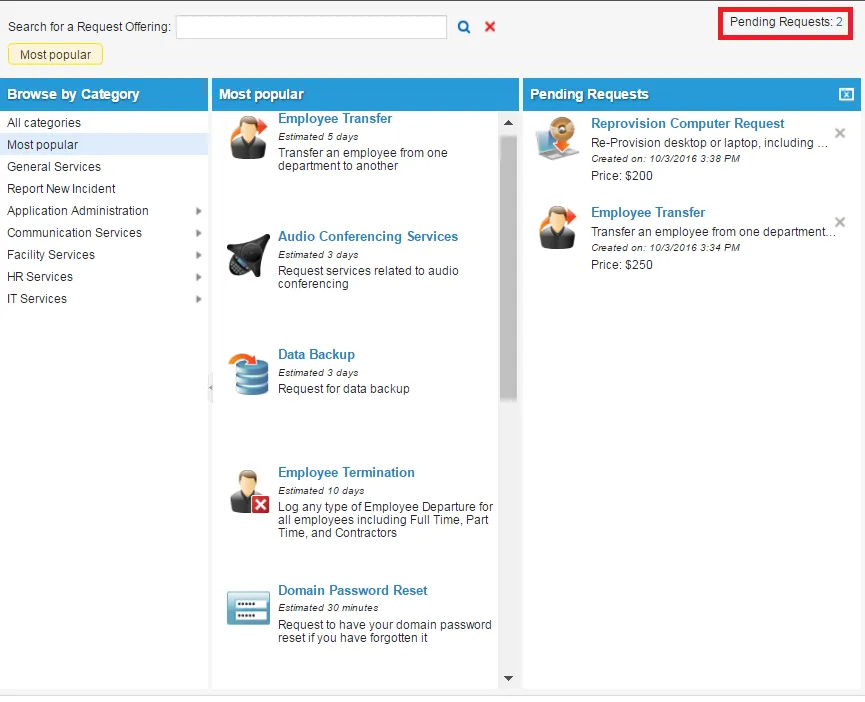
If the pane does not appear, click Pending Requests from the search area. Neurons for ITSM displays the number of requests in your queue.
- Click an item from the list to view and edit as needed. The Service Request Wizard highlights any missing information.
Pending Request Item
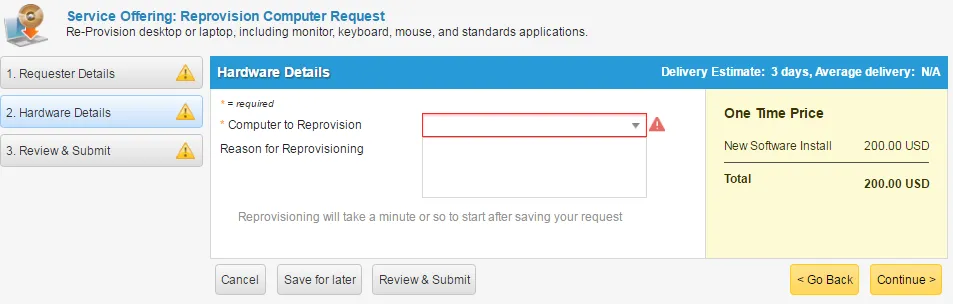
Once request information has been submitted, it disappears from the pending list.
Deleting a Pending Request
- Log in to the application as a service owner.
- Open the Service Catalog workspace. Any pending requests appear in a pane on the right side and a Pending Requests link appears in the workspace search area.
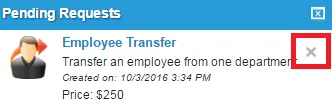
- Click the delete icon
 next to a pending request to permanently remove it.