
Create the Agentic AI Bot
This section describes how to integrate Neurons for ITSM with Microsoft Teams Bot to create a custom Teams app. This enhanced integration improves user experience by streamlining ITSM interactions directly within Microsoft Teams.
- Enable the Global Constant from the Configuration console > Global Constants > IntelligentBotIntegrationEnabled > set it to True. For more information, refer to List of Global Constants.
- Enable theNeurons for ITSM Chat feature if you plan to enable Live Agent Transfer for any agent on the AI Configuration Hub > Agentic AI > Agent Settings page. This allows the Microsoft Teams Bot users to interact with Analysts who respond via WebChat. To learn how to enable the chat feature, refer to Configuring the Chat Feature.
- Ensure Microsoft Teams application is installed on your computer with Admin credentials.
It is recommended to set up the chat application first, followed by the Teams Bot application.
- Log in to your Microsoft Teams account and open the Microsoft Teams Developer Portal. Clients must have an account for the Teams Bot to function.
In the Microsoft Teams Developer Portal, the new user interface opens by default when customers access it, without requiring any additional configuration.
- Go to Home, click Create a new app.
- In the Create a new app window, provide a name for the app and select Latest Stable as manifest version and click Create.
- In the Configuration page, click Basic Information.
- Enter the following details:
Fields | | Description |
|---|---|---|
App Details | Short Name and Long Name | Contextual names of the app. |
| App ID | This is auto-generated by Microsoft App Studio. |
| Version | Version number . |
| Short Description and Long Description | Contextual descriptions of your app. |
| Developer/Company Name | Your company name. |
| Website | Your company website URL. |
| Privacy statement | URL to the privacy statement of your organization. |
| Terms of use | URL to the terms of use or policy page of your organization. |
Ensure that you fill in the App Details (Short Name and Long Name) and the Description fields (Short Description and Long Description). If any of these fields are not filled in, the app upload might fail.
- Optionally, click Branding to add a branding logo or other elements of your organization.
- Click Save.
You need to create, configure, generate client secret key and link a Bot to Microsoft Teams app.
Create a Bot
- Log in to Microsoft Teams Developer Portal .
- Go to Apps. Click the app you created from the app list.
- Go to App Features and then click Bot.
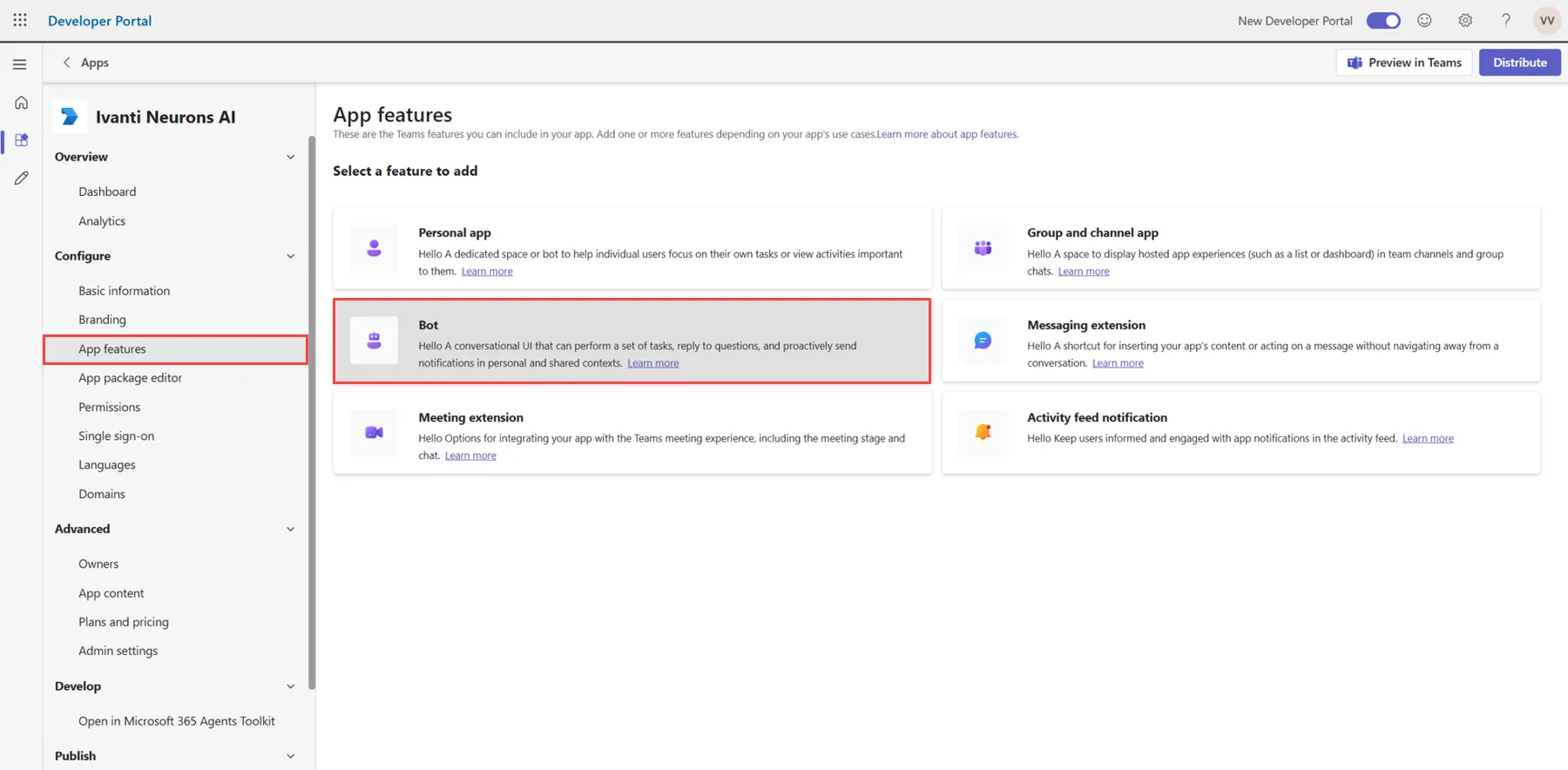
- Select an existing Bot from the dropdown or click Create a new bot.
- In the Bot Management, a list of existing bots is displayed. To create a new Bot, click New bot and enter a name for the Bot, then click Create bot.
Configure the Bot
Once the new bot is created, it automatically takes you to the Configure page.
You need the Bot ID to complete the integration between Microsoft Teams andNeurons for ITSM. The Bot ID is displayed in the URL.
- Copy and save the Bot ID from the URL, which is the value between /bots/ and /configure.
Example: https://dev.teams.microsoft.com/bots/your-bot-id/configure
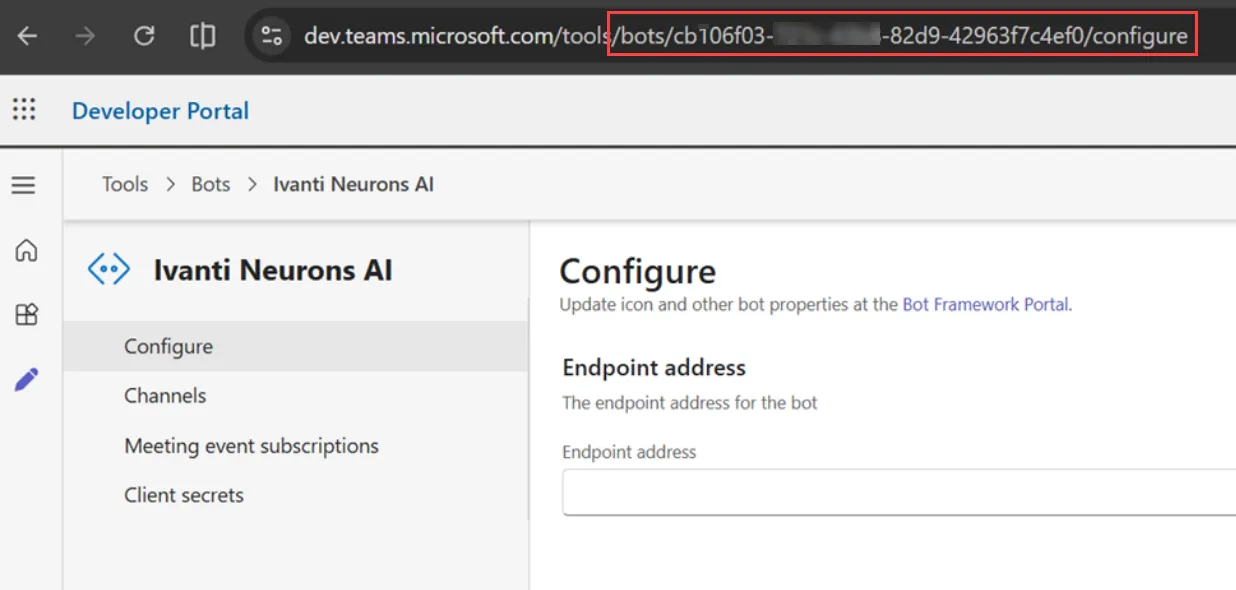
- In the Configure page, enter the Bot endpoint address and click Save.
The Bot endpoint address should be in the following format:
To maintain secure communication, restrict public access to the Bot endpoint address. Revealing the endpoint will result in unauthorized access or misuse of the Bot service. Only the ITSM tenant address should be publicly accessible.
Generate the Client Secret Key for the Bot
- On the side panel, click Client secrets > Create your first client secret > Create client secret.
- Copy and save the Secret key to use when configuring the integration between Neurons for ITSM and Microsoft Team app.
- Click Done.
This Client Secret Key is displayed only once. Ensure you save it securely.
Link the Bot to the Microsoft Teams app
Now that you have created the Bot, go through the following steps to link the Bot to the Microsoft Teams app.
- In the Microsoft Teams Developer Portal, go to the App, select your App from the list.
- Click on App Features and click Bot.
- Choose a Bot from the Select an Existing Bot dropdown or manually enter the Bot ID, you want to configure.
- In the What can your bot do? section, select Upload and Download files.
- Under Scope, select Personal checkbox, and click Save.
- Go to Publish > Publish to org, and then click Publish on the upper-right corner of the page.
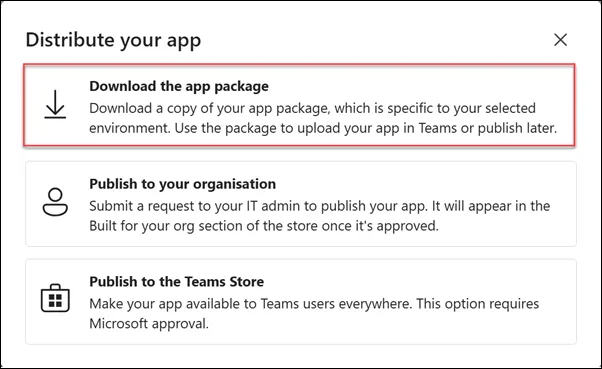
In the new UI of the Microsoft Teams Developer Portal, the Distribute button appears in the upper-right corner instead of Publish.
- Select the Download the app package from the pop-up to download the app package for the Microsoft Teams Bot app.
If this app is intended for organization‑wide use, share it with your IT administrator and publish it to your organization. For testing or demo purposes, download the app package and deploy it individually in your Teams instance.
- Upload the new package using one of the following methods:
- Through the Teams Admin Center.
- Directly in Microsoft Teams, depending on your deployment method.
- Verify that the updated version is installed and available to users.
This step is required by Microsoft to ensure the app is properly packaged and ready for deployment within Microsoft Teams.
You can upload the Teams app and make it available for employees in your organization to use. Only when the app is uploaded and available, users can add it to their Microsoft Teams client app and use it as a communication channel to chat with Agentic AI.
- Log in to your Microsoft Teams account.
- Go to Apps > Manage your apps > Upload an app.
- Choose an option:
- Upload a custom app – if the app is for individual or team use.
- Submit an app to your org – if the app is for organization-wide use.
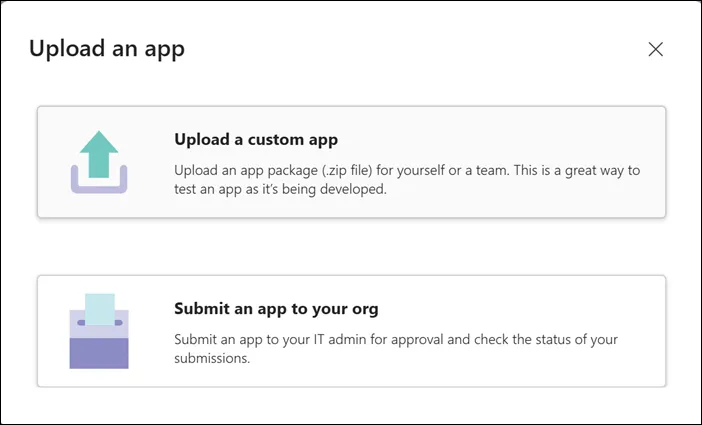
The app you built is now available for employees in your organization or team to use.
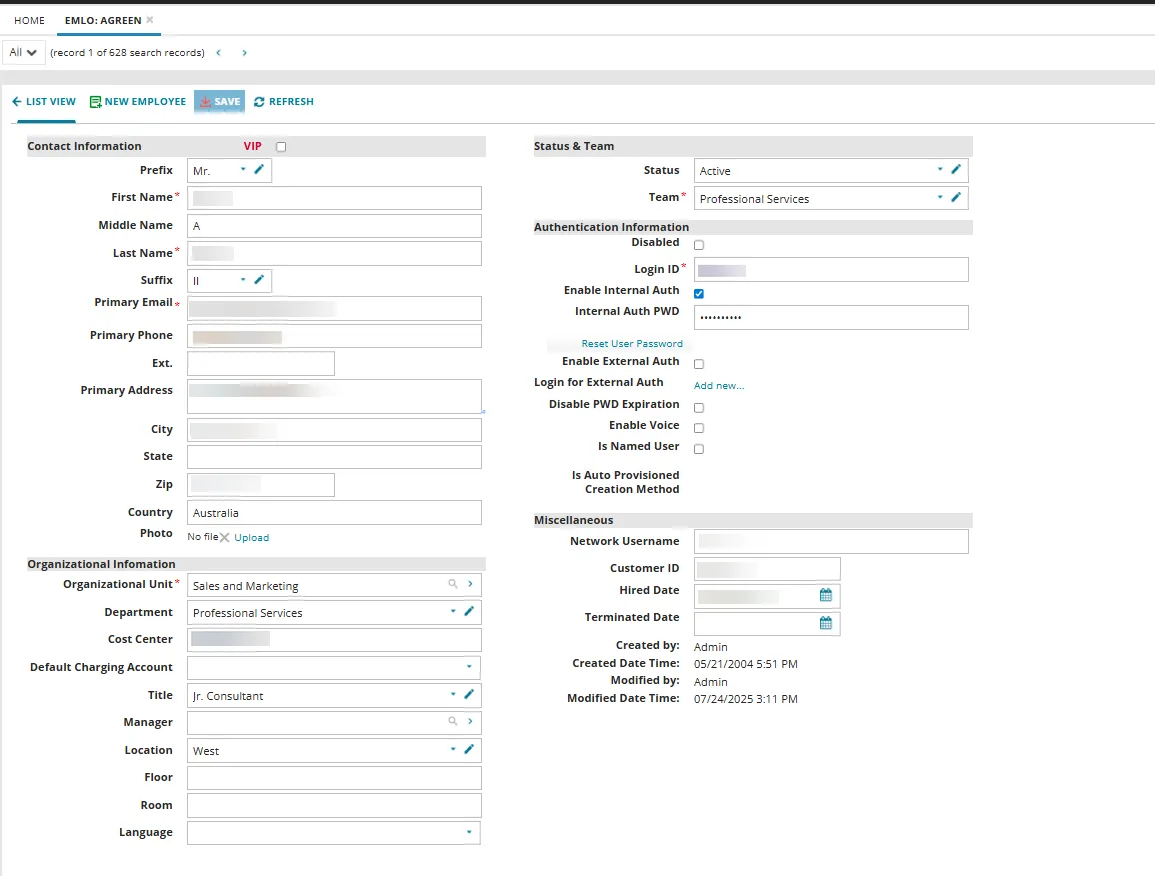
To use the Microsoft Teams Bot with your ITSM account, ensure that your email address is correctly configured in the ITSM portal. These steps applicable only to ISM users.
- Log in to Neurons for ITSM and go to the Employee workspace.
- Create a new user record and enter the username and email address in the appropriate fields.
- Ensure that the user has the role specified in the DefaultAgenticAIUserRole Global Constant, or the Self Service User role if the DefaultAgenticAIUserRole Global Constant is not defined. On the Roles tab, use the Link option to add the appropriate role.
- Save the changes.
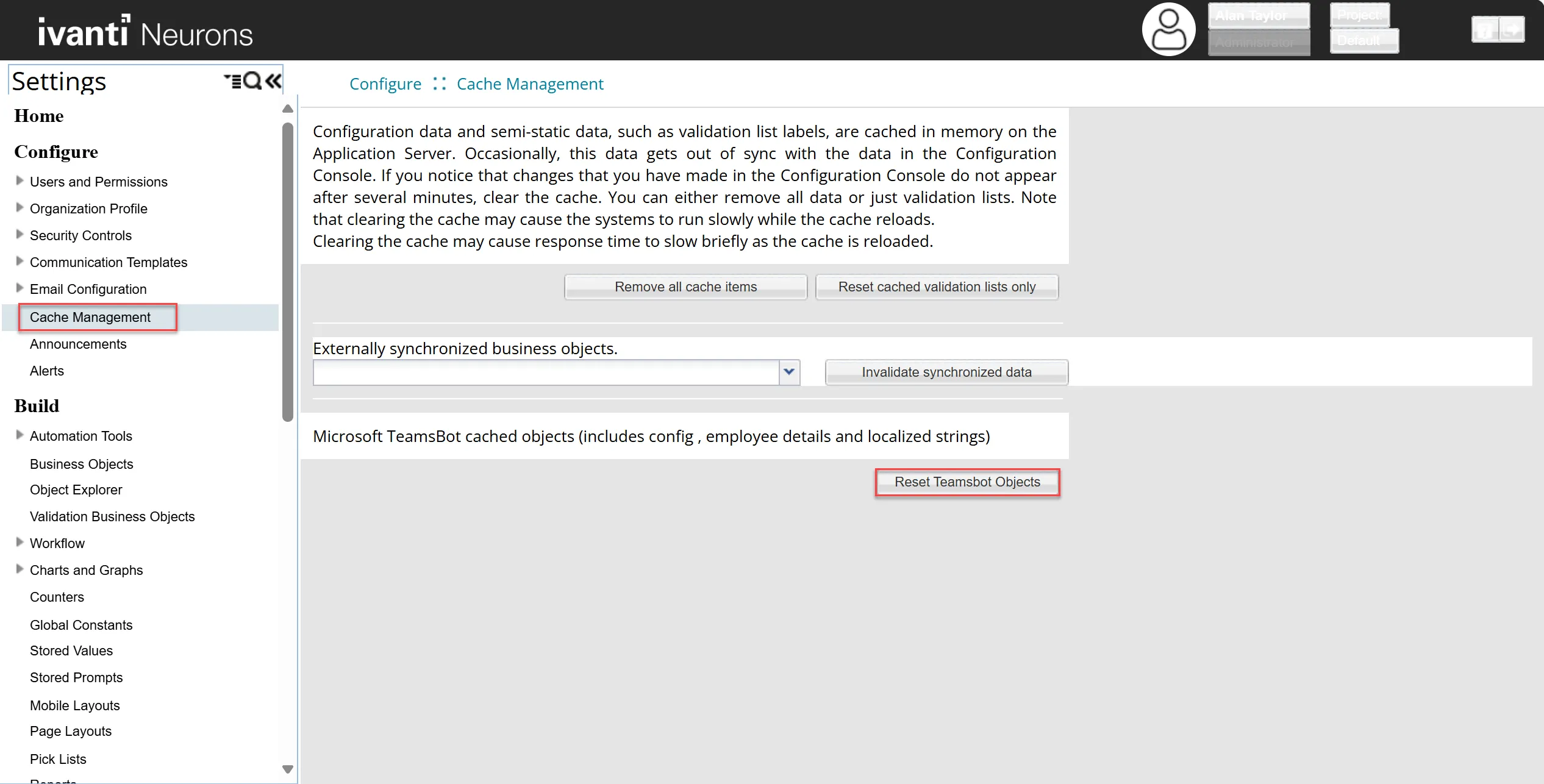
By default, changes takes up to 30 minutes. To avoid this and to reflect changes in the Microsoft Teams Bot, clear the cache.
Perform the following:
- Go to Settings > Cache Management.
- Click on Reset Teamsbot Objects.
This configuration step is not required for non-ISM users.
To learn how to use the Agentic AI bot, refer to the Sample use case.