
Configuration of Agentic AI
To configure Agentic AI agents, follow these steps:
- Log in to Neurons for ITSM as an Administrator.
- Open the Configuration console and select AI Configuration Hub > Agentic AI.
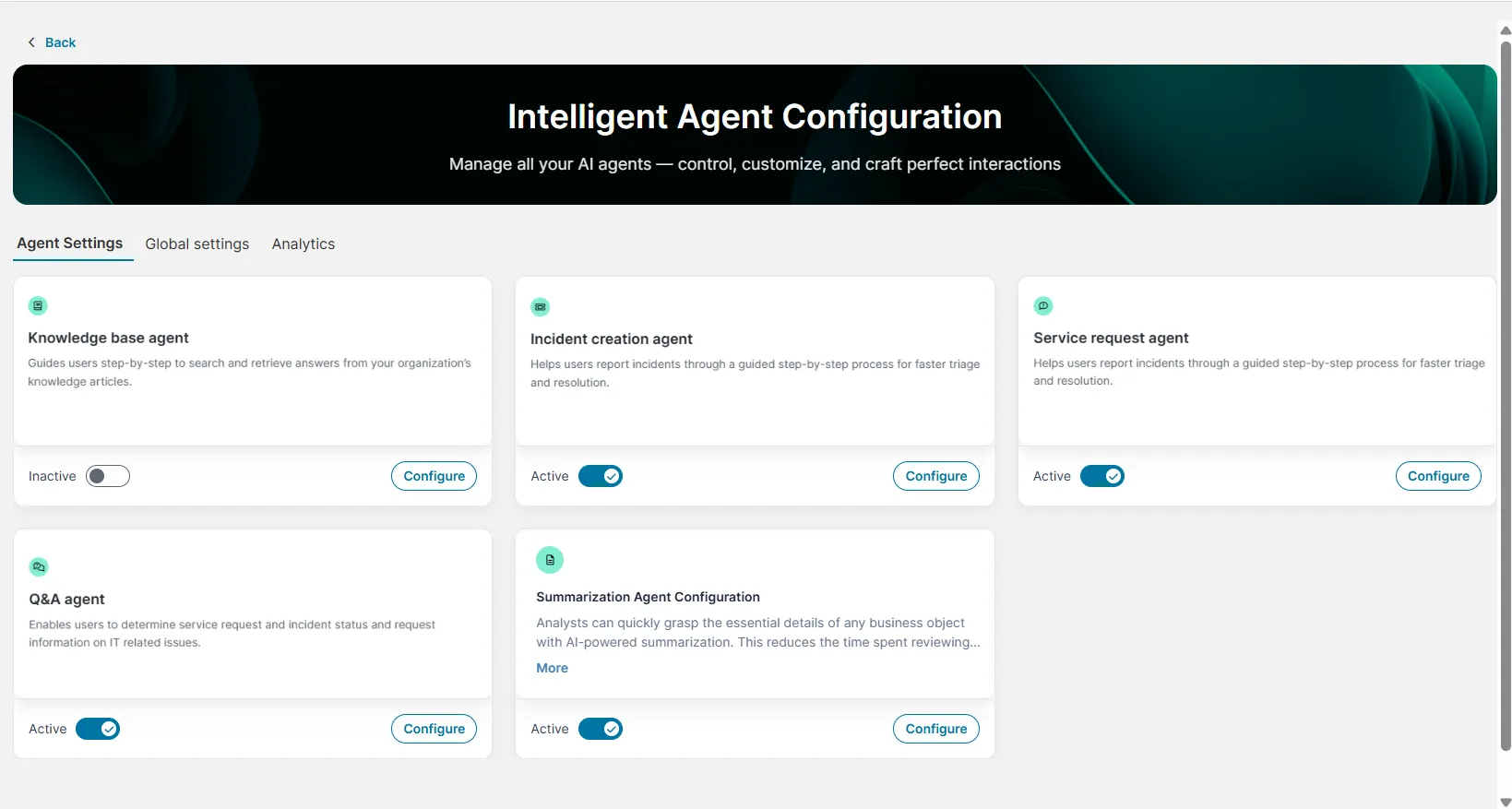
- Under Agent Settings, click the radio button to enable and configure the agent of your choice.
- Under Global settings, configure the following general settings:
a. Agent Connection:
- MS bot ID: Enter the MS bot ID.
- Secret key: Enter the Secret key.
To know how to set up MS bot ID and Secret key, refer to Integrating Microsoft Teams with Ivanti Neurons for ITSM.
- REST API key: Enter the REST API key. This key will be used only for metadata access. Ensure that the appropriate permissions are available for this.
For more information on REST API key, refer to Using the REST API Key.
b. Conversation setup:
- Greeting message: Enter the welcome message to begin the chat.
- End chat message: Enter the thank you message to conclude the chat.
- Out of context message: Enter the error message to display when users ask an out-of-context question.
- Cancellation message: Enter the message to display when a query is cancelled.
- Chat tone: Choose the chat tone — Professional, Empathetic, Casual, or Neutral.
- Max response length: Set the maximum length for chat responses that users can enter.
c. Escalation Handling:
- User Interaction Warning Timeout (seconds): Enter the idle time (in seconds) after which a warning is displayed to the user indicating that the session is about to expire. The maximum allowed value is 600 seconds.
- User Interaction Reset Timeout (seconds): Enter the additional time (in seconds) after the warning appears, after which the session times out if the user does not respond. The maximum allowed value is 300 seconds.
- Allow transfer to live agent: Enable the toggle button to transfer the interaction to the Ivanti Support Team in cases where the agent bot cannot support the user with a specific query.
This is the master button for all live agent transfer capability. If this toggle is disabled, neither agents nor agent bots can perform live agent transfers — regardless of individual settings or user requests made through a chat prompt. If you enable this toggle, ensure that the Live Agent button is also enabled for each individual agent; only then will live agent transfer be active for that agent.
d. Agentic Processing:
- Display Agent Thinking Steps: Enable the toggle button if you want to see the agent’s thought process. If disabled, only a progress bar is shown.
e. Generate template embeddings:
Click the Generate for all templates button to re-generate the template vector embeddings for the Incident templates, Service Request templates, and Knowledge Business Objects. This step is required if the users add new Incident or Service Request templates that they want to be searchable by the Incident or Service Request agent.
f. Advanced settings:
In the Default intent description box, enter a description to define the scope of the agents.
The provided description educates Agentic AI and determines the scope of what the AI can and cannot handle. Let's consider the case of Service Request as an example. If you define the types of service requests the user can interact with, such as Installation, Hardware, and Software, then if a user tries to create a Service Request for Provisioning, the agent considers it as an out-of-context question and shows the message you defined in the Out of context message field.
Modifying the intent description may result in unpredictable agent behavior. We recommend that only users with experience in LLM prompt engineering make these changes.
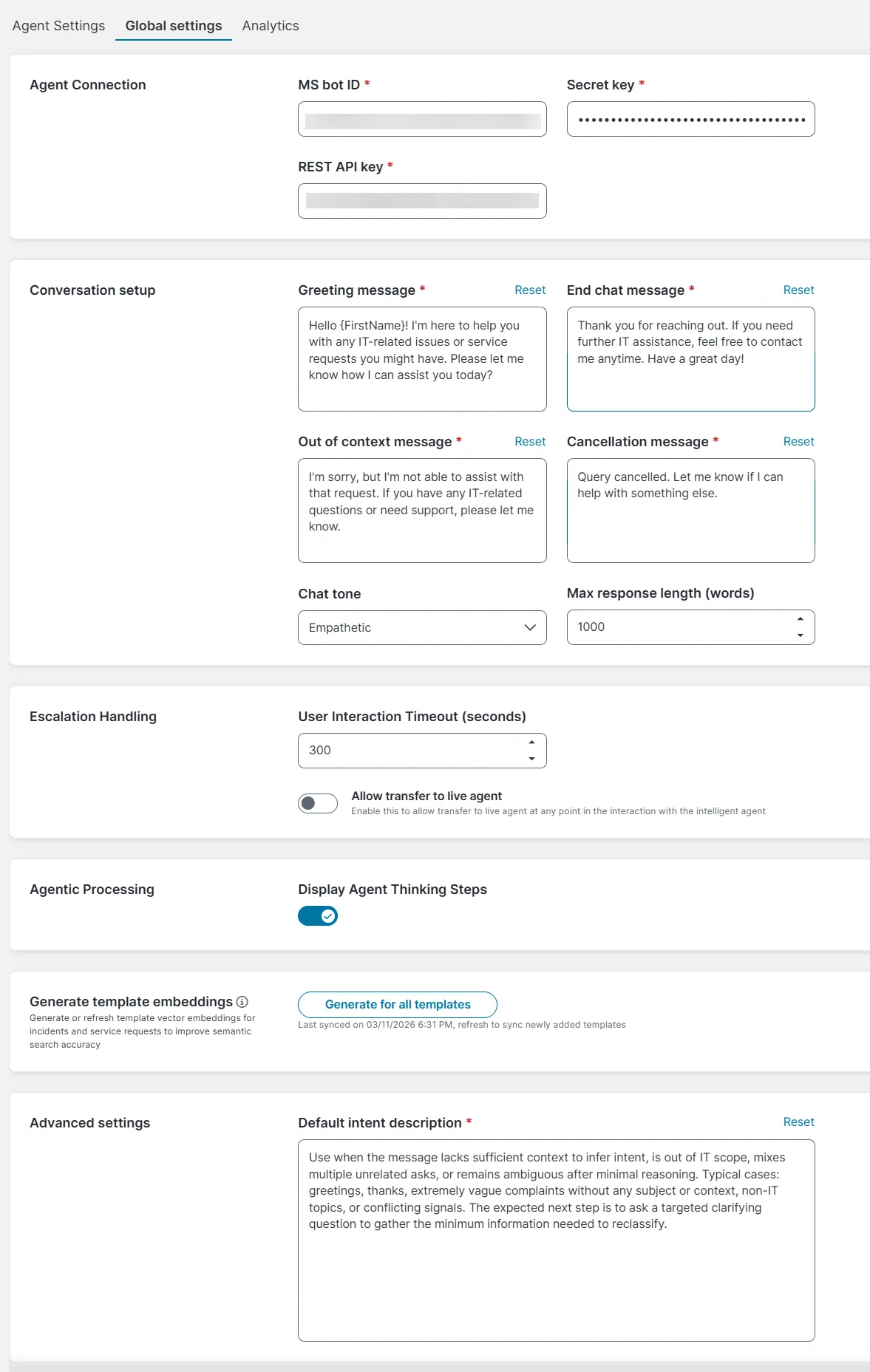
Fields marked with an asterisk (*) are mandatory.