
Working with the New DSM Integration
The new DSM integration was introduced in Neurons for ITSM Release 2015.2. It was designed using the concept of external business objects and web services. See Using Web Services with External Data Sources for complete information about using external business objects and web services in Neurons for ITSM.
After you initially configure the new DSM integration, you do not need to synchronize or activate the software or computers. The system uses a web services script to synchronize the computers and software automatically. When you select a computer to update, the system checks DSM to see if it is a managed computer. If it is, DSM returns an ID associated with the computer.
Available and Optional Software
Available software is the set of software packages on DSM that are listed as assignable to ITSM.
In DSM, there is no entry for Neurons for ITSM, only an option for ITSM. Whenever you see ITSM in this usage, you can assume it means Neurons for ITSM.
Optional software is any available software that the Neurons for ITSM administrator has made available to Neurons for ITSM end users.
End users can request software from the Service Catalog.
Designating Software as Available in the DSM Console
For complete information about using the DSM Console, see the DSM documentation set.
- Log in to the DSM console.
- Highlight a software item.
- Under the Properties tab on the right, under the Properties for the ITSM integration header, for the Assignable via field, select either DSM and ITSM or ITSM.
The DSM application makes this software item available for use in Neurons for ITSM.
Viewing the Available Software in Neurons for ITSM
- Log into the Service Desk console.
- Open the DSM Package workspace. The application displays a list of all of the software in DSM. For each software item, it lists the following:
Field | Description |
|---|---|
Software Name | The name of the software package, taken from DSM. |
Optional Software | Specifies if this software has been published to Neurons for ITSM end users. |
Approval Required | Specifies if the user needs manager approval to purchase and download this software. |
Cost | The cost of the software. |
Currency | The currency used for the cost. |
SM Software Type | The type of software. Can be one of the following: Available: Means this software is available in DSM but has not been published to, and therefore is not available to, Neurons for ITSM end users. Optional: Means this software has been published to, and therefore is available to, Neurons for ITSM end users through the Service Catalog. |
Viewing the Available Software for a Platform
You can view the software available for a particular platform by doing the following:
- Log into the Service Desk console.
- Open the CI workspace.
- Open the record associated with the platform. For example, to see the software available for the virtual workstation called Win7, open the Win7 record.
- Click the Managed Software tab.
- To reinstall a software item, highlight it and click Reinstall Software. You do not need approval to reinstall software even if you needed approval to originally install it.
- To uninstall software, highlight it and click Uninstall Software.
You can only reinstall or uninstall certain software, depending on the type of software and how it is defined by DSM.
Specifying Approval for Software Packages
If you specify approval for a software package, an approval task is created when the software is requested from the Self-Service Portal.
- Log into the Service Desk console.
- Open the DSM Software Package workspace.
- Open the record for which to specify approval.
- On the Details tab, check Approval required. The Approval Required column in the list view shows a value of yes.
- Save the record.
Changing Available Software to Optional Software
You must choose from the list of available software (that is, all of the software available in DSM) which software to make available to Neurons for ITSM end users. Then, for each software item, follow the steps below to set it to optional (which makes it available to Neurons for ITSM users).
- Log in to the Service Desk console.
- Open the DSM Software Package workspace. The application displays a list of all of the software in DSM.
- Highlight a software item and on the toolbar, click Make Optional Software.
After you set a software item to optional in Neurons for ITSM, which means that end users can request it, you cannot change it back to available (which means it is not optional), from within Neurons for ITSM. To change it back, you must use the DSM Console.
Setting Values for Software Items
- Log in to the Service Desk console.
- Open the DSM Software Package workspace. The application displays a list of all of the software in DSM.
- Double-click a software item to open it. The application displays the Manage Software workspace.
- Enter information into the fields.
Field | Description |
|---|---|
DSM Software Package GUID | The unique ID for this software, set by DSM. |
Software Name | The name of the software. This value comes from DSM. |
Optional Software | Specifies if this software is available to Neurons for ITSM users. |
Software Type | The type of software package. |
Schema Tag | The schema tag associated with this software. This is the software type from the DSM Console and is used for troubleshooting. |
Approval Required | Specifies if the user must get manager approval before installing the software. |
Cost | The cost to install the software. This is tracked in the service request. Enter a numeric value and select a currency from the drop-down list. |
- To view additional information about the software, click the Software Revision tab. The application displays the following read-only information:
Field | Description |
|---|---|
DSM Software ID | The ID for the software as specified by DSM. |
Software Name | The name of the software as specified by DSM. |
Software Revision | The version of the software. For example, for Adobe Acrobat, it could be version 10.0 or 12.0. |
Software Type | The type of software package. |
Latest Revision | Specifies if this is the latest revision. |
Reinstallable | Specifies that users are allowed to reinstall this software. |
Uninstallable | Specifies that users are allowed to uninstall this software. |
- Click Save.
DSM Integration Request Offerings
As part of the new DSM integration, there are two new request offerings in the Service Catalog: Optional Software Installation Request and Optional Software Multiple Installation Request.
Optional Software Installation Request Offerings in the Service Catalog
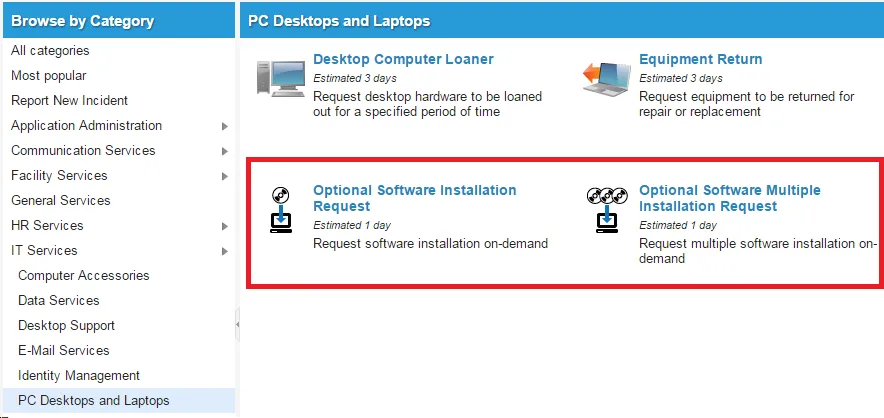
See Creating a Request Offering for information on creating and modifying request offerings in the Service Catalog.
Showing or Hiding the DSM Workspaces
You can display DSM-related workspaces or tabs if they are used, or hide them if they are not used in your implementation.
Workspaces include DSM Package, DSM Request Detail, and DSM Software Revision.
Hiding the functionality of those workspaces also removes:
- The DSM Request Detail tab for service requests.
- The Managed Software tab for configuration item records for computers, servers, virtual servers, workstations, and virtual workstations.
Only the following roles are affected: Administrator, Change Manager, Configuration Manager, Service Desk Analyst, and Service Desk Manager.
- From the Configuration console console, click Build > Global Constants.
- Navigate to the Show DSM Integration feature in the Name column.
- Click in the Value column to change the setting:
- True enables and displays the workspaces.
- False hides the workspaces.
- Click Save.