
Working with Teams
A team is a pool of employees that can be assigned tasks within Neurons for ITSM, such as advisory or review boards. An employee cannot be assigned a task without being part of a team.
You can manage teams associated with an employee.
Viewing a List of Teams
- Do one of the following:
- From the Configuration Console, click Configure > Users and Permissions > Teams to open the Teams workspace to view a list of standard user teams.
- Log in to the application and open the Employee Team workspace.
- Open a team to view its properties and members.
Creating a Team
- From the Configuration Console, click Configure > Users and Permissions > Teams to open the Teams workspace.
- Click New Standard User Team. The application displays a blank Standard User Team workspace.
Standard User Team Workspace
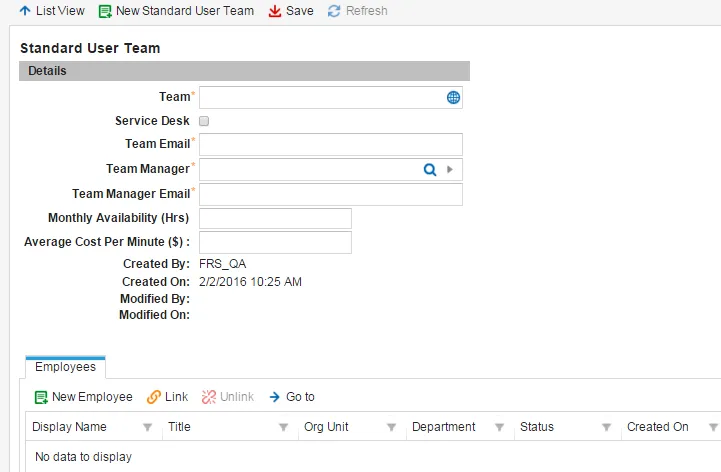
- Enter information into the fields.
Field | Description |
|---|---|
Team | A unique name for the team. |
Service Desk | Adds this team to the Service Desk workflows. |
Team Email | The name of the email team that relays messages to each team member. |
Team Manager | The team manager. You can start entering a manager name to automatically search from the database. |
Team Manager Email | The email address for the team manager. |
Monthly Availability (Hrs) | How many hours the team is available each month. |
Average Cost Per Minute ($) | Average cost per minute. |
- Click Save. The team now appears on the team list.
Modifying a Team
- From the Configuration Console, click Configure > Users and Permissions > Teams to open the Teams workspace.
- Open the team to modify.
- Edit the team using the options described in Creating a Team.
- Click Save.
Deleting a Team
You can delete any team, including Neurons for ITSM default teams.
Deleting a team can cause unexpected results. Delete the team from a workflow before permanently deleting the team here.
- From the Configuration Console, click Configure > Users and Permissions > Teams to open the Teams workspace.
- Highlight the team to delete.
- Click Delete.
- Click Continue at the confirmation message.
Adding Users to a Team
You can add new users, link users, and unlink users from the Teams workspace or under the employee section. Refer to Creating an Employee.
- From the Configuration Console, click Configure > Users and Permissions > Teams to open the Teams workspace.
- Open a team.
- Click the Employees tab.
- Click Link. The application displays a list of users.
- Select users from the list. Press Ctrl + click to select multiple users.
- Click Select. The users appear in the member list.
- Click Save.
Unlinking Users from a Team
- From the Configuration Console, click Configure > Users and Permissions > Teams to open the Teams workspace.
- Open a team.
- Click the Employees tab.
- Select a user name from the member list.
- Click Unlink. The user no longer appears on the team list.
Adding a New User to a Team
- From the Configuration Console, click Configure > Users and Permissions > Teams to open the Teams workspace.
- Open a team.
- Click the Employees tab.
- Click New Employee. The application displays the New Employee pages. Refer to Creating an Employee for more information.