
Working with Cost Filters
1 min
- Log into the Service Desk console.
- Open the CI Service workspace.
- Open a service record.
- Click the Cost Item tab.
- To filter the records, click the filter button
 next to the desired column name, and select one or more column names.
- To filter the records specifically by time, select a time period for the start and end dates fields. When you select a time period, the start and end dates are automatically displayed in the fields.
- After your selections, click filter. The records are displayed according to your selection.
- To remove the filters, click clear filter.
- To group columns, click the filter button next to the desired column name, and click Group By This Field. The items get listed according to the grouped column.
- To remove the grouping, click the filter button next to grouped column name, and remove the selection on Show in Groups.
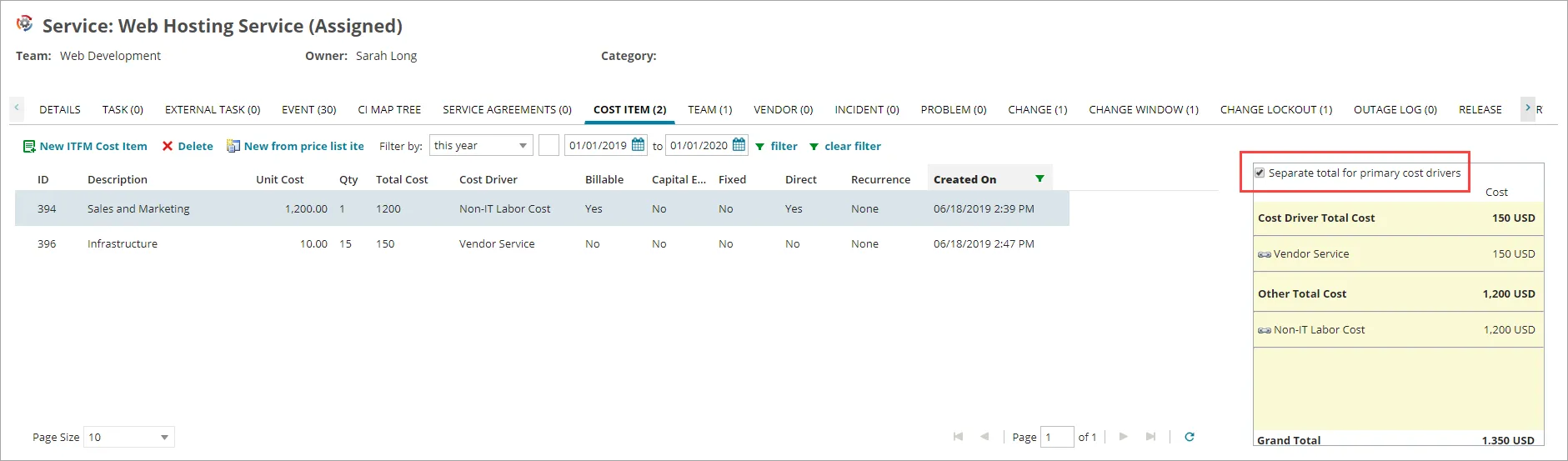
- You can view the total sum for the service on the right-hand side panel. By default, Separate total for primary cost drivers is selected.
Primary Cost Totals are Separated and Sub-Totaled
- To move other cost items to the primary cost area, click the link icon
 next to the other cost.
Link to Other Costs
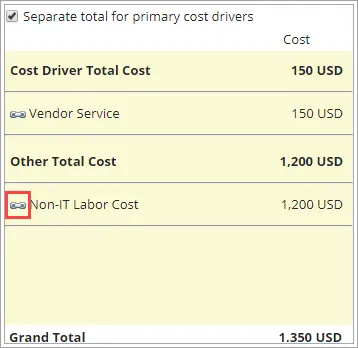
The cost item moves from the Other Total Costs to the Cost Driver Total Cost area.