
Using the Social Board
The Social Board is the workspace used to chat with one or more people at a time. The following are the features of the Social Board:
- You do not automatically see chats sent to you unless you open the Social Board workspace or you have the Social Board open.
- You can only have ten conversations in the Social Board at one time.
- After you have opened the Social Board workspace (which activates the Social Board), you can close the Social Board workspace and continue to send and receive chats.
Accessing the Social Board
The administrator must grant you access to the Social Board workspace before you can use it. If you do not see the Social Board button, then your role does not have access to this feature.
- Log in to Neurons for ITSM.
- Click on the icon in the top bar to open the Social Board workspace.
After you open the Social Board, you can send and receive messages and use the Chat Zone.
For more information on setup and configuring options in Social Board, refer to Working with the Social Board.
Using the Social Board
- Log in to Neurons for ITSM.
- Open the Social Board workspace.
- Click Start new conversation in the Social Board to begin a chat.
- To add users, do the following:
- Click Add Person and enter the name of the person to chat with.
- Click Add.
- Repeat to add more users to the conversation. There is no limit to the number of users that can be added.
- Type a message in the message box and press the ENTER key to publish the message.
- Public conversations have a white background.
- Private conversations have a blue background.
- To remove the conversation, click the
 icon.
icon.
Opening a Conversation in the Chat Zone
After you have published a conversation, you can open it in the Chat Zone so that you can monitor a specific conversation.
- Log in to Neurons for ITSM.
- Open the Social Board workspace.
- Locate your conversation and click this icon
 .
.
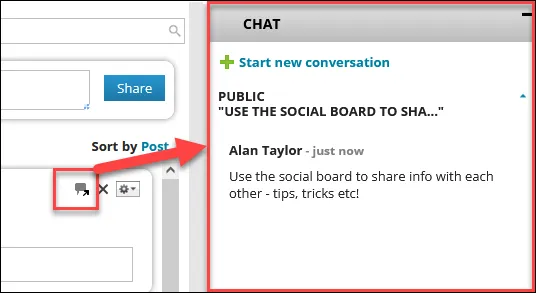
The Chat Zone opens containing your conversation. You can open multiple conversations from the Social Board in the Chat Zone.
- To remove the conversation from the Chat Zone, minimize it by clicking the up arrow and then click the X icon.
Chatting with a Team, Group, or Role
You can have a conversation at the team level in the Social Board. You can only chat with teams, groups, or roles of which you are a member.
Before chatting with your team, group, or role members, you must start the conversation on the Social Board.
You can only share text messages and not images or other files.
- Log in to Neurons for ITSM.
- Open the Social Board workspace.
- Enter a message in the text box.
- Click Add group.
- Choose a team, group, or role from the drop-down list, then click Add.
- Click Share.
The message appears on the Social Board workspace and the conversation is submitted to the team.