Using Auto Triage
2 min
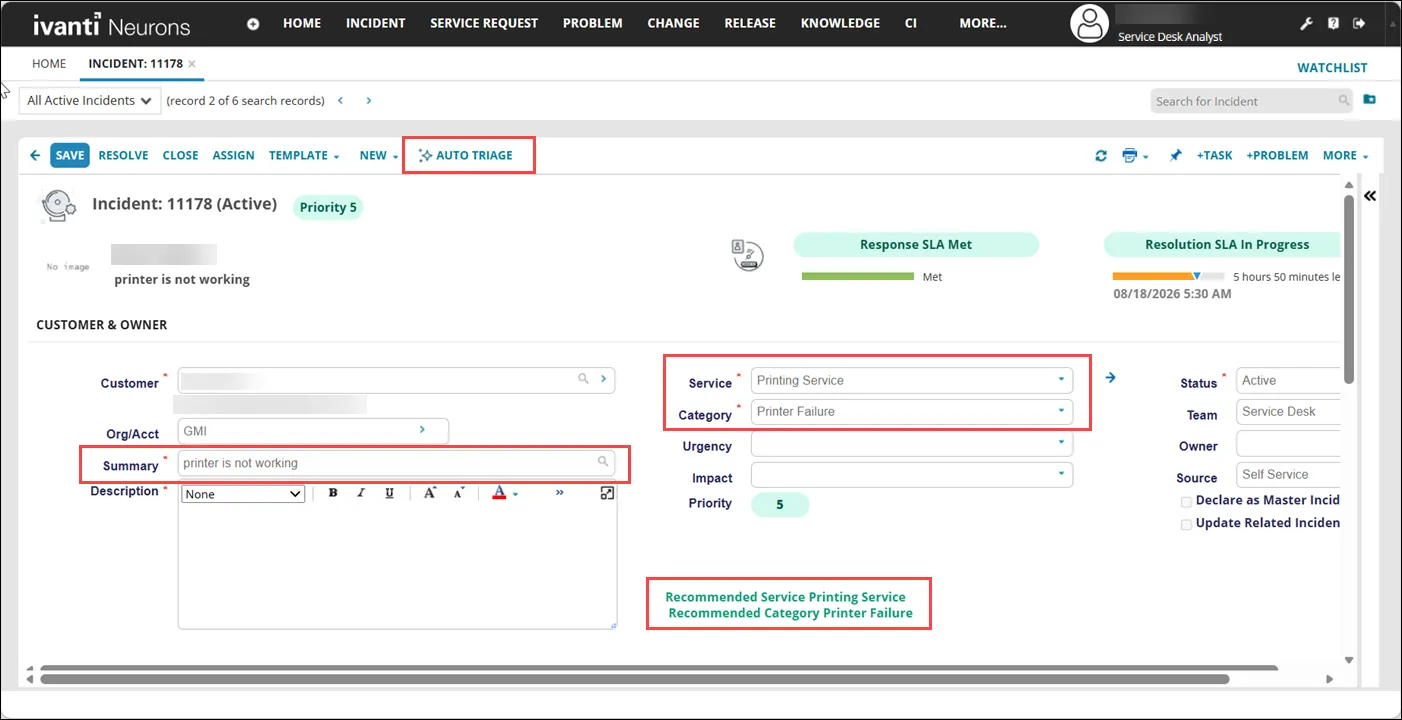
role service desk analyst minimum version 2024 2 feature eligibility ivanti's aitsm capabilities are available to customers who have subscribed to premium or enterprise premium license to know your eligibility, reach out to your ivanti account manager can automatically categorize your service tickets by enabling the auto triage feature when you create a service ticket, the application will automatically fill the output fields that admin configured in ai configuration hub auto triage feature is available to you only if the administrator has configured it for your user role for more information, reach out to your administrator currently, this feature is available only in incident business object refer to the following use cases, which assume that the administrator has configured summary as an input fields, and category and service as output fields in ai configuration hub use case 1 an analyst creates a new incident log in to open the incident workspace from the toolbar, select new enter the incident subject in the summary field and click auto triage the system predicts and populates the configured output fields click save once you save the changes, a green colored label appears indicating that the recommendations have been applied these labels continue to be displayed even if an analyst later modifies the populated field values this helps other analysts understand which values were originally recommended by the ml model enter data in the remaining fields and click save refer to managing incidents docid\ akruodyqj2wvb c6ayolg use case 2 an analyst modifies an existing incident log in to open the incident workspace a list of incidents is displayed open an incident to view its details modify the field values refer to managing incidents docid\ akruodyqj2wvb c6ayolg to learn more about fields enter the incident subject in the summary field and click auto triage the system predicts and populates the configured output fields click save once you save the changes, a green colored label appears indicating that the recommendations have been applied these labels continue to be displayed even if an analyst later modifies the populated field values this helps other analysts understand which values were originally recommended by the ml model use case 3 an end user (self service user role) submits a ticket and an analyst could approve/modify it log in to open the incident workspace a list of incidents is displayed open the incident submitted by the end user to view its details the application displays recommended output field values in the mapped fields with a green colored label indicating that the recommendations have been applied when an end user submits a ticket, the application will automatically populate the output fields if the auto triage business rule is configured, a model is deployed, and the validation rules are met for more information on configuring auto triage, refer to auto triage docid\ drkkmsioksnp0l7l80d1d for more information on how an end user submits a ticket, refer to service requests and incidents docid\ ara9j567l0deci7yehm7w modify the field values if you want to make changes refer to managing incidents docid\ akruodyqj2wvb c6ayolg click save