
Setting Up the Application
Use the Application Setup workspace to initially set up your Neurons for ITSM application. After the initial setup, you can access various parts of the Application Setup workspace from the Configuration Console to modify the settings.
Before you initially set any application parameters, the application displays a Setup Wizard link on the Neurons for ITSM pages. After you run the setup wizards and save your settings, the Setup Wizard link no longer appears.
The following are the steps:
Accessing the Application Setup Workspace
- From the Configuration Console, click Configure > Organization Profile > Application Setup to open the Application Setup workspace. By default, it goes to the Application Setup - Organization Information page.
Application Setup Workspace
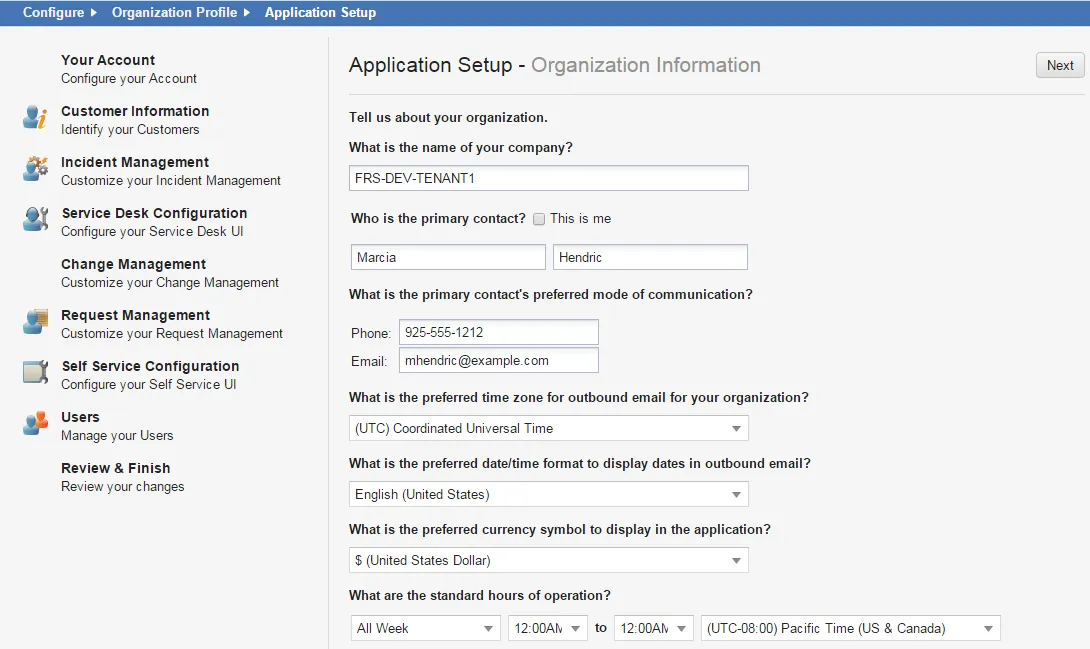
The application displays a list of available pages. You can access each page in the order provided, or skip around and enter information as needed.
After initially entering information, you can go back and change the settings in these pages.
- Go to Entering Account Information.