
Self Service Portal V3
Role: Administrator
Ivanti recommends enabling Self ServiceManagement Portal V3 (SSM V3), which provides an enhanced and responsive user experience across desktop, tablet, and mobile devices.
Overview
Self Service Management Portal V3 (SSM V3)is a responsive, web-based interface that enables users to access services, submit and track requests, manage account settings, and access knowledge articles from desktop, tablet, and mobile devices.
SSM V3 provides configurable workspaces, role-based access, and customizable page layouts. The available functionality depends on the user's assigned role and administrator-defined configuration.
- User capabilities
- Access the Service Catalog and available request offerings.
- Submit and track service requests.
- Submit form offerings, including incidents, you can view and track their status. Use the system-defined Save and Cancel actions.
- Depending on the request offering configuration and your permissions, perform actions on submitted requests such as Reopen Request, Escalate Request, and Request Again.
- View, rate, and provide feedback on knowledge articles
- Manage personal account settings.
- Administrators configuration options
- Enable SSM V3 for supported roles through the Style Editor.
- Configure role-based access and page options.
- Customize workspace layouts and content using Page Designer.
- Configure Knowledge workspace features, such as filters, ratings, comments, and feedback.
- Configure request-offering actions and permissions.
- Configure optional workspaces, such as Alerts and FAQs.
- Workspaces in SSM V3 SSM V3 includes different workspaces, each supporting specific actions for users. Administrators must configure these workspaces to meet with organizational needs.
- Home
- Service Catalog
- My Items
- Announcements
- Knowledge
- Search
You can optionally add the Alert and FAQ workspaces to the Home page. To enable alert notifications and FAQs, refer to the Creating and Configuring Workspace in the Administrator Help.
SSM V3 Configuration Steps
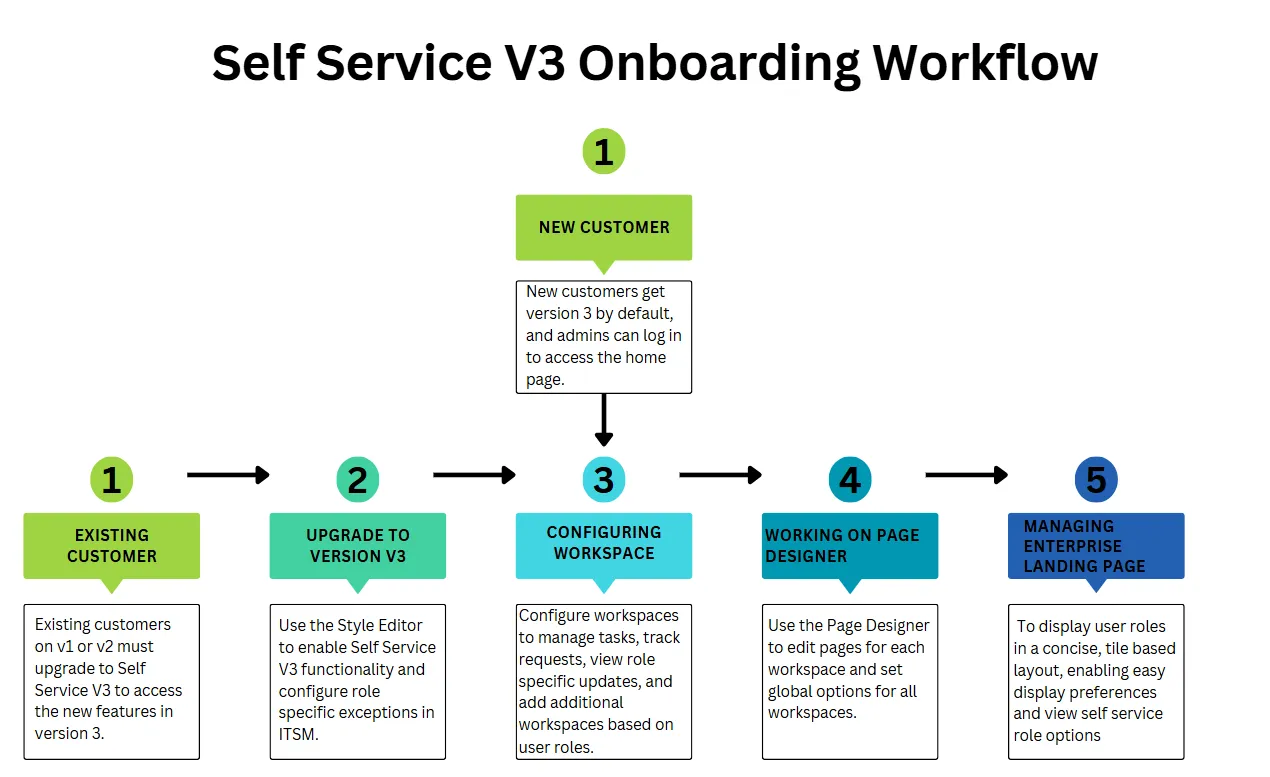
For new customers, SSM V3 is available by default. Existing customers must enable SSM V3 through the Style Editor.
- For new customers, you can begin customizing UI workspaces to meet your organization's requirements. See Workspace section.
- For existing customers you must sign in to their accounts and enable SSM V3. For more information, see Getting Started with Self-Service Management Portal V3 section.
Once SSM V3 is enabled, complete the following steps to configure and personalize the portal:
- You can customize workspace layouts, content, and design to deliver a role based, user-centric experience using page designer. For more information, see the Workspace section.
- To customize UI elements such as banners, logos, and menu navigation using Page Designer to align the portal with your branding and enhance usability across roles, see Working with the Page Designer section.
- To configure role based access on the enterprise landing page by adding or modifying exceptions in the Style Editor, which controls the portal availability only to designated roles such as HR, IT, or Marketing, see Configuring Enterprise Landing Page Style Editor section.