
Scheduling Reports
About Scheduling a Report
You can schedule a report to run at specific times.
In previous releases, the system did not take into account daylight savings time when running scheduled reports. This is because the Neurons for ITSM reports use the Microsoft SSRS report builder which does not support the daylight savings time offset. Starting in Neurons for ITSM Release 2016.1, we added two Time Zone fields and the Update Report Schedule DST quick action to account for daylight savings time.
Scheduling a Report
Use this procedure in conjunction with the procedure described in Creating Reports and Report Templates.
- Log in to Neurons for ITSM.
- Open the Reports workspace. The system displays a list of reports.
- Click the edit
 icon next to the report to set the scheduling parameters for.
- In the Schedule Information section, enter the following (you can only select one):
Option | Description |
|---|---|
No Schedule | Does not run the report on a schedule. To run the report on a schedule, do not select this option. |
Run once on | The date to run the report. Enter a date or select a date from the calendar, then choose a time from the drop-down list. |
Time Zone | This field is only enabled if you selected Run once on. Specifies the time zone associated with the date that you entered in the Run once on field. |
Daily at | Automatically runs this report every day. Select a time from the drop-down list. |
Weekly on | Automatically runs this report each week. Select the days for it to run, then choose a time from the drop-down list. |
Monthly (by week) on | Automatically runs this report on a specific week each month. Select the months from the drop-down list. For example, you could run this report every month or every other month. Choose the week from the drop-down list: First Second Third Fourth Last Choose the day of the week to run the report, and then choose the time of day from the drop-down lists. |
Monthly (by day) on | Automatically runs this report on a specific day each month. Select the months from the drop-down list. For example, you could run this report every month or every other month. Enter the number for the day to run the report. For example, to run the report on the fourth of every month, enter 4. To run the report on the 5th, 10th and 15th of the month, enter 5, 10, 15, separated by commas. To run the report within a date range, say from the 5th to the 10th, enter 5-10. |
Start | The start date. All scheduled reports can be designated to start on a specific date. Select a start date from the calendar, or enter a date into the field. |
End | The end date. All scheduled reports can be designated to end on a specific date. Select an end date from the calendar, or enter a date into the field. |
Time Zone | This field is only enabled if you selected Daily at, Weekly on, Monthly (by week) on, or Monthly (by day) on. Specifies the time zone associated with the date that you entered in the Daily at, Weekly on, Monthly (by week) on, or Monthly (by day) on fields. |
- Click Save.
After you run the scheduled report, you can download it from the report center (if you selected Download in the Distribution Information section) or email it (if you selected Email in the Distribution Information section). The schedule status indicates if the report ran successfully and the time when it ran.
About Reports and Daylight Savings Time
About Daylight Savings Time
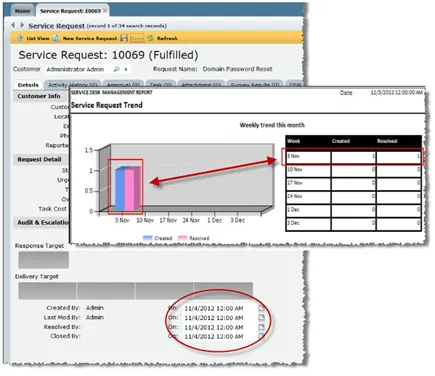
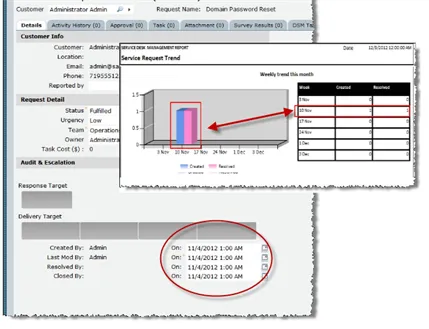
Under certain conditions, reports created while Daylight Savings Time (DST) is in effect might not show events on the correct days. To prevent incorrect reporting, ensure that the event time does not occur exactly at midnight (12:00 AM) on the day that Daylight Savings Time ends.
For example, if you specify a date of 4 Nov 2012 12:00 AM, the record appears on the report as having occurred on November 3. Set the event time to something other than midnight (such as 1:00 AM) to yield a correct report. The following illustrates this concept:
Target Times Set at Midnight on the Last Day of DST Yields an Incorrect Report
Set Target Times to Other Than Midnight (such as 1:00 AM) to Yield a Correct Report
Working with the Update Report Schedule DST Quick Action
To ensure that scheduled reports run at the correct time during daylight savings time, run the Update Report Schedule DST quick action. You can either schedule it to run at certain intervals, such as daily or monthly, or you can manually run it any time. When daylight savings time happens, the schedule shifts and the system runs the report at the correct time.
For this quick action to run correctly, you must enter a value other than Your local time in either of the Time Zone fields; that is, you must select a specific time zone for the report schedule.
Follow the steps below to manually run the Update Report Schedule DST quick action:
- Log in to Neurons for ITSM.
- Open the Notification workspace.
- From the Action Menu, select No Category > Update Report Schedule DST. The system runs the Update Report Schedule DST quick action.