
Neurons Bot Quick Action
Role: Administrator.
Minimum Version: Ivanti Neurons for ITSM 2025.2.
Prerequisites:
- A suitable Neurons Bot is created, or a suitable existing Neurons Bot is available in Ivanti Neurons. Refer to Neurons Bots creation.
- You have configured a client registration in Ivanti ITSM to enable the Neurons Bot to communicate with Ivanti Neurons. This also requires that you have a suitable app registration setup in Ivanti Neurons to enable the communication. Refer to Neurons Bots Integration for ITSM.
- Contact the Ivanti Cloud Operations team and request that the EnableContextForNeuronsBots feature flag is enabled.
About the Neurons Bot Quick Action
The Neurons Bot Quick Action defines how a Neurons Bot is triggered within ITSM. You configure it in the Graphical Action Designer, where you select the type of target the Neurons Bot runs against, select the bot, and set any inputs the bot requires. The inputs are populated automatically from the current business object context at run time.
To use this Quick Action, set the global constant EnableActionService to True. If EnableActionService is not available in the global constants list (this may be the case for upgraded instances), Administrators can manually add the constant.
For more information on Neurons Bots, refer to Getting Started with Neurons Bots.
Before you can create a Neurons Bot Quick Action, you need to have the following prerequisites in place:
The Neurons Bot Quick Action defines how a Neurons Bot is triggered within ITSM.
Enable Neurons Bot from Neurons Platform Integration
You can enable the Neurons Bot for Quick Actions from the Neurons Platform Integration console.
- Log in to Neurons for ITSM as an Administrator.
- Open the Configuration console > Extend > Neurons Platform Integration.
- Toggle the Neurons Bot section to enable it for the Quick Actions.
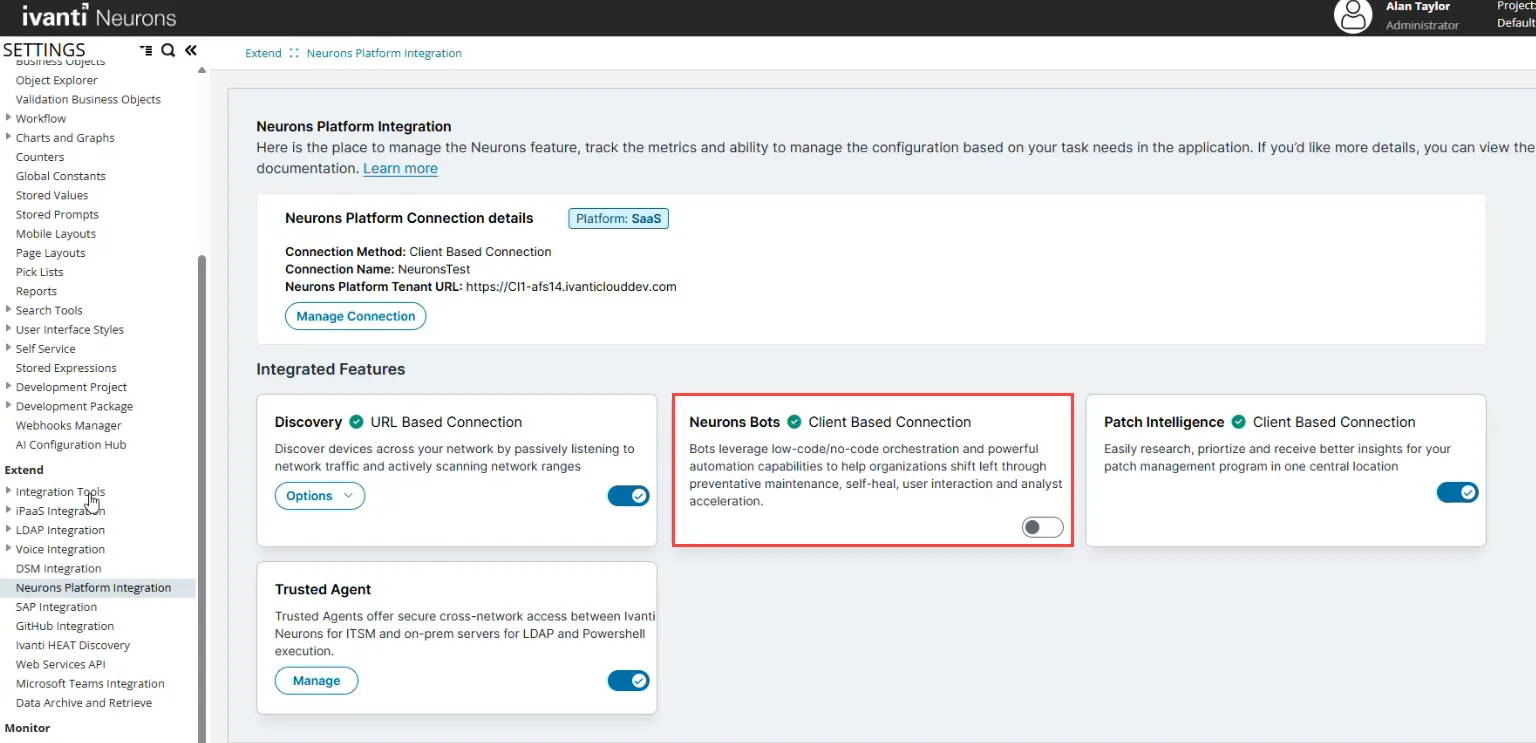
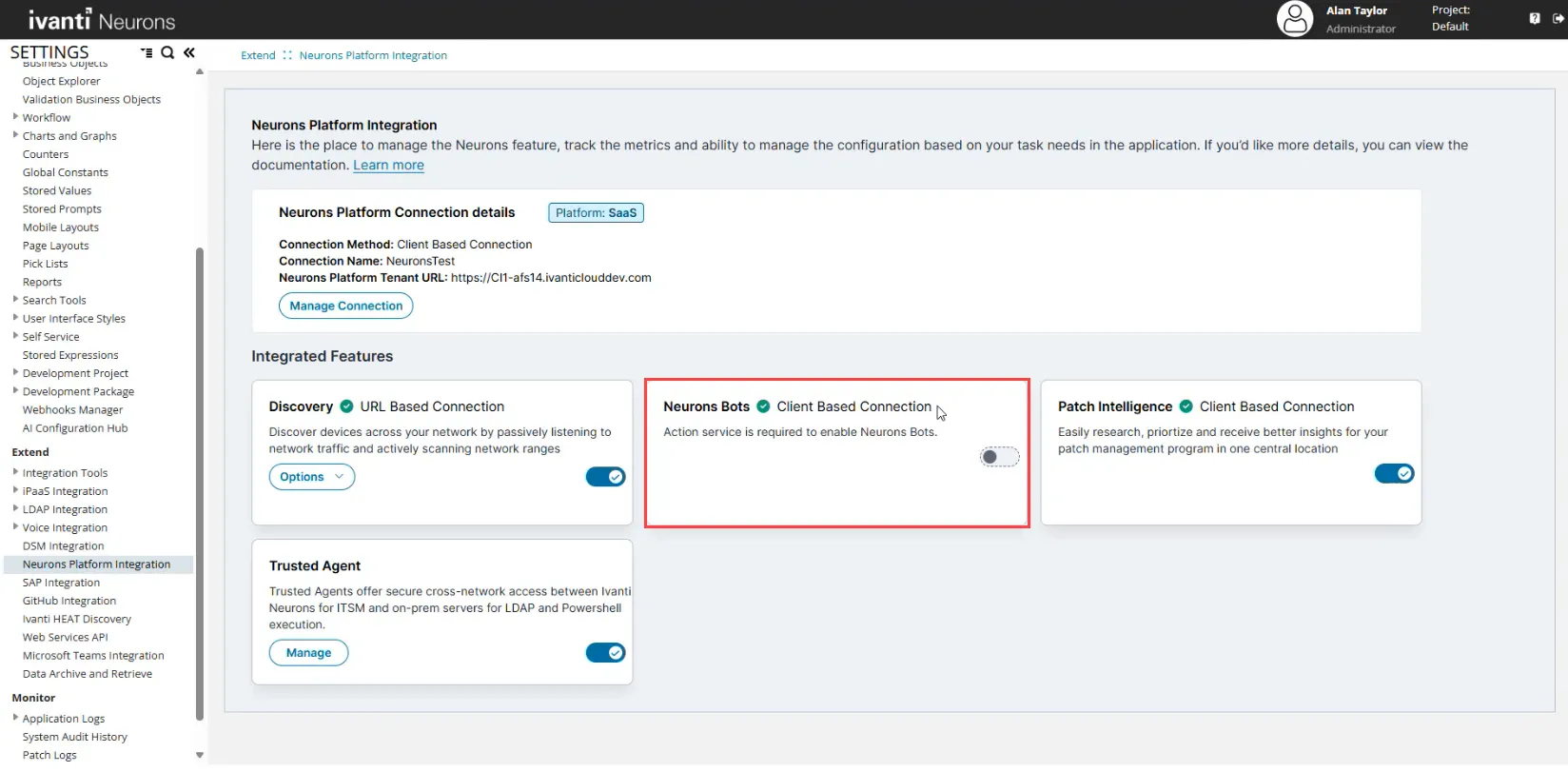
If the toggle button is disabled, verify that the global constant EnableActionService is set to True.
Refer to Neurons Platform Integration guide to learn how to integrate Neurons Platform with ITSM.
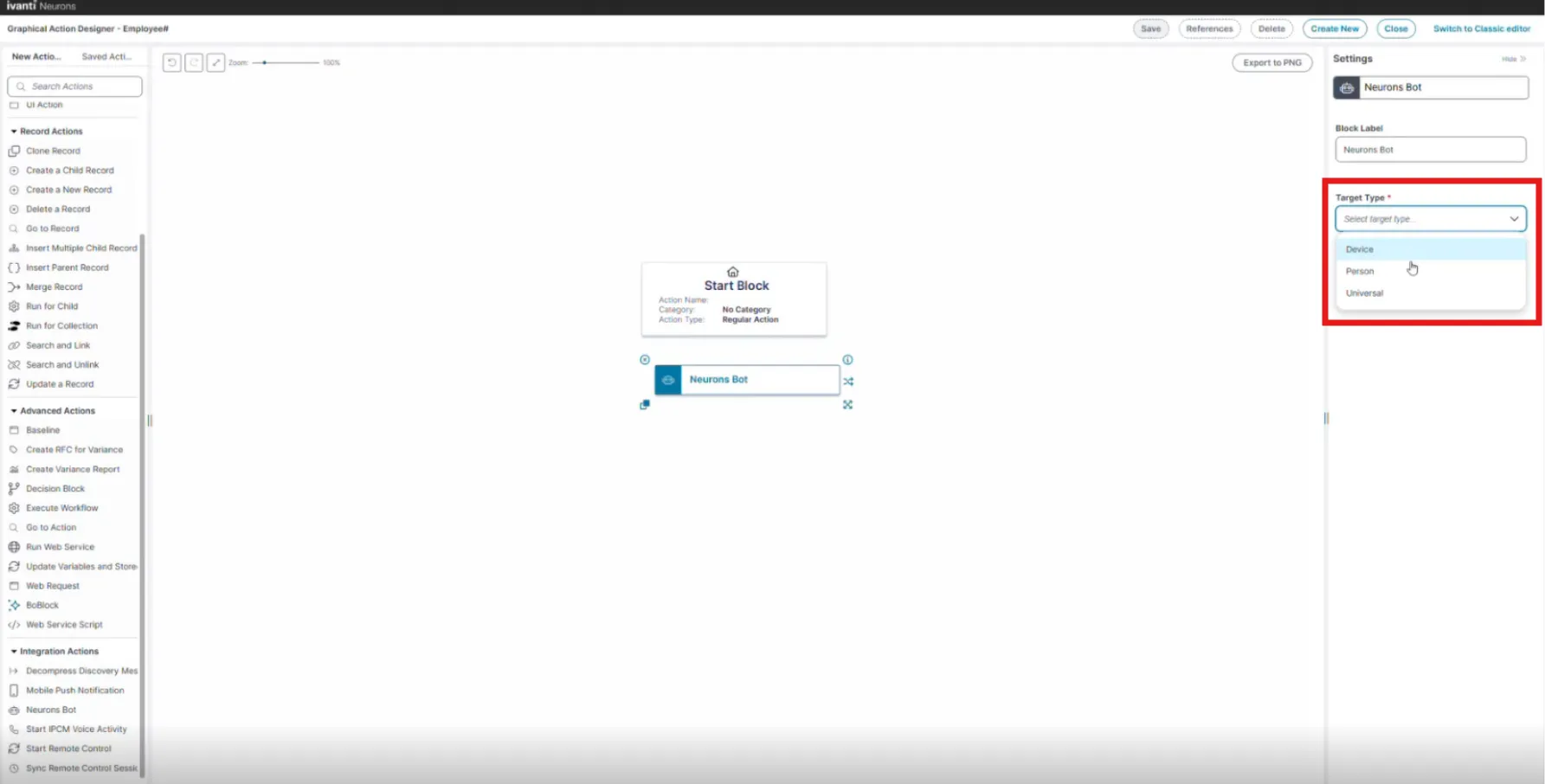
Target Type
The target type determines what the Neurons Bot runs against, and which record must be linked before the Quick Action can run. You must select a target type before you can select a bot.
Target Type | You can invoke from | Required identifier |
|---|---|---|
Device | A Business Object that has relationship to a CI record or directly against a CI record. | A single linked CI record with an Agent ID is mandatory. |
Person/People | A record that is linked to an Employee record, or an Employee record directly | A single linked Employee record with a Discovery ID is mandatory. Only the Employee business object has the Discovery ID field. |
Universal | Any business object record | No pre-conditions required |
When you configure the Neurons Bot Quick Action, you select the target type first, and then select the Neurons Bot. The Bot list displays only the Neurons Bots that match the target type you selected.
A Neurons Bot Quick Action with the target type set to Universal has no requirements, and you can invoke it from any business object.
For information on running a Neurons Bot Quick Action, and on the errors that appear when a requirement is not met, refer to Invoking a Neurons Bot
Parameters
To access the parameters, select a block to display its settings in the Settings pane. The Settings pane shows different parameters depending on which block you select:
- Select the Neurons Bot block to configure the target type, the bot, and its inputs.
- Select the Start Block to configure the action name and the common Quick Action settings. For more information, refer to Configure a Neurons Bot Quick Action section.
Action Block Settings
Neurons Bot input definitions automatically synchronize once per hour. Any changes you have made within the last hour in Ivanti Neurons to the Bot definition may not be immediately visible for selection. If you need to synchronize any changes you have made to the selected Bot, you can use the Refresh function to manually synchronize the Neurons Bot Quick Action without waiting.
- Block Label: A unique name for the block. This is useful to identify each action when you have more than one of the same action block added or cloned in the design area.
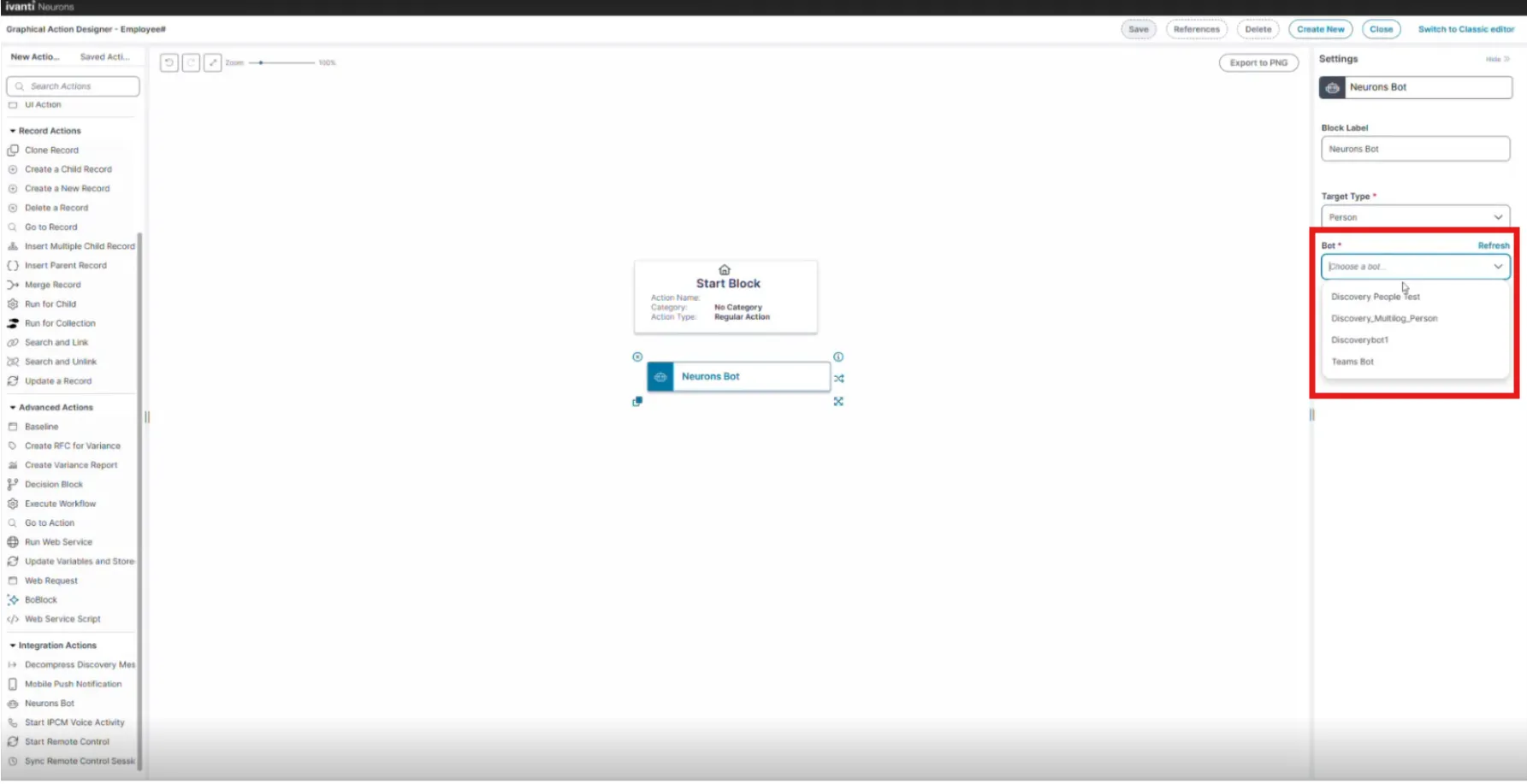
- Bot: Select the Neurons Bot instance from the drop-down list that you want the Neurons Bot Quick Action to trigger.
- Refresh: See the note above. Use this function to manually synchronize any changes you have made to the selected Bot definition in Neurons. You may receive a Warning message if the refresh is unsuccessful, or has already been completed.
- Inputs: Inputs determine the action that the Neurons Bot performs when invoked. Inputs vary depending on the Neurons Bot instance selected. Some Neurons Bot instances have no inputs. Inputs shown are defined in the Neurons Bot configuration in Ivanti Neurons. Select or enter parameter values and settings for input fields where required. For further information on inputs, refer to Neurons Bots editor. Field types are:
- Text/String
- Number
- Boolean (True/False)
- Date
- Option - these are drop-down fields with multiple choice lists.
- Click Save to commit your settings.
Start Block Settings
These settings are accessed by selecting the Start Block, refer to Start Block Settings.
Configure a Neurons Bot Quick Action
Configure the Neurons Bot Quick Action in the Graphical Action Designer.
- Under Integration Actions, add the Neurons Bot block to the design area.
- Select the Neurons Bot block.
The Settings pane displays the block settings.
- From the Target Type list, select Device, Person/People, or Universal.
- From the Bot list, select the Neurons Bot that you want the Quick Action to trigger.
The list displays only the Neurons Bots that match the target type you selected.
- Under Inputs, set the values for the input fields that the selected bot requires. Skip this step if the bot has no inputs.
The input fields are defined by the selected bot, so they vary from one bot to another. For example, a bot that acts on a person/People may provide First Name and Last Name fields. Select the expression icon to set a value from a record field or enter a value directly.
- Select the Start Block.
The Settings pane displays the action settings.
- In Name, enter a name for the Quick Action.
- Set the remaining action settings as required. Refer to Start Block Settings.
- Append the connection between the Start Block and Neurons Bot.
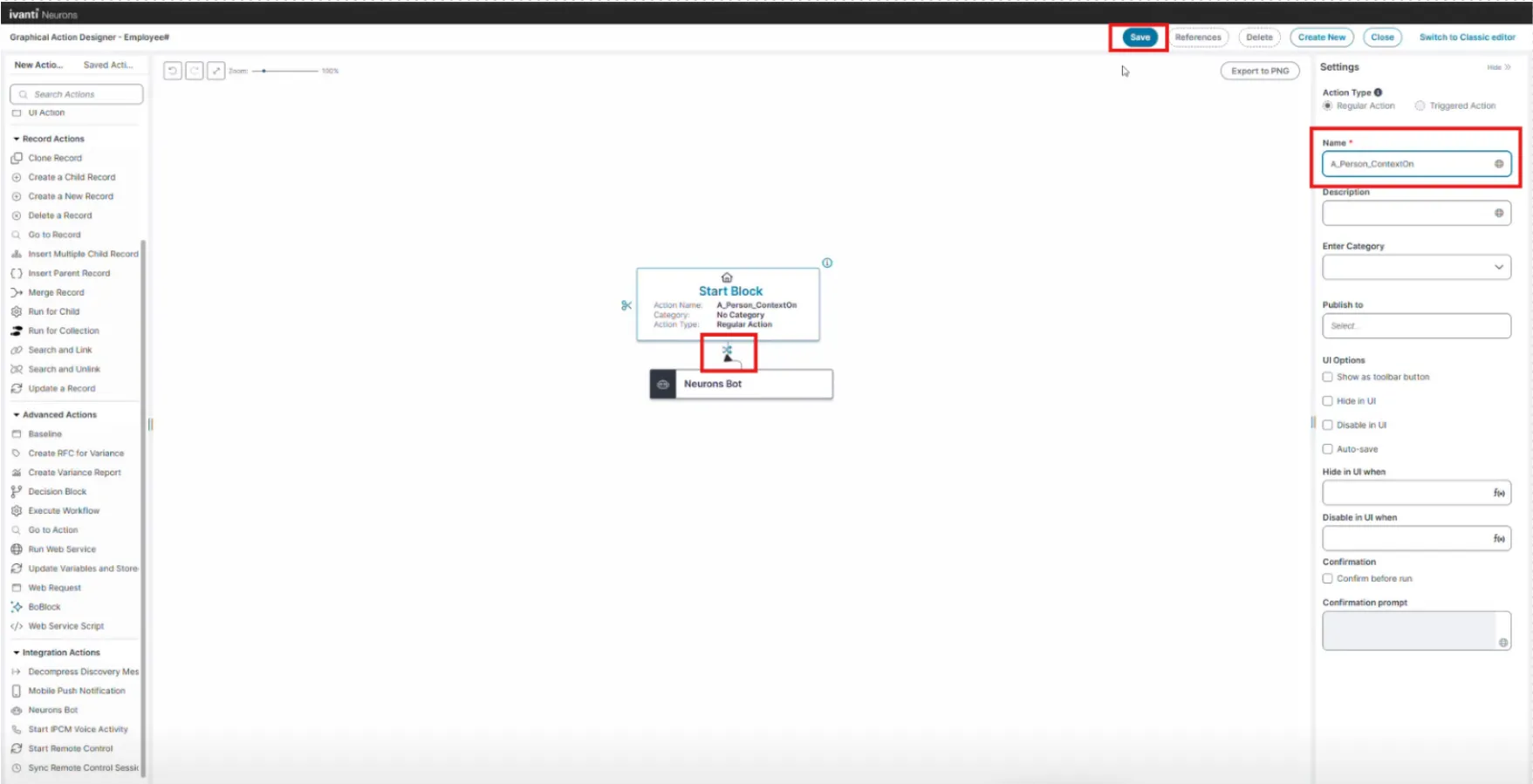
- Click Save.