
Matching Panel Configuration
2 min
Role: Administrator
Minimum Version: IvantiNeurons for ITSM 2024.2.
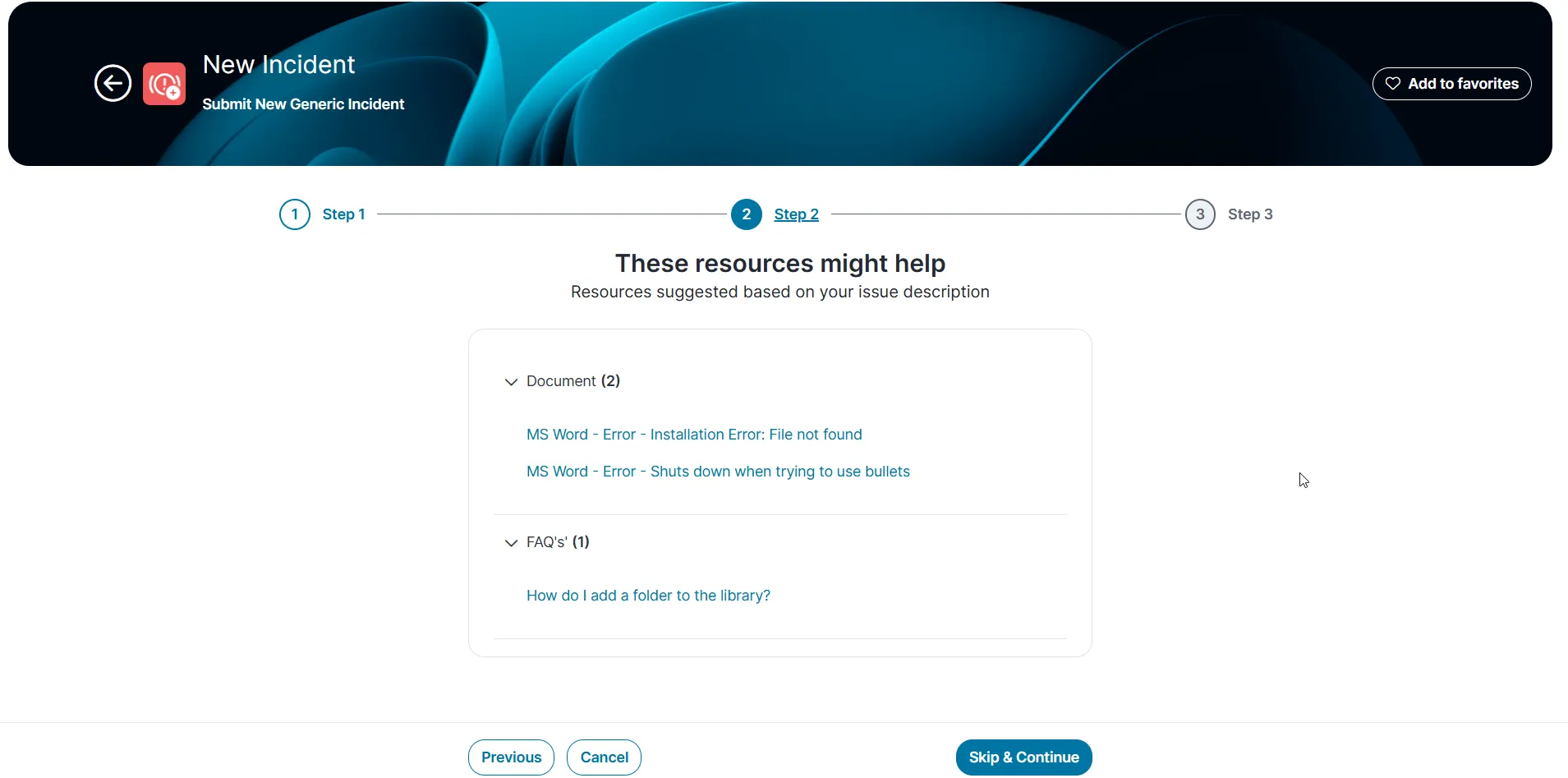
When creating an incident from Self Service, the system suggests related documents and articles, such as help guides, FAQs, and knowledge base articles. These documents are fetched using the Matching panel configuration.
Each business object there are Matching Panel settings within its associated Layouts. Using these settings, you can:
- Configure different sections such as FAQs, Knowledge Base, Help Guides, and more to organize and list a variety of documents.
- Create call-to-action buttons that generate incidents with information mapped to the corresponding incident fields.
- Disable case deflection steps by turning off the Matching Panel for a given layout.
Configuring the Matching Panel
To create and edit Matching Panel settings:
- Log in to Neurons for ITSM as an Administrator.
- Open the Configuration console > Build > Business Objects > Incident.
- Click Layouts tab, select a layout, and open the Form Edit view.
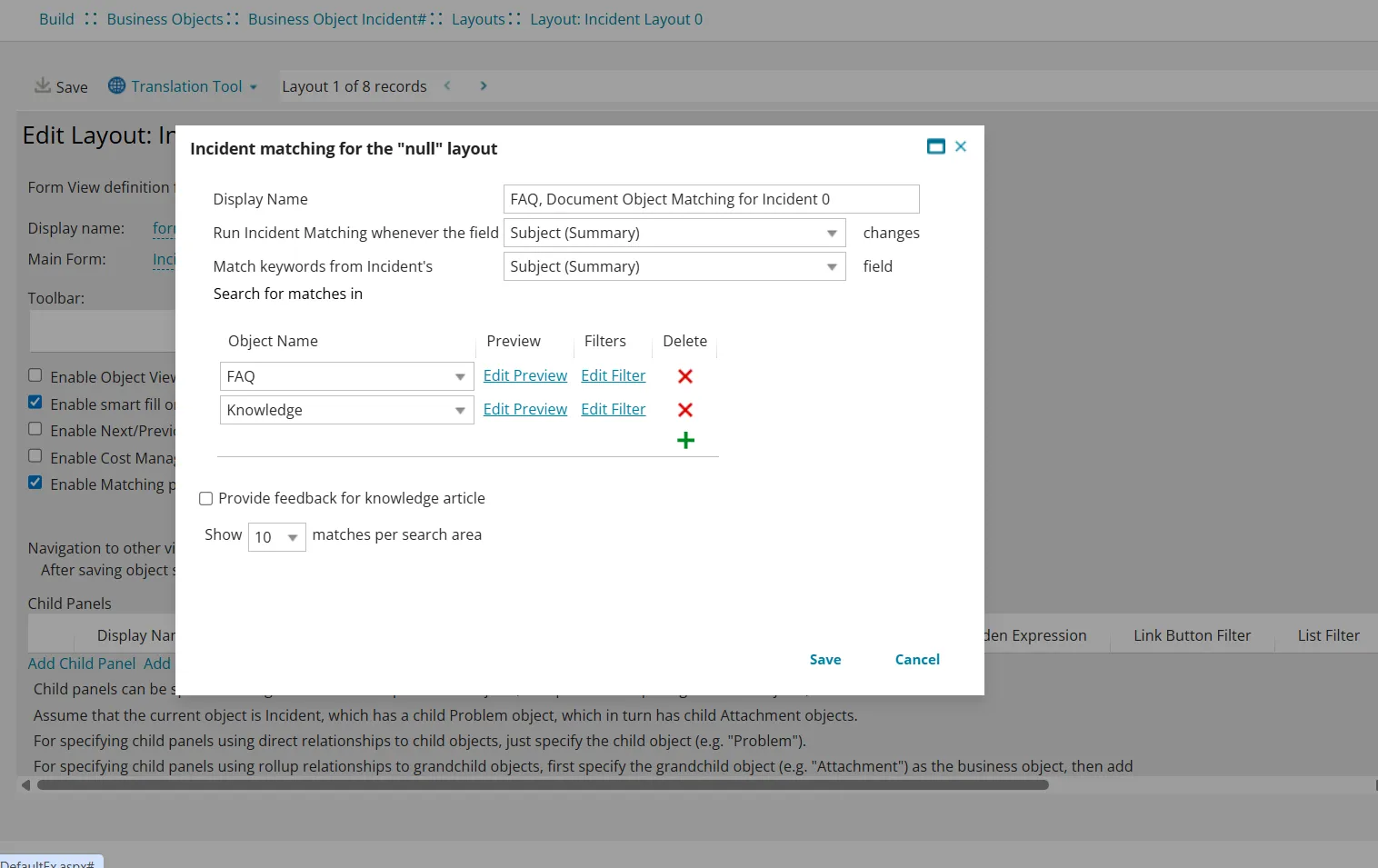
- Click Edit Matching Settings next to Enable Matching panel.
- Select Edit Preview of Object Name. You can also add another object using the
 button.
- Enter the Preview Item format details such as Title Field, Preview Text Field, select a Form for Hover Panel, and click Add New Button.
- Enter Button Label, check or enable Link matched Problem with main Incident# select the Incident#. from the dropdown, and Save the configuration.
Creating an Incident from Service Catalog
While creating an incident from Service Catalog as a Self Service user you select the template, the incident fetches all the information from the template and update the request with the same information.
- Log in to Neurons for ITSM as Self Service.
- Go to Service Catalog and select a service request card.
- Enter title and description, and click Continue.
- Select the related resource based on the Object Name list and click the button created from the Matching Panel settings.
- Select Urgency and click Submit.