Example: Logging Azure DevOps Pipeline Runs
3 min
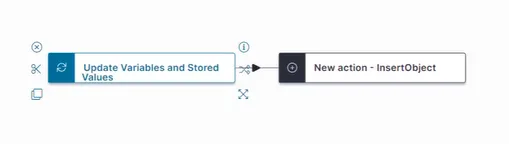
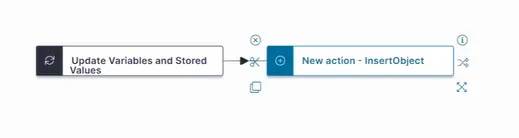
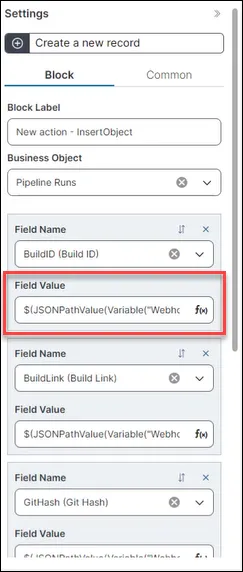
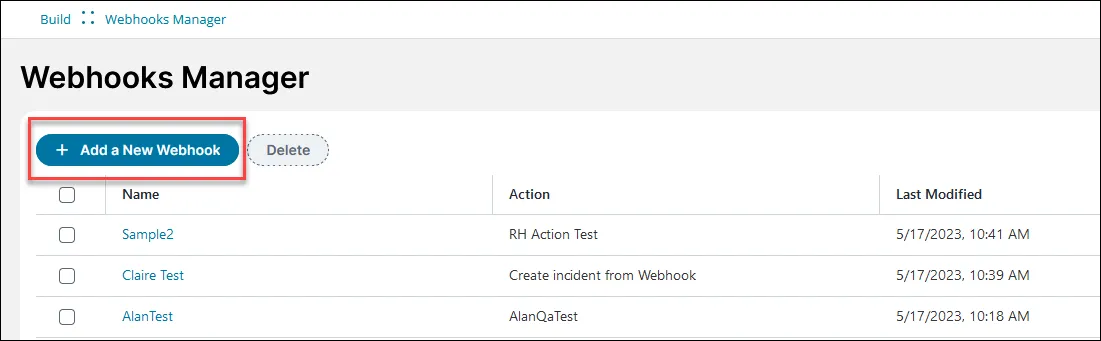
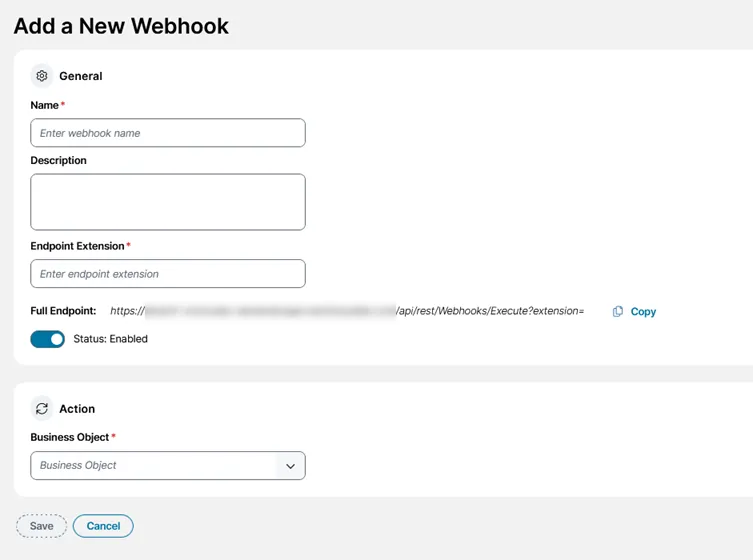
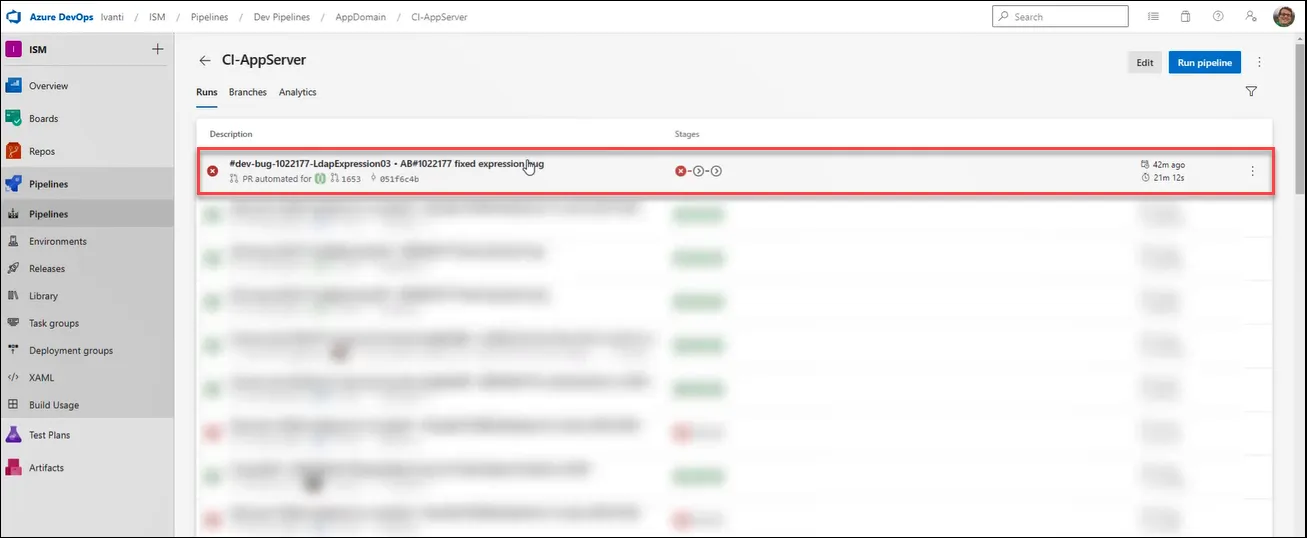
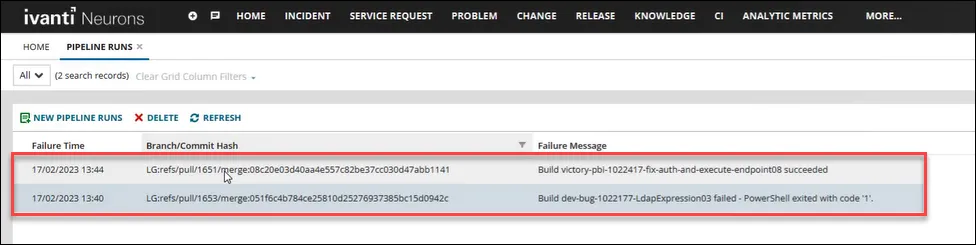
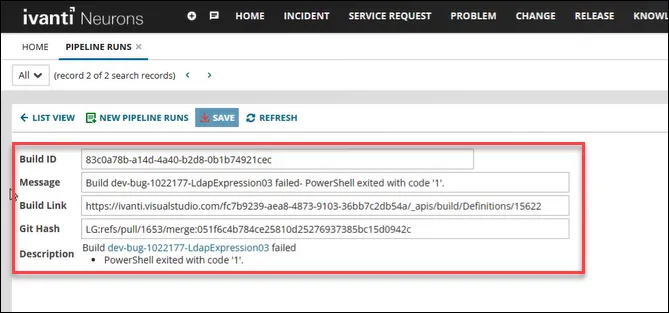
scenario a company has a number of development build pipelines that it uses to run code against this example shows how developers use existing azure devops (ado) events functionality and webhooks to send pipeline data to this process transfers valuable information about runs on a particular pipeline into business objects prerequisites to recreate this example, you need an administrator role for and ado pipelines you also need to set up your azure devops instance to send pipeline results to the webhook that you've created however, even without an ado installation, you can understand the principles at work here create a business object in itsm in , create a business object called pipeline run create the following fields to hold ado information from a pipeline run field description build id the id for the development build that ran message messages about build status appear in this field build link an https link to open the build in visual studio (in this example) git hash the git hash is a unique content name made up of the following the commit message the file changes the commit author (and committer they can be different) the date the parent commit hash description user friendly version of the message from the message field create an action in itsm open the graphical action designer see using the graphical action designer (gad) docid 2wq6ihun2zxir21ea3m7g tip you can use the classic action designer if you prefer create a new block using the update variables and stored values action block type this block updates the stored values and variables used in your action for more help see update stored values and variables quick action docid\ dofjmmkz8 omktccl485k configure the update variables and stored values action block to store the data given to the webhook endpoint in the required variable webhookbody edit the values as follows field value variable type variable name webhookbody data type json value {} create a new block using the create a new record block type, name it new action insertobject , and attach it to the update stored values and variables action block edit the new action insertobject block for each field, create an expression using the simplified expression editor to use the variable in the update variables and stored values action block to populate that particular field the expression retrieves a value for the json path and uses it to populate the field for example, use this expression to populate the build id field $(jsonpathvalue(variable("webhookbody"), "$ id")) for help, see using the simplified expression editor docid\ aycvgwq xaxop0ofpgl9h save your action as createbuildrun create the webhook in itsm create a webhook to trigger the createbuildrun action when data is sent to the appropriate endpoint in the settings menu, click on webhooks manager in the build section the webhooks manager opens click add a webhook enter information into the fields field value name log a completed pipeline description this webhook will create a "pipeline run" business object record using the provided data endpoint extension completedpipeline note the endpoint extension is case sensitive full endpoint https //{tenant url}/api/rest/webhooks/execute?extension=completedpipeline select business object pipeline runs (pipelinefailure) select action createbuildrun (composite action) click save a confirmation message appears saying webhook successfully created your webhook appears in the list and is enabled by default verify your webhook works to see your webhook in action and test it, find a recently logged build in ado in open the pipeline runs business object and select refresh to check for new records open one of the records and check the fields the record has been created automatically by the createbuildrun action invoked by the log a completed pipeline webhook