
Emailing and Downloading a Report
1 min
You must configure the email server before you can email reports. You can schedule and automatically generate reports. The system can email scheduled reports to one or more users.
- Log in to the application as a Report Manager.
- Open the Reports workspace. The system displays a list of reports.
- Click the edit
 icon for the report you wish to eamil or download. The Reports page is displayed.
- Under the Distribution Information section, do the following:
- In the Report Format field, select the desired file format of the report.
- Select No Distribution if you do not want to automatically distribute the report.
- Select one of the following:
- Download: The report will be available for downloading in the Download column of the report in the Reports workspace. Double-click on the report file to download.
The Download option is not operational on Neurons for ITSM Cloud installations.
Download Report
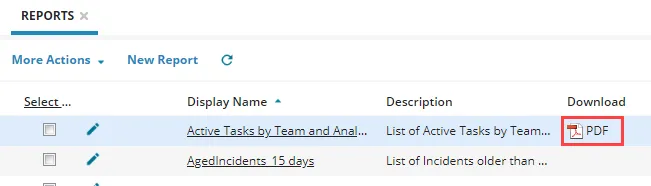
- Email: Allows you to email the report to selected email recipients. Enter the following information:
- To: Enter the email addresses of the recipients you wish to email the report.
- CC: Enter the email addresses of the recipients you wish to copy on the email.
- Subject: Enter the subject of the email.
- Message: Enter a description of the report.
- Click Save to save the report.