
Creating a Request Offering Category
2 min
When creating a request offering, you assign it to a category. When users view the Service Catalog, they can browse services offered according to this category. You can create your own request offering categories to fit your organization.
- Log in to the Service Desk console.
- Open the Request Offerings workspace.
- Click New > Request Offering. The Define Request Offering page opens.
- Next to the Category field, click Edit. The Categories window opens.
- Choose Categories or one of the default categories to create a sub-category, then click Add. The Categories dialog box is displayed.
New Category
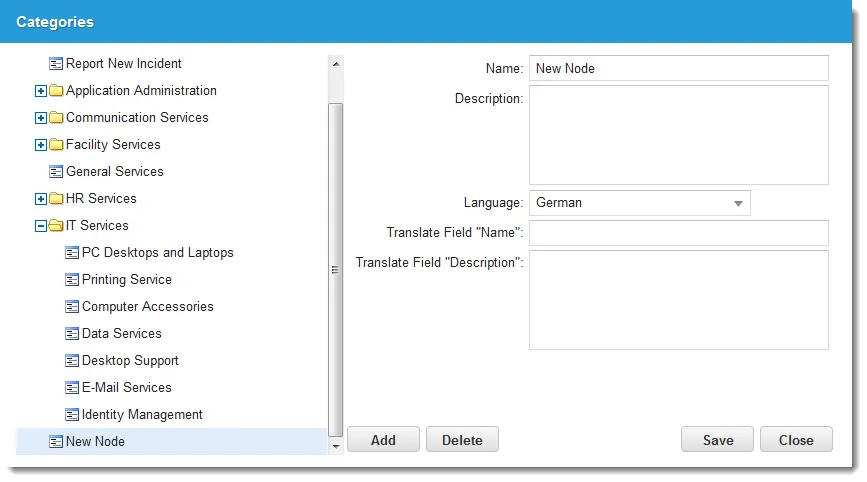
- Modify the name and enter a description.
- Click Save, then click Close.
The category now appears on the category list.
Translating a Request Offering Category
- Log in to Neurons for ITSM as a Service Owner.
- Open the Request Offerings workspace. The Define Request Offering page opens.
- Next to the Category field, click Edit. The Categories window opens.
- Select the item to translate.
- From the Language field, choose a language.
Translate Request Offering Categories
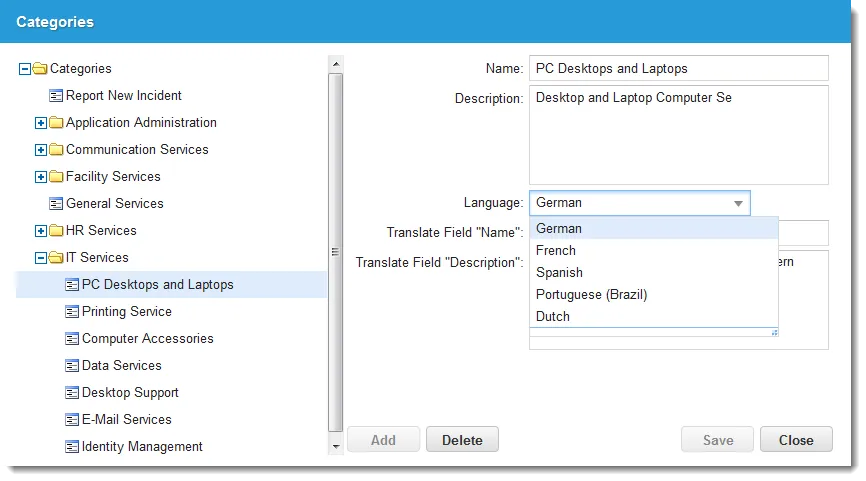
- Enter a name in the Translate Field "Name" field and a description in the Translate Field "Description" field in the desired language.
- Click Save, then click Close. When you view the form in the selected language, the translated values are displayed.
Deleting a Request Offering Category
- Log in to Neurons for ITSM as a Service Owner.
- Open the Request Offerings workspace. The Define Request Offering page opens.
- Next to the Category field, click Edit. The Categories window opens.
- Select the category to remove, then click Delete.
- Click Yes at the confirmation message. The category no longer appears on the list.