
Configuring the List Control
Placing the List onto the Form
- Log in to Neurons for ITSM as a Service Owner.
- Open a request offering.
- Click the Design request form tab.
- Drag the List control from the right pane onto the form. See Creating a Request Offering.
- Enter a label and description for the list.
- Click the edit icon
 next to the label. The Item Configuration Editor opens.
Creating a Custom List
You can create a pick list based on a custom list of items that you define. You can associate each custom list item with an image so that an item's image displays when a user selects the item.
- In the Item Configuration Editor, expand Pick List.
Pick List
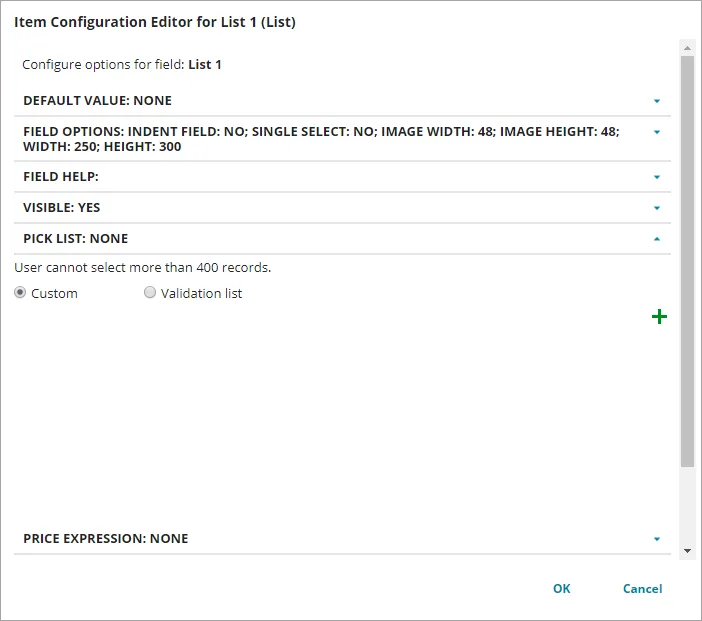
- Choose Custom, then click the Add icon
 . The system displays the option fields.
- Enter information into the fields.
Field | Description |
|---|---|
Option name | Name of the item to appear on the pick list. |
Price | Price for the item. |
Image file | Image file. These are available only if you have already added them to the attachment repository through the Form Designer Tools Attachment tab. |
- Repeat to add more list items as needed.
- Click Ok.
Creating a Validation List
You can create a pick list generated dynamically based on a validation list. You can use various fields associated with the validation object to enhance the list and not just the description field.
- In the Item Configuration Editor, expand PICK LIST.
Validation List
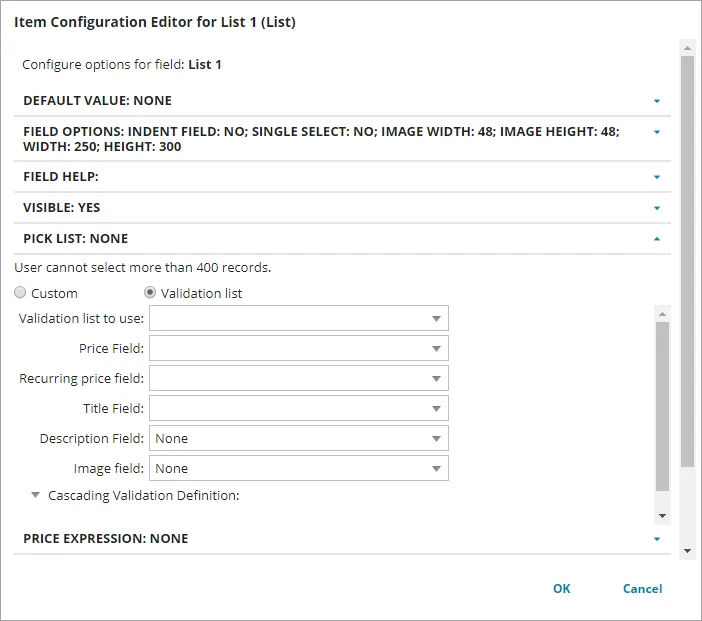
- Choose Validation list. The system displays the validation fields.
- Enter information into the fields.
- Repeat to add more items as needed.
- Click OK.
Specifying Image Details
When you use the image control to display an image as a field, you can specify a file to use for a static image or a field on the current form to use as the basis for a dynamically generated image. You can also specify image height and width, and whether it has a border.
- Open the Item Configuration Editor for an image control and expand the Field Options area.
Field Options
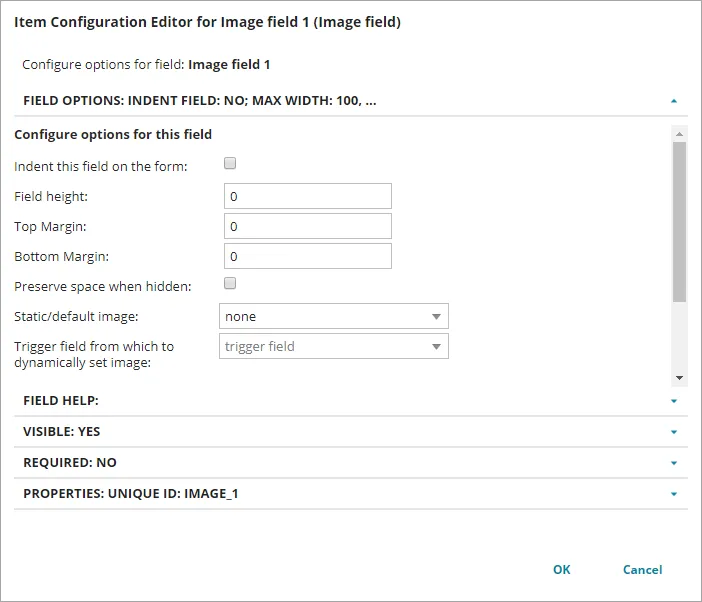
- In the Static/default image field, select an image file. Images are available only if you have already added them to the attachment repository through the Form Designer Tools Attachment tab.
- In the Trigger field from which to dynamically set image field, select the field from the current form that determines which image file is used.
The drop-down list in this field is based on one or more pick lists that are defined in drop-down list controls on the current request form, and are configured to use images. At least one such pick list must exist on this form for the field described here to display a populated drop-down list.
- Specify image dimensions (in pixels) in the Max Width and Max Height fields. These fields can have a maximum value of 250.
- Select Border if the image has a border.
- Click OK.
Using the Show Select All option
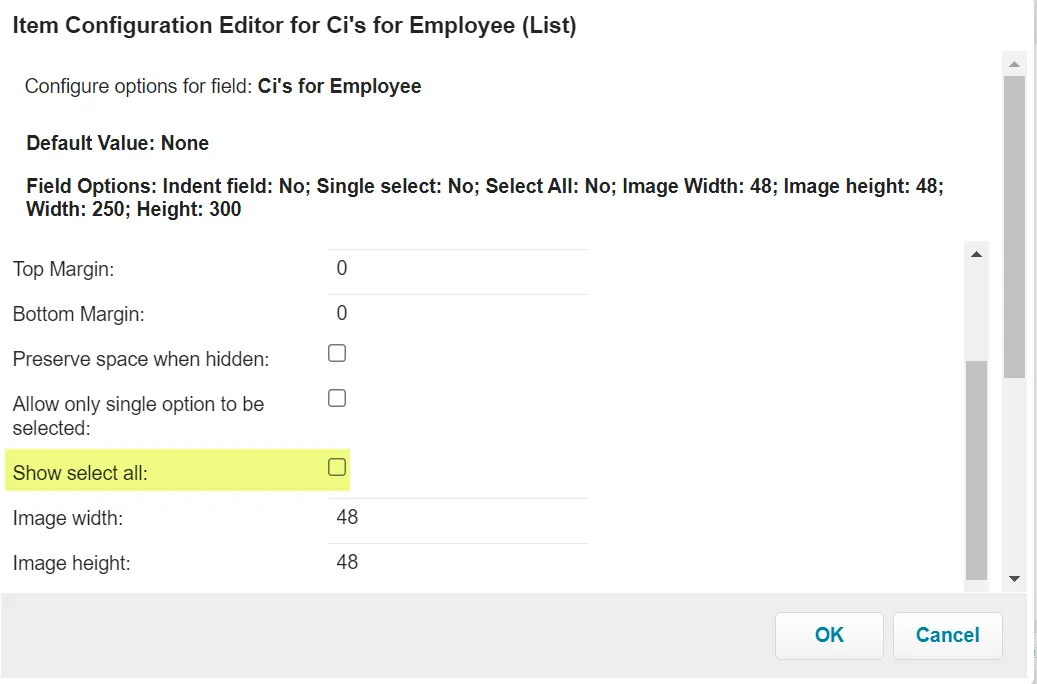
The list control in Request Offering can have an option to select/clear all options in a single-click provided you enable the Show select all option while configuring the pick list in the Request Offering.
This feature is available in both in the Self Service classic and the Self Service Mobile portal.
- Open the Item Configuration Editor for the list control and expand the Field Options section.
- Select the Show select all checkbox.
If you select the Allow only single option to be selected option, the Show select all option in the Item Configuration Editor will be disabled.
Show select all checkbox
- Expand the Default Value section and select Value to define the default values for the Request Offering.
- Click Select All to select all the values or click individual items to custom select the values.
Defining Default Values
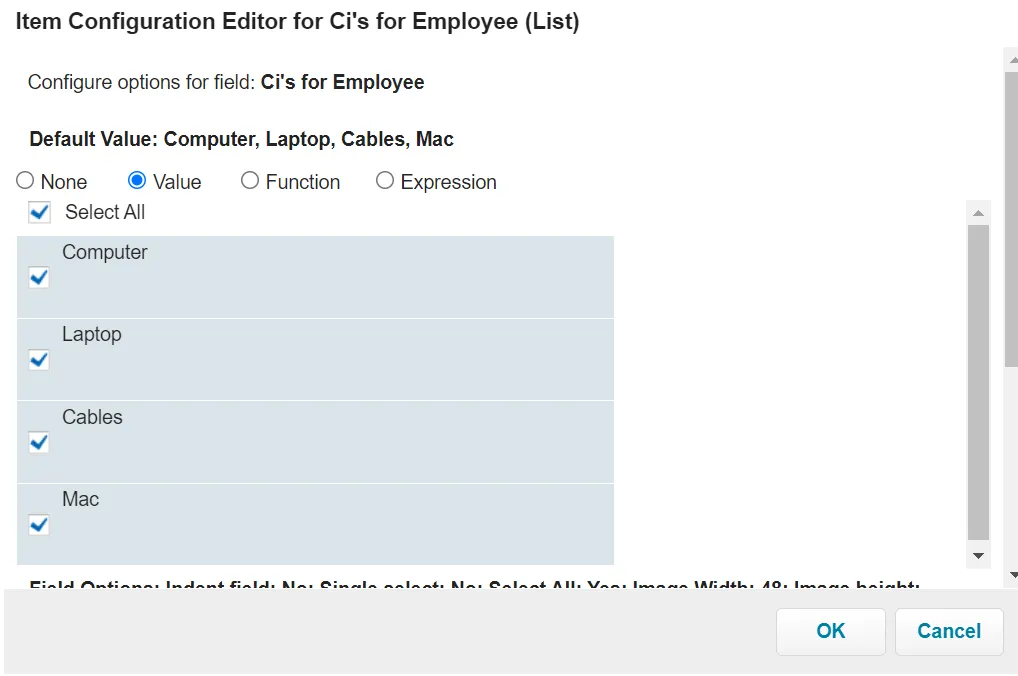
When the Select All option is selected, only values that are visible are selected. If the list of values extend beyond what is displayed, those are not selected. Click Load more and then select them individually as need be.