
About the Configuration Console
Role: Administrators.
Minimum Version: Ivanti Neurons for ITSM 2024.3 to access global features via Neurons Platform features.
Feature Eligibility: Existing tenants for Classic ITSM and new tenants only for Neurons Platform features.
Feature Prerequisites: ConfigDB feature flag for Global Settings EnableGlobalSettings.
The Configuration Console can be accessed only by users logged in as Administrator. This is where administrators can set up the application, create dashboards, give permissions to user roles, and perform many other configuration tasks. See Initially Configuring Neurons for ITSM for information on how to use the specific items in the Configuration console.
Accessing the Configuration Console
Only administrators can access the Configuration Console.


About the Settings Menu
The Settings menu appears on the left side and lists the administrative items by category.
Settings Menu
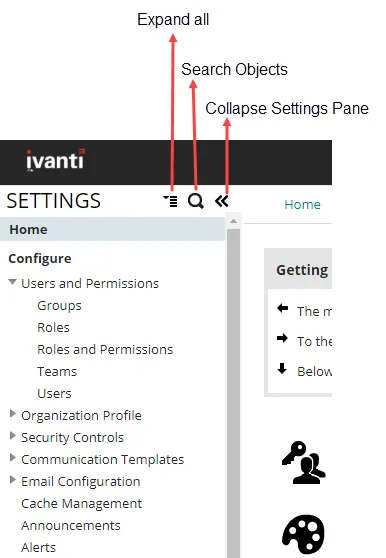
Navigate in the Settings menu as follows:
- Click Toggle
 to open or close the Settings menu.
- Click Search
 to open the Search Workspace window. This lets you open any configuration workspace window.
- Click Expand All
 to expand all the groups listed in the Settings menu and view the links. Groups are indicated by a side arrow
  .
.
- Click an item from the list to open a workspace in the center pane. Breadcrumbs appear at the top to remind you where the workspace is located on the list.
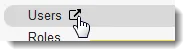
- Some workspaces can be opened in a secondary tab. To open a workspace in a new tab, hover over an item and click Open
 .
.
Open Workspace in a New Tab
About the Center Pane
The center pane holds direct links to all administrative items. This allows you to navigate to them with a single click. Click a link to open a workspace.
About the Quick Links Menu
The Quick Links menu appears to the right of the main window and provides access to some of the most-used items. Click a link to open a workspace.