
Using a Variable within multiple Actions
Role: Administrator
Minimum Version: Ivanti Neurons for ITSM 2023
Within a composite quick action, you can re-use a variable from an earlier action in a subsequent later action.
For example, you create and use the same variable in multiple Composite Action. In first action you create the variable with Text type that displays the user's name that has cloned the incident, then in the second action use the same variable with the Symptom expression to clone the object, and again using the same variable with the Send Email action. So when you run this action it clones the object, print the user name that cloned the business object, and sends an email with the same information.
Following are the actions:
Action 1 - Creating Variable
- Sign in to Neurons for ITSM as an Administrator.
- From the Configuration console, select Build > Business Objects open a business object, and select Quick Actions.
- Create the variable within a new composite action as described in Creating a Quick Action Variable.
In this example, the variable is called ClonedByUserMessage with type Text and contains a value of $("Incident cloned by "+ CurrentUserDisplayName()).
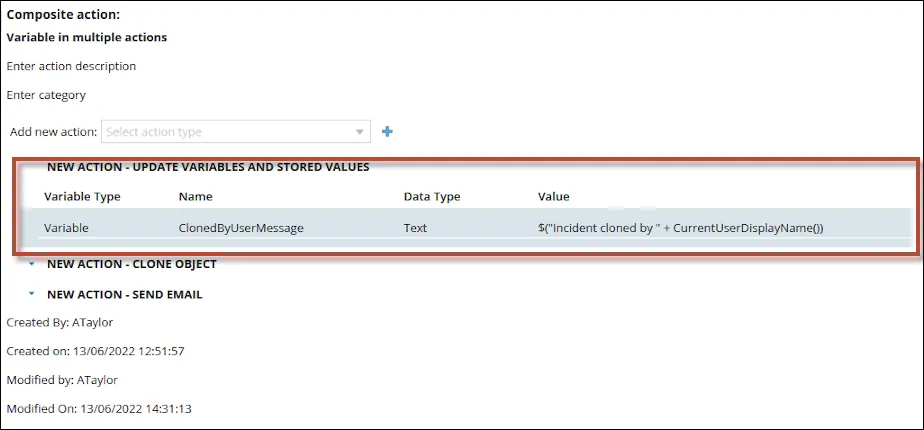
Variables are created within a composite quick action and can only be used within that ONE composite action, and not in other actions or elsewhere within ITSM.
Action 2 - Cloning the business object
- Select Clone Object from the Add new action dropdown list. Select
 .
.
- For Field Name, select Symptom (Description).
- For the first part of Field Value, select fx and then search for Symptom in the Toolbox Search field on the right-hand side.
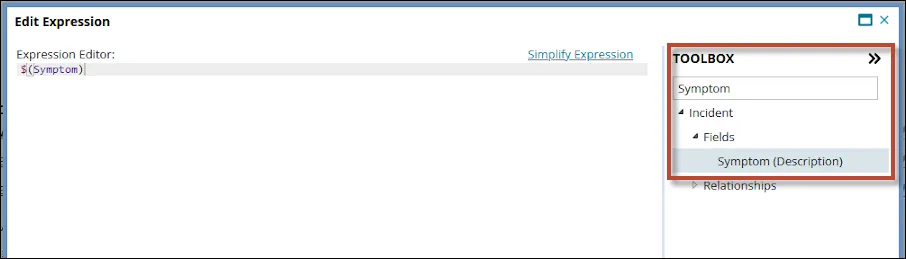
- Drag or double-click to add the Symptom field to your expression.
- Remove the Symptom search term from the box so that the menus appear underneath, then drag or double-click your previously created variable ClonedByUserMessage from the Variables menu.
Add an "/r/n" in between the description and the variable to insert a new line in the contents of the Symptom field if desired.
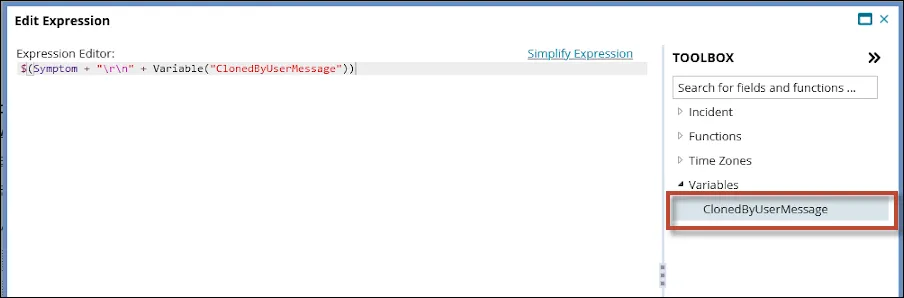
If no variables have been defined within your composite action, you won't see a variables folder in the Toolbox.
Action 3 - Email
- Select Send Email from the Add new action dropdown. Select .
- Complete the fields for Log in Journal, From:, To:, and Subject:, and then change any settings on the right-hand-side in the Action Settings tab.
- Select the Insert a Function tab and drag over the ClonedByUserMessage variable into the body of the email.
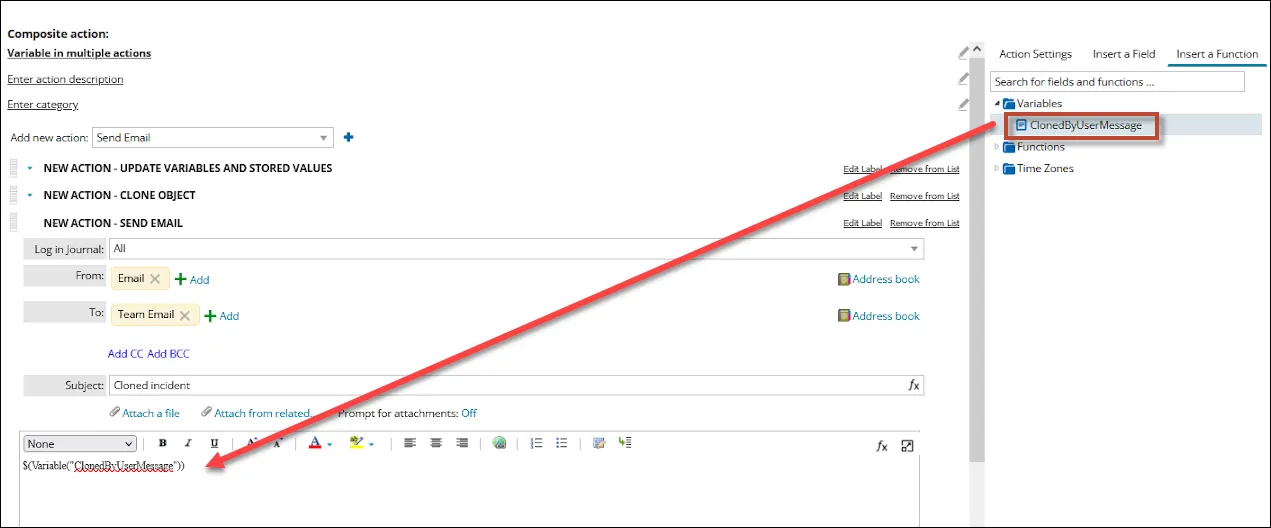
- Select Save to save all three actions in one composite action.
Run quick action
To run your composite action Go to an Incident in a Service Desk dashboard and select More > No category > Name of Composite Action.
After cloning is completed, you see Incident cloned by [current user] in the Description field and an email sends to the team notifying that the Incident has been cloned with the details of the user who performed the action.