
Set Conditional Rules on Multiple Objects
The Bulk Update Rules feature lets you apply a conditional rule to multiple roles and business objects at the same time, instead of configuring each object individually. As an administrator, you select the roles and business objects, enter a conditional rule, and use the color-coded preview to see which objects accept the rule before you apply it. After you apply the rules, you can verify them in Object Permissions in the Admin UI, and you can roll back selected roles to their previous state.
This topic covers the prerequisites for the feature, how to apply and preview rules, how to verify and roll them back, and how bulk conditional rules interact with the single role editor.
Apply Bulk Conditional Rules
- Log in to ITSM with the Admin role, and then open the Admin UI.
- In the left pane, go to Configure > User and Permissions > Roles and Permissions.
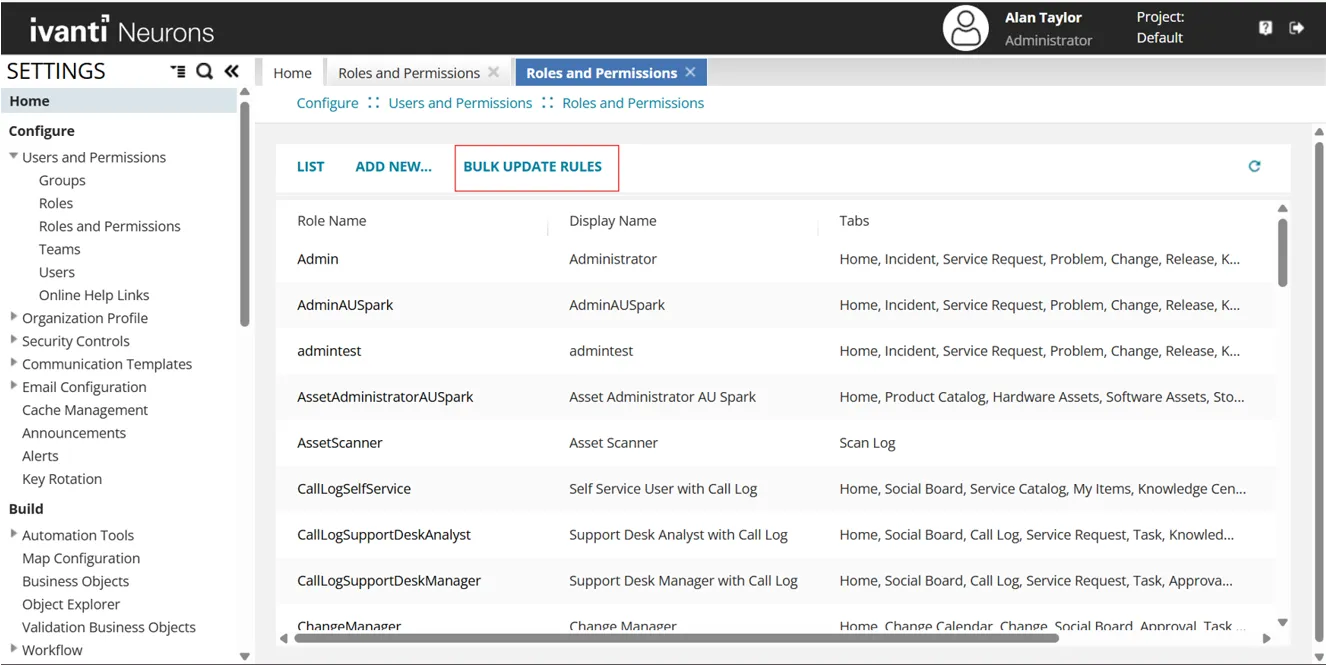
- Select Bulk Update Rules.
- On the Bulk Update Conditional Rule page, select one or more roles and business objects, and then enter the conditional rule to apply.
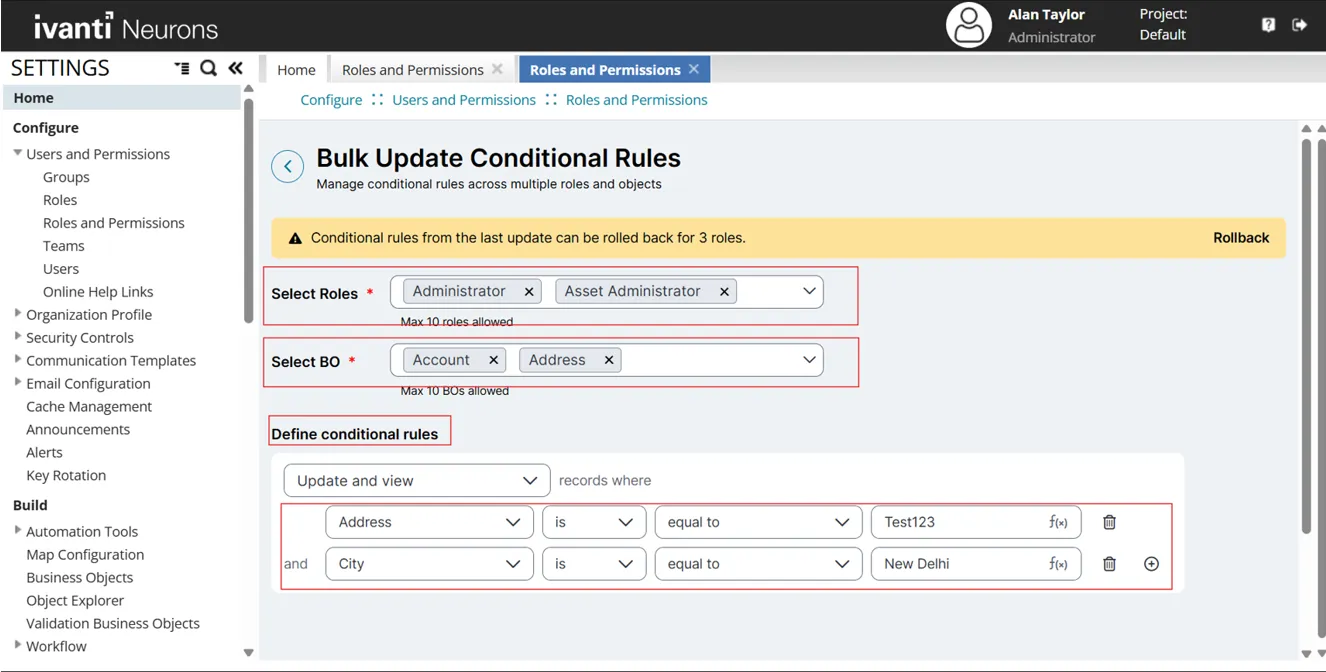
- Select Preview.
The page shows the result for each business object. Business objects that accept the rule appear in green, and business objects that do not accept the rule appear in yellow. For example, if you set the rule Address = Test123 for the Address business object, the rule does not apply because the Address business object does not contain an Address field. In the same preview, both conditional rules apply to the Account business object for every selected role.
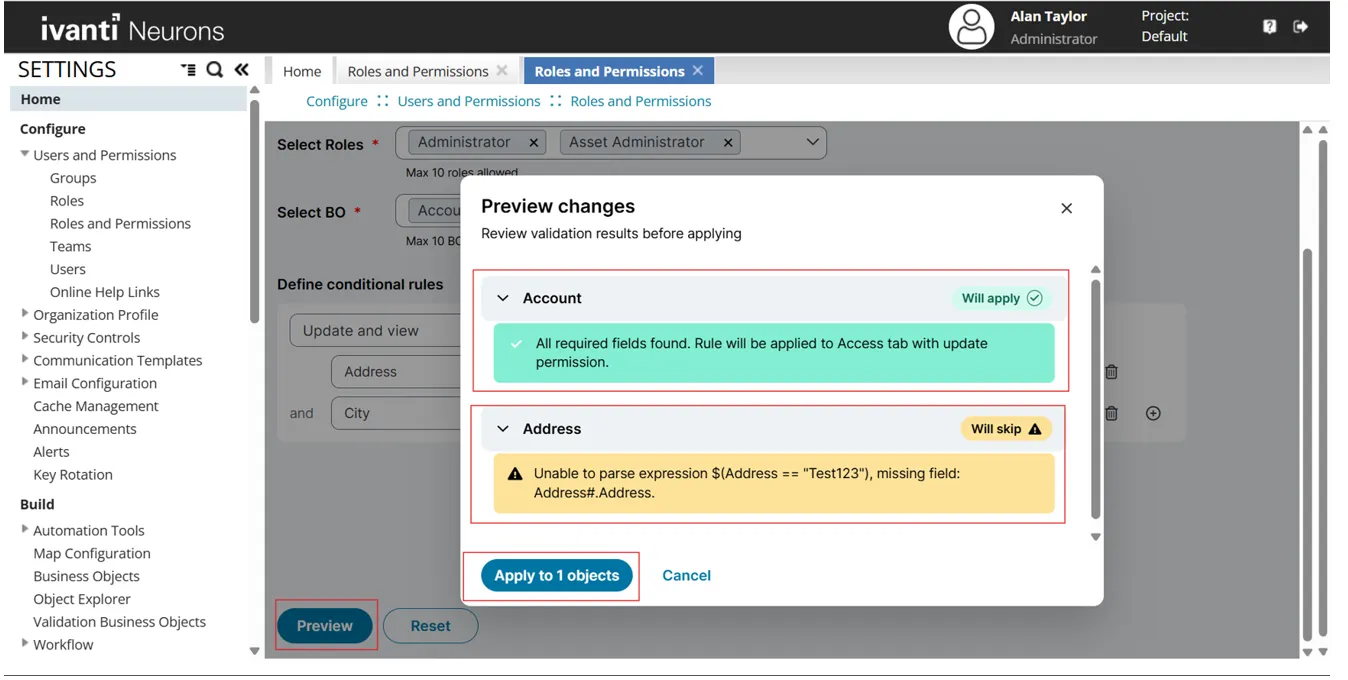
- Select Apply to <n> Objects. The application saves the conditional rules.
Verify the Applied Rules
- Refresh the application.
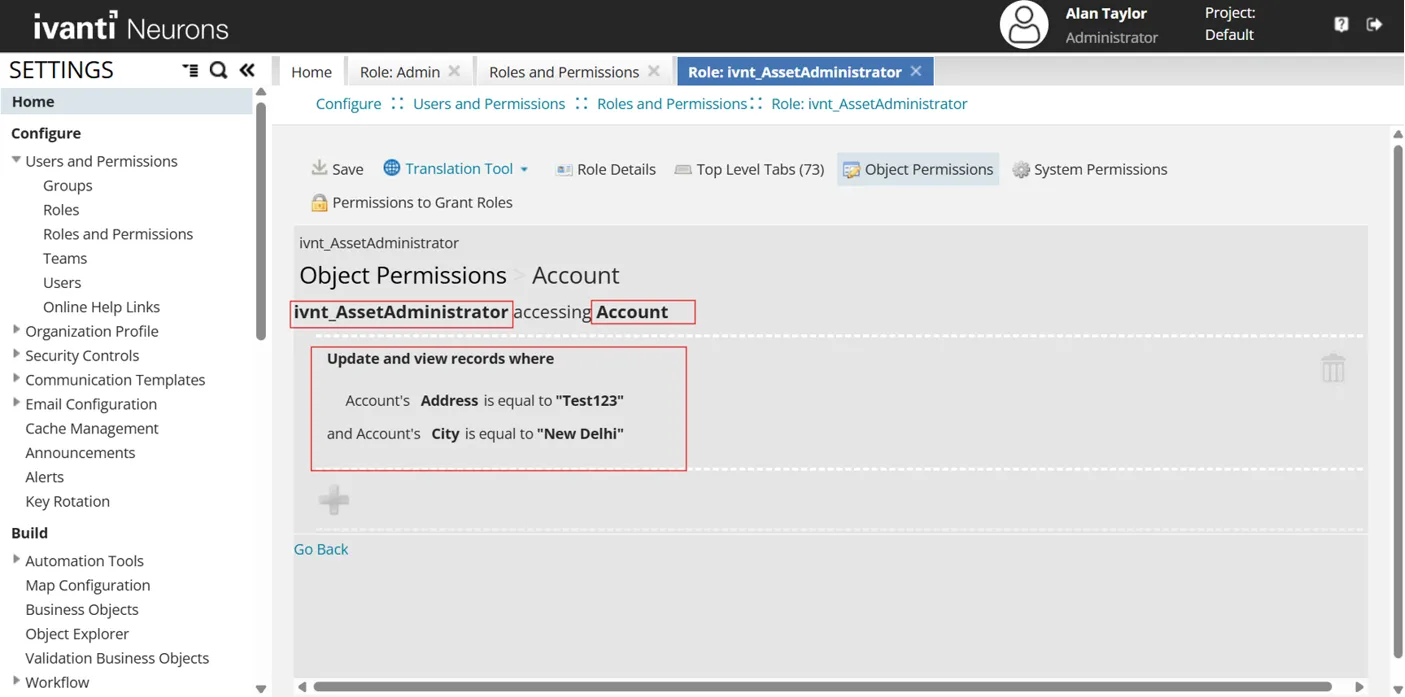
- Go to Configure > User and Permissions > Roles and Permissions > Admin > Object Permissions > Account.
- In the With Access column, select Edit.
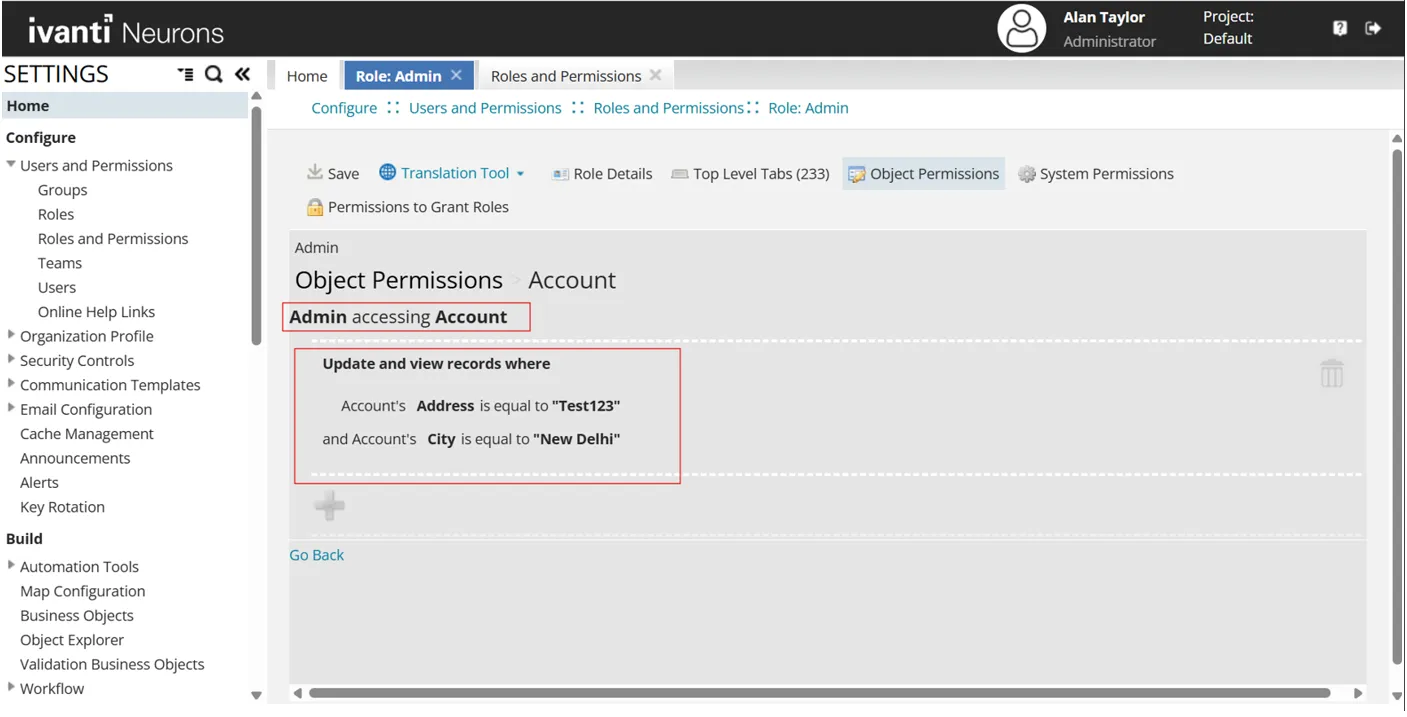
- The expressions from the bulk conditional rule appear.
- Repeat the previous steps for the Asset Administrator role to confirm that the expressions are added.
Roll Back Bulk Conditional Rules
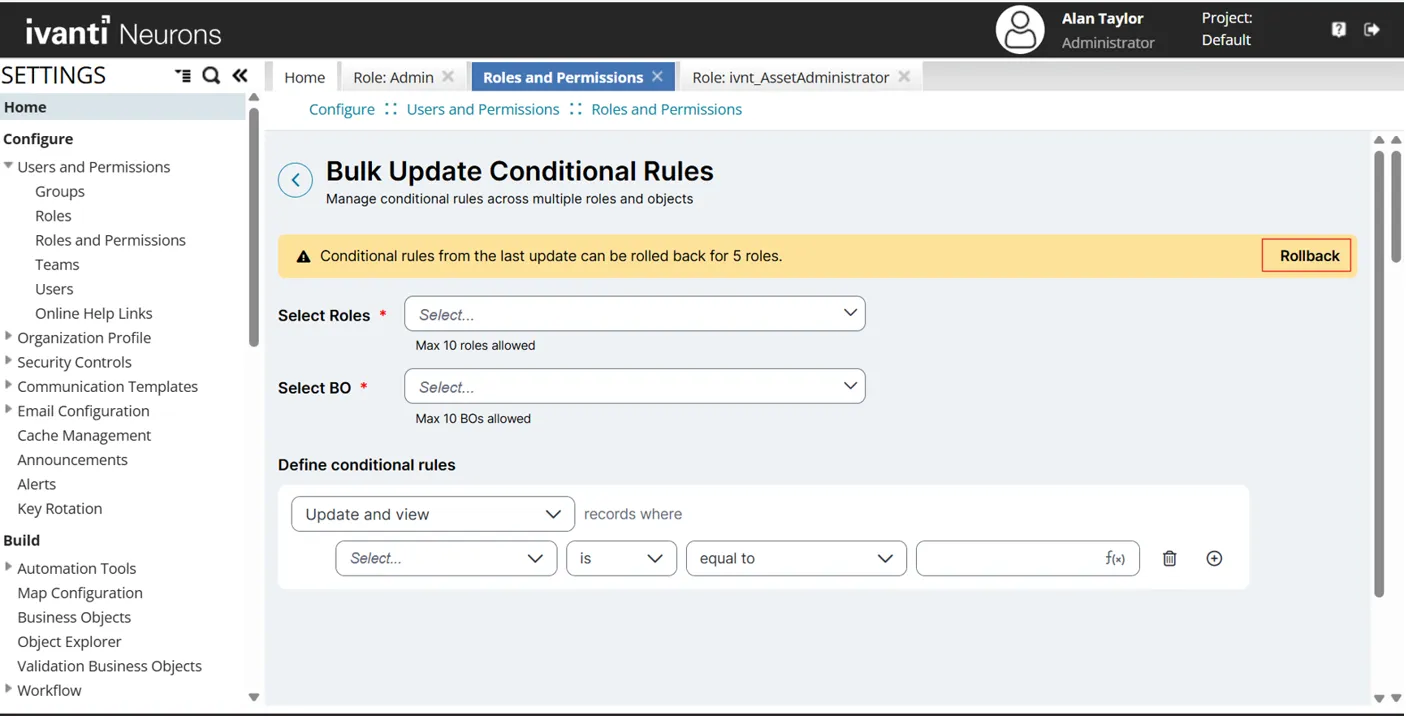
- Go to Configure > User and Permissions > Roles and Permissions > Bulk Update Rules.
- Select Rollback.
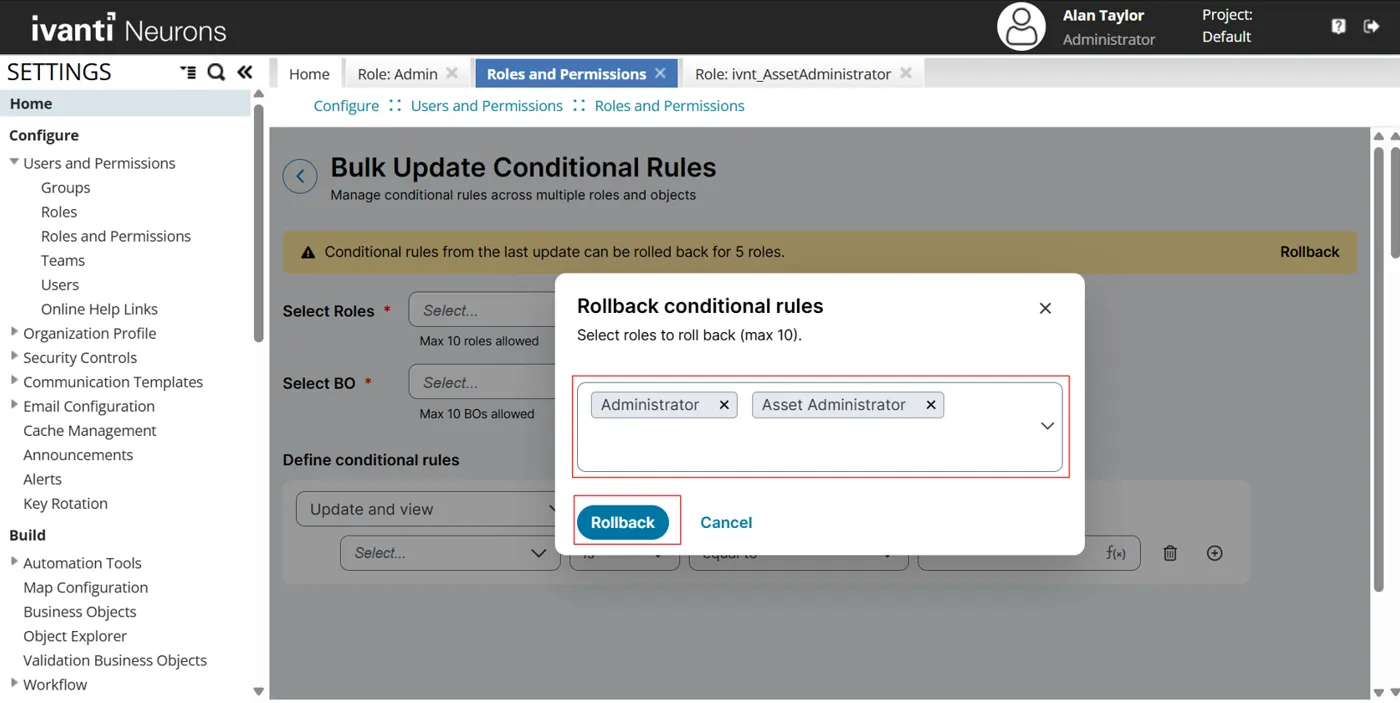
- In the dialog box, select the roles to roll back, and then select Rollback.
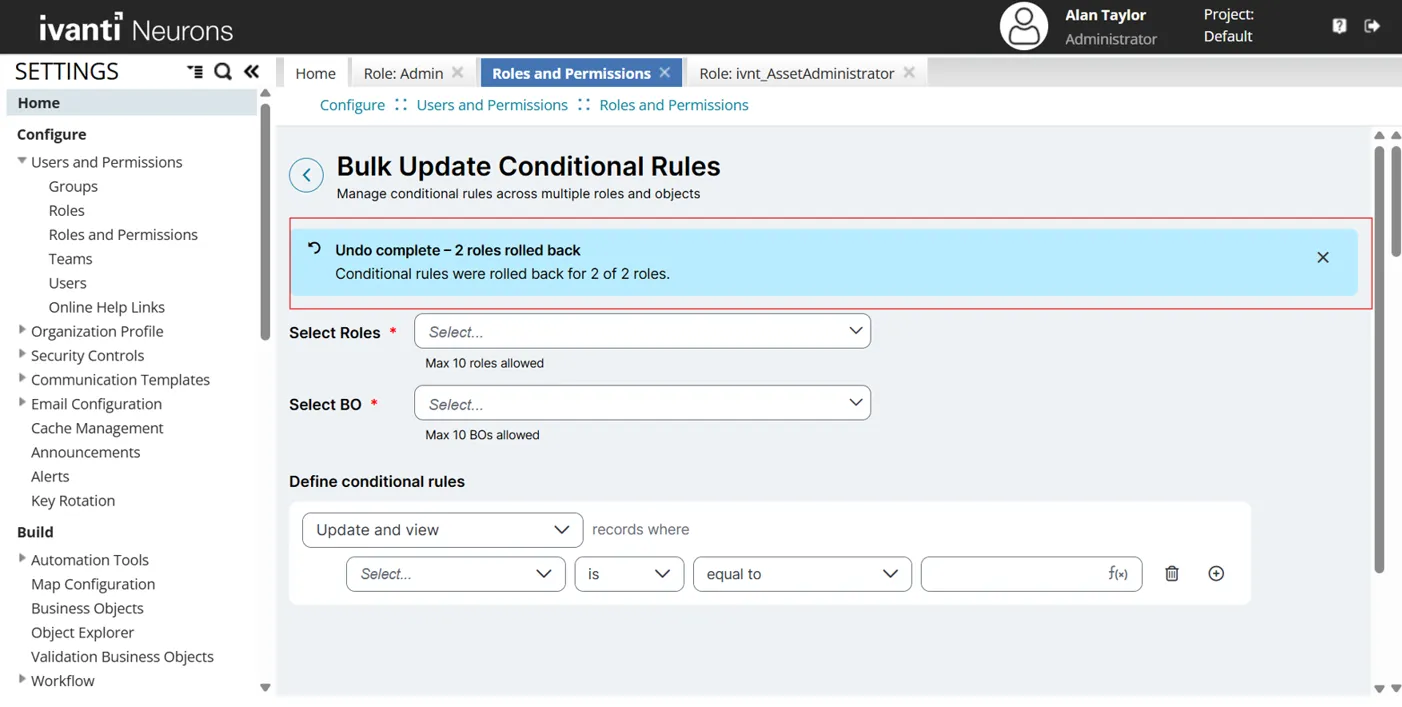
- When the rollback finishes, the Bulk Update Conditional Rules page displays a confirmation message.
Verify the Rollback
- Refresh the Admin UI.
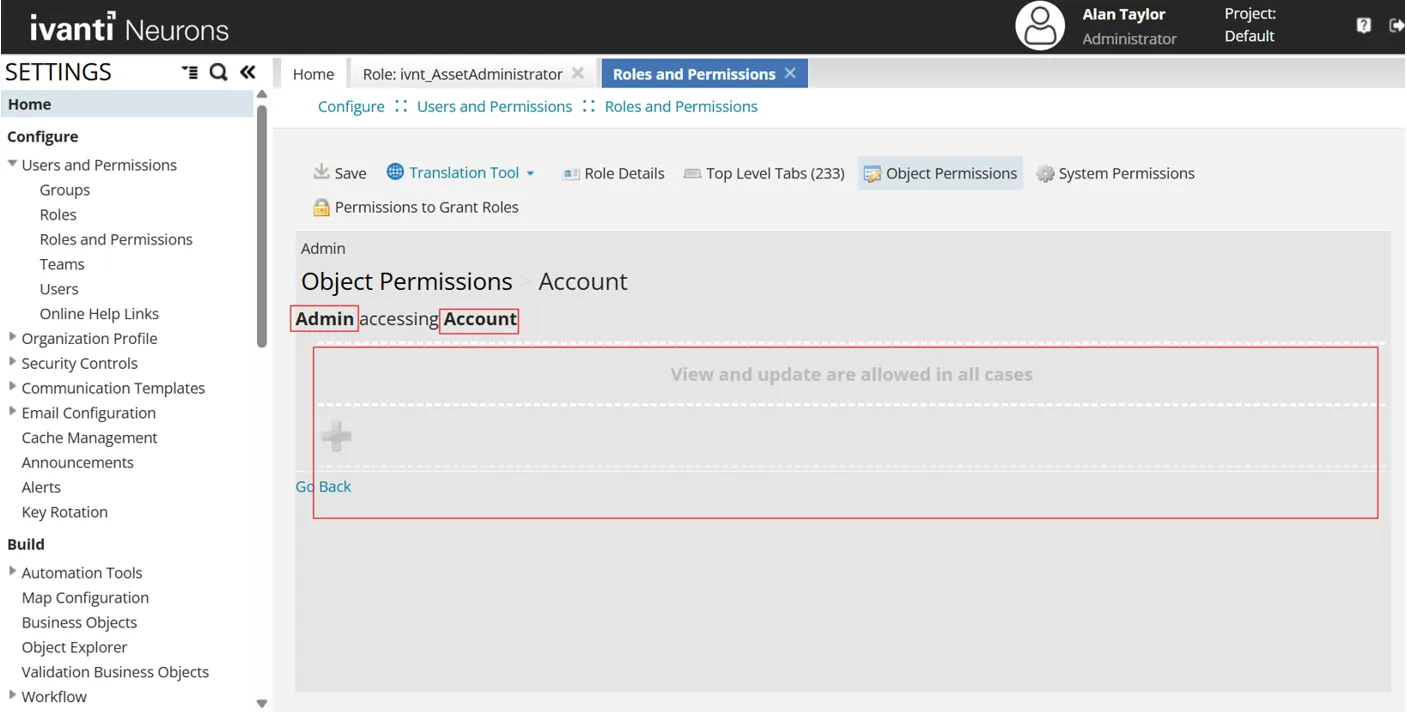
- Go to Configure > User and Permissions > Roles and Permissions > Admin > Object Permissions > Account, and then select Edit in the With Access column.
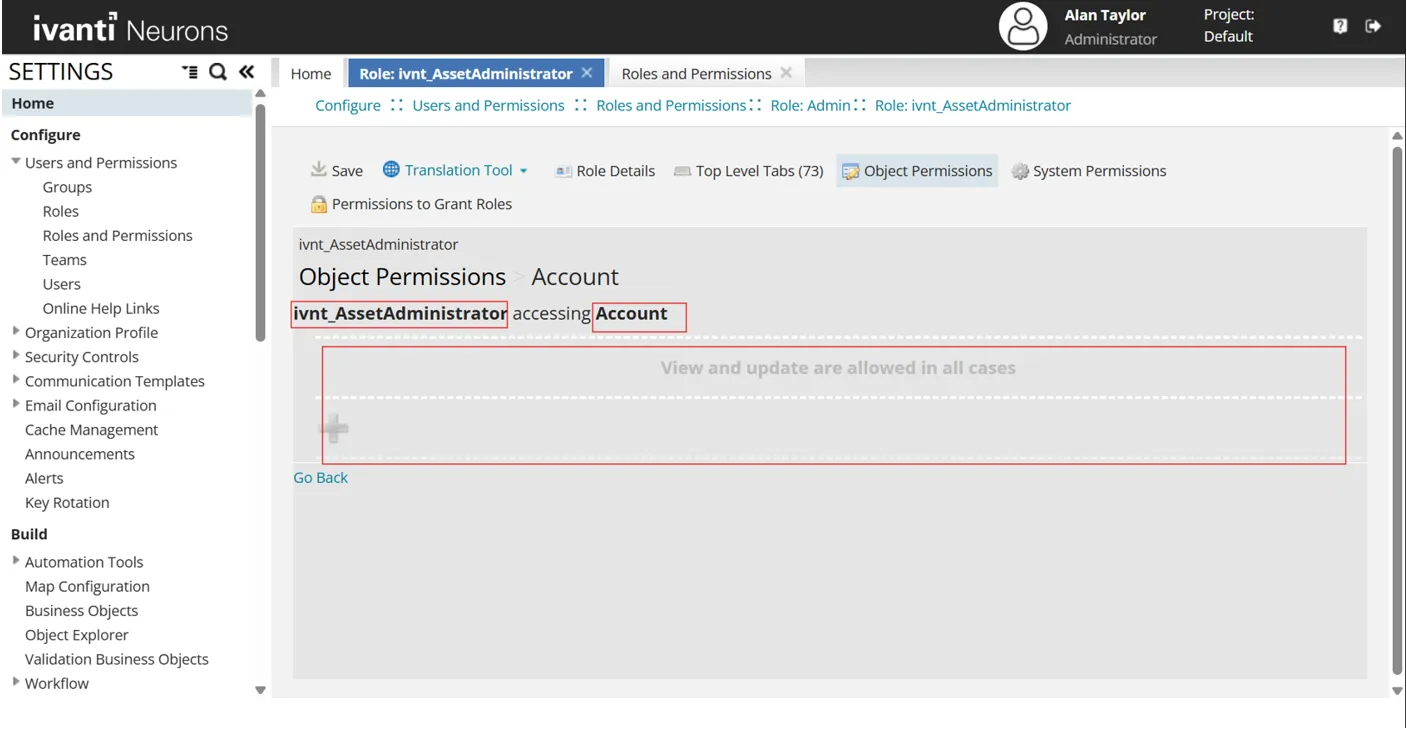
- Confirm that the expressions added by the bulk conditional rule no longer appear.
- Repeat the previous steps for the Asset Administrator role.
Update Bulk Conditional Rules
You cannot edit a bulk conditional expression on the Bulk Update Conditional Rule page. From this page, you can only add new bulk conditional rules or roll them back. To change an expression that a bulk conditional rule applied, edit it in the single role editor for that specific role and business object.
The following scenarios describe how to update a bulk conditional rule:
- Scenario 1: After you create and save a bulk conditional rule, you update it in the single role editor for the specific role and business object that the rule was applied to. For example, if you created a bulk conditional rule for the Admin role and the Account business object, go to the single role editor to update it.
- Scenario 2: You cannot update a bulk conditional rule from the Bulk Update Conditional Rule page. From that page, you can only create a bulk conditional rule or roll it back.
How Bulk Conditional Rules Interact with the single role editor
The application appends any expression that you add through bulk conditional rules to the existing or blank conditional rule in the single role editor by using the OR operator.
Supported Conditional Rules
The Bulk Update Conditional Rule page currently supports only the following conditional rule types from the UI:
- Expression
- Group
The page does not support the following conditional rules:
- CurrentUser
- UserAssociatedList
- UserAssociatedSubtree
- UserAssociatedTenants
Rollback Behavior and Limitations
The following scenarios describe how rollback resolves row conditions:
Scenario 1: A role (for example, Admin or Self Service) already has row conditions in the single role editor, and you apply a bulk conditional rule on top of them. The database stores both the single role editor conditions and the bulk conditional rule. When you roll back, the system reverts the roles to their previous values prior to applying the bulk conditional rule.
Scenario 2: A role already has a row condition in the single role editor, you apply a bulk conditional rule on top of it, and then you add an incremental expression in the single role editor or the bulk conditional form after the bulk conditional rule. When you roll back, the system restores the state that existed immediately before you applied the bulk conditional rule. It removes both the bulk conditional rule and the incremental expression, because the product does not currently support incremental expressions added after a bulk conditional rule.
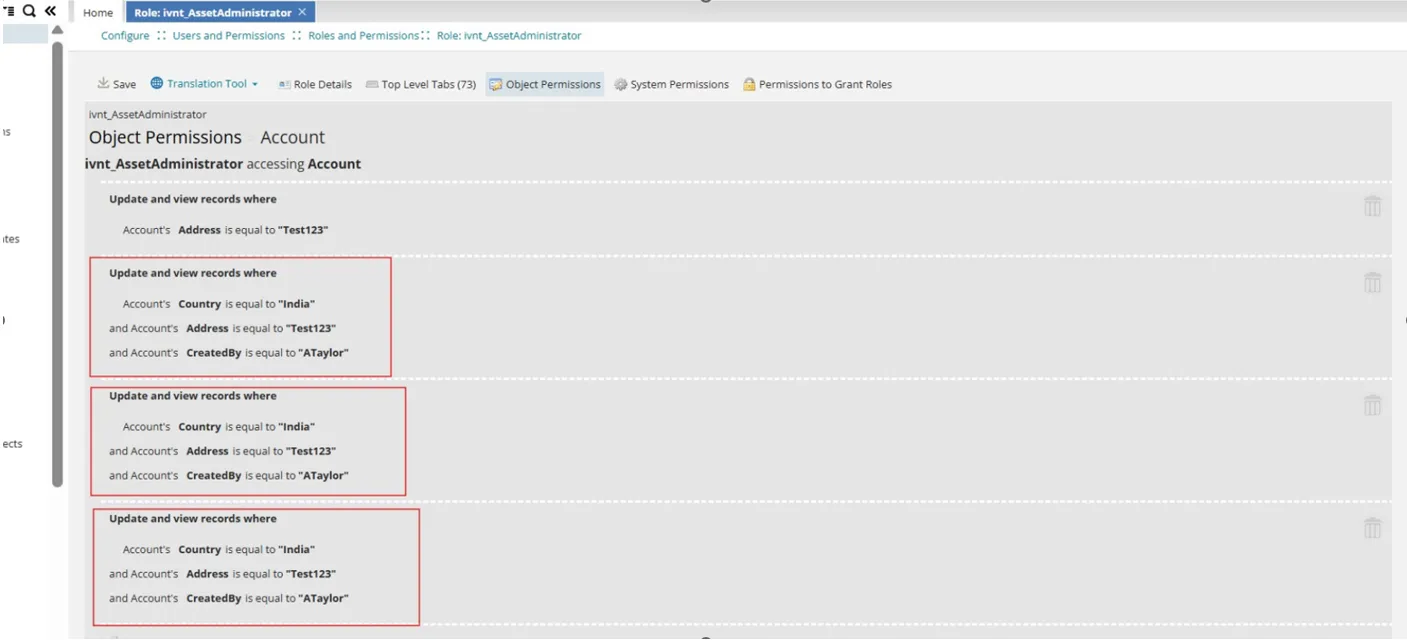
Scenario 3: You apply the same bulk conditional rule to a role and business object more than once. Each application adds the rule again as a new row joined by the OR operator, so applying it three times produces three identical row conditions. When you roll back, the system removes only the most recent application and leaves the earlier ones in place for example, three identical applications leave two after rollback. Each rollback undoes one bulk conditional application, which is the N-1 behavior.
Example: Roll Back After a Post-Bulk Increment
- In the single role editor, the Admin role has one row condition on the Account business object: Created By equals ATaylor.
- You apply a bulk conditional rule (Address equals Test123, City equals Mumbai, Country equals India, and Status equals Active) to the Account business object for the role. The system adds the rule as a new row joined by the OR operator.
- In the single role editor, you add an incremental expression (Name equals AGreen) to the existing row condition.
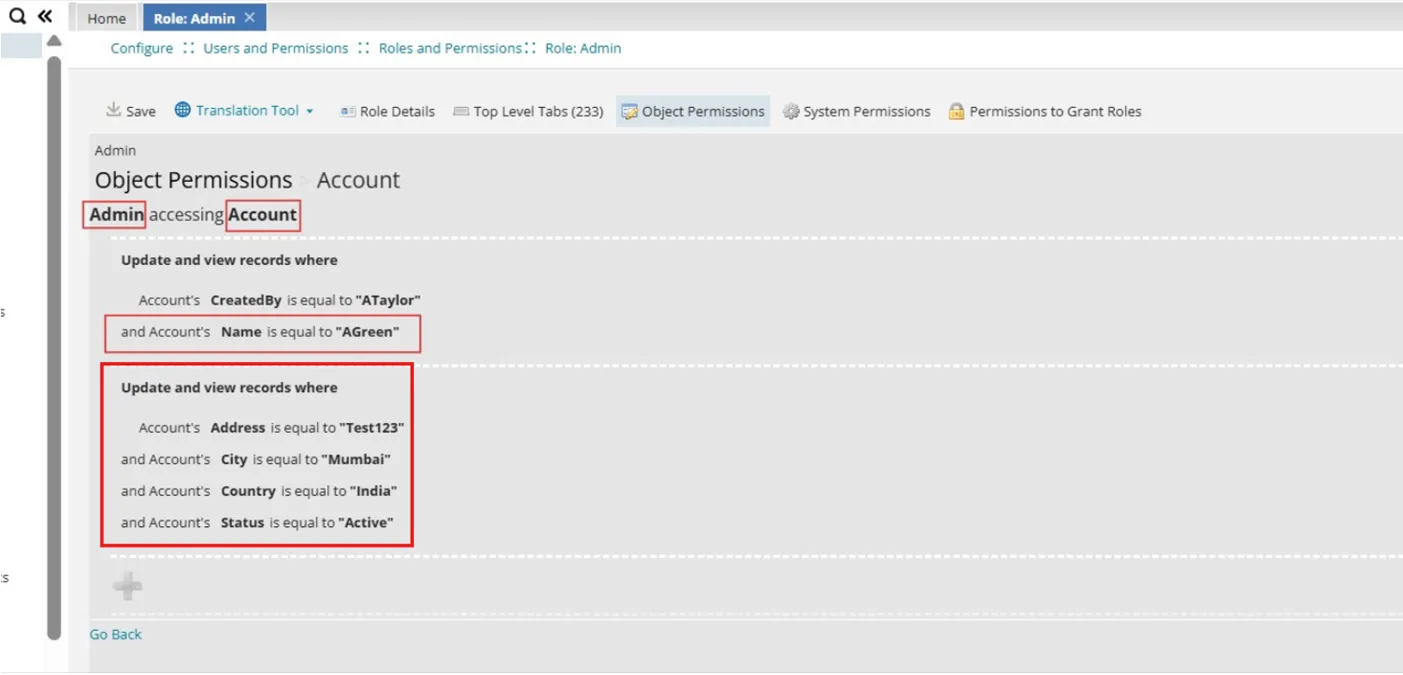
- You roll back the bulk conditional rule for the role.
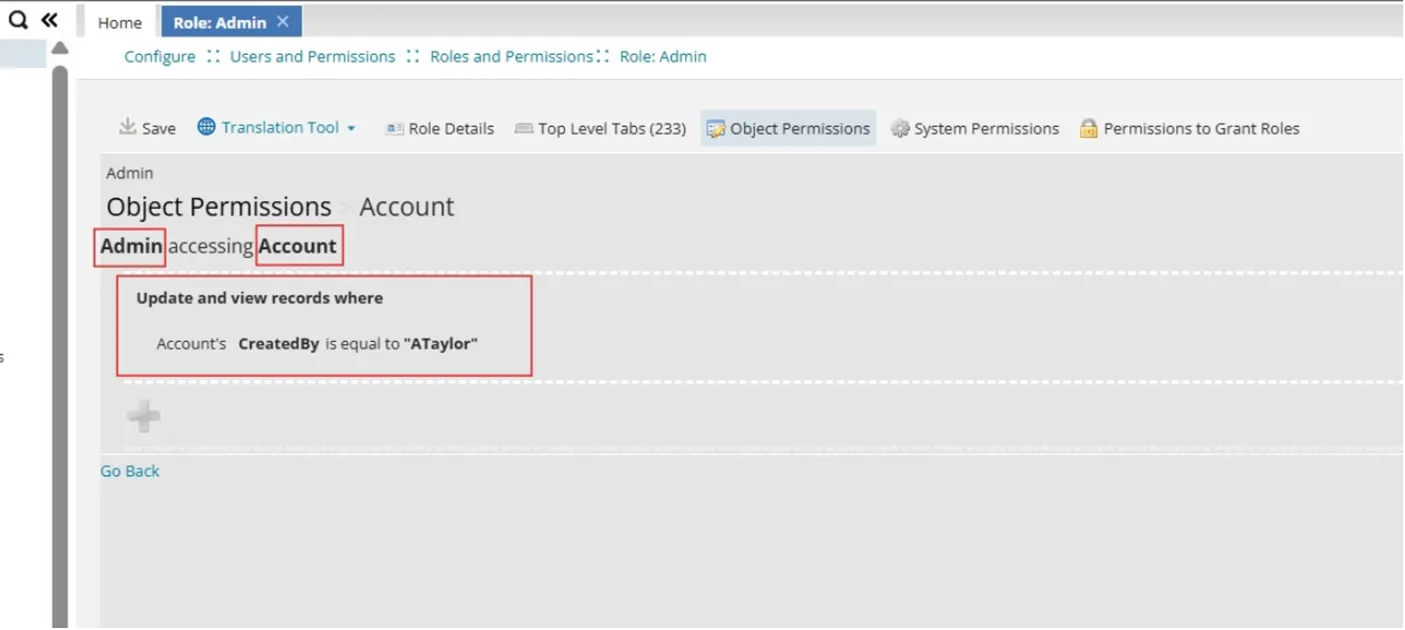
The system restores the Account business object for the role to its state at step 1: Created By equals ATaylor. It removes the bulk conditional rule from step 2 and the incremental expression from step 3, because you added the incremental expression after the bulk conditional rule.
Example: Roll Back One of Several Identical Rules
- You apply a bulk conditional rule (Country equals India, Address equals Test123, and Created By equals ATaylor) to the Account business object for the Asset Administrator role.
- You apply the same bulk conditional rule to the same role and business object two more times. The Account business object now shows the row condition three times, each joined by the OR operator.
- You roll back the bulk conditional rule for the role.
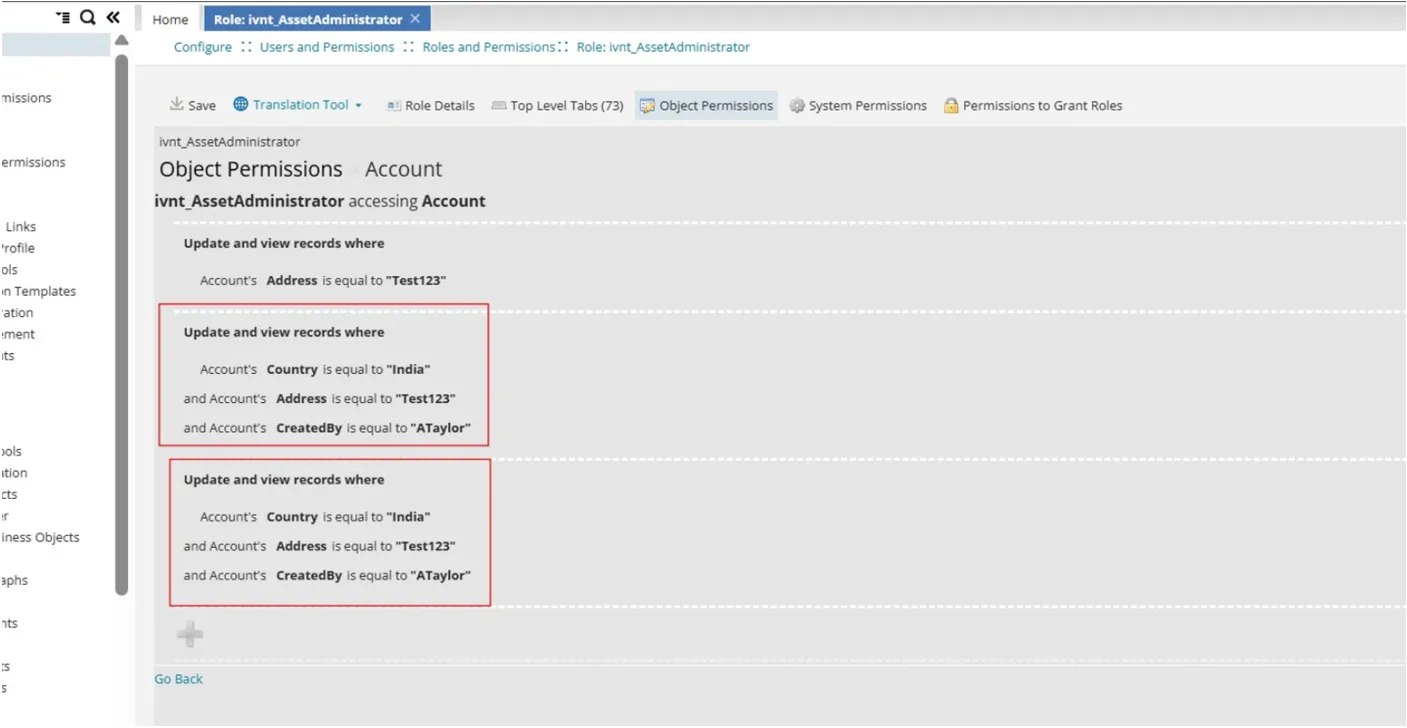
The application removes only the most recent application. The row condition remains twice on the Account business object, which reflects the N-1 rollback behavior.