
Embedding Survey in an Email
Role: Administrator
Minimum Version:Ivanti Neurons for ITSM 2024.2. and above.
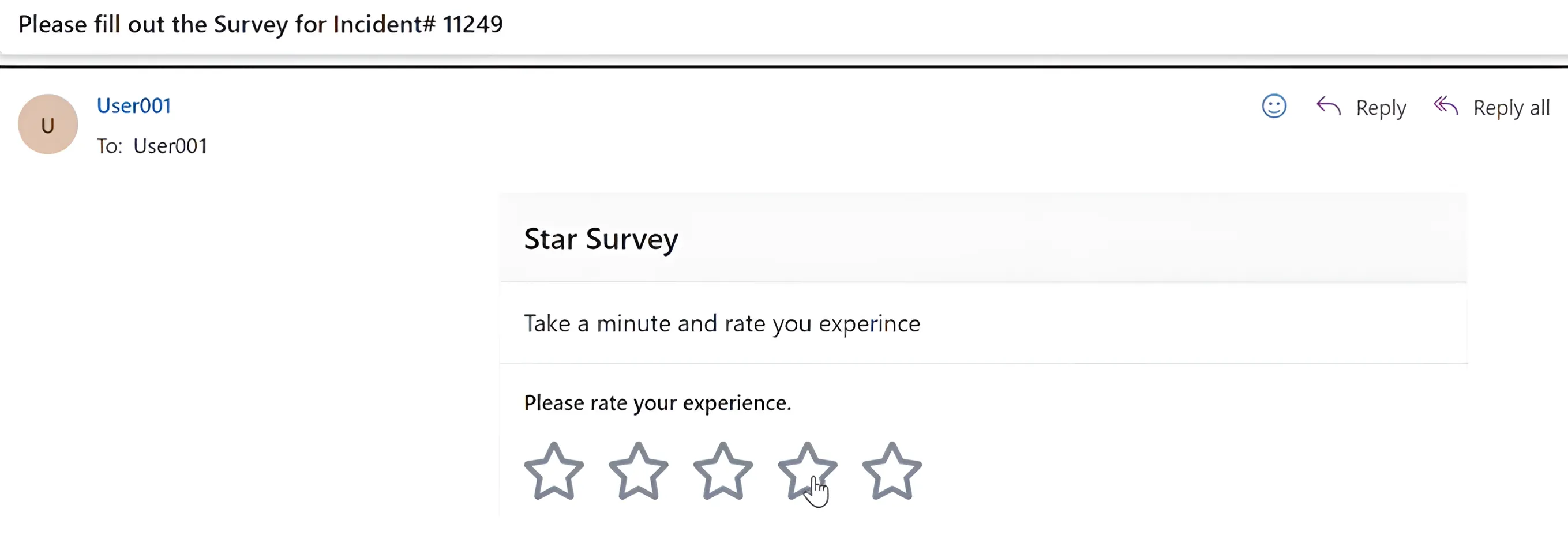
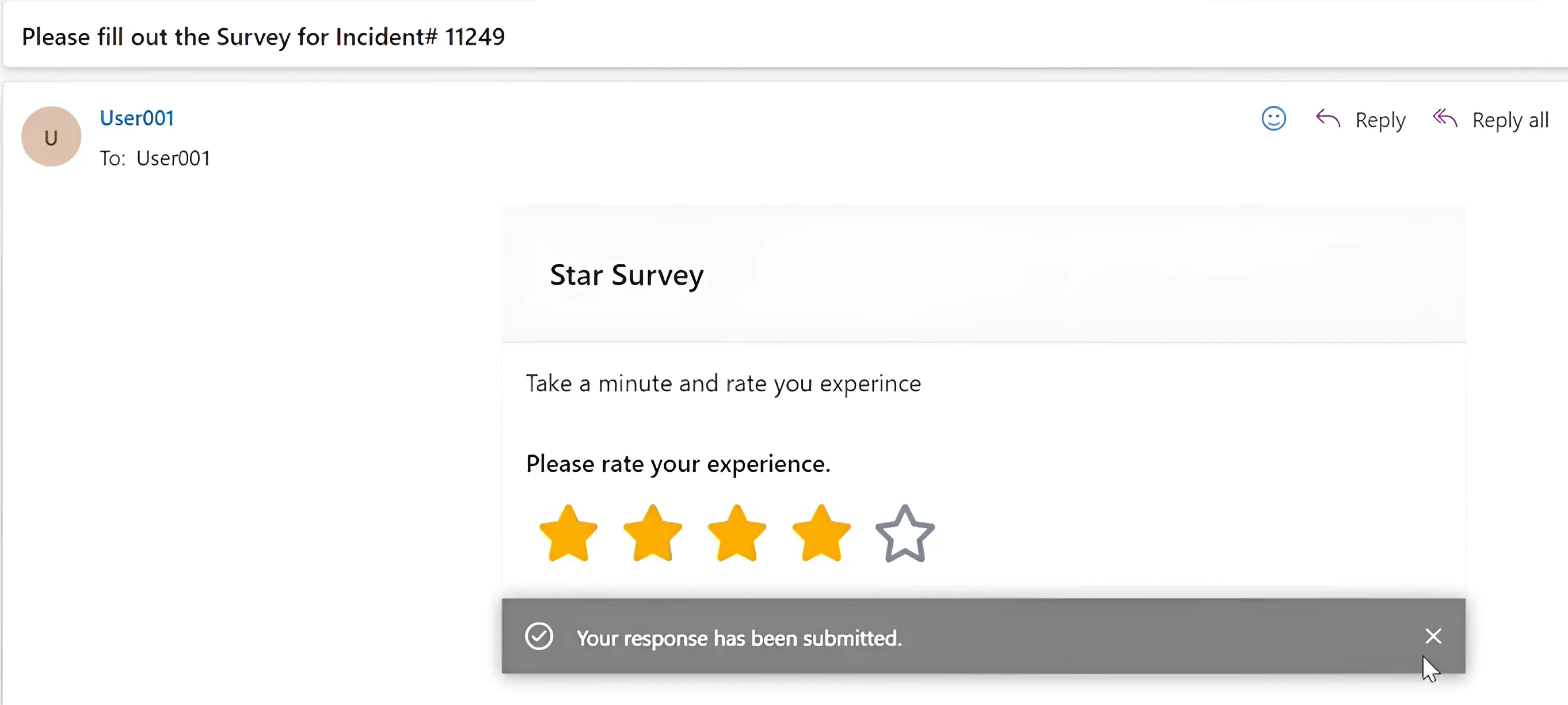
The ISM application sends a survey via email to customers whose Incident, Service Request, etc., have been resolved and closed.
The intended user / customer should be able to submit their survey response directly from the email, rather than having to navigate to a survey link within the email.
The following steps will allow you to configure how to embed a survey within an email.
Pre-requisites
Configure your Microsoft account with the connector by using the Actionable Message Provider Portal.
Embedding a survey in an email is supported only in Outlook accounts.
For more details, refer to the Microsoft Documentation .
Configuring Microsoft Entra ID - based token authentication
- Sign in to the Microsoft Azure portal.
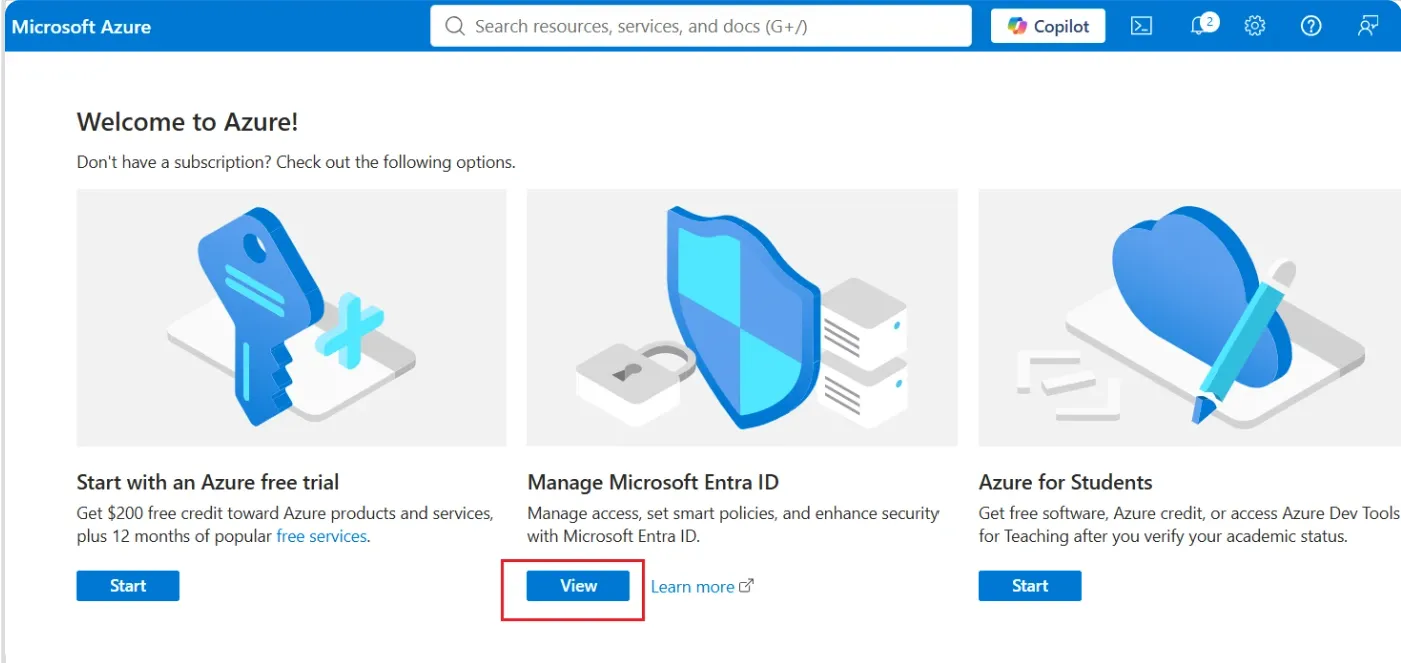
- On the Welcome page, locate the Manage Microsoft Entra ID tile and select View.
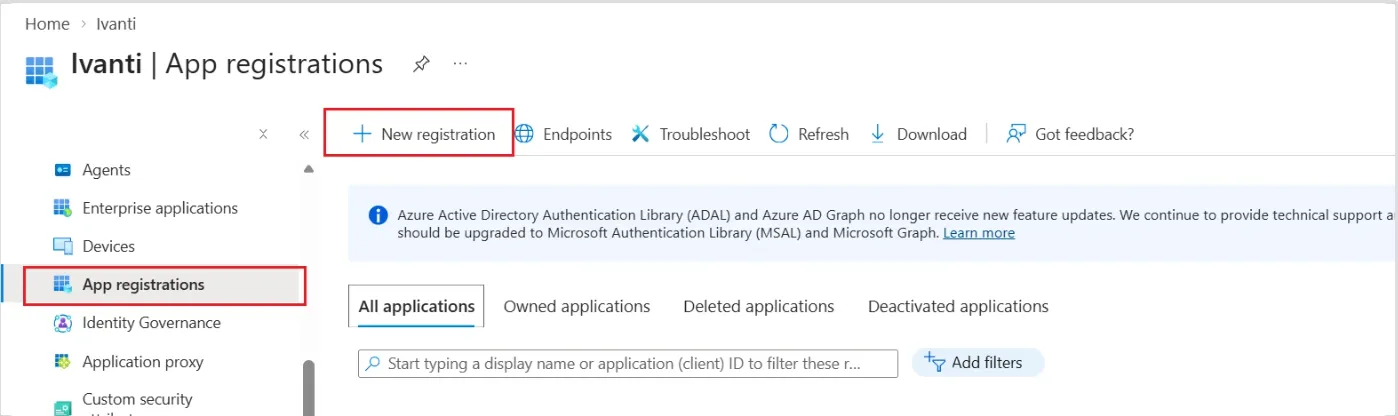
- In the left navigation pane, scroll down to App registrations, and then select New registration.
- On the Register an application page, enter the following details:
- Enter a display in the Name field.
- Under Supported account types, select one of the following options:
- Accounts in any organizational directory (Any Microsoft Entra ID tenant - Multitenant) - Select this option for partner environments that require a global-scope AM [VP1] registration.
- Accounts in this organizational directory only - Select this option for single-tenant applications, including organization and test-scope registrations
- Leave Redirect URI (optional) blank.
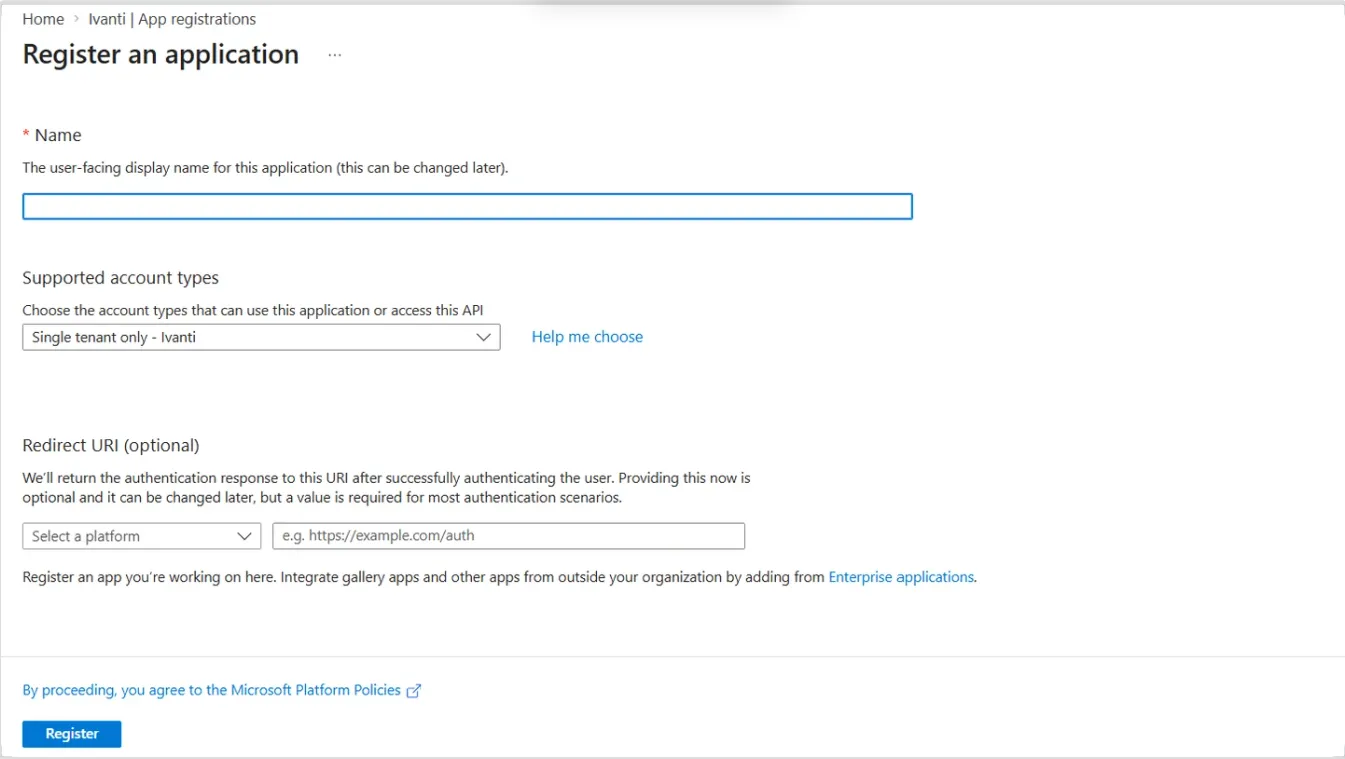
- Select Register to create the application.
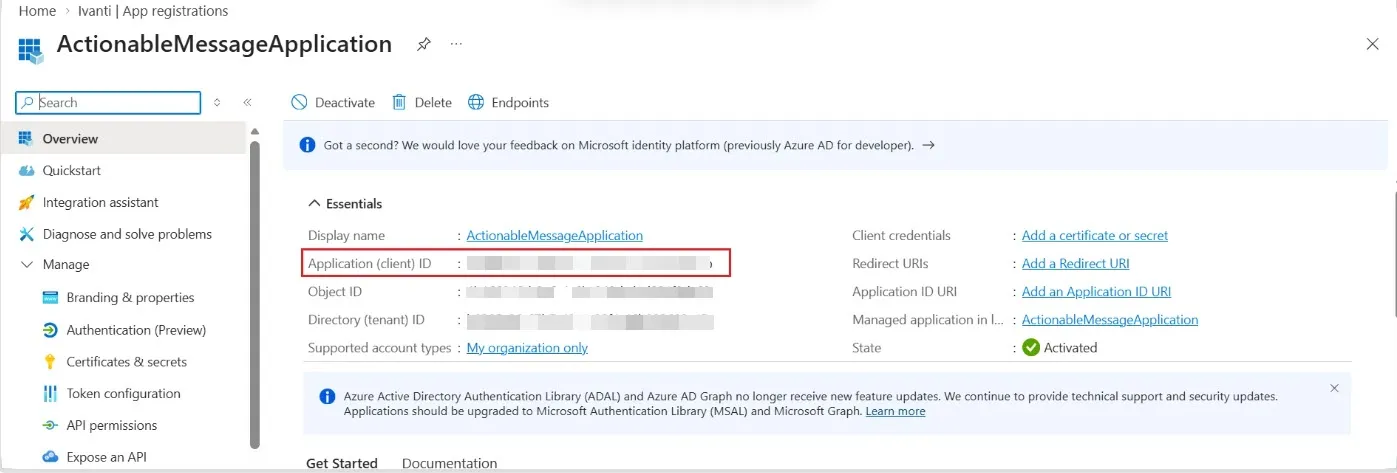
The Overview page for the app registration appears.
Copy the Application (client) ID and save it for use later in this procedure.
- Sign in to the Actionable Message Provider Portal.
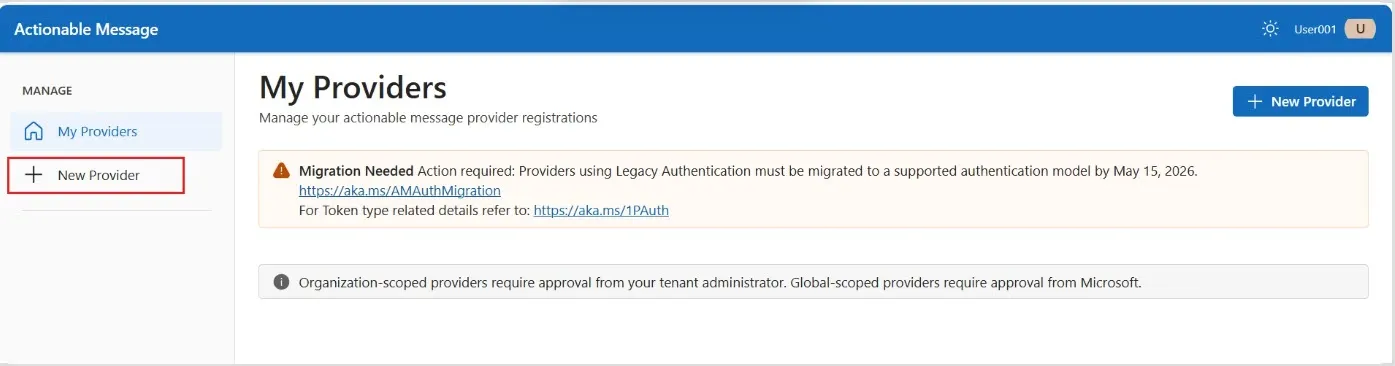
- Select New Provider, and then complete the required information in the following sections:
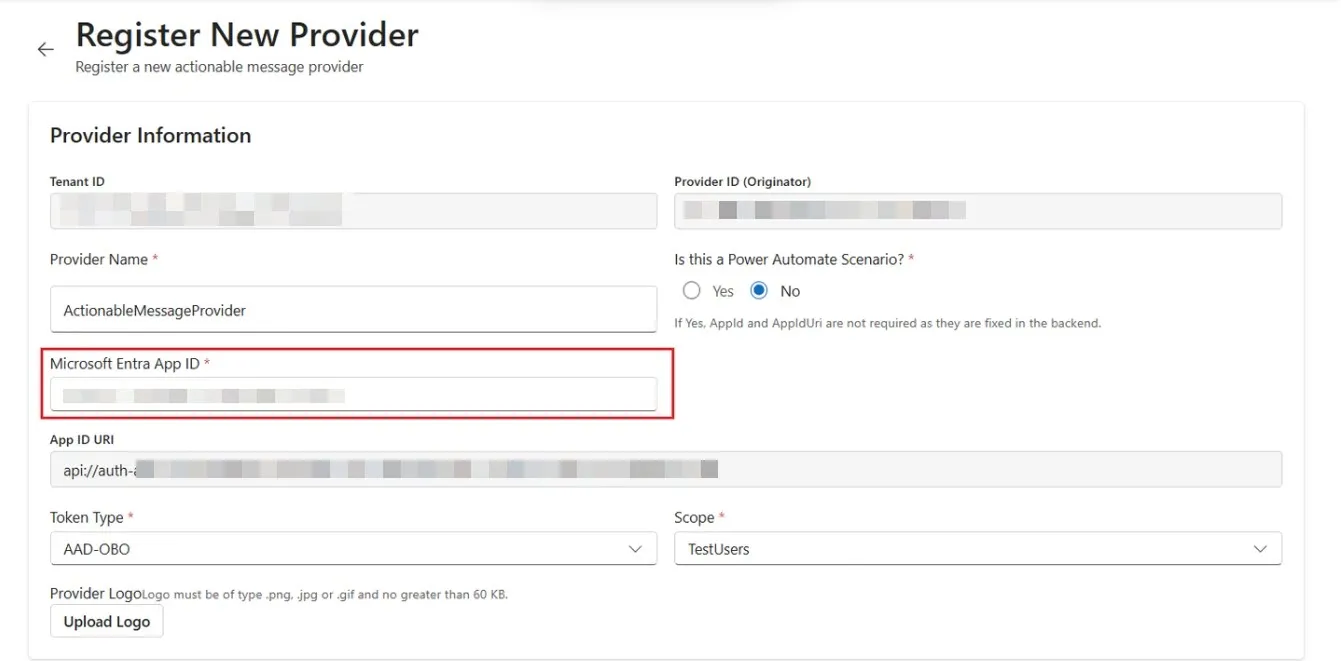
- Provider Information
- Provider Name : Provide a user friendly connector name.
- Provider ID : This field is auto populated.
- In the Microsoft Entra App ID field, enter the Application (client) ID copied in Step 5.
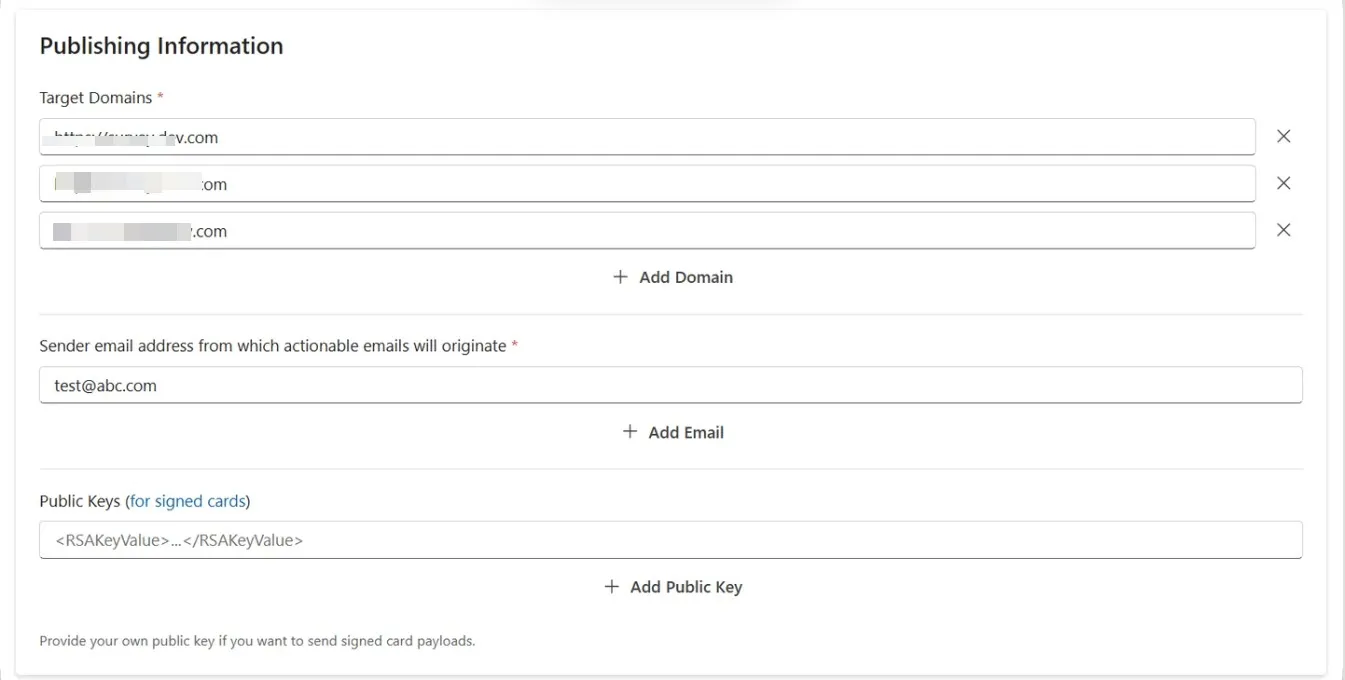
- Publishing Information
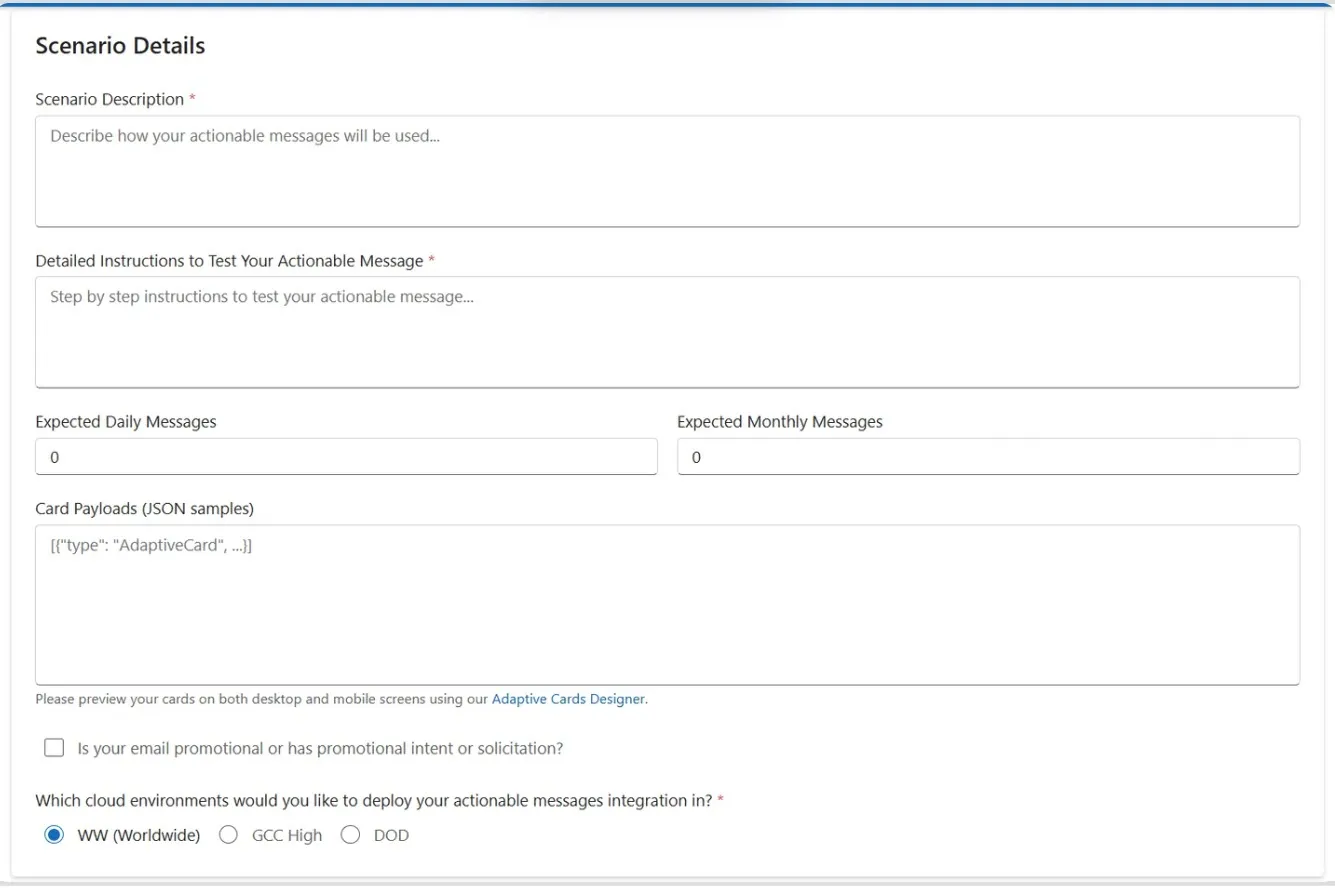
- Scenario Details
This is where you provide the details of the scenario such as the action you plan to add to your email, the daily number of emails you expect to send, etc.
- Provide the Scenario Description
- Detailed Instructions
- Card Payloads
How the HTML message should render in the email body. You can add one or more payloads. These are surveys in JSON template. Here is the card payload sample.
- Sample_ adaptive_card_payload_standard_questions.json
- Sample_ adaptive_card_payload_smiley.json
- Sample_adaptive_card_payload_star.json
Card Payloads fields is optional.
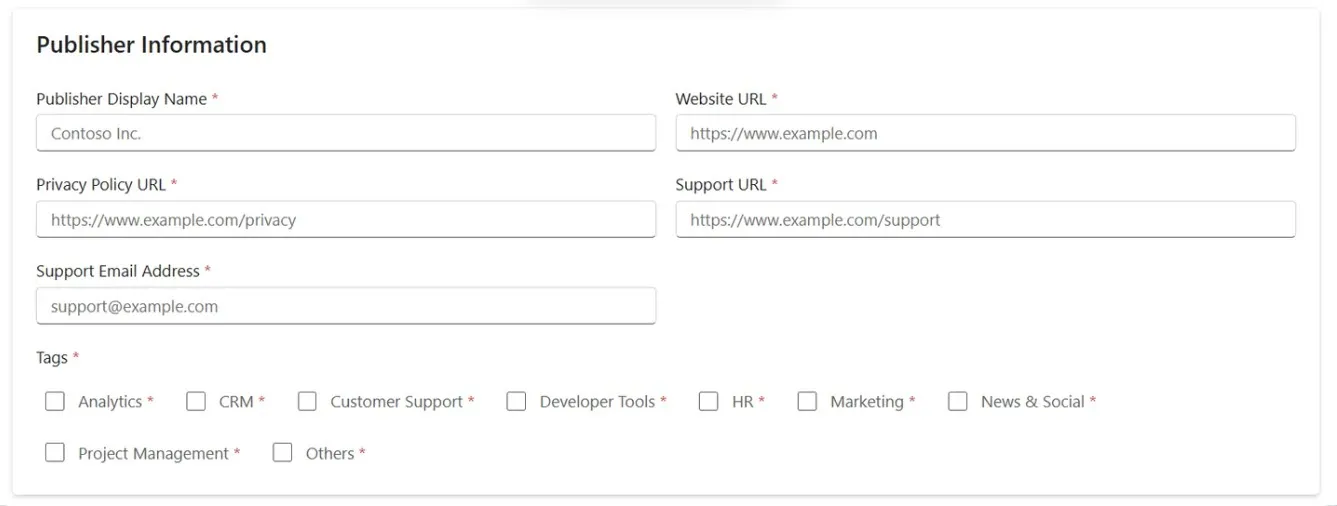
- Publisher Information
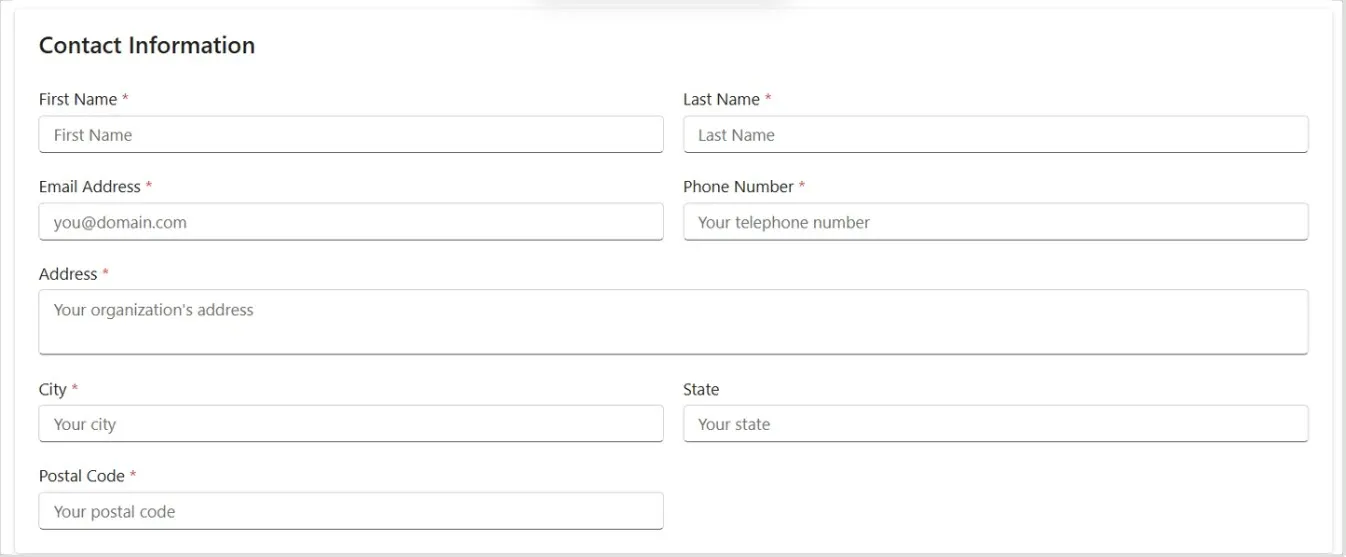
- Contact Information
- Information to Verify Your Actionable Messages and Additional Comments
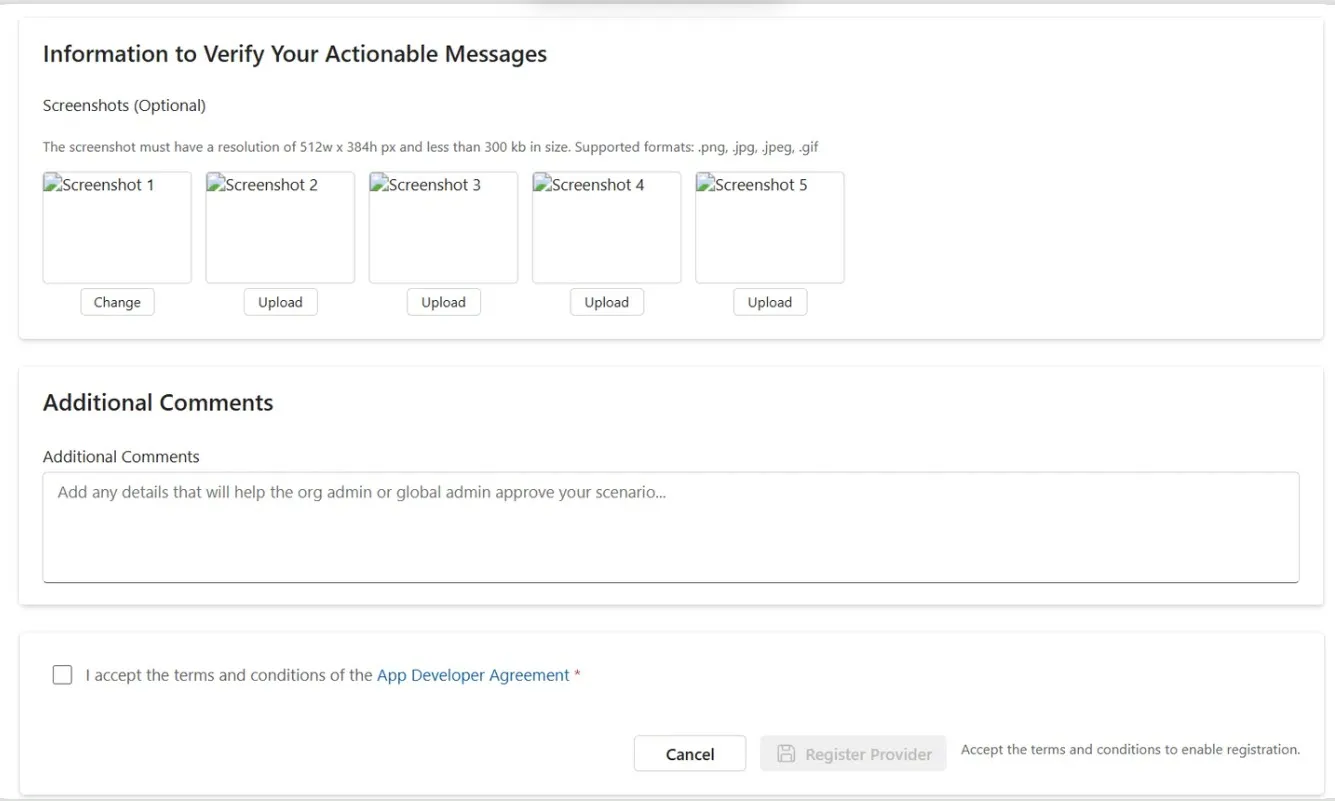
- Select Register Provider to complete the Actionable Message Provider registration.
After the registration is complete, the Providers list page appears.
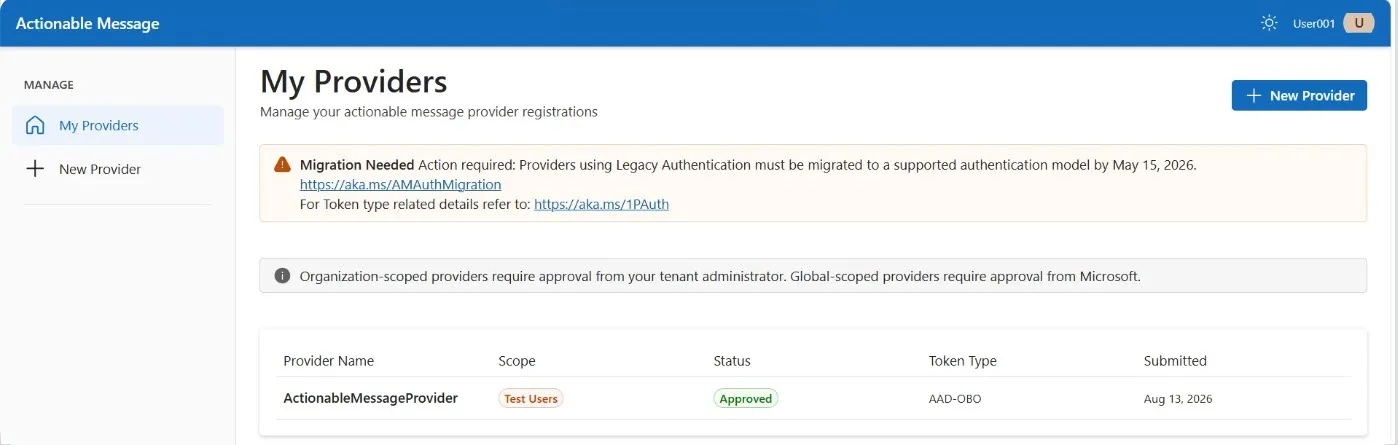
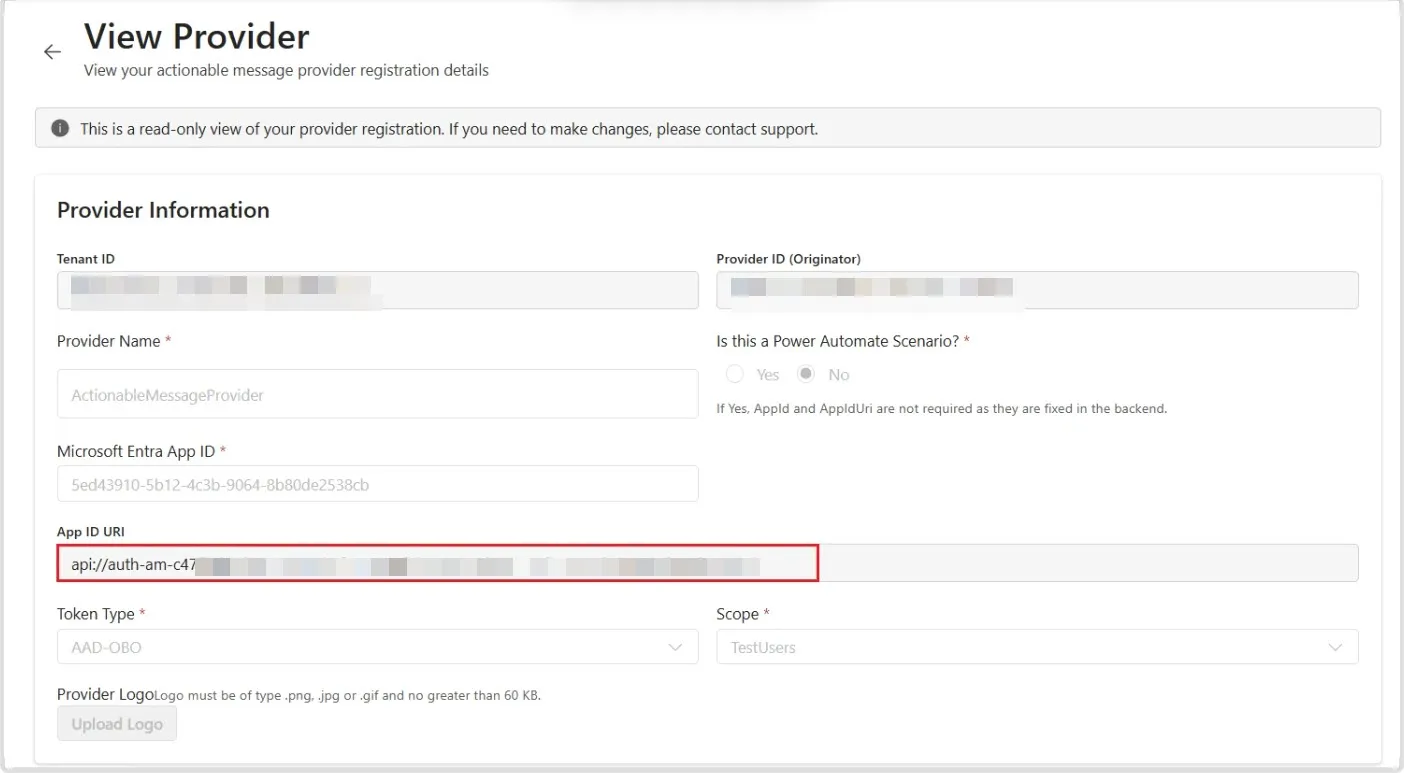
- Open the newly created provider, then copy the App ID URI.
- Return to the Azure portal and open the app registration created in Step 5.
In the left navigation pane, select Expose an API.
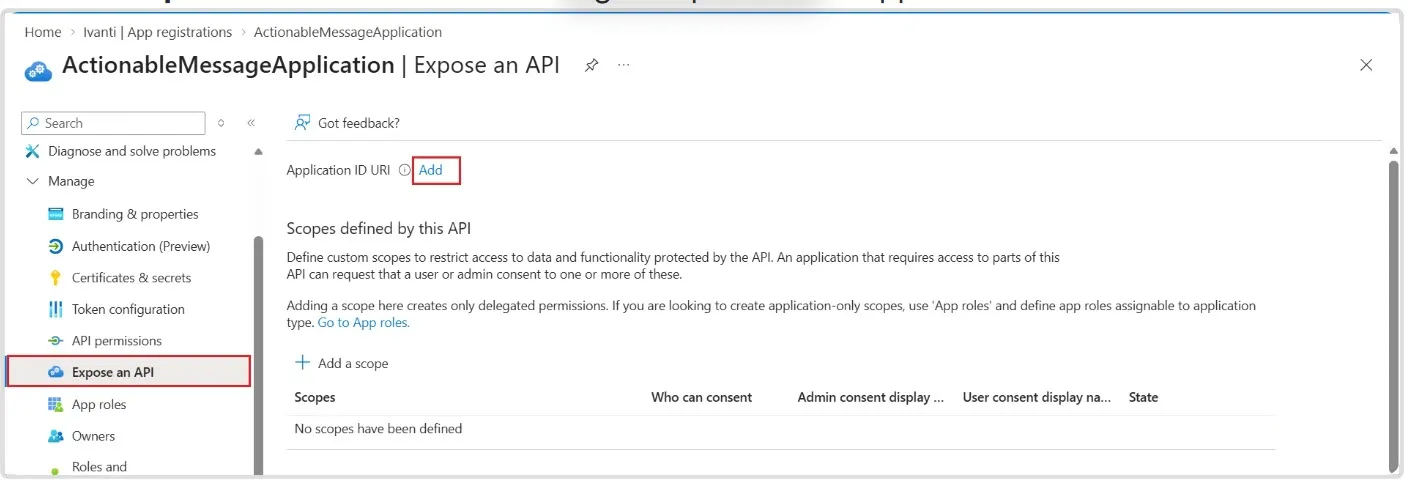
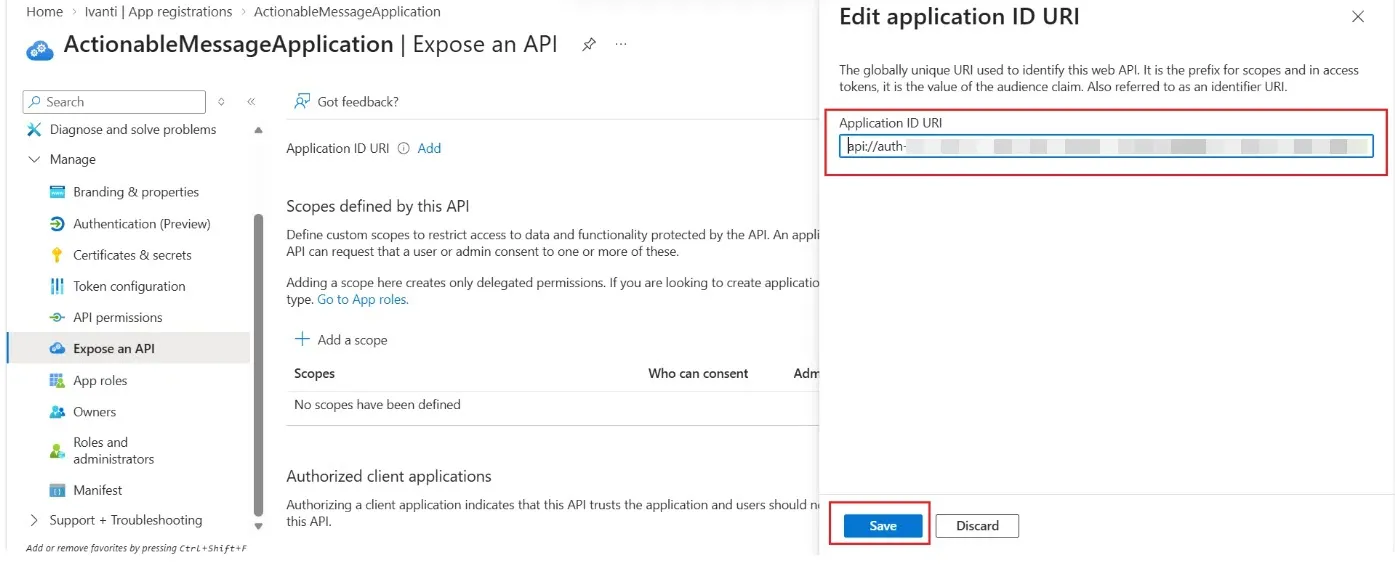
- On the Expose an API page, select Add and enter the App ID URI copied in Step 9, and then click Save.
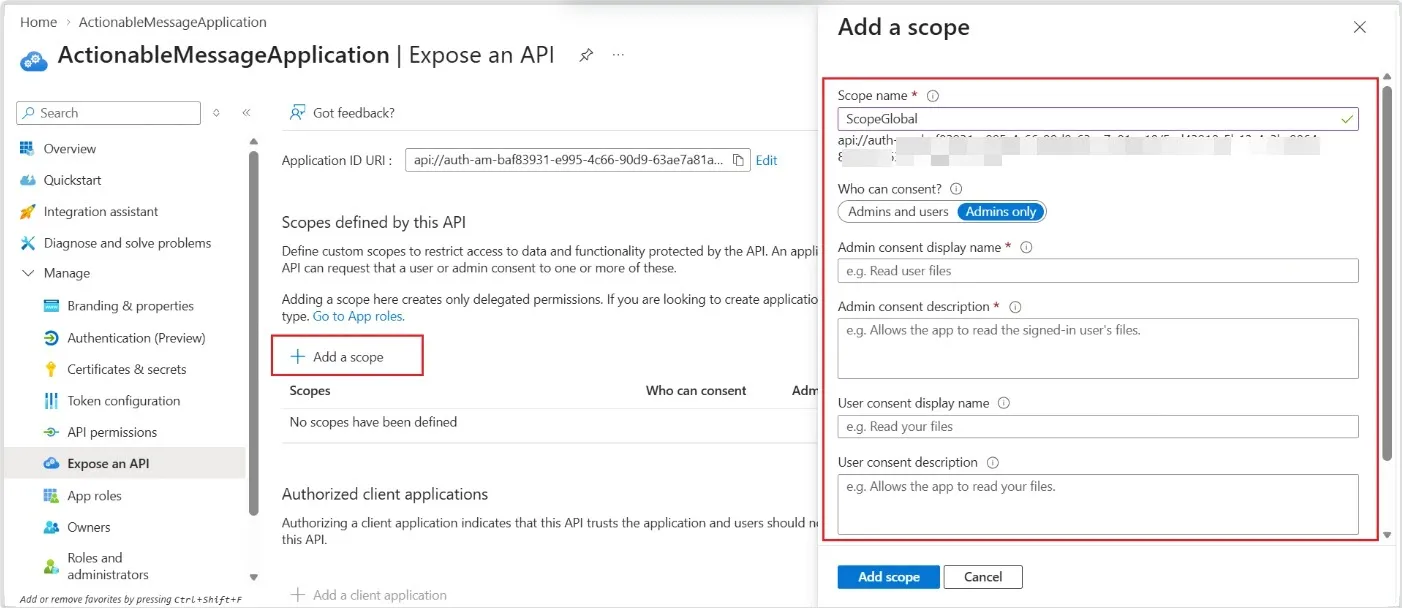
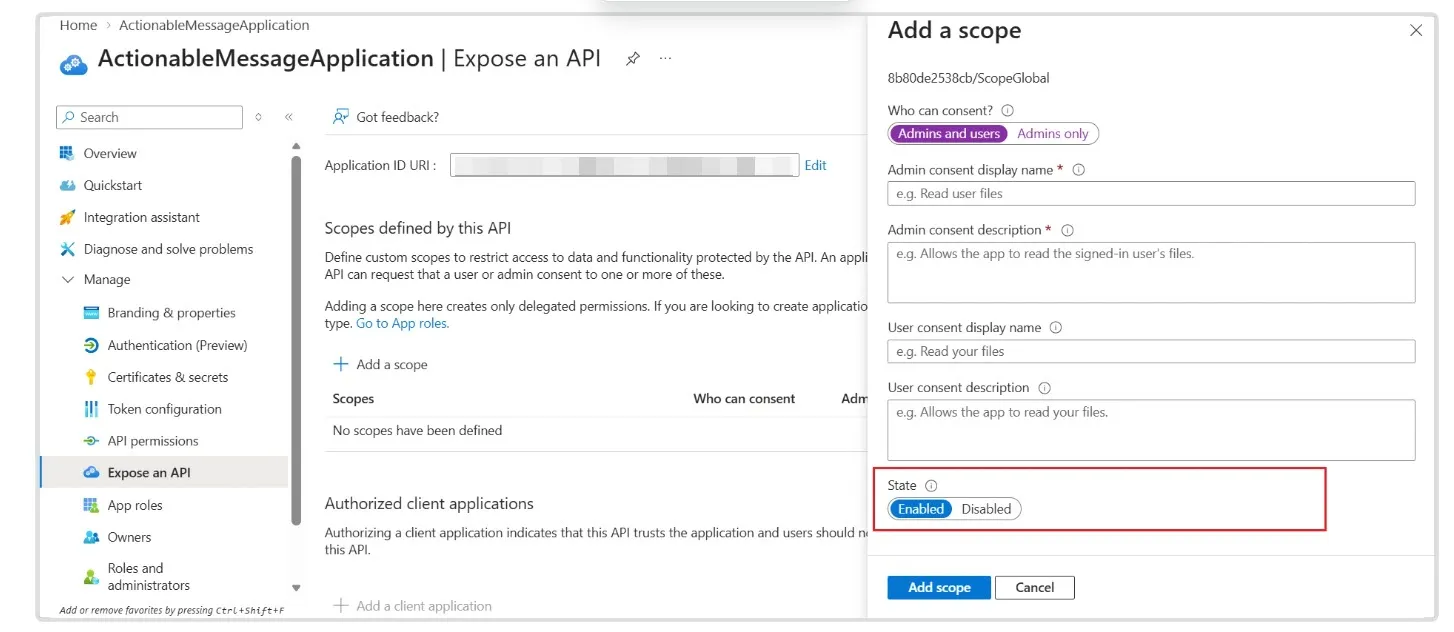
- Select Add a scope and provide the required scope details.
Ensure that State is set to Enabled.
- Select Add a client application.
In the dialog box, complete the following fields:
- In the Client ID field, provide - 48af08dc-f6d2-435f-b2a7-069abd99c086
- Under Authorized scopes, select the check box for the scope you created in the previous step.
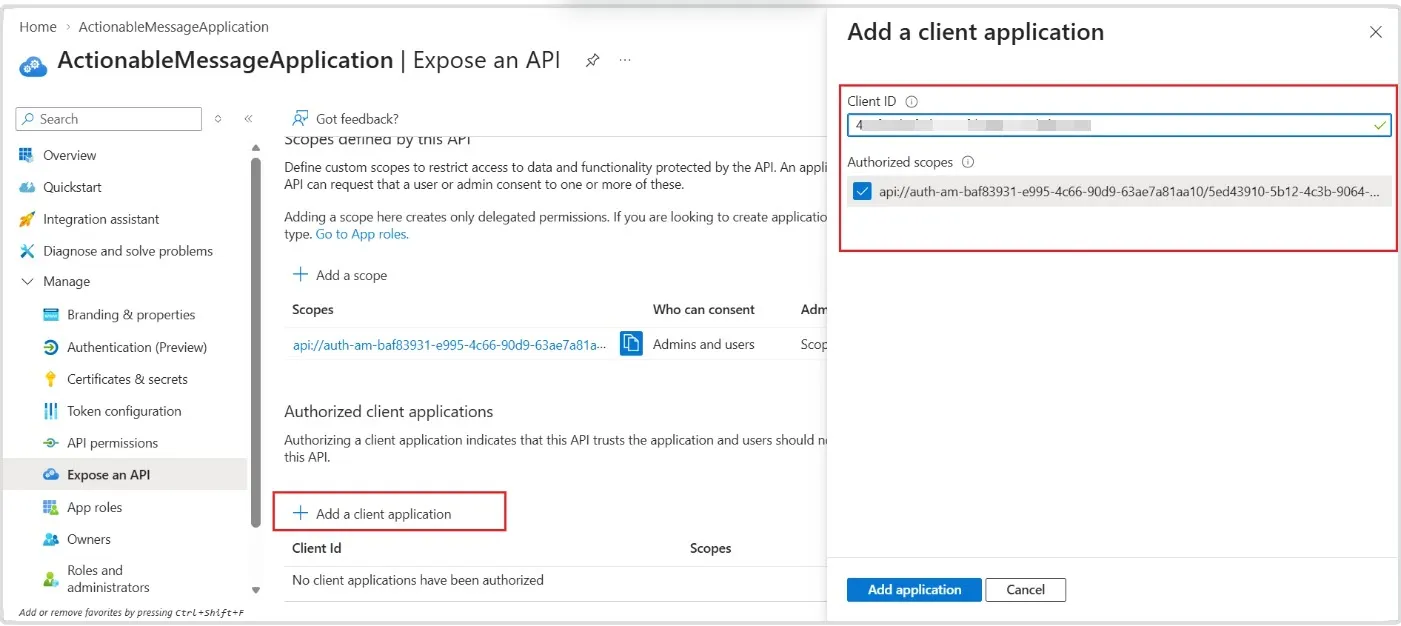
- Click on Add application.
Ensure that the Actionable Message Provider is approved by the Microsoft Entra tenant Global Administrator.
For Customers using ISM 2026.2 and earlier releases must complete the prerequisite steps in Embedding Survey in an Email and then apply the workaround described in Workaround for Embedding a Survey in an Email.
Configure a provider
In ITSM application from Modern Survey.
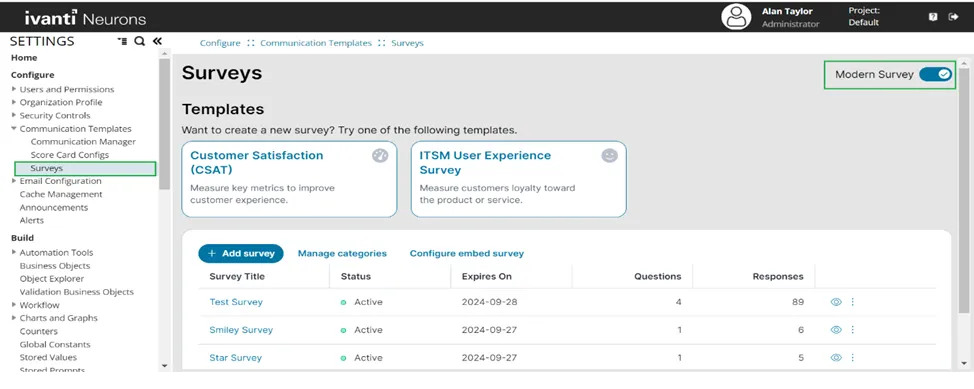
- Login to ISM Application using Administrator.
- Go to Configuration console.
- Select Surveys under Communication Templates from left Navigation pane. Remember to use Modern Survey.
Configure Embed Survey
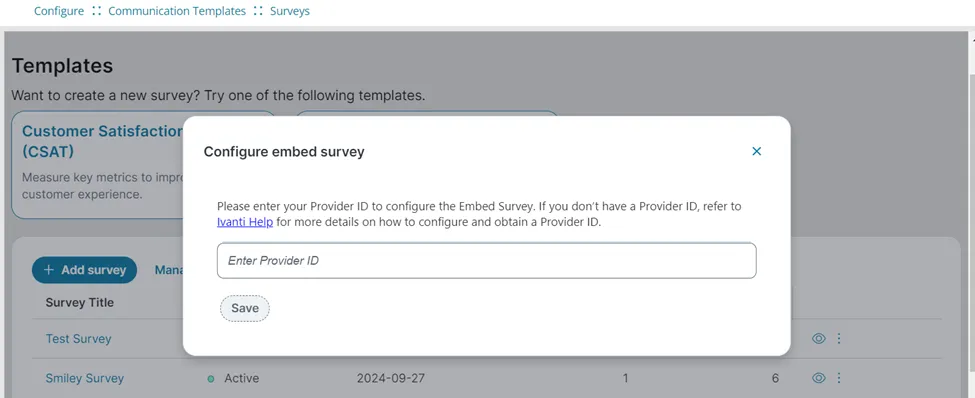
- Click Configure Embed Survey and enter the Provider or Connector ID created in Step 1, then click Save.
- Click Add a New Survey to create a new survey or select an existing one.
- Send the survey using a trigger or workflow action, then drill down into the selected survey, click Publish, and choose either Web Link or Embed as Email.
- Specify the relevant Business Object, provide the appropriate action.
A message will appear confirming that the template has been copied to the clipboard.
- You can configure the copied template in the workflow email or trigger action email to ensure the survey is sent to users.
Limitations of Embedding Survey in an Email
The following types of survey are not supported to embed in an email.
- Surveys with questions featuring dynamic condition sets.
- Surveys consisting of multiple smiley rating questions.
- Surveys consisting of multiple star rating questions.