
Configuring Group Voice
You can configure agent groups for the purpose of organizing agents and specifying group settings. You can also configure skill groups for the purpose of matching agents with skills. After you configure agents at the group level, you can override the group settings at the agent level.
Creating Agent Groups
You create new agent groups and specify properties for each group. Later on, when you assign agents to these groups, as described in Configuring Voice Agent Properties, you have the option of using the group properties or overriding them by specifying properties for the individual agent employee records.
- Log into the Service Desk Console.
- Open the Voice - Agent Group workspace.
- Click New Voice - Agent Group. The Voice - Agent Group page appears.
- Enter information into the fields.
Field | Description |
|---|---|
Name | A unique name for the agent group to create. |
Not Ready Reason Required | The reason why agents are not ready, if all agents in the group must indicate a reason when they select the not ready state. Required: A reason is required when the agent is in the not ready state. Not Required: No reason is required for the not ready state. Server Defined: Uses the global setting defined on the Ivanti Voice server via the Ivanti Voice Management Portal. |
Wrapup Timeout | The automatic wrapup timeout for all agents in the group after one call ends and before the ready status is enabled for the next call. Not Required: An automatic wrapup time is not required. Server Defined: Uses the global setting defined on the Ivanti Voice server via the Ivanti Voice Management Portal. Group Defined: The wrapup timeout value entered is applied to all agents in the group. To specify the wrapup timeout setting at the agent level, see Configuring Voice Agent Properties. |
Wrapup (Seconds) | The wrapup timeout time in seconds. Appears if you select Group Defined for the Wrapup Timeout field. |
Initial Agent Status | The initial agent status upon login. Ready: The agent is ready to take calls. Not Ready: The agent is not ready to take calls. Select an initial not ready reason. Server Defined: Uses the global setting defined on the Ivanti Voice server via the Ivanti Voice Management Portal. |
Initial Not Ready Reason | The initial reason for the not ready status that appears when the agents in the group first log in. This field is enabled if you enter not ready or server defined for the Initial Agent Status field. Server Defined: Uses the global setting defined on the Ivanti Voice server via the Ivanti Voice Management Portal. <no reason>:Does not enter a default reason. Pick from group defined reason: The system applies the value entered to all agents in the group when they are in the initial not ready state. |
Audit Group Agents | Specifies if agents in the group are audited. The audit option allows you to record agent state changes from the Agent dashboard. True: Audit all of the agents in the group. False: Does not audit all of the agents in the group. You can also configure agent auditing at the individual level, as described in the procedure Configuring Voice Agent Properties. Server Defined: Uses the global setting defined on the Ivanti Voice server via the Ivanti Voice Management Portal. |
The Voice toolbar enables agents to manually indicate when they are in the ready state (available to handle calls) or the not ready state (unavailable to handle calls). If an agent switches to the not ready state, the toolbar allows the agent to select a defined not ready reason. To specify the not ready reason at the agent level, see Configuring Voice Agent Properties.
- Click Save.
Creating Skill Groups
Skills are organized in skill groups. The default skill groups are technical skills, Neurons for ITSM products, and language. You can use these default skill groups and the skills they include or create new skills under the skill groups. You can also modify the skill groups, delete the default skill groups, and create new skill groups.
When you configure agent skill properties (as described in Configuring Voice Agent Skills), you use the skill groups created here to assign agents to skill groups.
- Log into the Service Desk Console.
- Open the Voice - Skill Group workspace.
Voice Skill Group Workspace
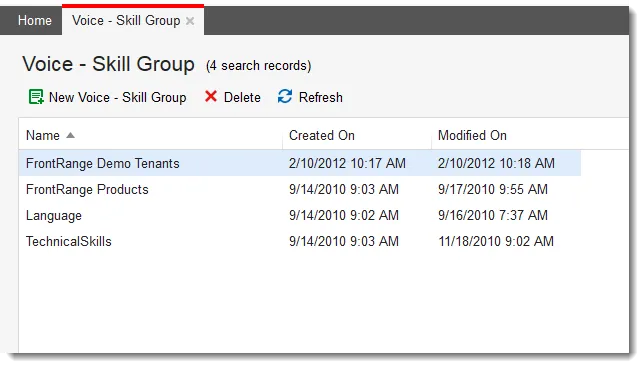
- Click New Voice - Skill Group. The Skill Group page appears.
- In the Name field, enter a unique skill name. For example, you might want to enter a skill group name called hardware if it does not exist.
- Click Save.
- In the bottom of the window, click New Voice - Skill. The New Voice - Skill window appears.
New Voice Skill Window
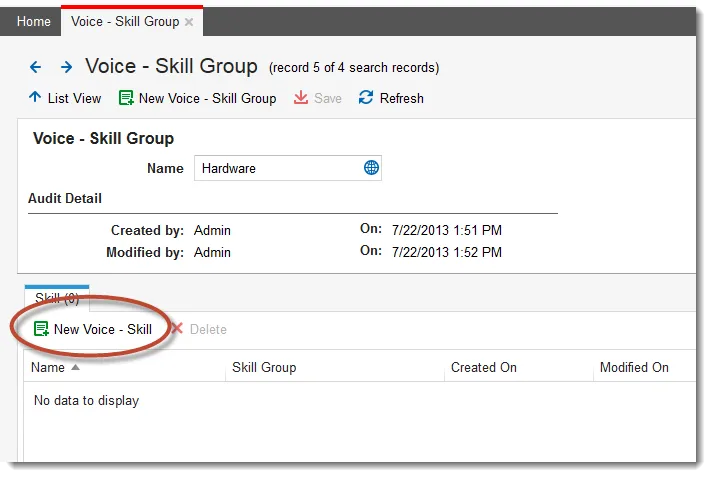
- Enter a skill name for the skill group in the Name field. For example, for the skill group called hardware, you might want to enter a skill called telecom devices.
- Click Save. The skill is added to the list.
Voice Skill Group
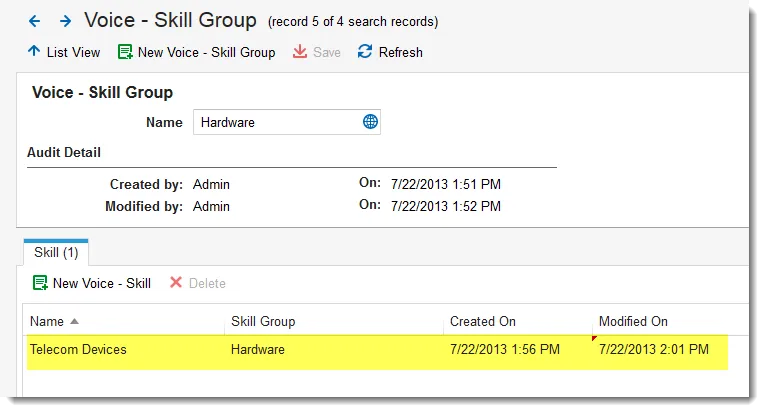
- Repeat this procedure to create other skills.
Synchronizing the Voice Status
Synchronization between Neurons for ITSM and Ivanti Voice occurs via a service running on the Ivanti Voice server. The service polls the configured Neurons for ITSM server on a defined basis. If the service finds the Sync Status field set to start, it copies values from Neurons for ITSM to Ivanti Voice.
- Log into the Service Desk Console.
- Open the Voice - Synch Status workspace. The default sync record appears. There is only one IPCM Synch Status record at a time.
- Double-click the record to see the record details.
- Ensure that EnableSync is selected, then enter the following:
Field | Description |
|---|---|
Sync Period (seconds) | The number of seconds after which synchronization starts. |
Start Synch | Starts synchronization. |
Notes | Additional information about this record. |
The system hides the Start Synch button when a synchronization is scheduled or in progress.
- Click Start Sync to set the sync status to start, which causes the synchronization service to run. The Synch Status record also shows the last synch date and result.
You can find additional details in the audit table. A backup of the host configuration and SIP server configuration files is automatically attached.
For security reasons, the Neurons for ITSM user password is not accessible to the Ivanti Voice synchronization service, and therefore cannot be used to see the user's password in Ivanti Voice. If the user logs into Ivanti Voice through the Voice toolbar, the Ivanti Voice password for the user is not required and does not need to be set in Ivanti Voice. If you need to log into Ivanti Voice-specific applications, such as the management portal, agent dashboard, or web statistics console, you must open the Ivanti Voice Management Portal and manually set the user password there.