
Activating Field Security Permissions
1 min
Photos of users in the Social Board are stored using several fields in the Employee business object. For users to be able to successfully upload a photo, you must provide edit permissions to the fields relative to a given role.
For example, to activate the necessary field permissions for users logged in as Self Service, do the following:
- From the Configuration Console, select Configure > Users and Permissions > Roles and Permissions to view the Groups workspace. The list of roles appears.
- Select Self Service. The Role Details page appears.
- Select the Object Permissions tab, then from the Select Page drop-down menu, navigate to the employee business object.
- Click the arrow next to Employee to expand the list of permissions.
Field-Level Permissions
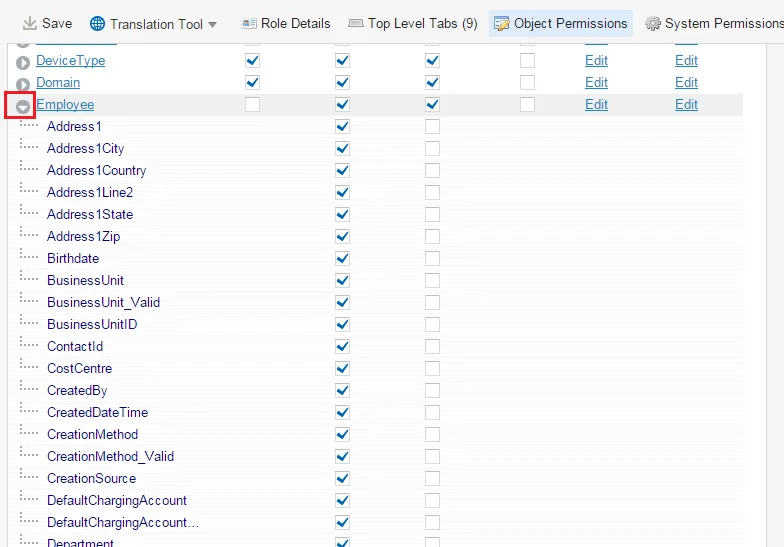
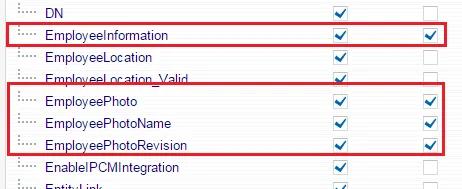
- Check Edit permissions (check the second column) for the following fields in the employee business object:
- EmployeeInformation
- EmployeePhoto
- EmployeePhotoName
- EmployeePhotoRevision
- LastModBy
- LastModDateTime
Edit Permissions
- Click Save.
Social Board management functionality is now activated in existing customer databases.
The following roles have edit permissions activated by default for the Employee business object:
- Admin
- Change Manager
- Knowledge Manager
- Problem Manager
- Release Manager
- Self Service
- Service Desk Analyst
- Service Desk Manager
- Service Owner
You must set the field permissions for all other roles.