
About Social Board Messages and Comments
You can broadcast messages on the Social Board to all Neurons for ITSM users, a group of users, or even to specific users which appear on their Home page as soon as the users log in to the application.
Types of Social Board Messages
There are two types of messages in the Social Board:
- Public: Messages that can be read by all the users.
- Limited: Messages that can only be read by specific users, groups, teams, or roles.
About the Social Board counter
The Social Board icon is an unread message counter which is a quick and easy way to post and view messages. Click the Social Board  icon to open the unread message counter to view the unread messages and post messages on Social Board.
The following are the features of Social Board counter:
- The number of unread messages is shown next to the Social Board icon. If the Social Board has not been activated, you do not see a number.
- The message counter increments each time a new message is posted but does not include your own messages.
- By default, the Everybody's activity area and your comments get updated instantly, while the Teams Activity area gets updated every five minutes. The maximum number of notifications shown is ten.
- You can see when a new message has been posted even if you are in another workspace. This eliminates the need to switch to the Social Board workspace to check for new messages.
- To clear the Social Board counter, either open the message window or click Clear & Close.
Viewing Social Board Messages
You can view the Social Board messages either from the Social Board workspace or from the Chat Zone.
Chat can only be accessed after the Social Board has been activated.
Search in Social Board
- Log in to Neurons for ITSM.
- Open the Social Board workspace.
- Enter the search keyword in the Search Post field and press the ENTER key or click the Search icon
 .
.
The search results are displayed.
Filter and view Messages in Social Board
- Log in to Neurons for ITSM.
- Open the Social Board workspace.
- Choose the filter criteria from the left Activity Stream pane. The messages are categorized as follows:
- Everybody's Activity - Messages published to all users.
- Teams Activity - Messages published to your team.
- Groups Activity - Messages published to a group that you are a part of.
- My Activity - Messages published only to you.
Posting a Message to the Social Board
- Log in to Neurons for ITSM.
- Open the Social Board workspace.
- Click within the Share what's new message text box. The Publish to section appears.
- Enter your message in the text box.
- You can choose whom to publish the message.
- To broadcast a message to all users, use the default setting which is Everybody.
- To send a message to specific groups, roles, or teams, click Add group > choose a group, role, or team from the drop-down list > click Add.
Repeat to add more groups, roles, or teams.
- To send a message to a specific person, click Add person > enter the name of the user in the text box > Add.
- Repeat to add more users.
Publish To

- Click Share. The message is sent to the users/groups/teams based on your selection.
Stop Sharing with a User, Group, Team, or Role
- Log in to Neurons for ITSM.
- Open the Social Board workspace.
- In the Publish to section, click the Delete icon
 next to the name of a user, group, team, or role.
Stop Sharing with a User, Group, Team, or Role
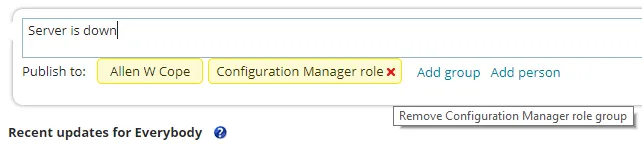
The user, group, team, or role no longer appears in the Publish to section and is no longer part of your conversation (unless you add them back).
Posting a Comment to a Social Board Message
- Log in to Neurons for ITSM.
- Open the Social Board workspace.
- Click in the message text box and enter your message.
- Either click Share or press the ENTER key.
The comment is shared to the users receiving the original message.
Deleting a Social Board Message or Comment
- Log in to Neurons for ITSM.
- Open the Social Board workspace.
- Click the Delete icon
 in the right corner of the post or comment header.
- Click Yes for the prompt message.
The message/comment is deleted.
You can only delete the message you posted and other what other users posted.