Working with Configuration Items
3 min
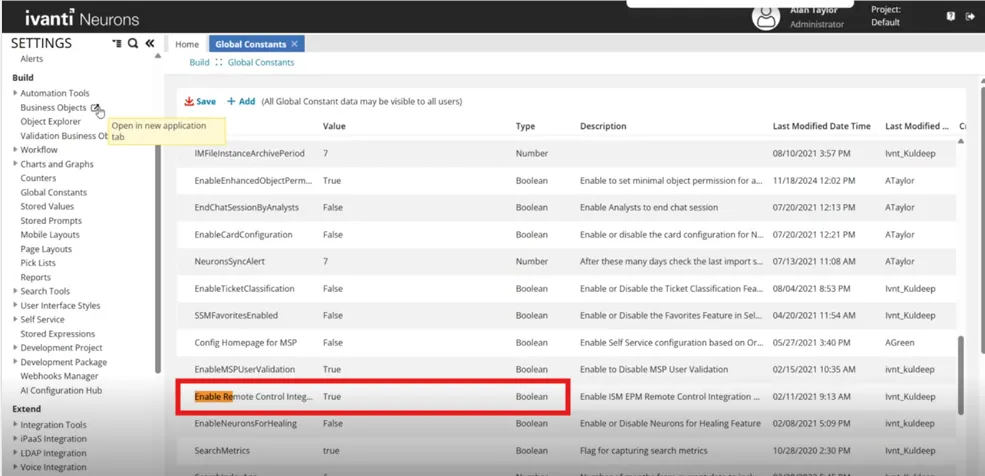
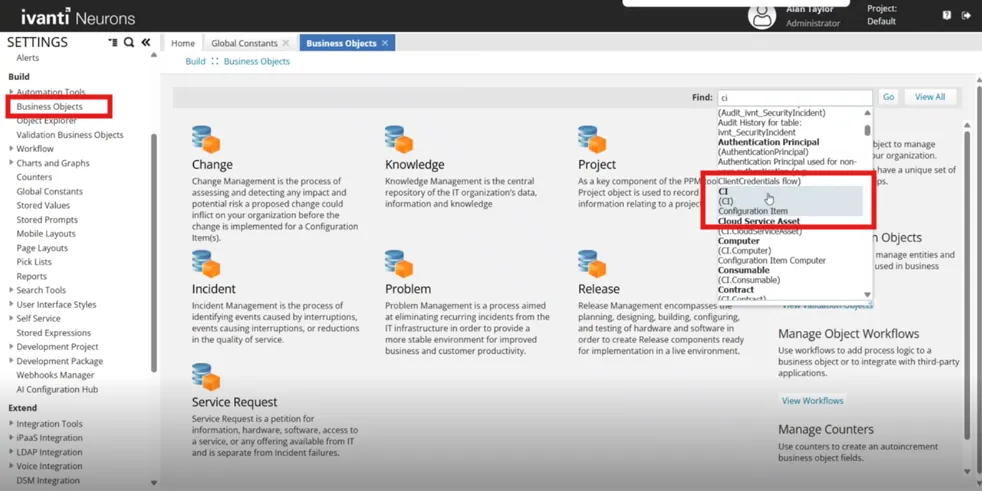
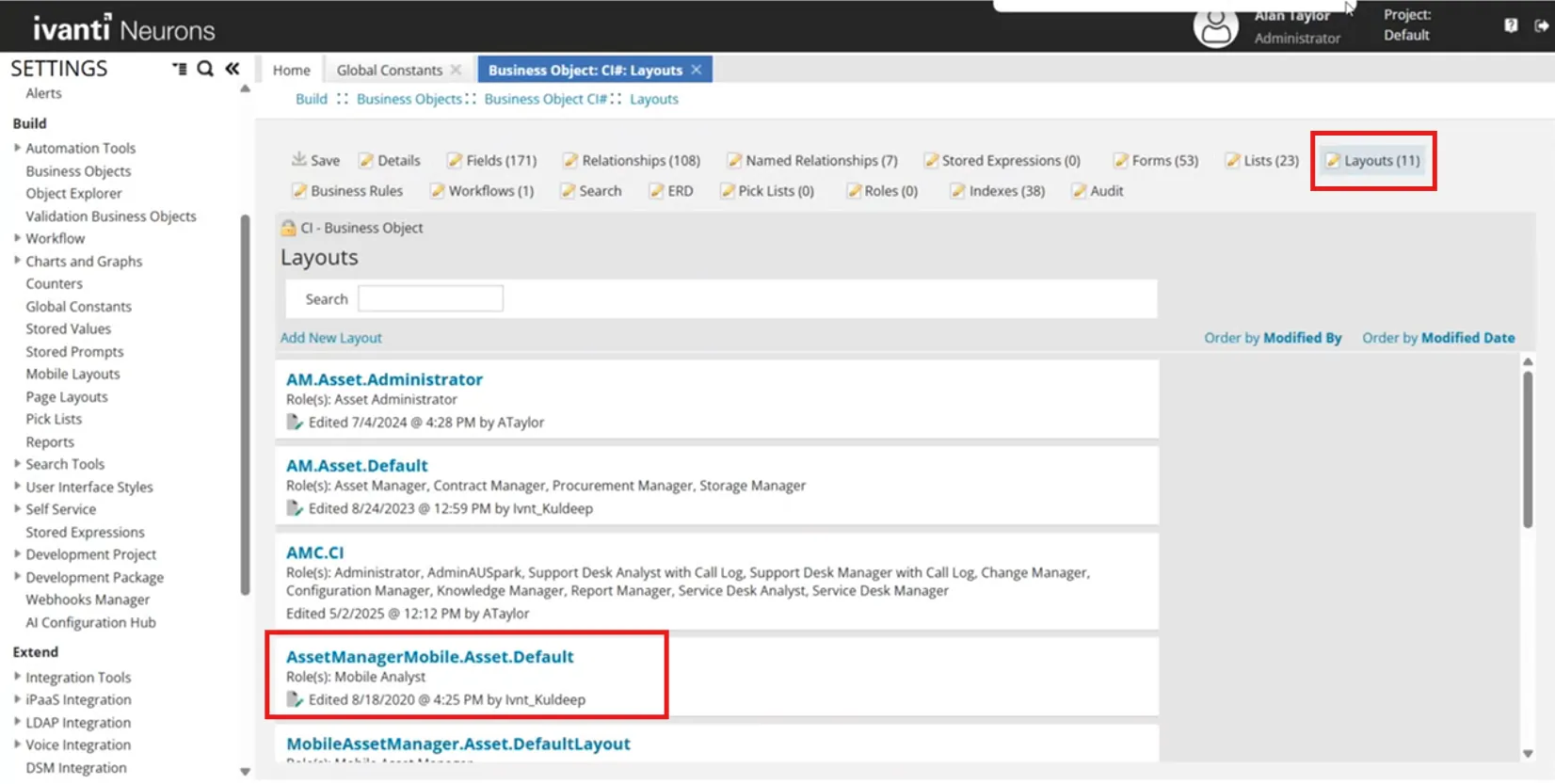
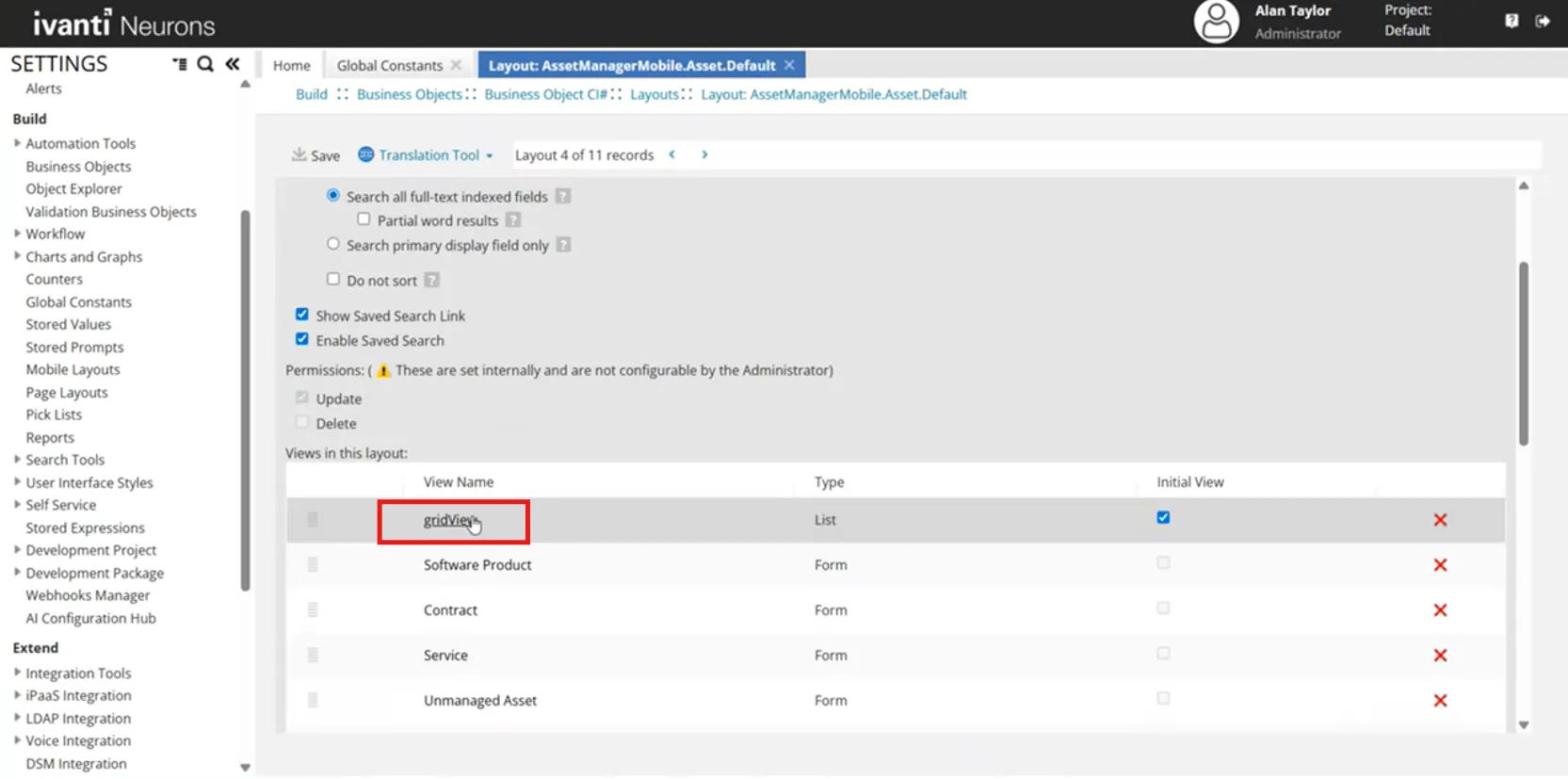
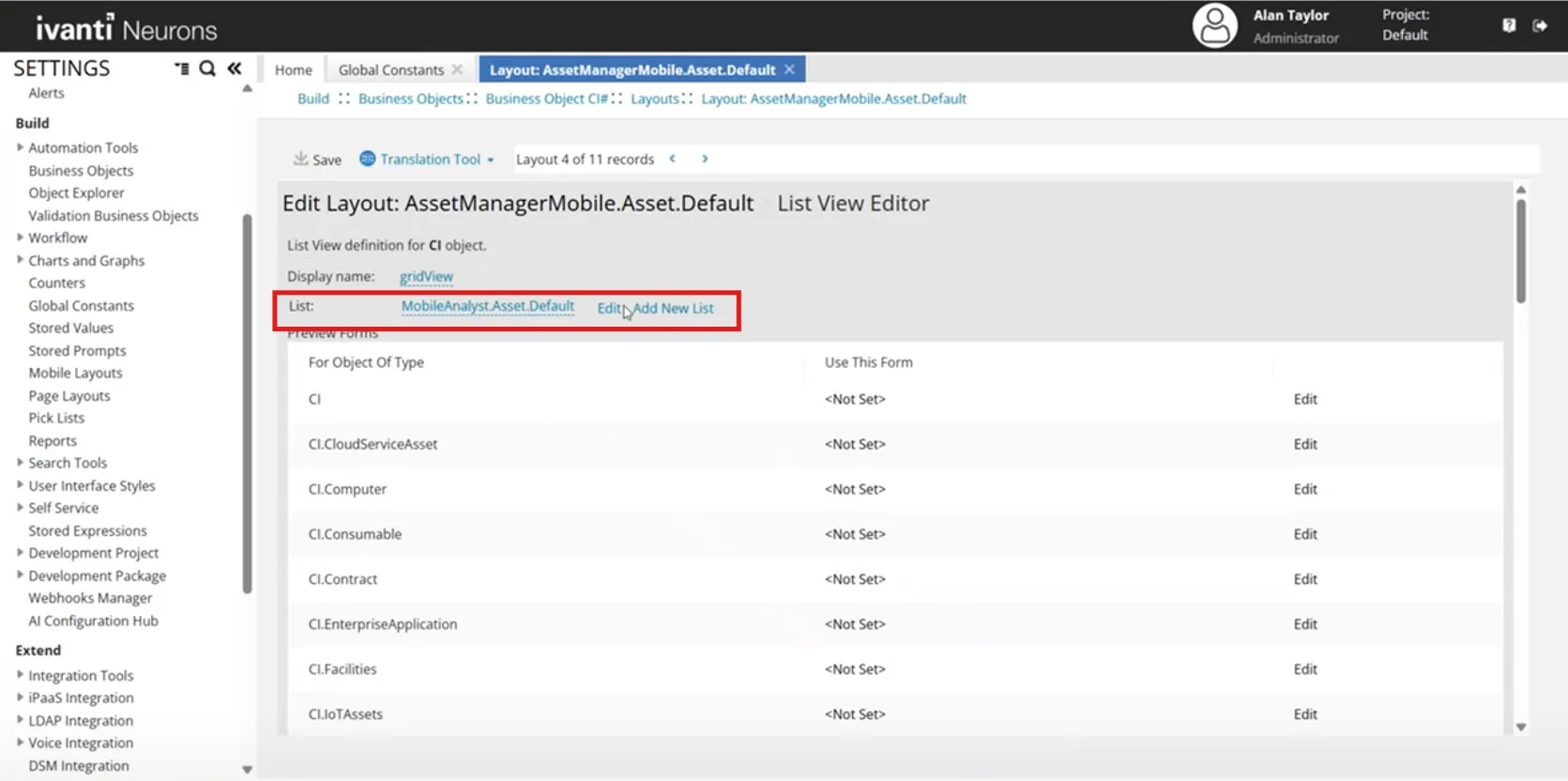
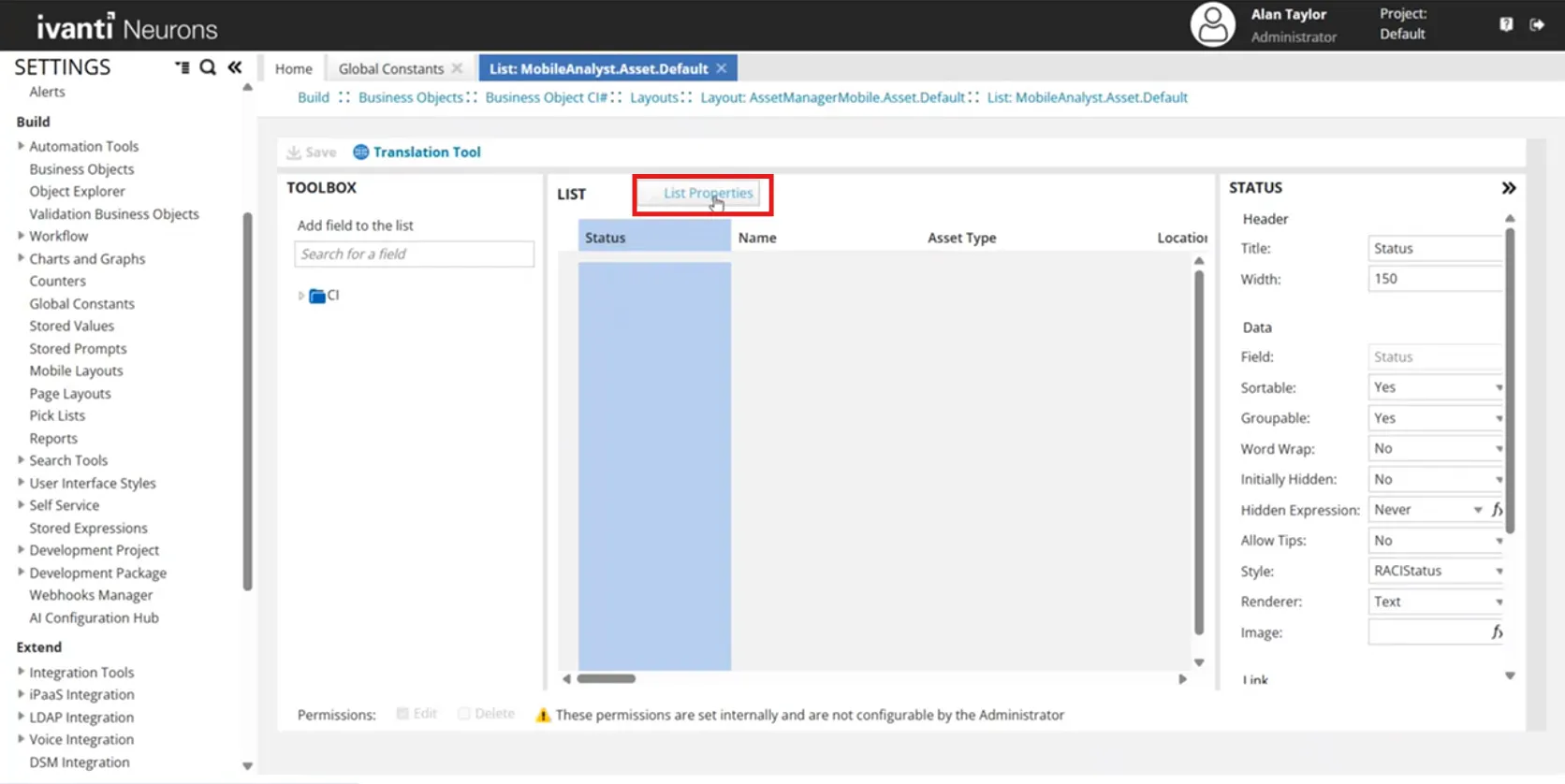
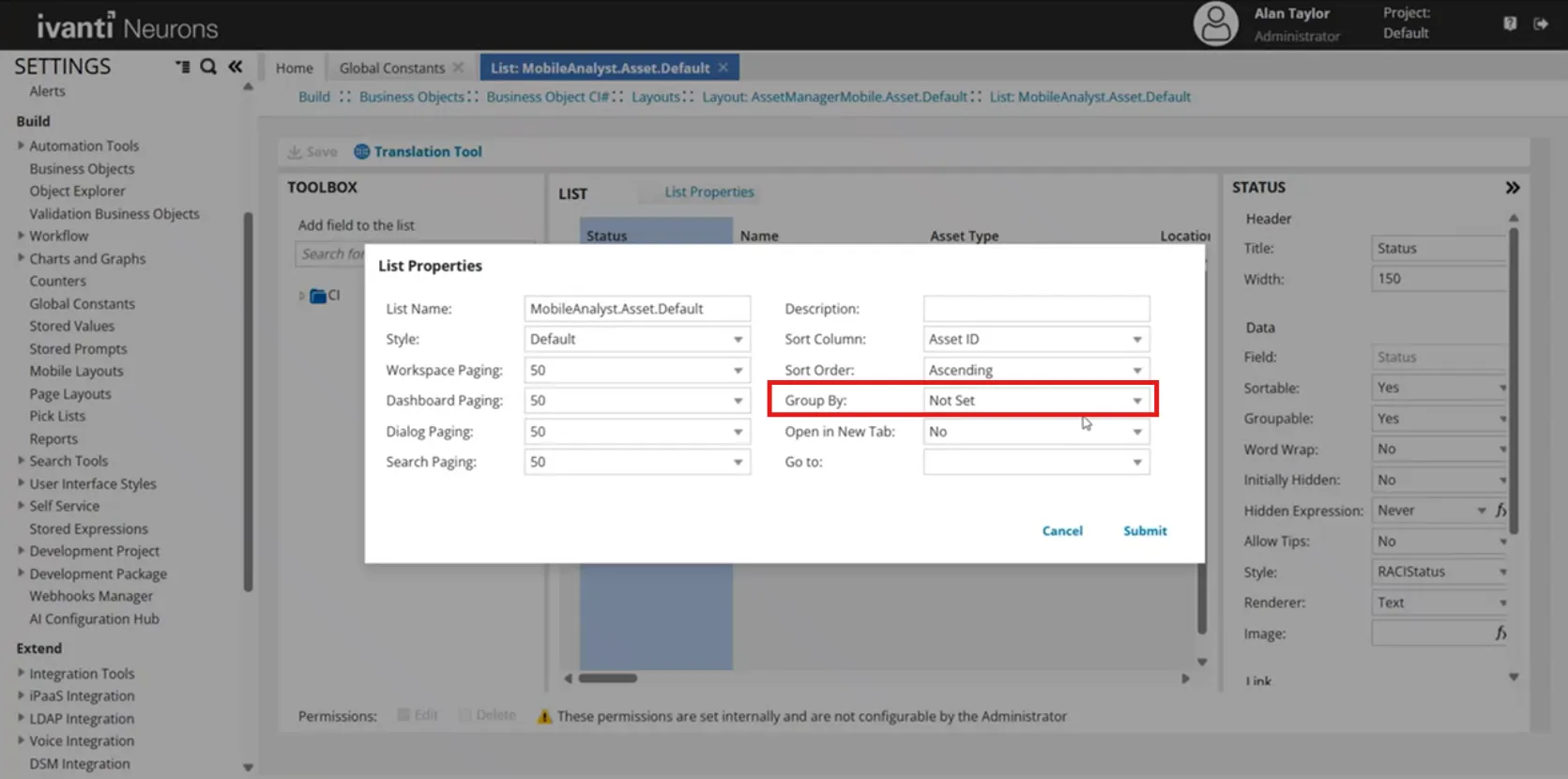
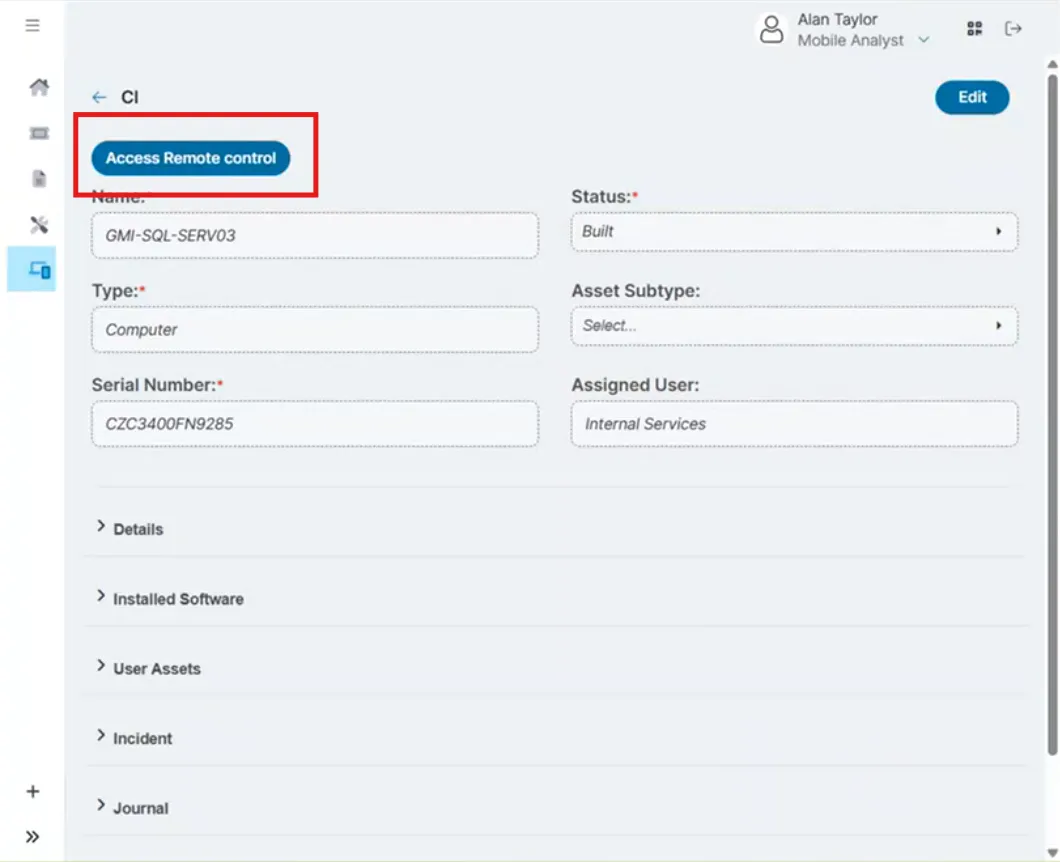
mobile analysts can view, edit a configuration item (ci), assign a user to a ci, and create incidents for a ci from their mobile devices on the configuration item (ci) workspace page, you can filter and sort the ci by expanding the filter & sort drop down you can expand the filter by option to select the suitable options that fit your search criteria, like status, priority, resolve by, owner, scanned period, and so on similarly, you can expand the sort by option and select suitable options from the drop down list you can also contact your administrator to customize your filters and sorts on the configuration item (ci) page, you can select the tile view icon to view all the cis in a tile view format, where you can get additional information about the user when you click the image circle under any particular ci, a user information card pops up and displays the username, designation, department, email address, and phone number viewing and editing a ci from the home page, tap the icon and select ci the ci page displays all the available ci records you can search and sort the ci records to search either type a keyword in the search bar or tap the saved search drop down arrow and select a saved search option to sort tap the icon and select the sort option select a record to view its details tap edit to edit the ci's details the ci record is displayed in edit mode modify the details as required you can add journals and attachments to the ci for information, refer to working with journals and attachments docid\ vo22soany48gpiqtkf58h tap save once you are finished modifying assigning a user to a ci open the ci record tap edit the ci is displayed in edit mode tap the assign user field and select the user the assigned user's initial is displayed in the ci list view tap on the user's initial to view the user profile creating an incident for a ci open the ci record tap edit the ci is displayed in edit mode tap create new incident a new incident is created for the ci to view the incident, expand the incident section of the ci record configure ci list view settings for access remote control in mobile analyst ui v3 enable remote control integration log in to ivanti neurons for itsm as an administrator go to settings under build , select global constants create enable remote control integration set the value to true select save navigate to the ci business object under settings > build , select business objects in the search field, search for ci workspace select ci (configuration item) select layouts open assetmanagermobile asset default (this layout is used in responsive analyst / mobile analyst ) under views in this layout , select gridview in the list view editor , locate the list field next to mobileanalystasset default , select edit in list properties , locate the group by option set group by to not set select submit to save the list select save to save the layout open mobile analyst (ui v3) navigate to configuration items (ci) open a ci record the access remote control button is visible at the top of the ci record and is available for use