
Assigning Layouts (Workspaces) to Roles
4 min
You can create a unique look for each role and you can define which layouts (workspaces) each role sees.
Viewing Which Layouts are Available to Each Role
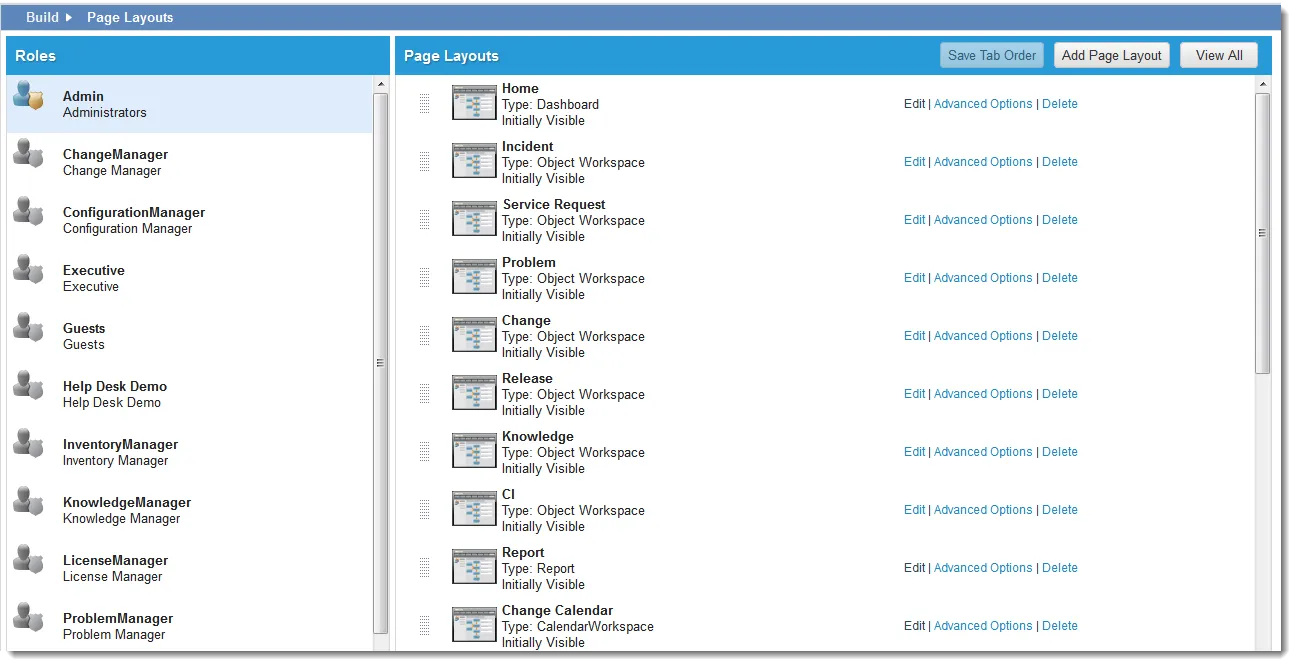
- From the Configuration Console, click Build > Page Layouts to open the Page Layouts workspace. The application displays the list of roles and page layouts.
- Select a role from the list. The available workspaces appear in the Page Layouts column.
Page Layouts Workspace
Adding Layouts to a Role
Roles see each layout as a workspace. Each workspace is represented as a tab in the top header bar.
- From the Configuration Console, click Build > Page Layouts to open the Page Layouts workspace. The application displays the list of roles and page layouts.
- Select a role.
- Click Add Layout. The list of workspaces (layouts) appears.
- Click a layout. The Tab Details page appears.
- Select or enter options. See Creating a Layout.
- Click Save. The layout is now visible to everyone in that role. Users might need to refresh their screen to see the updated options.
Modifying a Layout
You can modify layout options from the Page Layouts page, as well as within the business object Layouts tab.
- From the Configuration Console, click Build > Page Layouts to open the Page Layouts workspace. The application displays the list of roles and page layouts.
- Select a role.
- Next to the layout to modify, click Edit. The Layout Editor appears. See Creating a Layout.
Modifying Tab Details
You can modify the availability and visibility of the tab for each role.
- From the Configuration Console, click Build > Page Layouts to open the Page Layouts workspace. The application displays the list of roles and page layouts.
- Select a role.
- Next to the layout to modify, click Advanced Options. The Tab Details page appears. See Making Layouts Available to Users.
Removing a Tab From a Role
Removing a tab from a role does not delete it from the business object.
- From the Configuration Console, click Build > Page Layouts to open the Page Layouts workspace. The application displays the list of roles and page layouts.
- Select a role.
- Next to the layout to modify, click Delete. The delete confirmation window appears.
- Click Yes to confirm the delete. The layout no longer appears to the user role. Users might need to log and log in again to see any changes.