Firebase Configuration for Mobile Push Notification
3 min
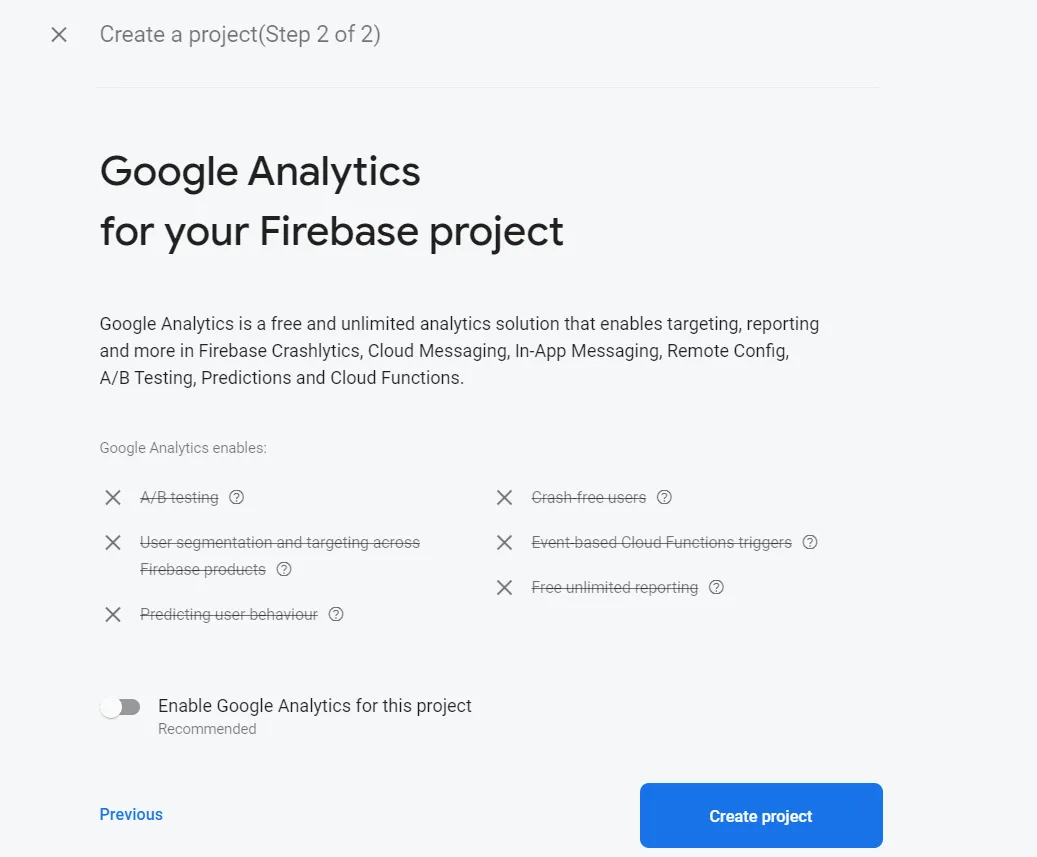
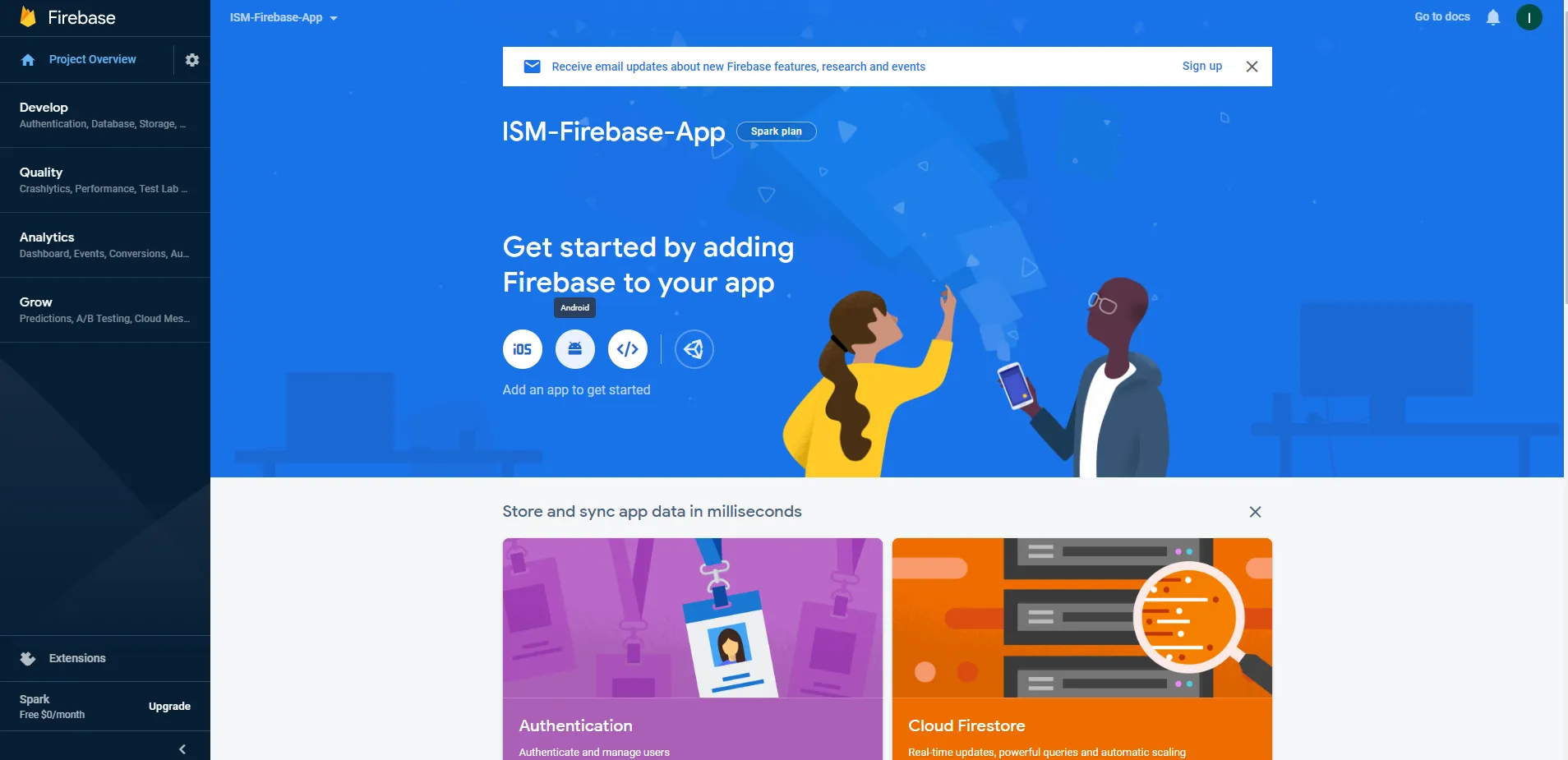
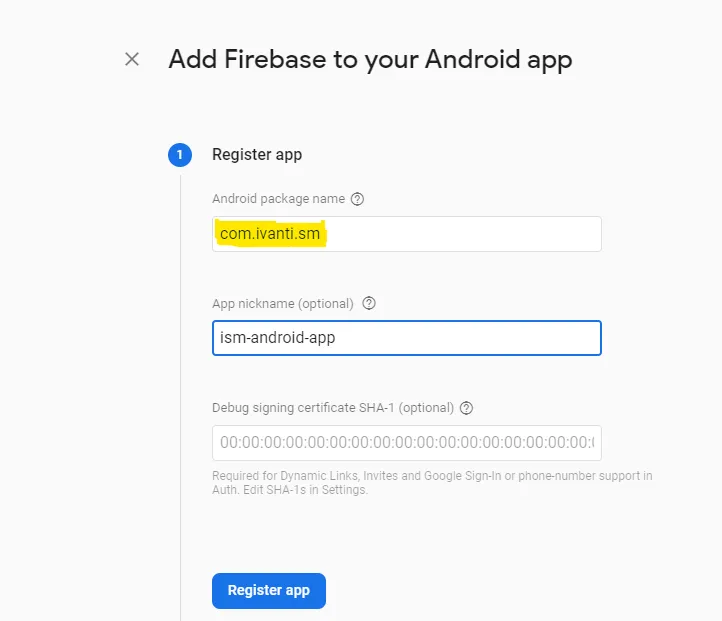
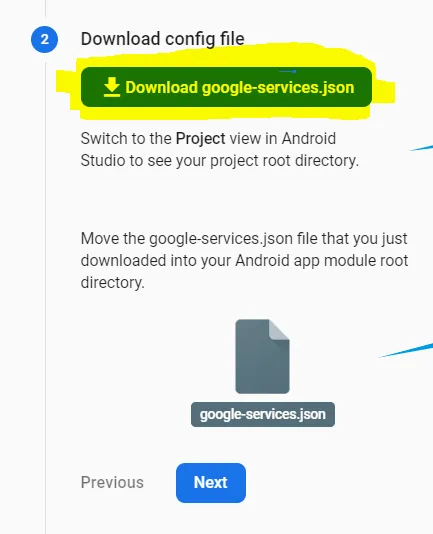
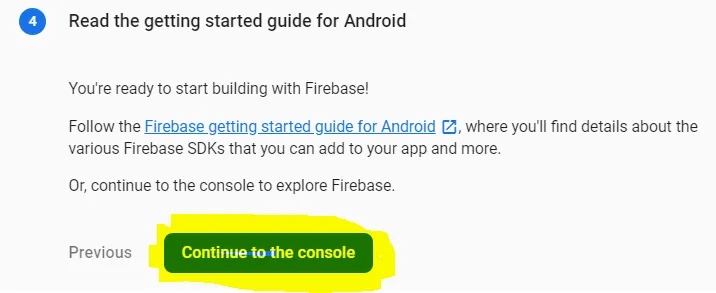
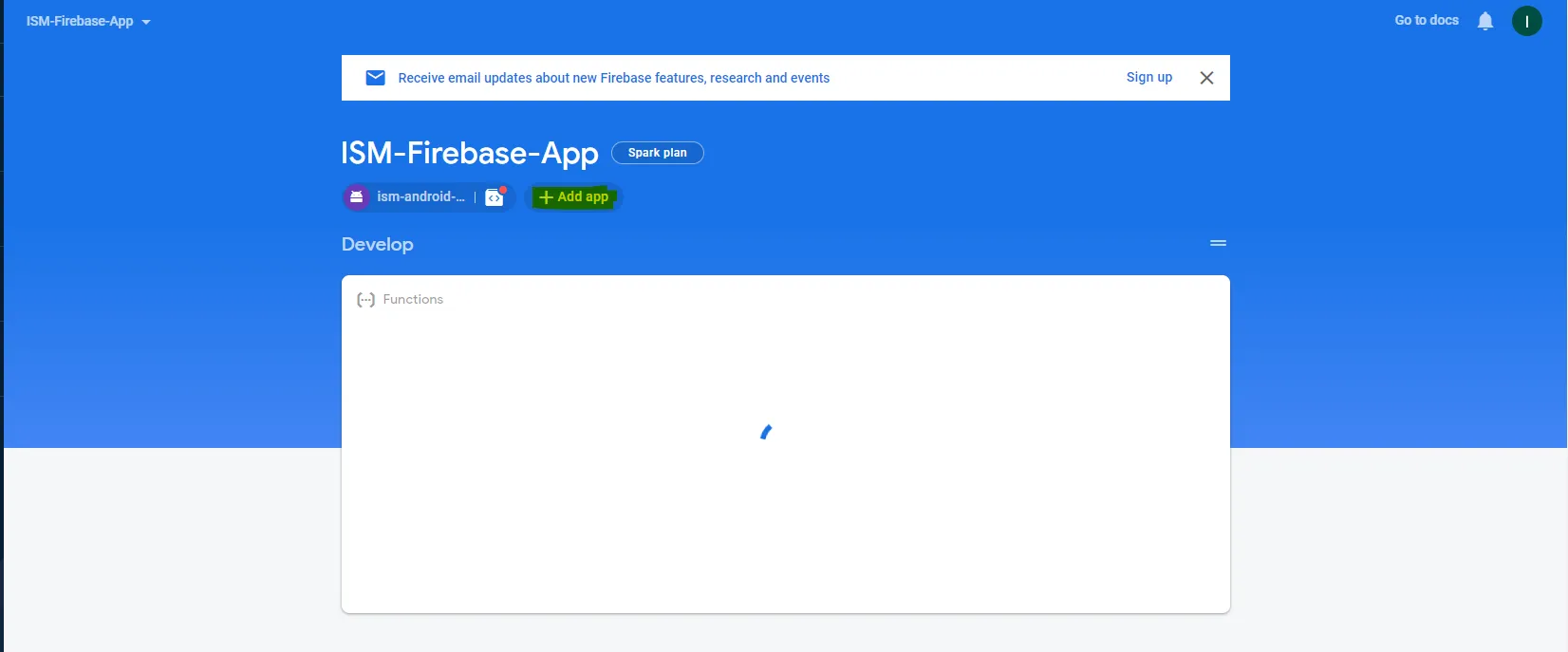
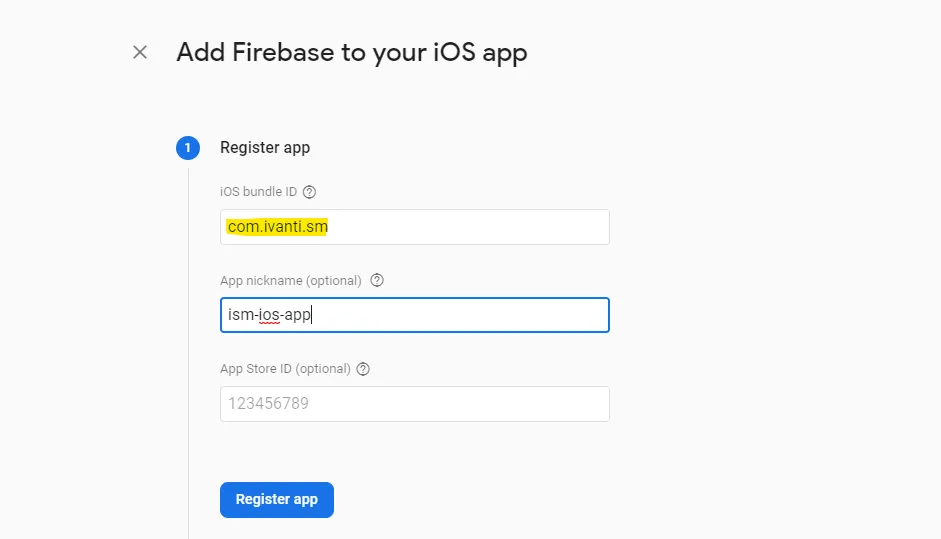
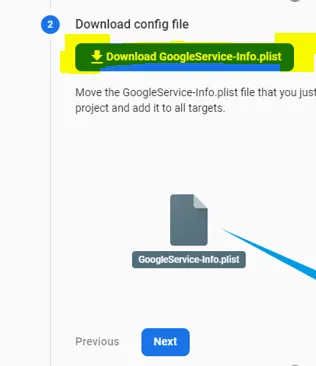
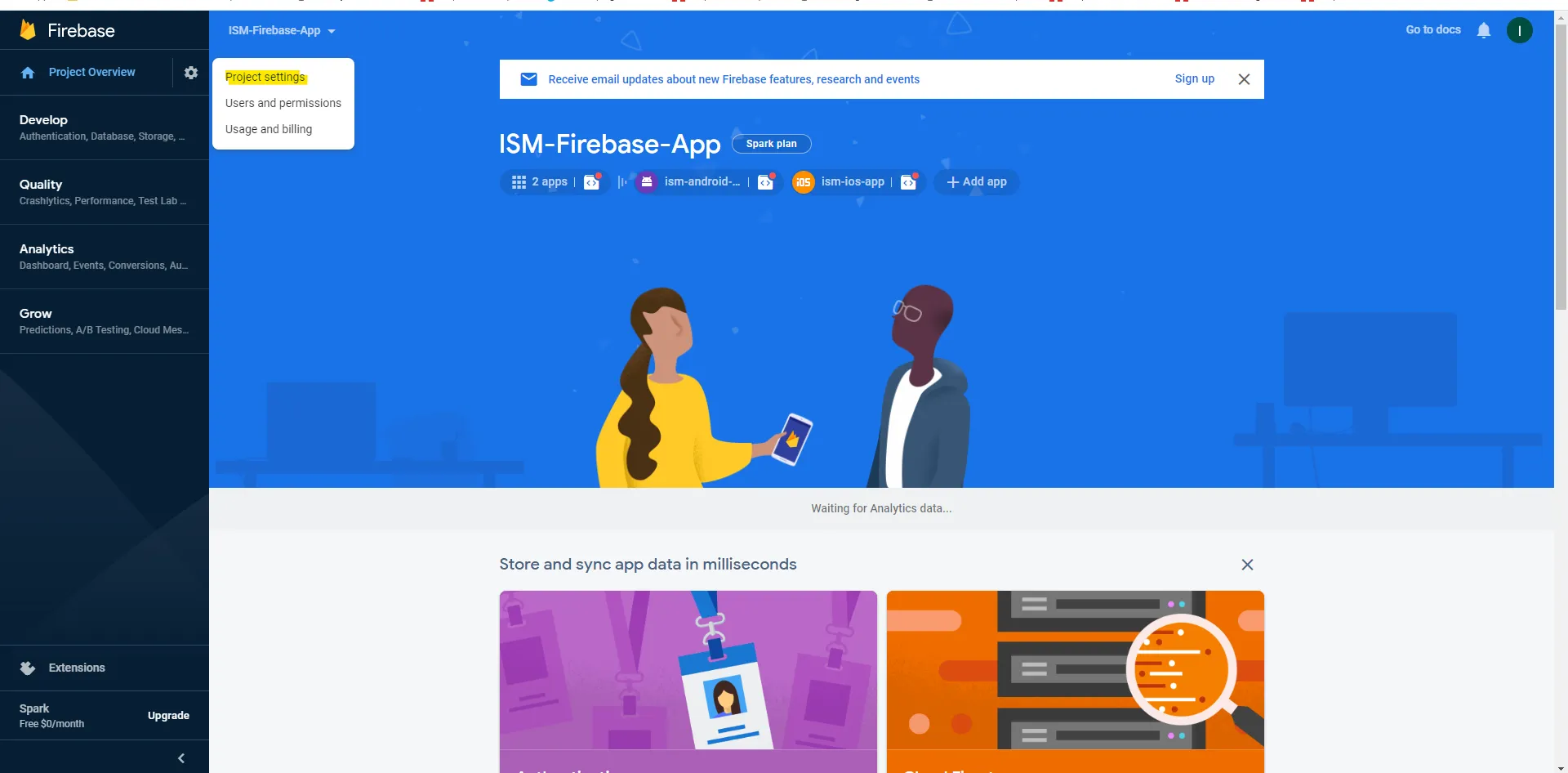
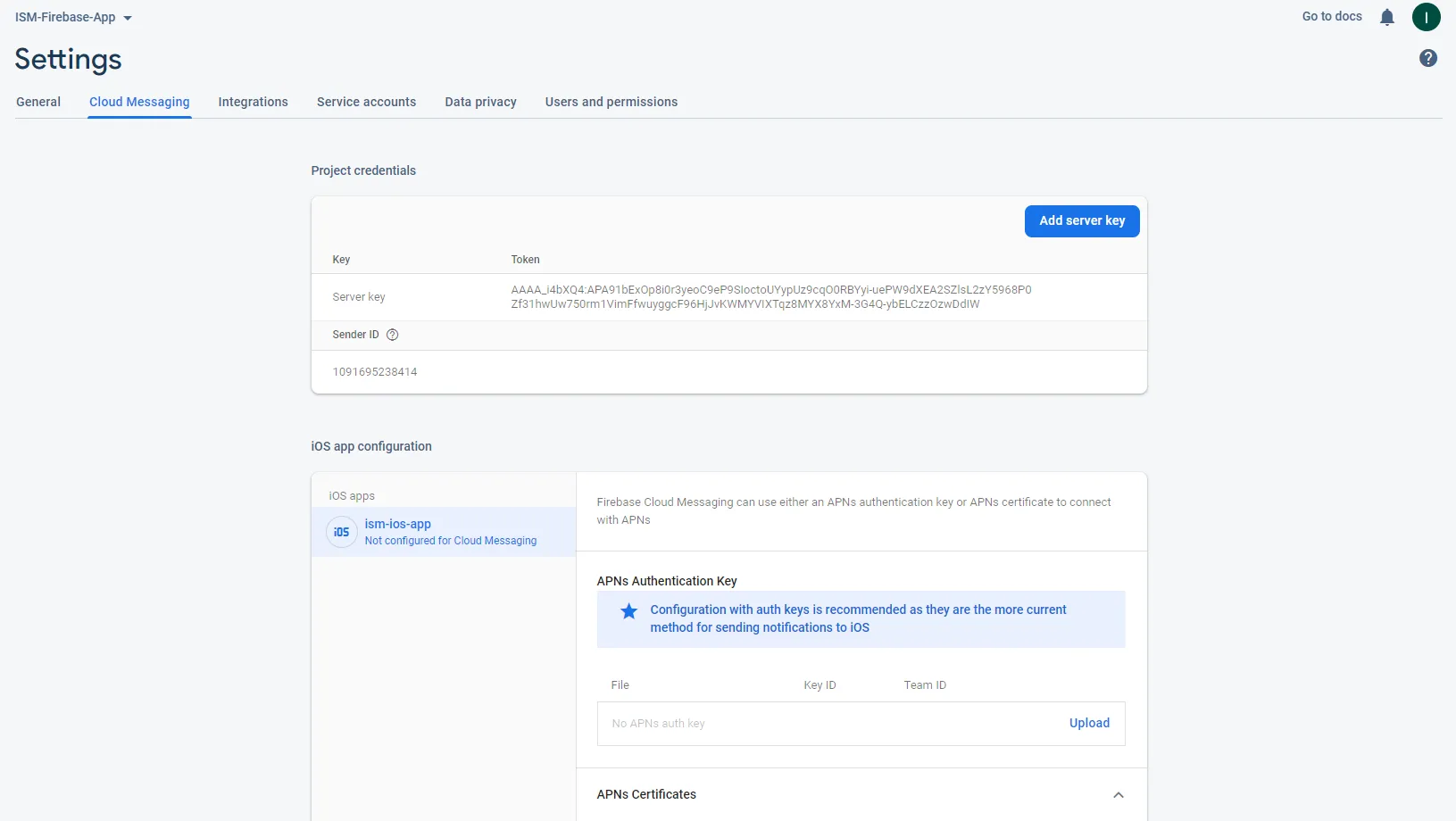
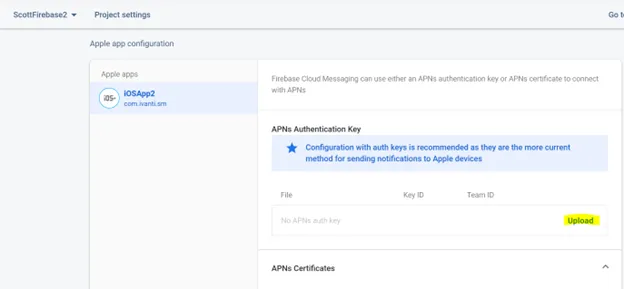
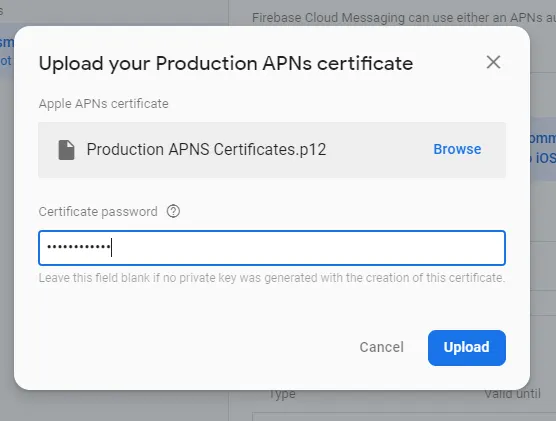
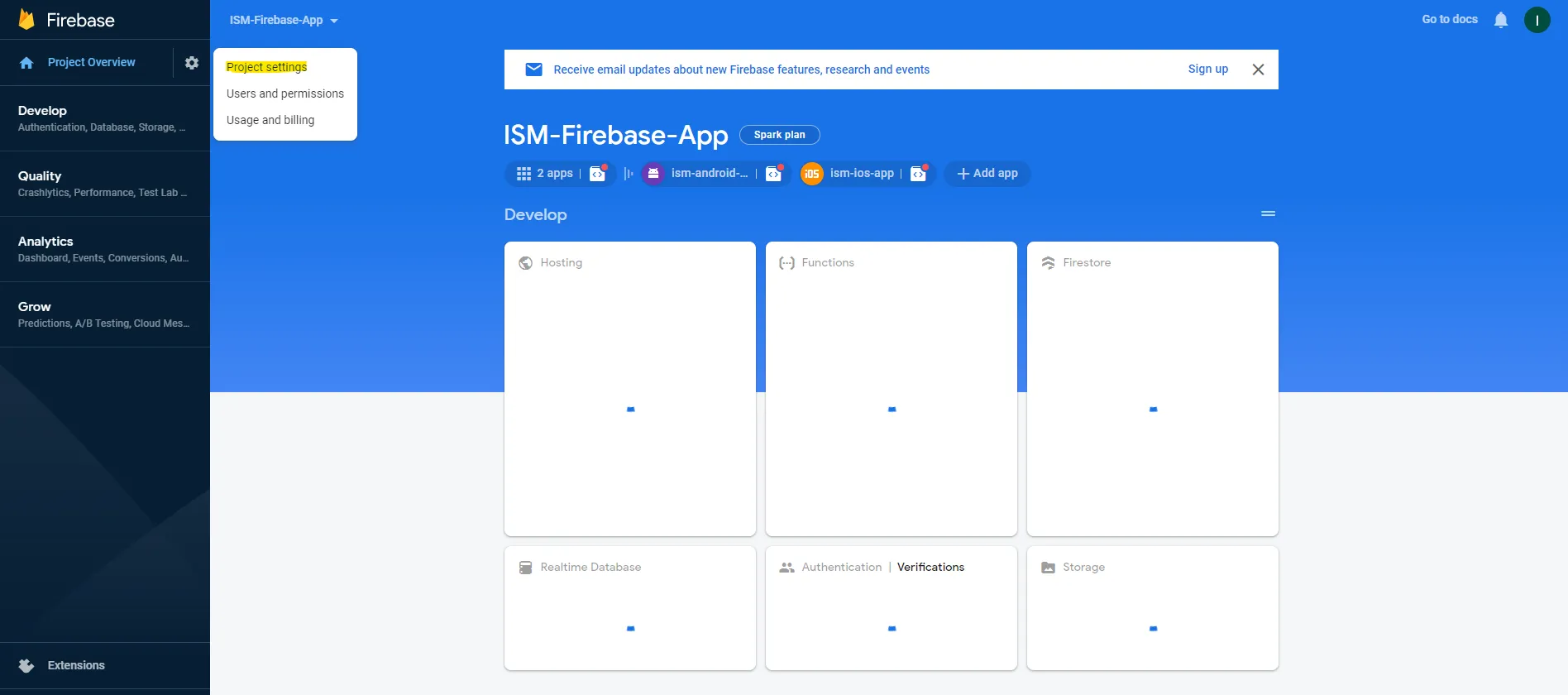
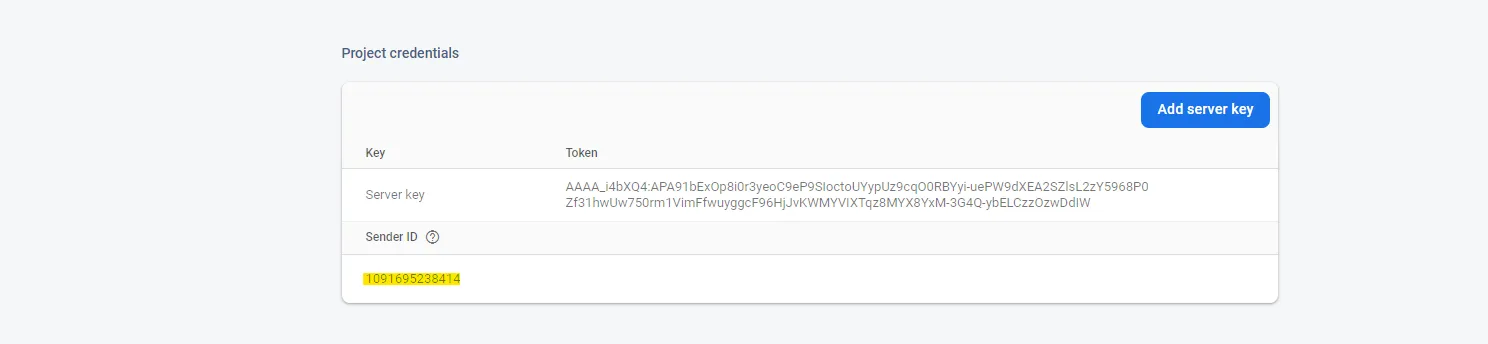
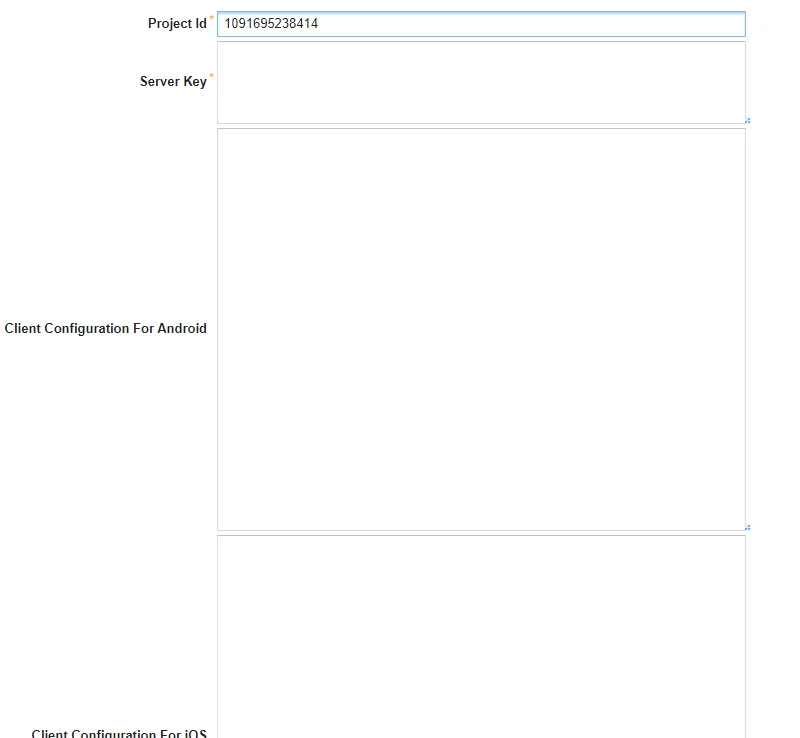
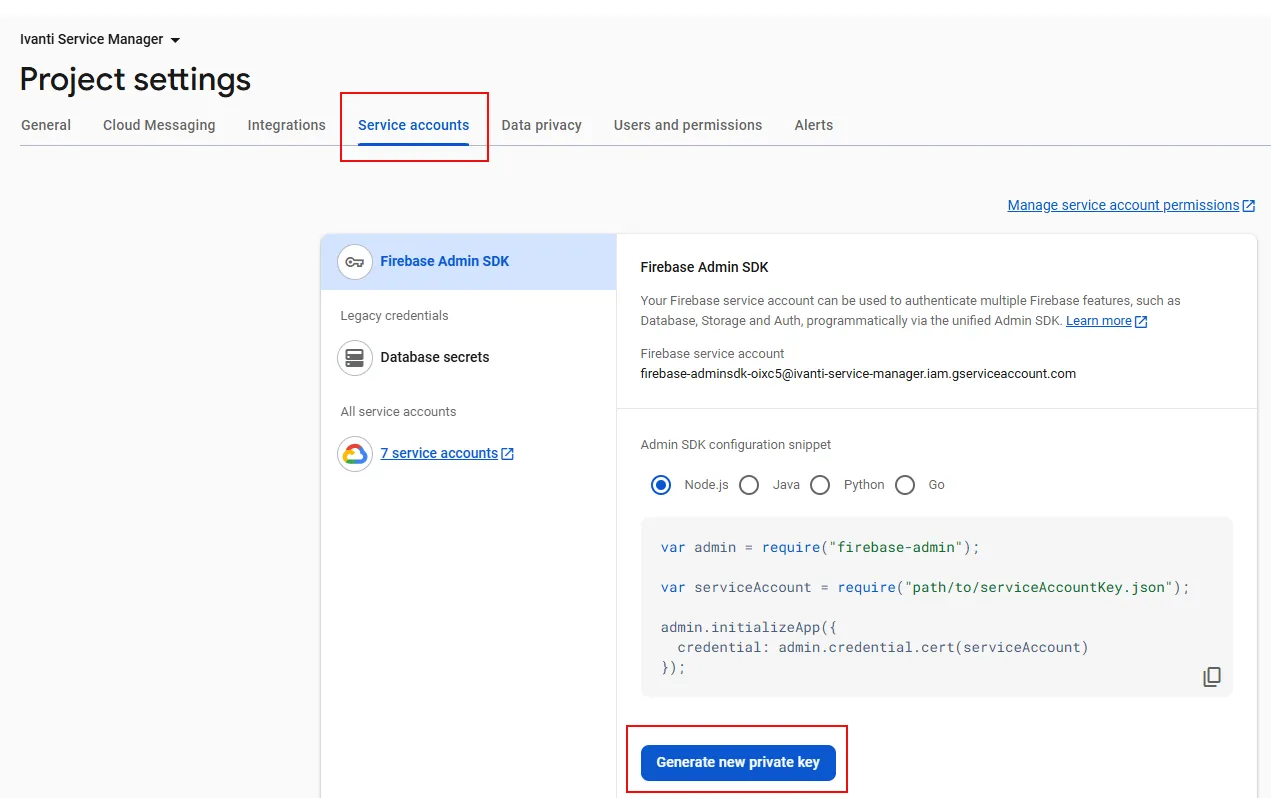
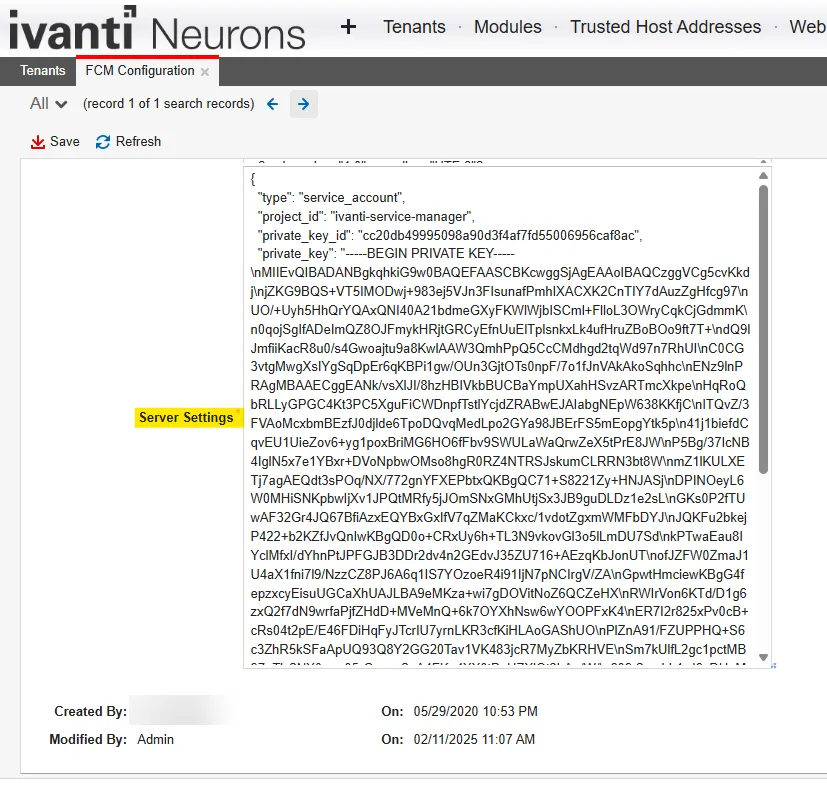
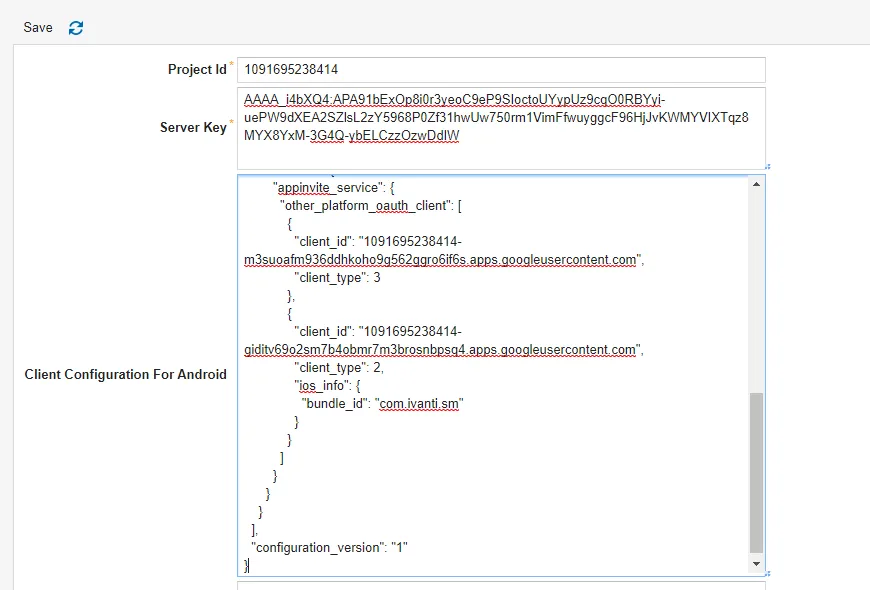
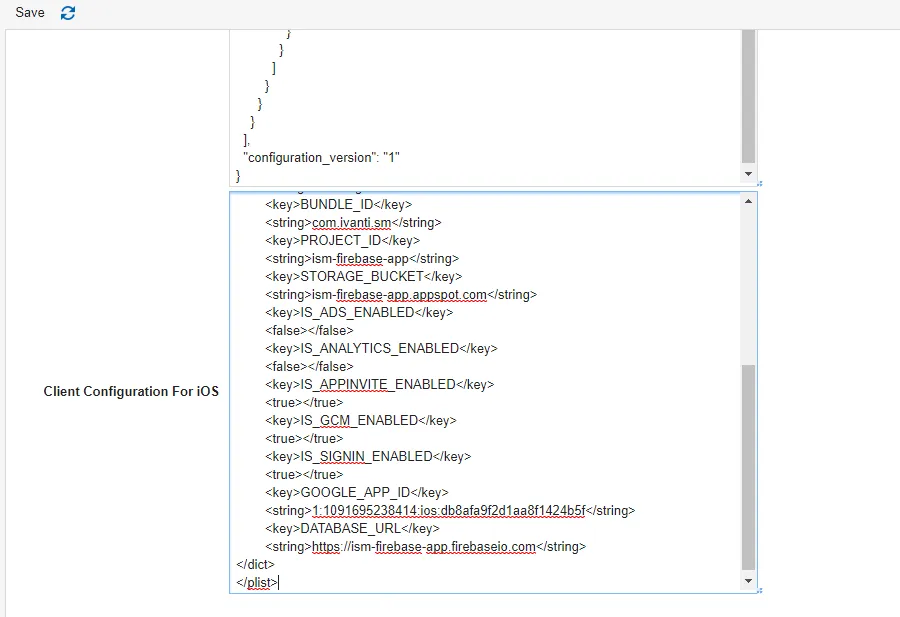
a new workspace fcm configuration is added to configdb the following are its sections project id project id of the firebase which we going to configure in future step this id is used by the server to send the push notification server key unique key that is present inside the firebase project this key is used by the server to send the push notification this section is deprecated and will be removed in the upcoming release therefore, meantime, we recommend giving a dummy value for example, 100021050040 client configuration for android json configuration which is used by android mobile to generate fcm token this configuration will be present in firebase project we need to add in config database client configuration for ios configuration which used by ios device to generate fcm token server settings use to authenticate firebase service account the following steps should be performed for mobile push notification to work creating a new project in firebase navigate to https //firebase google com/ https //firebase google com/ to create a new project since firebase is from google, you need to sign into your gmail account so the firebase project is associated with your gmail account navigate to firebase com and click go to console on the top right corner of the page click the create a project tile (for new users) or add project (for existing users) in the firebase type the project name, select the i accept the firebase terms check box and click continue disable google analytics and click create project configure ios and android app in firebase in this step, you will create ios and android app in the firebase project navigate to the newly created project click on the android icon to create new android app enter the name of the package it should always be com ivanti sm ” in the android package name and enter any name in app nickname ensure the package name is right and click on register app click on download google service json which is json configuration for android download this file and click next skip step 3 by clicking on next – (add firebase sdk) click continue to the console if you see “ run your app to verify installation ” step then you can click on “ skip this step ” and then click continue to console once all these steps are completed, you have the android app ready in the firebase project now, do the same for ios click on add app again in the firebase project and select ios specify the same package name com ivanti sm in the ios bundle id, enter the app nickname and click on register app click on download googleserviceinfo plist which contains the configuration for ios device and click next skip step 3 by clicking on next – (add firebase sdk) skip step 4 by clicking on next – (add initialization code) click continue to console in step 5 if you see run your app to verify installation step, click skip this step and then click continue to console once these steps are completed, you have ios and android app configuration is ready in the firebase apply ios certificate for ios app ivanti will provide the apns certificate for ios app you can find the certificate at ivanti market place https //marketplace ivanticloud com/packages/apnscertificateforiospushnotifications/ click the setting button from top left and click on project settings click the cloud messaging tab scroll down to the apns authentication key section and click the upload button browse to the authkey v65xkx7498 p8 file enter the following details key id v65xkx7498 team id b7fw4y3up6 configure firebase in config database of ism navigate to project settings from the main page of firebase project navigate cloud messaging copy the sender id go to ism centralconfig , open fcm configuration workspace and paste sender id which is copied to the project id in workspace get server settings from the service accounts tab a under the project settings section, go to service accounts > firebase admin sdk , and click generate new private key a dialog box appears b click generate key it will download a json file copy the server setting from the json file and paste it in the server settings box in the fcm configuration workspace copy the entire content from google service json which is downloaded from step – 3 and paste in the client configuration for android finally, you need to add the ios fcm configuration in config db copy the entire content from googleservice info plist which is downloaded in step 3 and paste it in the client configuration for ios and save