
Appendix A: Using the Operations Console to Perform Administrative Tasks
Working With Operations Console Users
About Operations Console Users
Use the Users workspace to add and edit Operations Console users. These are users who can log in to and use the Operations Console; these are not tenant users. Your environment may have just one admin login ID, which is used by multiple users, or it may have multiple login IDs with one for each user.
The administrator users here in the Operations Console are not the same as the administrator users in Ivanti Service Manager.
Users who are administrators can delete non-administrator users, and have access to all areas of the Operations Console. Users who are not administrators have a limited set of abilities.
Function | Administrators | Non-Administrators |
|---|---|---|
View the Users tab | Y | Y |
Create a user | Y | N |
Edit their own user account | Y (Can delete their own administrator status) | Y (Cannot make themselves an administrator) |
Edit other users | Y (But cannot delete administrator status from the user call Admin) | N |
Delete their own user account | N | N |
Delete other users who are not administrators | Y (But cannot delete the user called Admin) | N |
Delete other users who are administrators | N | N |
View the Tenants tab | Y | Y |
View all tenants and tenant instances in the system | Y | N (Can only view tenants and tenant instances associated with their company, unless they leave the company name blank in which case they can see all tenants and tenant instances) |
View the Landscape tab | Y | N |
View the System Status tab | Y | N |
View the Events & Audit History tab | Y | Y |
About the Users Workspace
Use the Users workspace to view and edit information about the users who can access the Operations Console. See Users Tab When Logged In as an Administrator.
Users Tab When Logged In as an Administrator
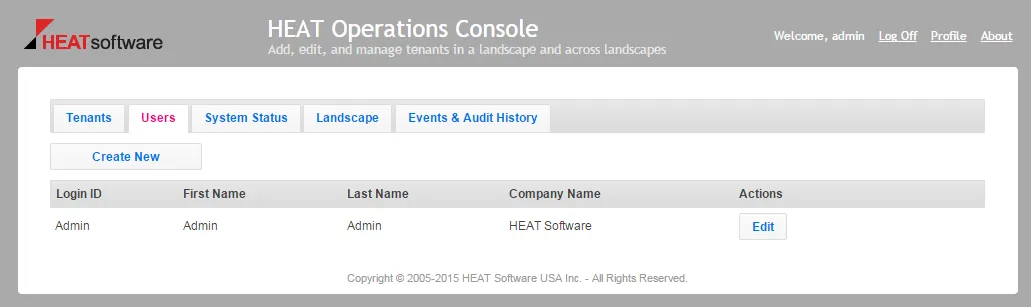
From this workspace you can:
- View the login ID, first name, last name, and company name of each user.
- Create a new user (if you have permission).
- Edit the information for a user (if you have permission).
- Delete a user (if you have permission).
Adding a New Operations Console User
Only administrators can add new users. |
|---|
To add new users who can access the Operations Console, do the following:
- Log in to the Operations Console.
- Click the Users tab.
- Click Create New.
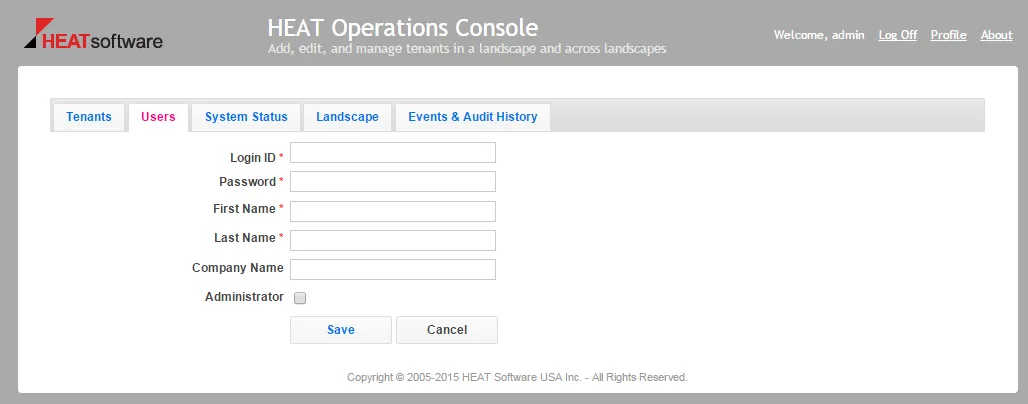
- Enter data in the fields. See Adding a New User Page.
Adding a New User Page
- Click Save.
Editing a Operations Console User
If you are not an administrator, you can only edit yourself, but you cannot make yourself an administrator. If you are an administrator, you can edit yourself or other users. However, you cannot edit other administrator users to make them non-administrators. You can, however, edit yourself to make yourself a non-administrator, but once you do so, you cannot change yourself back to an administrator. |
|---|
- Log in to the Operations Console.
- Click the Users tab.
- Click Edit for the user to edit.
- Update the fields as needed.
- Click Save.
Deleting a Operations Console User
Only administrators can delete users, but they cannot delete themselves. |
|---|
- Log in to the Operations Console.
- Click the Users tab.
- Click Delete for the user to delete.
- Click Yes at the verification prompt.
Changing Your User Display Name
You can change the name that is displayed for first and last name.
- Log in to the Operations Console.
- Click Profile in the upper right corner.
- Update your first or last name, or both.
- Click Save.
If you need to change the user display names of other users, follow the process described in Editing a Operations Console User.
Changing Your Password
To change your password, do the following:
- Log in to the Operations Console.
- Click Profile in the upper right corner.
- Click Change password.
- Enter the old password, the new password, and then reenter the new password.
- Click Save.
If you need to change the passwords of other users, for example if a user forgets his password, follow the process described in Editing a Operations Console User.
Viewing System Information
About System Information
Use the System Status workspace to view status information about the Ivanti Service Manager environments. Information that you can view includes general information such as the Operations Console environment ID and the timeout value used throughout the environment. See System Status Tab.
System Status Tab
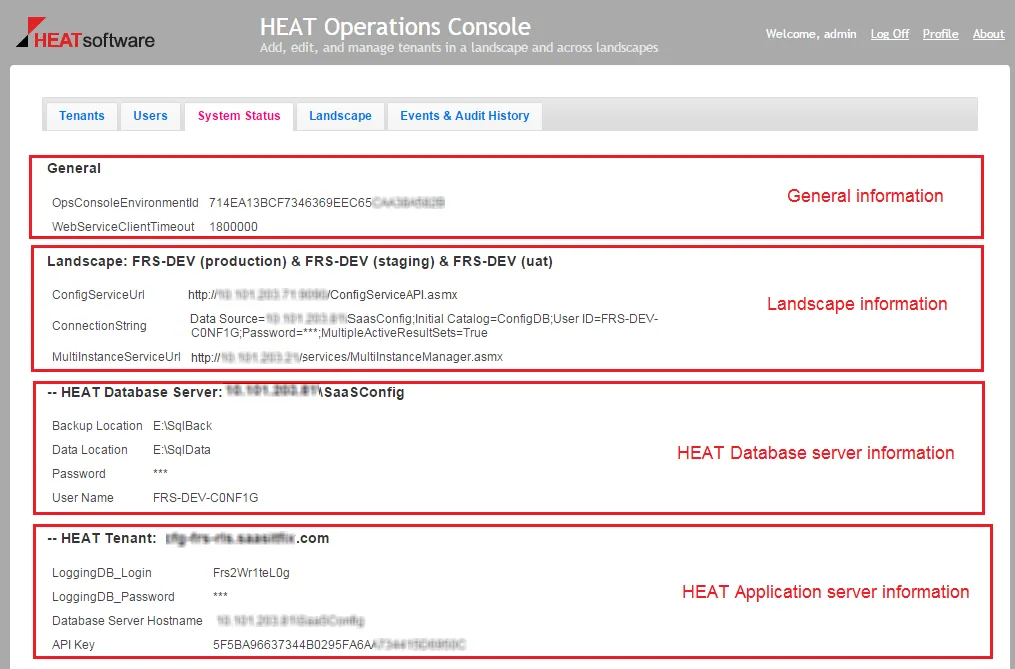
For each environment, you can also see the following landscape information:
- The URL for the Ivanti Service Manager configuration server
- The URL for the multi-instance service
- The connection string settings, which describes where the Operations Console resides. Usually, you use the same configuration database as the Operations Console database; however, it can be an independent database anywhere outside of Ivanti Service Manager. You configure this connection string information when you initially install Ivanti Service Manager using the System Configuration Wizard.
For each Ivanti Service Manager database server, you can view:
- IP address
- Backup location
- Data location
- Password
- Administrator user name
For each Ivanti Service Manager application server, you can view:
- The login ID and password for the database that logs events.
- The Ivanti Service Manager database server host name.
- The API key. There can be multiple API keys. The one without any modifiers, such as API Key (other), is the Operations Console API key and is most important. The API key must be unique and cannot be shared between tenant instances. The system automatically generates the API key if you add a tenant instance using the Operations Console, but the field is blank if you add the tenant instance manually.
Viewing Additional Information
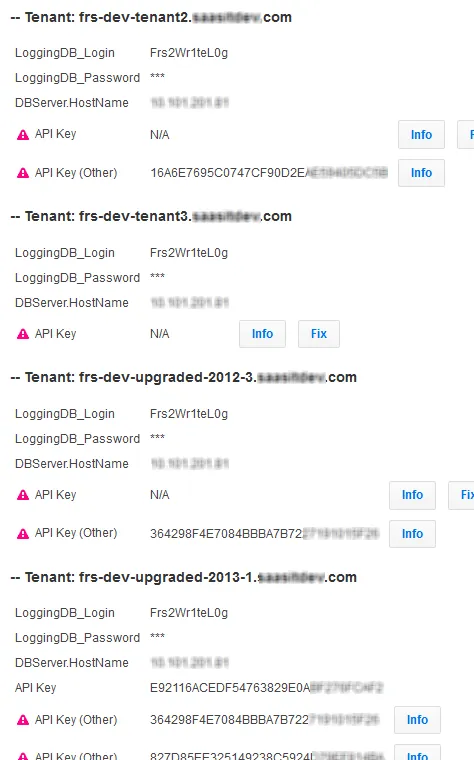
When you click System Status and view the system information, there may be errors. See System Status Problems. To see information about the error, click Info.
System Status Problems
Fixing Problems
When you view the system information, there may be errors. See System Status Problems. If the system can fix the error, it displays the word Fix next to the item. To fix the error, click Fix.
One problem that must be fixed is having duplicate API keys. If a tenant instance has a duplicate API key, the system cannot communicate with the tenant instance. To fix this problem, click Fix. If the API key is blank, you can generate an API key by clicking Fix.
Viewing Events and Audit History
About Events and Audit History
Use the Events & Audit History workspace to view information about each action that has occurred on a tenant or a tenant instance. You can use this information to help with troubleshooting problems. It lists each action that has occurred in chronological order and displays additional information for errors. See Events and Audit History.
Events and Audit History
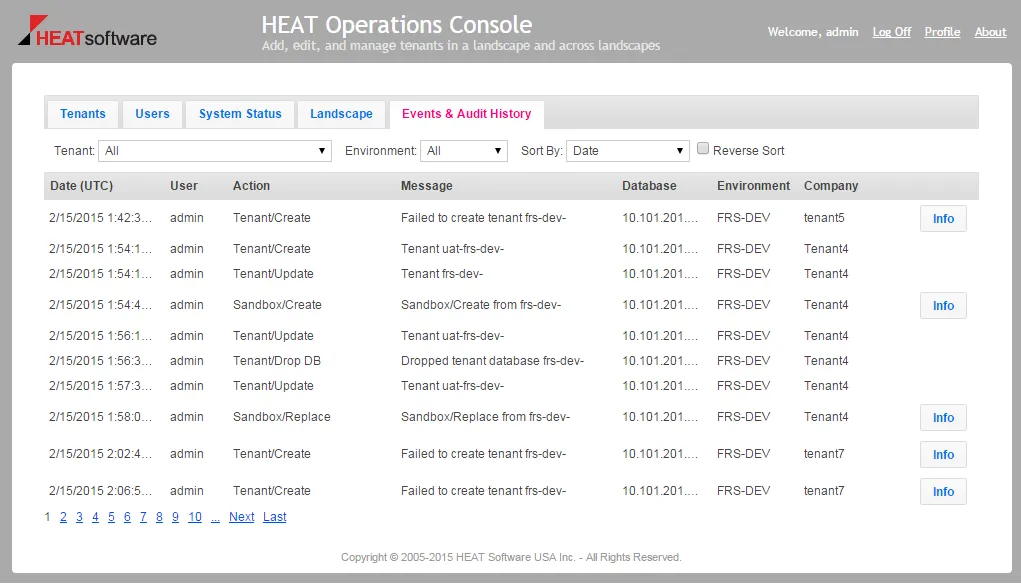
The page lists the following information:
- The action date, in UTC time.
- Who performed the action.
- What the action was.
- The message that displayed when the action took place.
- The database on which the action was performed.
- The environment in which the action was performed.
- The company to which the tenant or tenant instance belongs.
Manipulating Events and Audit History Data
Use the controls to do the following:
- Filter the results by tenant, tenant instance, or environment.
- Sort the results by date, tenant, tenant instance, or company name.
- Sort the results in reverse order.
- Move from page to page of data.
Viewing Additional Information about Events and Audits
Some items may have additional information. To see this information, if available, click Info next to the message.
Reviewing License Usage
You can use the Operations Console to review the license usage for all tenants and tenant instances by doing the following:
- Log in to the Operations Console.
- Click Tenants.
- Click Download License Usage.
The system downloads a Microsoft Excel file with the license information for all tenants and tenant instances. The file lists the date the license was used, the number of licenses used, and the types of licenses used.