
Configuring the Application Server Settings
You set connections to other databases in Neurons for ITSM on the Application Server Settings page. You will do the following:
- Specify the location of the configuration server and the host name.
- Specify if you will use this server for surveys or the reporting feature.
- If you use Windows Integrated Security for the Application Server, specify the Windows domain credentials for the service account.
Application Server Settings Page
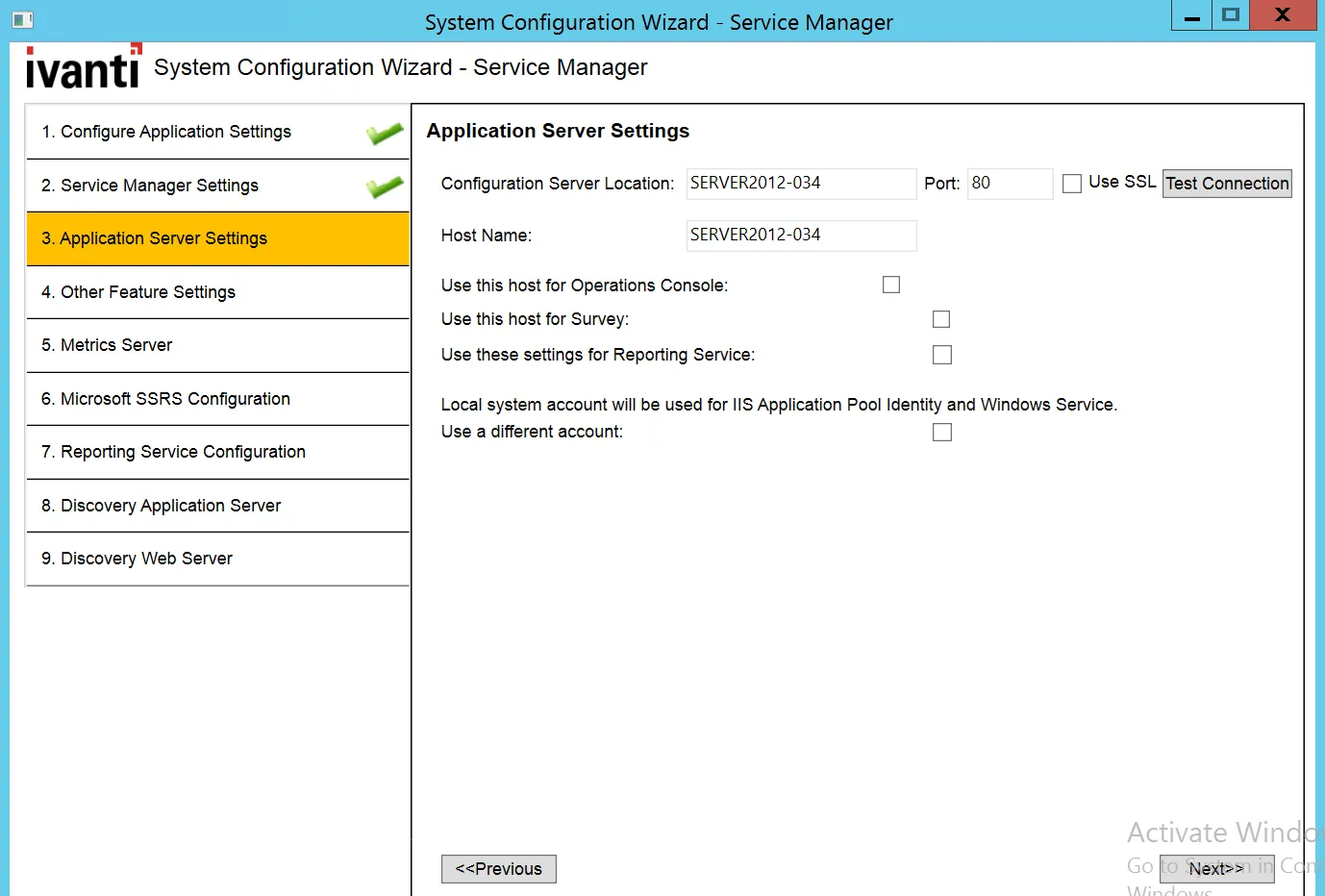
- Enter values into the fields:
Parameter | Description |
|---|---|
Configuration Server Location | The host name or domain name of the configuration server. The default value is the name of the server that you are logged into now. If the host that you are logged into now is not the configuration server, enter the machine name or fully-qualified domain name of your Configuration Server. If you check Use SSL below, you must enter the host name of the configuration server. |
Port | The port number of the configuration server. The default is 80, or 443 if you check Use SSL. |
Use SSL | Check to use SSL for connections to the configuration server. NOTE: We do not recommend enabling SSL on the configuration server until you have fully tested Neurons for ITSM to ensure that it works with SSL. For information on configuring Neurons for ITSM with SSL, see Optional SSL Configuration. |
- Click Test Connection to test the connection to the configuration server. The system displays a success or failure message. Click OK to close the message.
- Enter values in the fields:
Parameter | Description |
|---|---|
Host Name | The location of the system that hosts the Application Server. The default value is the server that you are logged into now. Do one of the following:
|
Use this host for Ivanti Operations Console | Uses this server for the Ivanti Service Manager Operations Console. NOTE: If you have an Enterprise Production Deployment, we recommend that you only install and use the Neurons for ITSM Operations Console on the staging (STG) instance of the tenant. |
Landscape Type | (Only if you checked Use this host for Ivanti Operations Console) Displays the landscape type and cannot be changed. |
Database Server | (Only if you checked Use this host for Ivanti Operations Console) Displays the database server and cannot be changed. |
Operations Console Backup Location | (Only if you checked Use this host for Ivanti Operations Console) The backup location for the Neurons for ITSM Operations Console. The backup location can either be on a database server or on a network folder. Do one of the following:
|
Test Backup & Restore | (Only if you checked Use this host for Ivanti Operations Console) The database to test to ensure you can back up and restore it. Select one from the drop-down list. We recommend that you select the configuration database since it is small. Click test to test the connection. The system displays a message with the results of the test. Click OK to close the message. |
Use this host for Survey | Uses this server for the Neurons for ITSM survey component. If you use Windows Authentication for the configuration server, the system prompts you for the Windows domain account and credentials. |
Use these settings for Reporting Service | Uses this server for the Neurons for ITSM reporting feature. Usually, you configure the reporting feature on the Microsoft SSRS Configuration and Ivanti Reporting Service Configuration pages. However, if you have two different domains and the reporting feature server cannot reach the web server, you can configure these settings to enable the servers to communicate. |
Use SSL for Reports | (Only if you checked Use these settings for Reporting Service) Uses SSL for reports. |
Use Windows Authentication for SSRS | (Only if you checked Use these settings for Reporting Service) Uses Windows authentication for reports. If you plan on sharing the same Microsoft SSRS instance with other applications besides the reporting feature, you must use Windows authentication. |
Web Service Virtual Directory | (Only if you checked Use these settings for Reporting Service) The name of the web service virtual directory. |
Ivanti Web Application Pool Identity Account | (Only if you checked Use these settings for Reporting Service) The application pool identity for the Neurons for ITSM web application pool. Select one of the following:
|
User Name | (Only if you checked Use these settings for Reporting Service and selected Specify new account for the Ivanti Web Application Pool Identity Account field) The user name for the application pool identity for the Neurons for ITSM web application pool. |
Password | (Only if you checked Use these settings for Reporting Service and selected Specify new account for the Ivanti Web Application Pool Identity Account field) The password associated with the user above. Click OK. |
- If you are using Microsoft SQL authentication for the configuration server, the system displays this message: "Local system account will be used for IIS Application Pool Identity and Windows Service". See Service Account for more information about this account.
To use a different account, do the following:
a. Check Use a different account.
b. Click Set.
c. Enter the user name for the service account.
d. Enter the password associated with the service account.
e. Click OK.
- Each tenant in a multiple server deployment must have an administrator account. If you selected Multiple Server Deployment on the Configuration Application page, click Previous to return to the Neurons for ITSM application page and create additional tenant accounts.