
Download Options
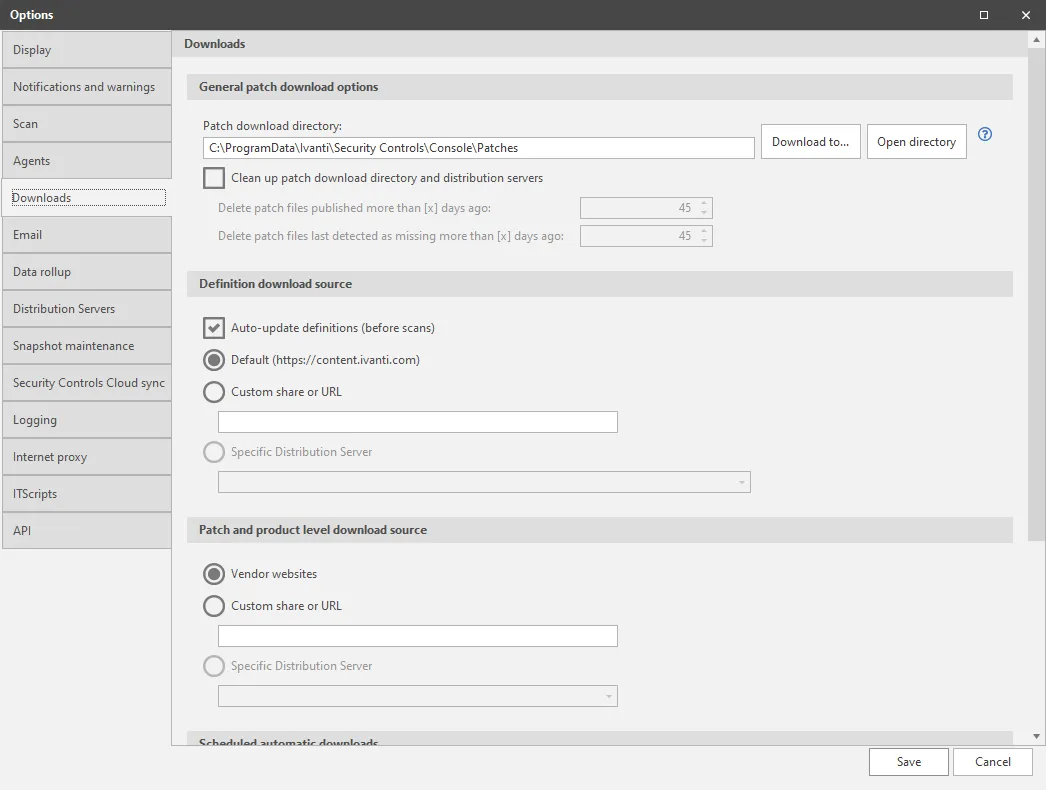
The Downloads tab allows you to specify the location from which the files used by the program will be downloaded and refreshed. The files include the engine components, the news file displayed on the home page, and the deployment information file, as well as download source for the patch and product level files. The program will check an Internet location or the specified distribution server to determine if newer versions of the files are available.
Field | Description |
|---|---|
Patch download directory | Using a Remote UNC Share DirectoryDisplays the location of the patch download directory (also known as the patch store). This directory is used to store all patches that are downloaded in advance of a patch deployment. To change the location, click the browse button. IMPORTANT! If the directory resides on a network drive be sure to use the UNC naming convention; DO NOT SPECIFY A MAPPED DRIVE. If desired, you can specify a remote share directory for the patch download directory. In order for this to work, appropriate permissions need to be set on the remote directory. Both the Security Controls console user and the console machine need to be granted access to the download directory. The console user should have read/write permission to the share and the console machine needs read access. When specifying share permissions for a machine, you must append a ”$” to the end of the machine name. 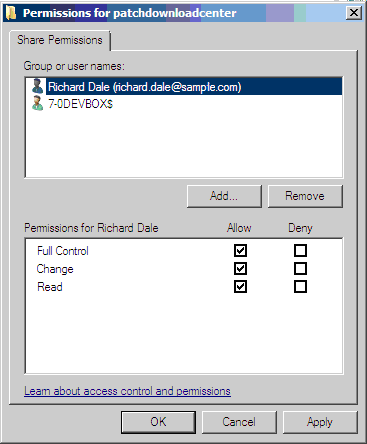 In some configurations additional users may need to be granted access to the download directory. If you specify machine or machine group credentials for machines that download patches from a distribution server, the specified user accounts will require read access to the download directory share. Making the download directory share readable by everyone may or may not be an effective strategy. It depends on:
|
Clean up patch download directory and distribution servers | Allows for the automatic clean up of your patch download directory and your distribution server(s). Any patches that are unlikely to be used in the future will be deleted from these locations. If the download directory is set to be used as a distribution server, core files are not deleted. This option is superior to the ITScripts Console Clean Up script, which is not automated nor does it perform clean up of distribution servers. There are two ways to define which patches will be deleted. A patch file must meet both criteria in order to be deleted.
Example: Assume you use the default value of 45 days for both options. If a patch file was published 50 days ago, but it was detected as missing in a patch scan that was performed 40 days ago, the patch file will not be deleted. Sideloaded patches are an exception and will not be deleted. Security Controls Agent will not delete any patch files that it has not downloaded. Patches that were previously sideloaded remain intact. However, any patch files that are manually placed in the patch folder are not treated as sideloaded content and will be deleted automatically. The patch download directory clean up task will run automatically once a day. Your distribution servers will be cleaned as they are synchronized with the console. |
Definition download source | You can specify where the latest engine components and data files downloaded by this console are located. The available options are:
|
Patch and product level download source | You can specify where the latest patch and product level files downloaded by this console are located. The available options are:
|
Scheduled automatic downloads | You can configure the program to automatically download the latest versions of the engine components and the data definition files on a regular basis. This can speed your scan processes by making the necessary files available in advance of a scan. You can also choose to automatically download patches and product levels that are likely to be used in future patch deployments.
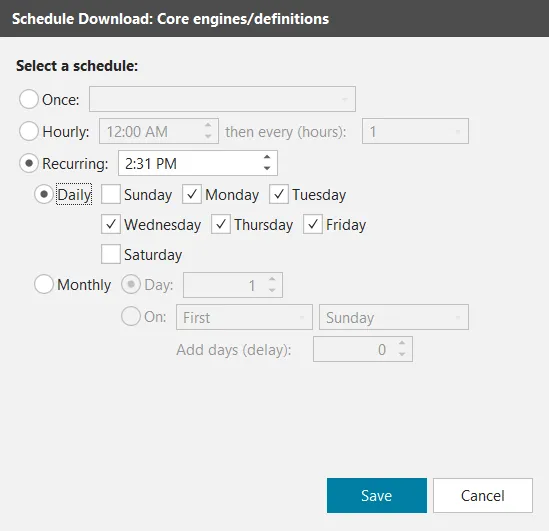 Specify when you want the download to occur. The Add delay (days) box (available if you download on a monthly basis) allows you to delay the download by up to 31 days. For example, you might use this to schedule a monthly download that is always performed four days after Patch Tuesday. You do this by specifying The Second Tuesday and then using the Add delay (days) option to delay the operation by four days.
Here are some additional details about Predictive Patch:
New or missing product levels will be downloaded
|