
Activating Security Controls
Until you activate Security Controls, you are very limited in the actions you are allowed to perform. You can use the following activation methods:
- License Key Activation Method This is the primary activation method. It should be used:
- If you are a new customer and you have an internet connection from the console
- If you need to refresh your license following an upgrade
- If you do not have an internet connection from the console
Trial Activation Method This is the activation method that should be used if you are using the program on a trial basis. It enables you to test all the capabilities of Security Controls, but only for 60 days. You are also limited to 50 license seats. When the trial license expires, the program will stop refreshing its data files and many of the program features will no longer be available.
You activate the program by entering one or more activation keys.
- If you have an electronic copy of your license key(s) copy it to your computer's clipboard. Your license key is typically sent to you in an email from Ivanti when you purchase the product.
- From the Security Controls menu select Help > Enter/refresh license key. The Activation dialog is displayed.
If you have previously activated Security Controls using a key, the 25-character Key Activation dialog will instead be displayed.
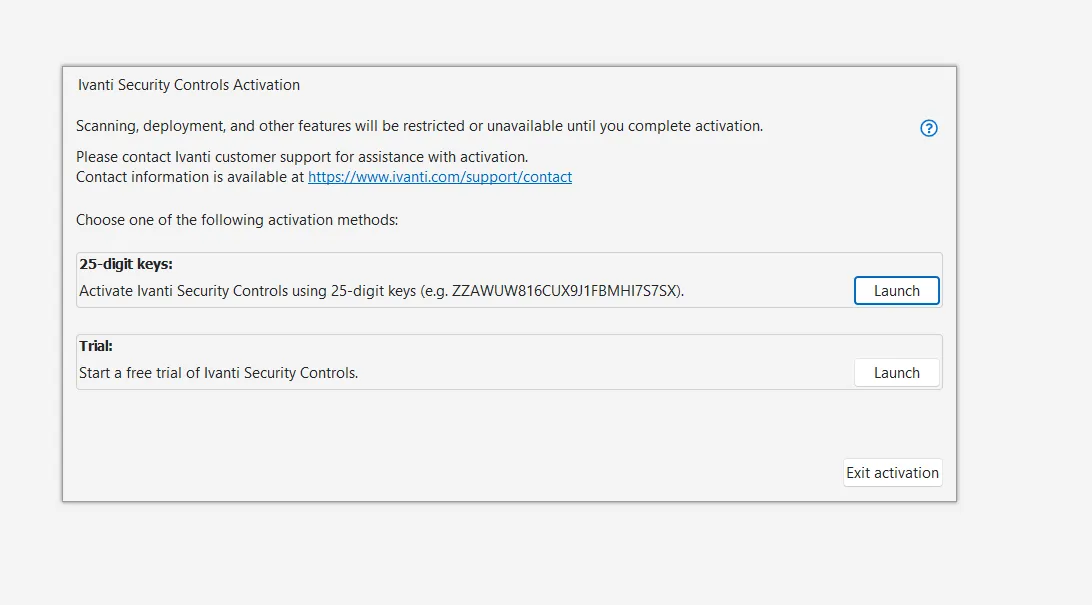
In the 25-character keys box, click Launch. The 25-character Key Activation dialog is displayed.
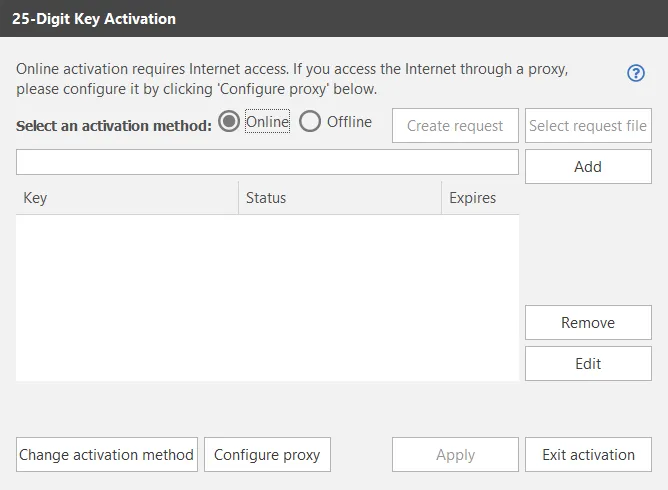
Choose Online activation.
- Verify that your activation key is specified in table in the center of the dialog. The key is automatically pasted here if it is contained on your computer's clipboard when you launch this dialog. If not, copy your key to your computer's clipboard and then paste it in the dialog by pressing Ctrl-v. Or, you can type the 25-character key into the To manually enter a key, type it here and then click Add box and then click Add.
- If you have multiple activation keys, repeat this step as needed. Click Apply. If the activation is successful, the message Security Controls product activation successfully completed is displayed near the bottom of the dialog.
- Click Exit activation.
Additional Functionality
- Remove: Enables you to remove the selected key.
- Edit: Enables you to modify the selected key.
- Change activation method: Enables you to change to a different activation method.
This procedure will not work if you are at a secure site that does not allow files to be transferred out of the secure environment. For this case, see the section below titled If You are Activating From Within a Secure Disconnected Network.
- If you have an electronic copy of your license key(s) copy it to your computer's clipboard. Your license key is typically sent to you in an email from Ivanti when you purchase the product.
- From the Security Controls menu select Help > Enter/refresh license key. The Activation dialog is displayed.
In the 25-character keys box, click Launch. The 25-character Key Activation dialog is displayed.
Choose Offline activation mode.
- Verify that your activation key is specified in table in the center of the dialog. The key is automatically pasted here if it is contained on your computer's clipboard when you launch this dialog. If not, copy your key to your computer's clipboard and then paste it in the dialog by pressing Ctrl-v. Or, you can type the 25-character key into the To manually enter a key, type it here and then click Add box and then click Add.
- Click Create request. Two files are generated and saved to the desktop of your console computer: an XML file named LicenseInfo.xml and a text file named DisconnectedLicenseInfo.txt. The XML file is used in this procedure; the text file can be ignored.
- Move the XML activation request file to a computer that has an Internet connection.
- On the Internet-connected computer, open a browser and go to https://stlicense.ivanti.com/OfflineActivation.
- Upload the LicenseInfo.xml activation request file. The web portal will process the license information and generate a license file.
- Download the processed license file and move it to the console computer.
- Within Security Controls, select Help > Enter/refresh license key.
- In the 25-character keys box, click Launch. The 25-character Key Activation dialog is displayed.
- Click Select request file.
- Go to the location of the processed license file and then click Open. Security Controls will process the file and the program will be activated.
Additional Functionality
- Remove: Enables you to remove the selected key.
- Edit: Enables you to modify the selected key.
- Change activation method: Enables you to change to a different activation method.
Use this activation procedure if you are at a secure site that does not allow files to be transferred out of the secure environment.
- If you have an electronic copy of your license key(s) copy it to your computer's clipboard. Your license key is typically sent to you in an email from Ivanti when you purchase the product.
- From the Security Controls menu select Help > Enter/refresh license key. The Activation dialog is displayed.
If you have previously activated Security Controls using a key, the 25-character Key Activation dialog will instead be displayed; in this case, skip to Step 4.
In the 25-character keys box, click Launch. The 25-character Key Activation dialog is displayed.
- Choose Offline activation mode.
- Verify that your activation key is specified in table in the center of the dialog. The key is automatically pasted here if it is contained on your computer's clipboard when you launch this dialog. If not, copy your key to your computer's clipboard and then paste it in the dialog by pressing Ctrl-v. Or, you can type the 25-character key into the To manually enter a key, type it here and then click Add box and then click Add.
- Click Create request. Two files are generated and saved to the desktop of your console computer: an XML file named LicenseInfo.xml and a text file named DisconnectedLicenseInfo.txt. The text file is used in this procedure; the XML file can be ignored.
- Open the DisconnectedLicenseInfo.txt file and carefully copy the information contained in it to a piece of paper.
- On an Internet-connected computer, open a browser and go to https://stlicense.ivanti.com/OfflineActivation.
- Expand the Manually Enter Activation Request Data section.
- Manually enter the Activation Keys, Machine Identity, Machine Checksum from DisconnectedLicenseInfo.txt, then click Submit. The web portal will process the data and generate a license file.
- Download the processed license file and move it to the console computer.
- Within Security Controls, select Help > Enter/refresh license key.
- In the 25-character keys box, click Launch. The 25-character Key Activation dialog is displayed.
- Click Select request file.
- Go to the location of the processed license file and then click Open. Security Controls will process the file and the program will be activated.
Additional Functionality
- Remove: Enables you to remove the selected key.
- Edit: Enables you to modify the selected key.
- Change activation method: Enables you to change to a different activation method.
- From the Security Controls menu select Help > Enter/refresh license key. The Activation dialog is displayed.
In the Trial box, click Launch. The Trial Activation dialog is displayed.
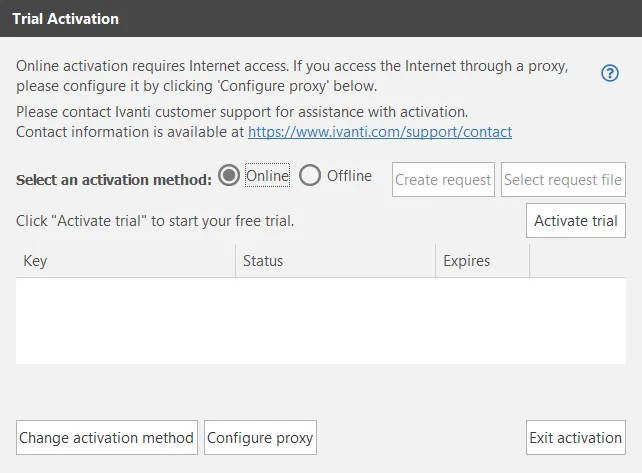
Choose Online activation mode.
- Click Activate trial. The trial key is automatically applied and information about the key is displayed in the dialog. If the activation is successful, the message Security Controls product activation successfully completed is displayed near the bottom of the dialog.
- Click Exit activation.
Additional Functionality
If you want to activate the program using a purchased license rather than a trial license, click Change activation method.
- From the Security Controls menu select Help > Enter/refresh license key. The Activation dialog is displayed.
In the Trial box, click Launch. The Trial Activation dialog is displayed.
Choose Offline activation mode.
- Click Create request. An XML file named LicenseInfo.xml generated and saved to the desktop of your console computer.
- Move the XML activation request file to a computer that has an Internet connection.
- On the Internet-connected computer, open a browser and go to https://stlicense.ivanti.com/OfflineActivation.
- Upload the LicenseInfo.xml activation request file. The web portal will process the license information and generate a license file.
- Download the processed license file and move it to the console computer.
- Within Security Controls, select Help > Enter/refresh license key.
- In the Trial box, click Launch. The Trial Activation dialog is displayed.
- Click Select request file.
- Go to the location of the processed license file and then click Open. Security Controls will process the file and the program will be activated.
Additional Functionality
If you want to activate the program using a purchased license rather than a trial license, click Change activation method.
Tracking Your License
You can easily find out information about your license by selecting Help > About Security Controls. For more information see How Licenses are Tracked.