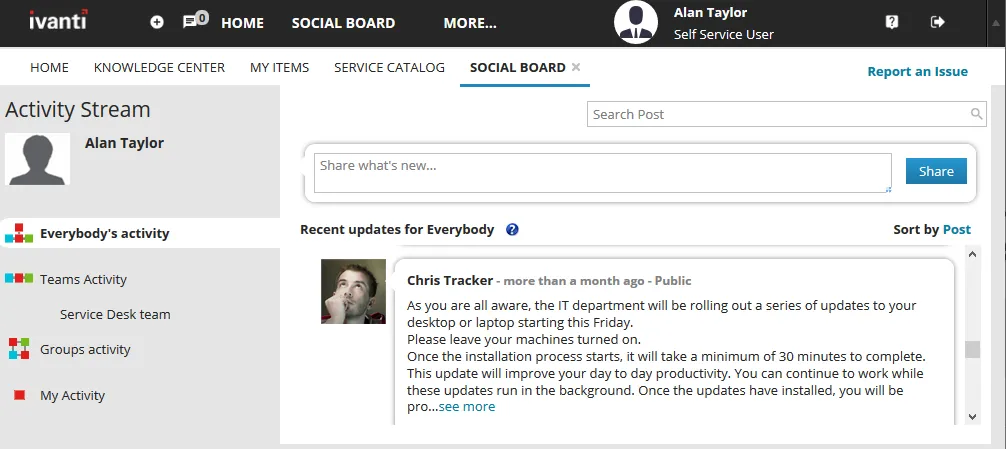
Social Board messages
6 min
use the social board workspace to post and receive messages from other users, groups, teams, and assigned roles social board can also be useful for notifying affected users of escalations, status updates, and business services that are out or degraded collaborating with others and providing peer to peer support within a managed community your ability to use the social board, as well as an optional instant messaging feature called the chat zone, depends on if your administrator has enabled it for your user role for details, see chat zone docid\ cs34irtyqt4aqolojacwd messages and comments you can broadcast messages on the social board to all users (public messages), or to specific groups, teams, or individuals (limited messages) the messages will appear on their home workspace as soon as they log in to the application to post a message to the social board from the workspace menu, click social board click within the share what's new text box and type your message in the publish to section, you can broadcast a message to all users with the default setting of everybody send a message to specific groups, teams, or roles click add group , select from the drop down list, then click add repeat to add other groups, teams, or roles send a message to a specific person click add person , search for the name of the user in the text box, then select that user click add repeat to add other users stop sharing messages with a user, group, team, or role by clicking the icon next to the name they'll no longer be part of your conversation (unless you add them back) click share (right side of the text box) to send the message also note the following to respond to a message, type in the add a comment field of the message and press the enter key your comment will be shared with the users who received the original message to search for specific messages, enter a keyword in the search post field in the top right corner of the page and press the enter key or click the icon to view the search results to filter the real time stream of messages shared on the social board, click one of the filter criteria in the left side activity stream pane everybody's activity – messages published by all users teams activity – messages published by teams you're part of groups activity – messages published by groups you're a part of my activity – all messages and comments published only by you to delete a message or comment, click the icon on the right side of the post or comment header, then confirm the delete you can only delete messages or comments you have posted, not what others have posted teams and groups you can share conversations on social board with specific teams and groups these are the rules for doing so teams are defined by the administrator, though anyone can create a group messages sent to a team go to everyone on the team all team responses can be viewed by other team members messages posted to a group can be viewed by everyone in the group anyone with access to the social board can join a group that you’ve created you cannot choose which members can belong to your group you cannot delete a group, but you can leave a group however, you cannot leave a group that you created to create a group in your social board from the workspace menu, click social board in the activity stream pane, click groups activity > manage groups the manage groups window is displayed click create new group the create new group window is displayed enter information into the fields for name , enter a unique name, which is how this group will be identified by others owner is automatically taken from your login role and name for description , enter an optional description of this group click save to save the group, then close to join a group from the workspace menu, click social board click groups activity > manage groups the manage groups window appears if you've never joined a group, two buttons appear click join a group if you've already joined a group, skip this step from the public groups tab, click join within the group box click close to leave a group you cannot delete a group, but you can leave a group however, you cannot leave a group that you created from the workspace menu, click social board click groups activity > manage groups the manage groups window appears with your current groups within the group to leave, click leave the leave group confirmation box is displayed click yes to leave the group the group no longer appears under the my groups tab the what is new on social board icon you can use the what is new on social board icon as a shortcut to open unread messages and post new messages on the social board the icon shows the number of unread messages you have and displays in the header bar of each portal workspace, no matter which one is open the icon has the following features the number of unread messages is shown next to the icon if the social board has not been activated, you do not see a number (click the icon to activate the social board ) the message counter increments each time a new message is posted, but it does not include your own messages by default, the everybody's activity area and your comments are updated instantly, while the teams activity area is updated every 5 minutes the maximum number of notifications shown is 10 to clear the message counter, click the icon to open the message window and click clear & close