My Items
4 min
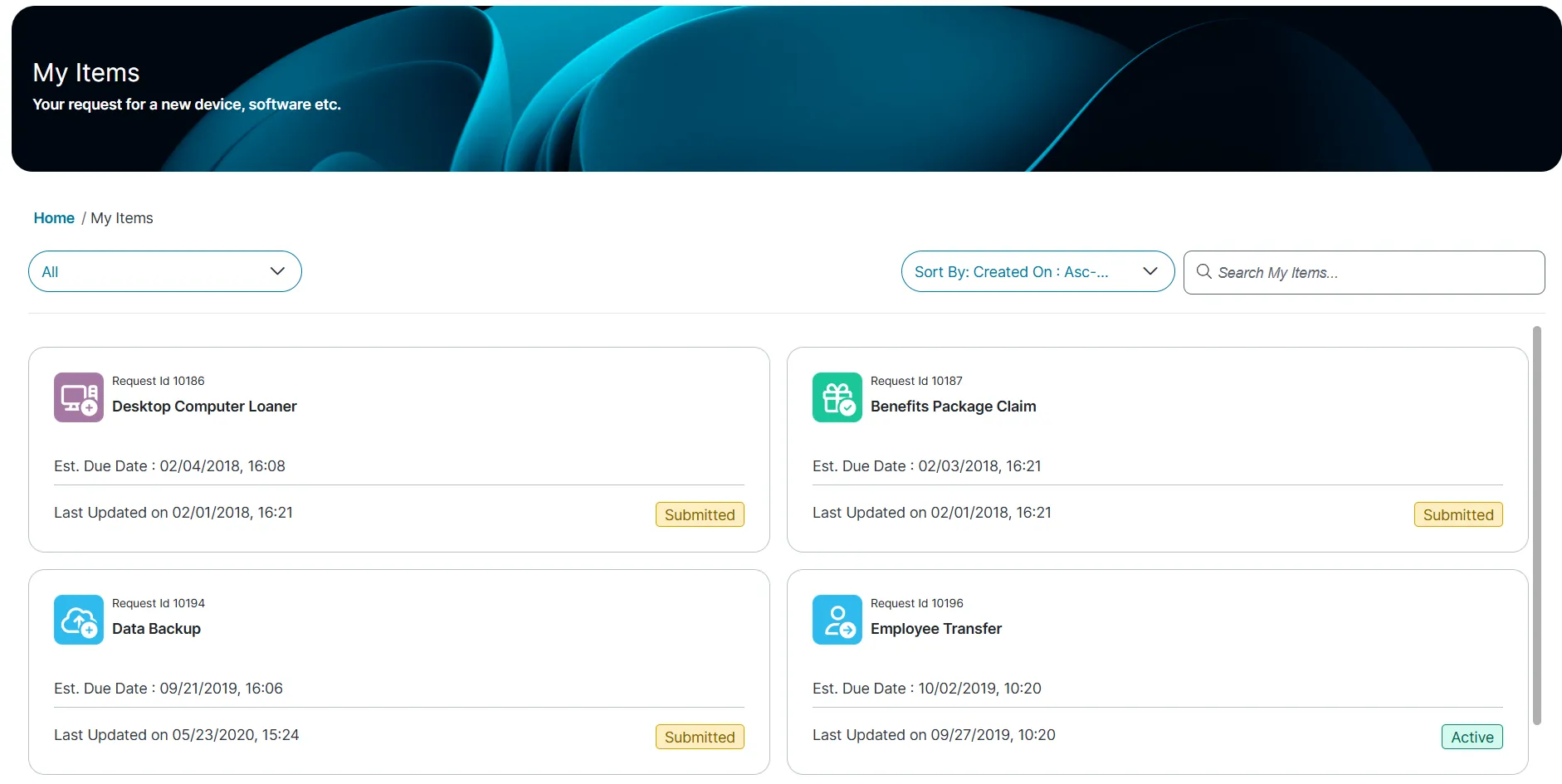
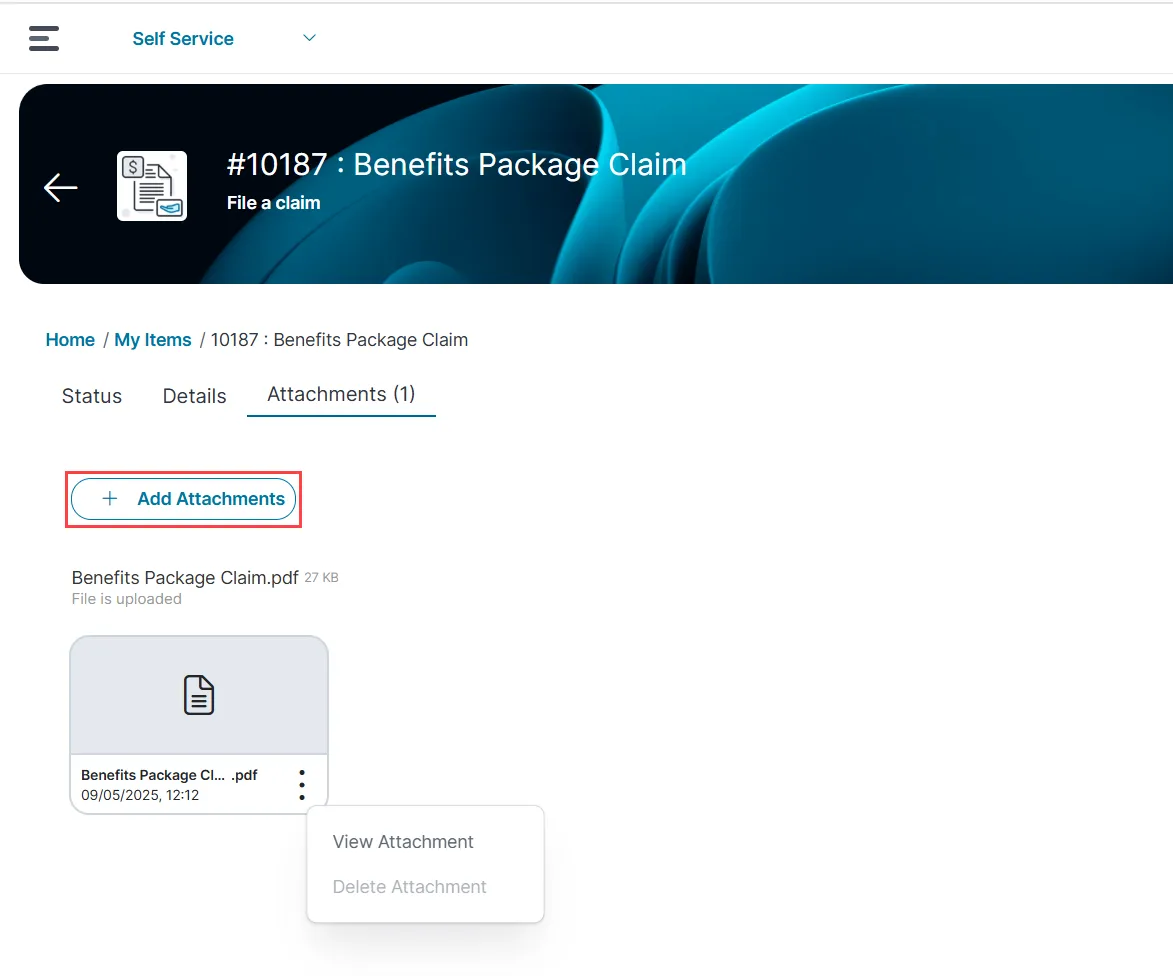
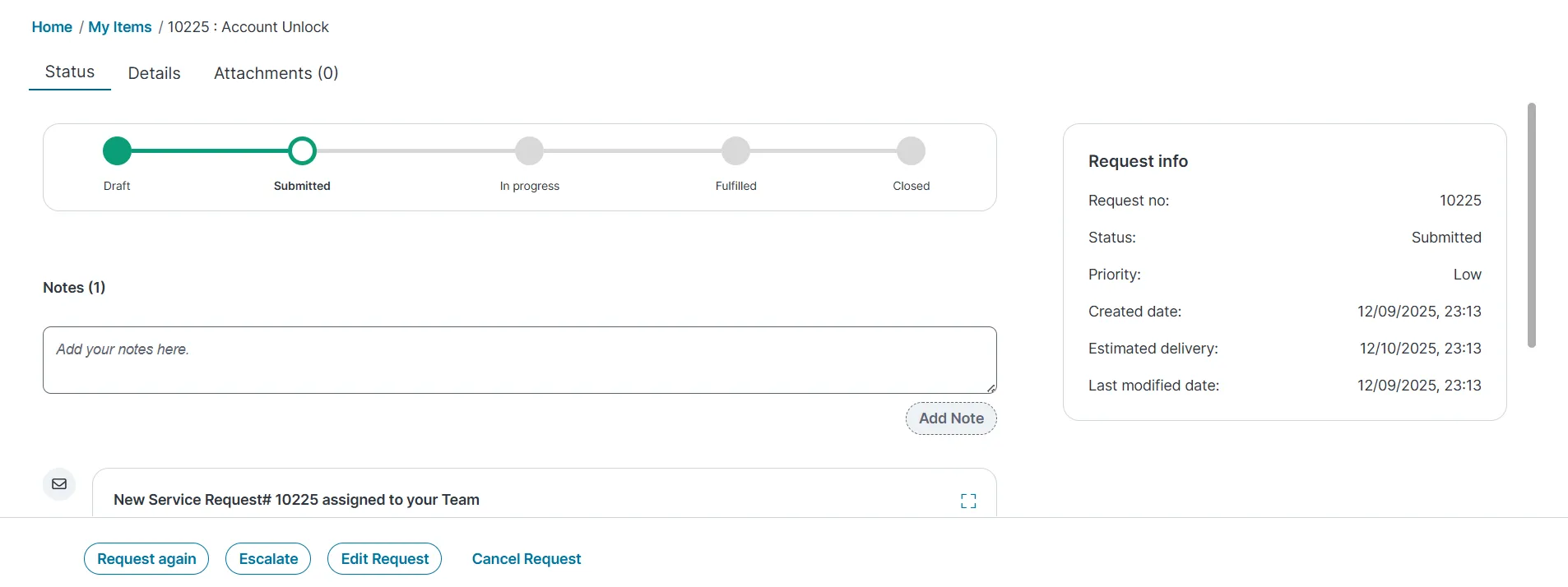
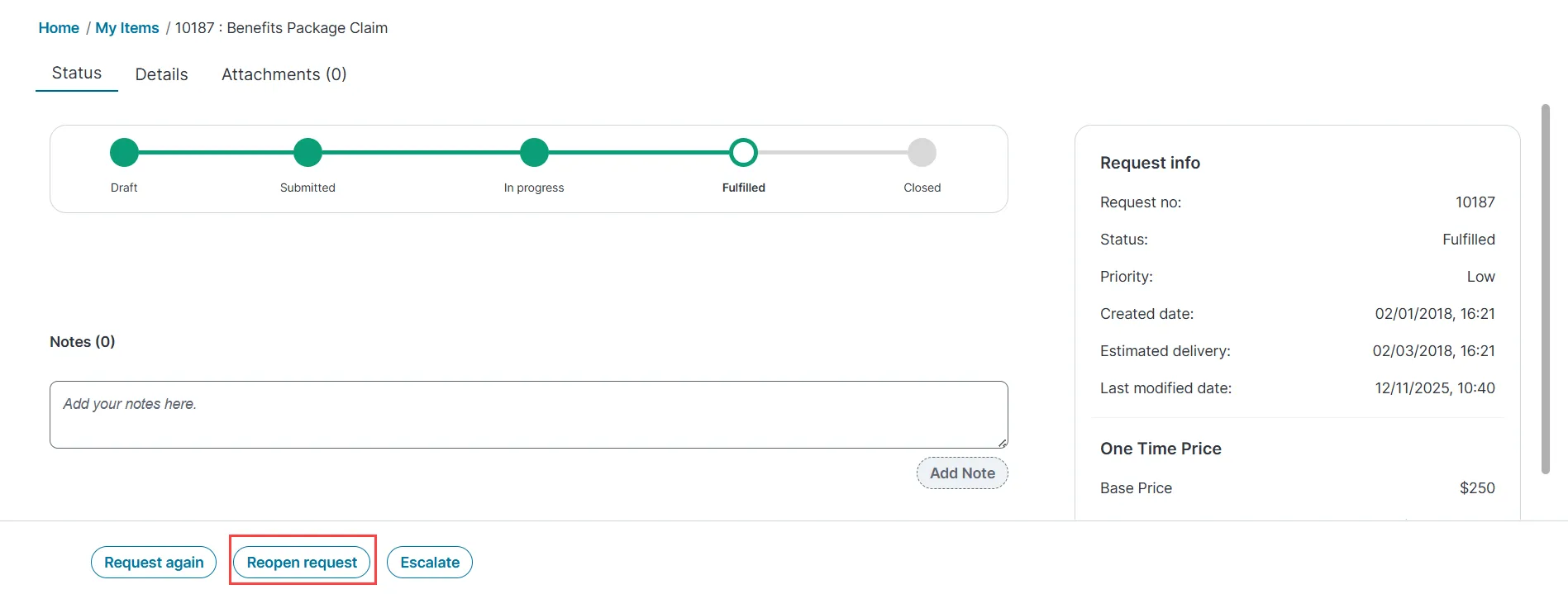
you can use the my items workspace to track your submitted service requests and reported incidents if needed, you can also submit a new service request or incident from this page you can track the same list of items from your my open items list in the home workspace to view your items to view items service requests or tickets raised and incidents created by you, click my items from the workspace menu to open my items, where a list view displays all of your submitted requests and incidents to view your items' status and other details from the list view, click a record to view it's status and other details click back to my items list to return to the list view you can filter the list view as needed note that an administrator can view all of the items in this list to search for a specific item, enter a keyword in the search my items field and click the icon the matching results will display to focus the search, use the search drop down list to select a category of request, issue, and so on to clear all search criteria, click the icon to submit a service requests from the workspace menu, click my items click new service request in the upper right area of the page the service catalog workspace opens browse by category in the left navigation pane when you find the correct item to place a request for, select it in the main pane in the form displayed, enter information into the fields as required if the form is more than one page, click continue (in the bottom right) to progress through the fields each form is different, depending on the request type you selected after entering all required information, click review & submit review the information for accuracy to make any changes before submitting, click edit/back note that once the request is submitted, you can't go back and edit the form click submit the request will display in the list view where you can track it you may receive email updates from the service desk or help desk requiring additional information about the request if this occurs, respond within the period of time indicated in the email; otherwise, the request will automatically close without resolution to update an in progress service requests starting with release 2026 1, you can add notes to any business objects only if an administrator has configured a trigger business rule to enable note creation in the self service page you can update a service request that's in progress by adding a note or an attachment (such as an image, document, and so on) to it those additions become a permanent part of the request record that you can't delete from the workspace menu, click my items from the list view, open the request you want to update click the service request progress tab in the add a new note field, enter your note and click add note in the add an attachment field, click the icon to select a file to attach click back to my items list the request will update with the new information next time you open this service request and click the service request progress tab, you will see a time stamp with your note and or the attached file edit a submitted service requests if the administrator has enabled the request editing option, you can view the edit request button for the submitted requests you can edit the submitted service requests only that are in active, or in progress status to add information or update the existing details from the workspace menu, click my items from the list view, open the request you want to update click edit request button, the confirmation page appears, click edit in the request, update or modify the details and click submit you can edit requests that are in draft , or submitted , or in progress state to report an incident from the workspace menu, click my items click new issue in the upper right area of the page a form is displayed before selecting a template and entering information into the fields, browse the possible solution panel on the right to see if you can resolve the issue on your own if one of the solutions works, click resolve (bottom right of the panel) to close the incident if no solution works, click the template drop down list to find a template that matches your problem use none if no template is found enter a summary title for this incident and thoroughly describe the problem in the description field in the urgency field, select the level of urgency that this problem presents click save incident once saved, the issue becomes an incident with an id that you can track you may receive email updates from the service desk or help desk requiring additional information about the incident if this occurs, respond within the period of time indicated in the email; otherwise, the incident will automatically close without resolution to update a logged incident to help the service desk or help desk resolve an incident, you may need to add a note or attachment to it you can only do so after logging the incident once you add a note or an attachment, it becomes a permanent part of the incident record that you can't delete from the workspace menu, click my items find the incident in the list view and open it in the attachments section, click browse and select a file to attach in the new notes text box, enter your note click save , then click back to my items list to close an incident you can close any incident you've created, regardless of its current status typical reasons include resolving it on your own, deciding that no further investigation is needed, or determining that it's closed after the service desk or help desk has updated the status to resolved from the workspace menu, click my items from the list view, open the incident click close incident at the bottom of the form click back to my items list the incident status changes to closed after an incident is closed, you may receive a survey email requesting feedback about how effectively your issue was resolved your survey response will be stored with the incident