Service Requests and Incidents
3 min
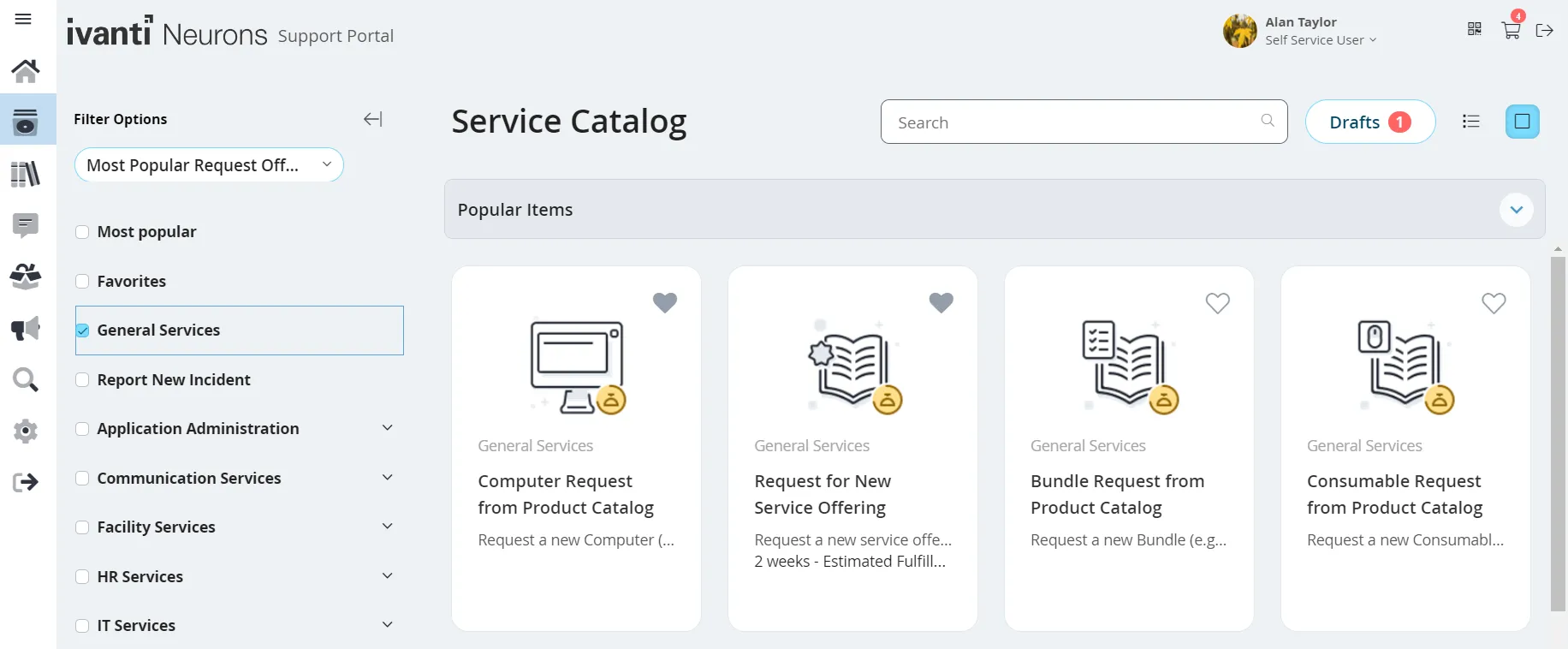
a service request is a request for a service, such as a conference room reservation, new email account, and so on an incident is an interruption of service such as an account lockout, printer not working, and so on when you submit an incident or service request, it is logged with your company service desk or help desk, where it is processed you can track the progress from your my open items list in the home workspace or from the my items workspace service catalog choices and forms depend on how your company configured see default catalog offerings https //help ivanti com/ht/help/en us/ism/2026/admin user/content/servicedesk/servicecatalog/default catalog offerings htm to know the list of service catalogs available out of the box to submit a service request from the workspace menu, click browse by category in the left navigation pane when you find the correct item to place a request for, select it in the main pane in the form displayed, enter information into the fields as needed if it's more than one page, click continue (in the bottom right) to progress through the form each form is different, depending on request type you selected after entering all the required information, click review & submit review the information for accuracy to make any changes, click edit/back click submit once the request is submitted, you can't go back, edit, or delete the form track the request from your my open items list in the home workspace or in the my items workspace you may receive email updates from the service desk or help desk requiring additional information about the request if this occurs, respond within the period of time indicated in the email; otherwise, the request will automatically close without resolution if you need to update an in progress service request with a note or an attachment such as an image or a document, you can do so for details, see my items docid\ cqdofuc1zkajafe8p w3c to report an incident from the workspace menu, click service catalog in the left navigation pane, click report new incident from the main pane, select the option that matches your problem if your issue doesn't match the available options, click new incident in the form displayed, enter information into the fields as required before doing so, browse the possible solution panel on the right to see if you can resolve your issue with one of the suggested fixes if a related article appears to match your issue, click the title to open it if the solution works, click resolve (bottom right of the panel) to close the incident if it does not work, then click back (top left of the panel) to check other solutions if no solution works, fill out the fields as required in the description field, provide details that thoroughly describe your problem in the urgency field, select the level of urgency that this problem presents click save incident once saved, the issue becomes an incident with an id that you can track in your my open items list in the home workspace or in the my items workspace you may receive email updates from the service desk or help desk requiring additional information about the incident if this occurs, respond within the period of time indicated in the email; otherwise, the incident will automatically close without resolution to find partial matches, you can use and % as wild cards in searches you can't edit an incident once it's logged, but you can update it with a note or attachment (such as an image, document, and so on) you can also close an incident, regardless of its current status for details, see my items docid\ cqdofuc1zkajafe8p w3c