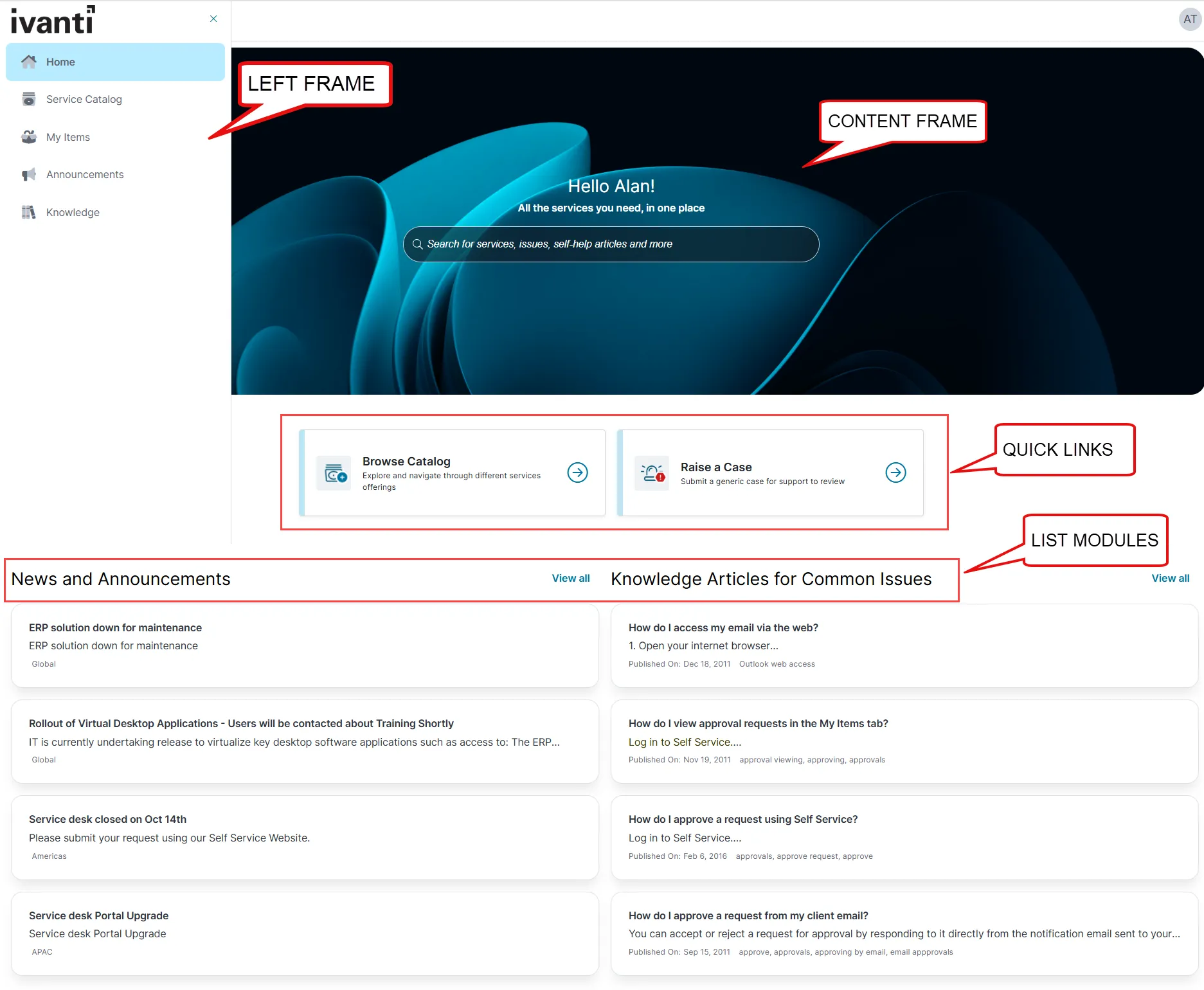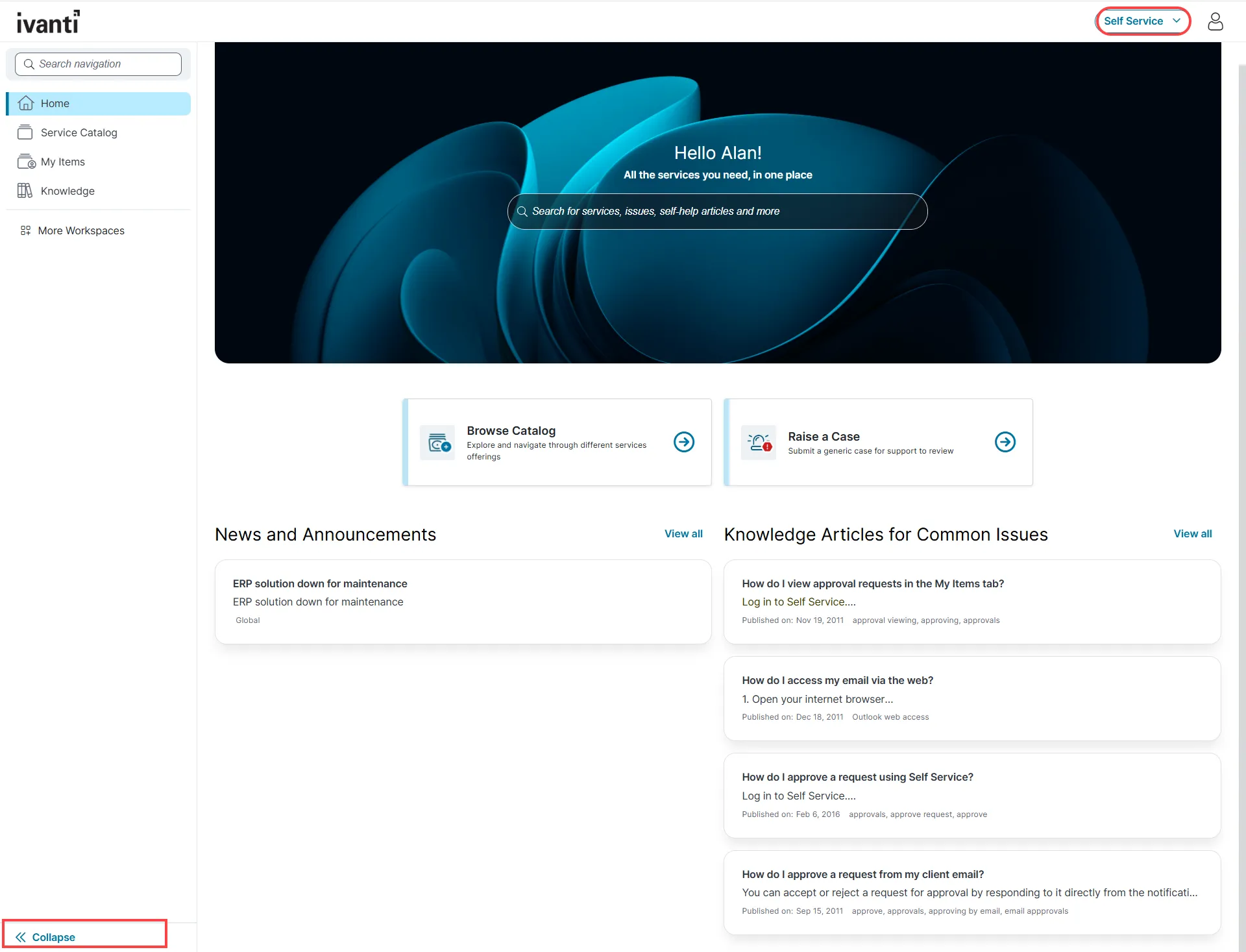
Navigating Self Service Management Portal
4 min
overview the self service management portal is a centralized platform that allows you to request services, report issues, access personalized content, and find support resources, all in one place designed for ease of use, the portal streamlines common it and business related tasks, helping you to resolve issues quickly and stay informed key capabilities request services report issues access role based information track requests and incidents view announcements and browse knowledge articles some features or modules described in this section are not available by default you can view and access them only if your administrator has enabled them for your role or environment portal layout the portal layout includes three main areas banner frame shows your user profile, a search box to quickly find items, and the submit cart feature left pane lists modules such as my items which allows you to create and view incidents content frame displays the content of the selected workspaces home workspace and landing page views when you log in, the portal displays a home workspace based on your assigned role (for example, administrator or self service) your view may vary depending on your administrator’s configuration, including layout, landing page, available modules, and color scheme landing page display options enterprise landing page displays all available roles as tiles, as defined in the exceptions / custom roles section of the style editor each tile represents a role accessible to your user role to access self service features, select the self service option from the dropdown or click the self service tile self service extended role shows detailed information specific to the self service user role the layout is tailored to your permissions, and only relevant features and data are displayed search functionality use the search box in the content frame to find services, reported issues, knowledge articles, faqs, and announcements as you type a keyword, related suggestions appear click a suggestion to navigate to search results page a secondary search option may appear next to your user login in banner frame you can enter a keyword and navigate to the search results page mobile access and session timeout you can access the portal on supported mobile devices for security, the portal automatically logs you out after a period of inactivity, based on your organization's single sign on (sso) settings using the left pane click the menu icon in the left pane to access available modules the modules you view depend on your assigned role and configuration ui icon and workspace description home provides quick links to raise requests, report issues, view news, announcements, articles, and faqs track open requests or submit new ones for devices, software, or report issues view and track your submitted service requests and reported incidents announcements view organization wide news, updates, and system messages administrators manage this workspace knowledge browse knowledge articles that provide you with information you can search for troubleshooting tips and task resolutions you may view the following modules if your administrator has enabled them for your role alerts view active alerts such as system errors, warnings, and informational messages faqs find answers to common questions before submitting an incidents chat start a live chat with the technical support team or self service support staff more click more to view additional workspaces configured for your role quick links browse catalog click to browse different request offerings, such as devices or software, or other services, or report issues raise a case create a general support request as you enter a title, related articles may appear to help you resolve the issue before submitting list modules news and announcements view the organization wide announcements and updates click view all to open the announcements workspace knowledge articles for common articles view common troubleshooting articles click view all to open the knowledge articles workspace based on the workspace configuration by , you can view customized links to specific workspaces or request offerings these links allow you to directly navigate to the required workspace or submit a request