Reports
2 min
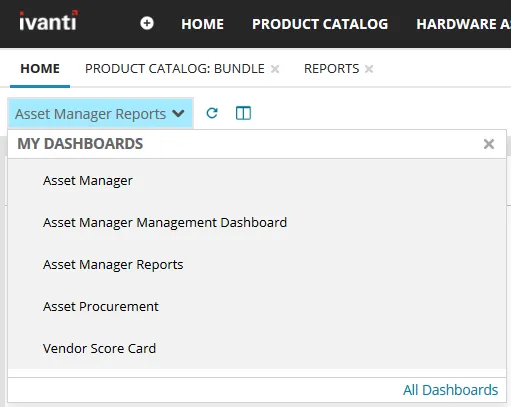
ivanti neurons for itam has a set of microsoft sql server reporting services (ssrs) reports to provide you with advanced information about your assets asset administrators and the report manager user role can access the full list of reports from the reports workspace or from the home workspace for details about working with reports and report management, see the ivanti neurons for itsm online help at help ivanti com https //help ivanti com/ available reports asset depreciation report – provides asset age and straight line depreciation when you provide the asset type, organizational unit, asset subtype, vendor, and the statuses you're interested in for details about asset age and depreciation, see the finance section in hardware assets docid\ osg0azfj64rephv3kkzqz total cost of ownership by criteria – displays the total cost of ownership for the current organizational unit and as a rollup when you specify a date range and an asset status total cost of ownership by criteria detail – displays the total cost of ownership of assets when you specify an organizational unit, a date range, and a set of asset statuses total cost of ownership overall – displays the total cost of ownership for individual organizational units and as a rollup total cost of ownership overall detail – displays details of the total cost of ownership for a specific organizational unit total market value by criteria – displays the total market value for organizational units when you specify a date range and an asset status total market value by criteria detail – displays details of the market value for a specific organizational unit when you specify a date range and an asset status total market value overall – displays the total market value for all organizational units total market value overall detail – displays details of the total market value for a specific organizational unit total purchase price by criteria – displays the total purchase price for each organizational unit and as a rollup when you specify a date range and an asset status total purchase price by criteria detail – displays details of the total purchase price for a specific organizational unit when you specify a date range and an asset status total purchase price overall – displays the total purchase price for all organizational units total purchase price overall detail – displays details of the total purchase price for all assets for a specific organizational unit total straight line depreciation by criteria – displays total straight line depreciation for the current organizational unit and as a rollup when you specify a date range and an asset status for details about depreciation, see the finance section in hardware assets docid\ osg0azfj64rephv3kkzqz total straight line depreciation by criteria detail – displays details of the total straight line depreciation for a specific organizational unit when you supply the date range and asset statuses you're interested in for details about depreciation, see the finance section in hardware assets docid\ osg0azfj64rephv3kkzqz total straight line depreciation overall – displays the total straight line depreciation for individual organizational units and as a rollup total straight line depreciation overall detail – displays details of the total straight line depreciation of all assets for a specific organizational unit to view reports to view a single report at a time, open the reports workspace, and click a report title in the list to include reports as part of your home workspace dashboards view, complete the following procedure open the home workspace below the home tab, open the drop down, scroll down to the bottom, and click all dashboards in the bottom right in the resulting list, enable the check box next to asset manager reports at the top of the list view, click the more actions drop down and select add to my dashboards click the icon to go back to the dashboard view open the my dashboards drop down again and click asset manager reports in the list a list of all available reports will display click the one you want to view each time you log in, the reports will be accessible from the home workspace until you actively remove them from your dashboards calculating aggregate values some reports require you to run a calculate aggregate values quick action on the underlying data to return accurate results you must do so each time before viewing the report the reports that necessitate this action are total cost of ownership by criteria / criteria detail total market value by criteria / criteria detail / overall / overall detail total purchase price by criteria / criteria detail total straight line depreciation by criteria / overall to calculate aggregate values for reports open the financial owners workspace select all the records in the list click the more drop down menu (top right of the page) and select calculate aggregate values this action calculates the various totals for each of the records selected and displays the data in extra columns in the list view to view this data in report format, follow the procedure above