Data import
6 min
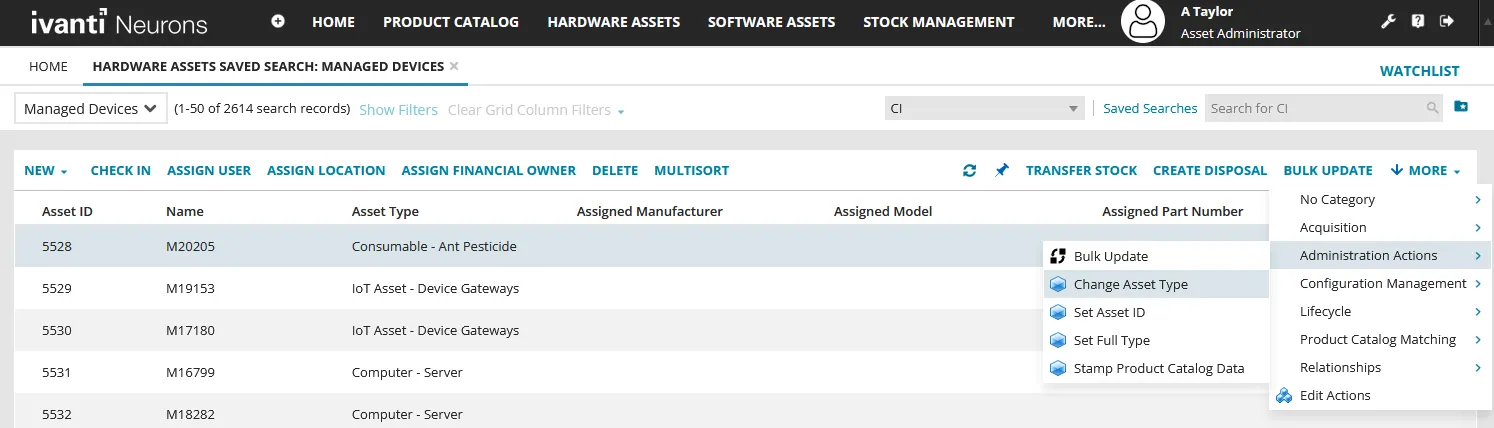
asset administrators can import asset related data into the itam database via the ivanti neurons platform, using a connector designed for your data source (for itam cloud only) for details, see importing from the ivanti neurons platform docid\ wpoh386uhl7gpi49sdlbz the ivanti neurons platform, by integrating with ivanti neurons for spend intelligence (in this case, imports are restricted to software related contracts and contract line items) for details, see integrating with ivanti neurons for spend intelligence docid\ h8iubfz9sc5 sudbhuzaq (for itam cloud only) the ivanti neurons platform, by integrating with ivanti neurons for discovery (for itam on premises installations only) for details, see integrating with ivanti neurons for discovery (for itam on premises only) docid\ id ydmcueuyyzsbskv82v ivanti neurons for itsm platform connectors for details, see the ivanti neurons for itsm online help at help ivanti com https //www ivanti com/support/product documentation as a starting point, refer to these topics ivanti neurons for itsm and endpoint manager connector https //help ivanti com/ht/help/en us/ism/2021/admin/content/configure/endpoint manager/ism epmconnector htm?highlight=ism epm%20connectorimporting and exporting data https //help ivanti com/ht/help/en us/ism/2021/admin/content/configure/importexportdata/data integration htm?highlight=importing%20and%20exporting%20data a set of excel spreadsheets provided by ivanti to import data (recommended for an initial data import only and discussed below) after importing your data, see the next steps section in getting started docid\ mkt93y9kzmcv5r90xpdv9 importing data via excel spreadsheets ivanti provides a set of spreadsheets with appropriate columns already created that you can populate with your data and then import directly into the product these spreadsheets include some sample data to give you an indication of the form your data needs to take remember to remove these examples the set of spreadsheets you'll want to download depends on your region (usa, emea, or asia) and system landscape (staging or production) in each zip file, you'll find an importguide docx file that lists the recommended order for importing your spreadsheets download the zip file containing the spreadsheets most relevant to your environment as listed below usa staging – usa staging import templates zip https //rm csm usa s3 amazonaws com/staging/import templates10072019 zip production – usa production import templates zip https //rm csm usa s3 amazonaws com/production/import templates10072019 zip emea staging – emea staging import templates zip https //rm csm emea s3 eu west 1 amazonaws com/staging/import templates10072019 zip production – emea production import templates zip https //rm csm emea s3 eu west 1 amazonaws com/production/import templates10072019 zip asia staging – asia staging import templates zip https //rm csm asia s3 ap southeast 2 amazonaws com/staging/import templates10072019 zip production – asia production import templates zip https //rm csm asia s3 ap southeast 2 amazonaws com/production/import templates10072019 zip mandatory and allowed values some of the columns in the spreadsheets are mandatory, and some are optional mandatory columns have bold column headers that require values in every row other columns can take only certain allowed values, which are documented in am dataimport allowedvalues xlsx this file is included in each of the above zip files and contains a worksheet for each of the spreadsheets the worksheets have columns named to match the columns in the import spreadsheets that take only specific values and that show the allowed values for those columns it's vital that these columns in your import spreadsheets contain only values matching those in the am dataimport allowedvalues xlsx file or values that match any new values that you've added to the corresponding validation list populating your import spreadsheets the first stage of importing is to populate the import spreadsheets with your data to populate your import spreadsheets open am dataimport allowedvalues xlsx (included in each of the above zip files) and display the worksheet that matches the import spreadsheet you want to populate open each of your import spreadsheets in turn and add your data, making sure you use only the allowed values from am dataimport allowedvalues xlsx in any columns that are included in that spreadsheet importing the spreadsheets the second stage is to import the spreadsheets via the administrator configuration console's settings page to import the spreadsheets log in as asset administrator click the icon at the top right side of the user console the configuration console displays in a new browser tab in the left navigation pane, expand extend > integration tools > data import connections we recommend that you import the spreadsheets in a specific order—refer to the import guide included in your zip file, or use the table below for guidance some of the spreadsheets are imported multiple times using different mappings and filters for example, am assets xlsx is imported as part of the connection am excel assets for each asset type only one of these mappings can be active at any time, so click the off switch to on alongside the mapping that you want to import if you have specialized devices that are unmanaged or that don't map well to the available asset types (for example, various medical devices, iot assets, cloud service assets, etc ), map them to the general assets type in am assets xlsx once they're imported, you can manually change these records to a more accurate asset type if needed for details, see the procedure below click run now next to each connection you want to import, then follow the prompts import spreadsheets in the following order purpose name connection source mapping asset sub types am excel asset types am asset types xlsx asset types countries am excel countries am countries xlsx countries locations am excel locations am locations xlsx locations location parents am excel locations am locations xlsx location parents storage spaces am excel storage spaces am storage spaces xlsx storage spaces consumable types am excel consumables am consumables xlsx consumable types consumables am excel consumables am consumables xlsx consumables financial owners am excel financial owners am financial owners xlsx financial owners financial owner parents am excel financial owners am financial owners xlsx financial owner parents teams am excel teams am teams xlsx teams job titles am excel job titles am job titles xlsx job titles users without managers am excel users am users xlsx users user managers am excel users am users xlsx managers manufacturers am excel manufacturer am manufacturers xlsx manufacturers vendor contacts (externalcontact) am excel vendor contacts am vendor contacts xlsx vendor contacts vendors am excel vendors am vendors xlsx vendors vendor contact links external am excel vendor contact links am vendor contact links xlsx external contacts vendor contact links internal am excel vendor contact links am vendor contact links xlsx internal contacts product catalog items am excel product catalog items am product catalog items xlsx catalog items product catalog item replacements am excel product catalog items am product catalog items xlsx replacements approved vendor records am excel catalog approved vendors am catalog approved vendors xlsx vendor items software products am excel software products am softwareproducts xlsx software assets contracts am excel contracts am contracts xlsx contracts contract line items entitlements am excel contract entitlements am contract entitlments xlsx entitlements contract line items extended warranties am excel contract extended warranties am contract extended warranties xlsx extended warranties contract line items leases am excel contract leases am contract leases xlsx leases contract line items maintenance am excel contract maintenance am contract maintenance xlsx maintenance contract line items ndas am excel contract nda am contract ndas xlsx ndas contract line items purchase contracts am excel contract purchase am contract purchases xlsx purchase contracts contract line items services am excel contract services am contract services xlsx services contract line items support am excel contract support am contract support xlsx support contract line items volume purchases am excel contract volume purchases am contract volume purchases xlsx volume purchases purchase orders am excel purchase orders am purchase orders xlsx purchase orders purchase line items am excel purchase line items am purchase line items xlsx purchase line items invoices am excel invoices am invoices xlsx invoices shipments am excel shipments am shipments xlsx shipments computers am excel assets am assets xlsx computers mobile devices am excel assets am assets xlsx mobile devices infrastructure am excel assets am assets xlsx infrastructure peripheral devices am excel assets am assets xlsx peripheral devices general assets am excel assets am assets xlsx general assets assign multiple contract line items to an asset am excel asset to lineitems am assets to contractlineitems xlsx assets to lineitems assign users to multiple teams am excel user to teams am users to teams xlsx users to teams the final two items in the table correspond to many to many relationships and as such update the fusionlink table we recommend that these are the final files you import changing the asset type finally, for any specialized devices that imported as a general asset but require a more accurate asset type, you can change the type using the more drop down menu to change the asset type of a device open the hardware assets workspace the list of managed devices in your database displays by default double click a general asset device to open its asset record click the more drop down menu at the top right of the page, then click administration actions > change asset type select the new asset type and asset subtype, then click ok the asset record should update with the new type and subtype for details about working with managed asset records, see hardware assets docid\ osg0azfj64rephv3kkzqz