Passwords
2 min
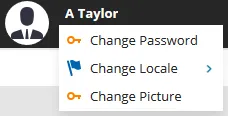
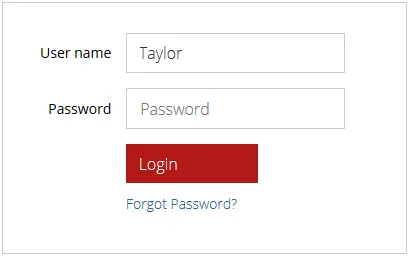
you can change your password for accessing ivanti neurons for itam at any time if you forget the password, you can receive a temporary one to log into the product you can also add an image next to your username in the user console to change your password log into itam click your username from the drop down menu, click change password in the change password dialog, enter your old password, then enter the new password and confirm it passwords need to be at least 8 characters long and are case sensitive click change log out and log in again to use the new password to log in after forgetting your password this feature is only available for internal authorization and does not work for external logins from the login page, click forgot password? on the password recovery page, enter your username or your email address and click submit a temporary password will be sent to your email address use the temporary password to log in, then change it as described in the procedure above to add an image next to your username with the itam user console open, click your username from the drop down menu, click change picture in the resulting dialog, click browse and select an image file from your saved files click save the console will automatically refresh with the image next to your username