
Compliance actions policy violations
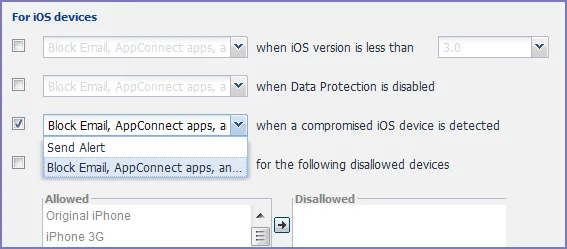
You can assign compliance actions for security policy violations and for compliance policy violations. When you configure access control in either type of policy, you can select default compliance actions that are provided with Ivanti EPMM. You can also select custom compliance actions that you create.
Figure: Compliance actions policy violations
To create the custom compliance actions, see Custom compliance actions.
Figure: Compliance Action settings for iOS and Android devices
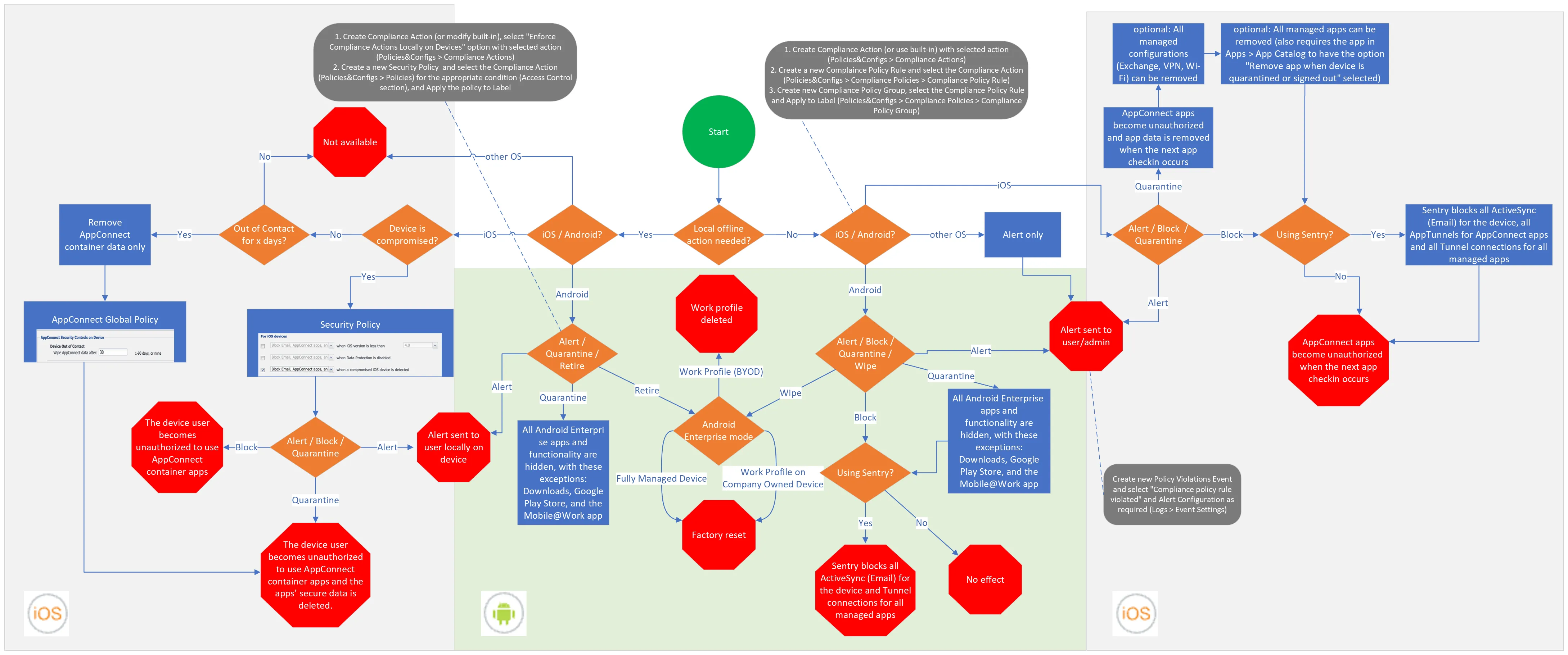
IMPORTANT: As you read this section, refer to the process diagram above. Note that references to "Core" mean Ivanti EPMM.
Default compliance actions
The following table describes the default compliance actions:
Table: Default compliance actions table
Default compliance action | Description |
|---|---|
Send Alert | Sends alert that you configured for the policy violation. To configure the alert, see Policy violations event settings. |
Block Email, AppConnect Apps And Send Alert |
If you manually block, allow, or wipe a device on the ActiveSync Associations page, blocking email access in a compliance action has no impact. The manual action overrides Ivanti EPMM's automatic decision-making about access to email via ActiveSync. See "Overridding and re-establishing Ivanti EPMM management of a device" in the Ivanti Standalone Sentry Guide for EPMM.
|
Customized compliance actions | These actions can contain 4 tiers of actions. Tiers 2-4 are only used in compliance policies; they are not used by legacy security policies. Security policies only perform the action defined in tier 1. |
Custom compliance actions
You can customize the compliance actions that you want to take for the settings on the Compliance Actions page under Policies & Configs. After you create your customized compliance actions, the actions you created appear in a drop-down list in the Access Control section of your security policies.
Custom compliance actions enable you to specify combinations of the following actions:
- Send alert
- Block email access and AppConnect apps (includes blocking app tunnels)
- Quarantine: block email access, block app tunnels, block AppConnect apps, and wipe AppConnect app data
- Remove configurations (i.e., profiles)
- Specify exceptions for Wi-Fi-only devices
Once you create a set of these actions, you can select that set from the drop downs in the Access Control section of security policies.
Creating a compliance action
With custom compliance actions, you can create actions to better manage access control. With tiered compliance actions, you can customize them to include up to 4 levels of action to better manage compliance actions.
Procedure
- Log in to the Admin Portal.
- Go to Policies & Configs > Compliance Actions.
- Select Add+ to open the Add Compliance Action dialog box.
- Select the appropriate fields as described in the Add Compliance Action table.
If you have selected Show for the Custom ROM Related Functions in Settings > System Settings > Android > Android Custom ROM, then the wipe action is available. To enable wipe, first read and select the caution statement. You can then select Wipe the device. The wipe option applies to Android devices only.
- If you want to add another set of actions, select the plus (+) button and select the fields, as necessary, to complete the second compliance action.
- If you want to add another set of actions, select the plus (+) button and select the fields, as necessary, to complete the third compliance action.
- Select Save to add the new compliance action for access control and compliance actions.
- You can select them by going to:
- Policies & Configs > Policies > Security policy > Edit > Access Control section (1 tier only).
- Policies & Configs > Compliance Policies > Add+ > Compliance Policy Rule > Compliance Actions drop-down (1-4 tiers).
Using Compliance Actions with the "Enforce Compliance Actions Locally on Devices" option enabled does not have any effect if used in Compliance Policies. Those are only supported in the Security policy.
Add Compliance Action table
The following table describes the Add Compliance Actions options:
Table: Add Compliance Action fields
Item | Description |
|---|---|
Name | Enter an identifier for this set of compliance actions. Consider specifying the resulting action so that the action will be apparent when you are editing a security policy. |
Enforce Compliance Actions Locally on Devices | Select this to enable the Ivanti Mobile@Work app to enforce compliance actions on the device for security violations without requiring action from Ivanti EPMM. Ivanti EPMM also continues to enforce compliance actions. Associated action is only applied for policy violations configured in a security policy. |
ALERT: Send a compliance notification or alert to the user | Select if you want to trigger a message indicating that the violation has occurred. The Ivanti Mobile@Work app will send an alert to the device user based on the security policy violation, even without connection to Ivanti EPMM. To use this feature, you need to select this Compliance Action in Security Policies in Getting Started with Ivanti EPMM. If de-selected, Ivanti EPMM will send alerts to device users, administrators, or both. To configure the alert, see |
BLOCK ACCESS: Block email access and AppConnect apps | Selecting this option has the following impact to the device:
|
QUARANTINE: Quarantine the device (Select this check box to display the other Quarantine options.) | Selecting this option has the following impact to the device:
In the App Catalog, the individual setting configured on each app takes precedence over this quarantined action. If the app config setting associated with the individual (specific) app is not selected to "Quarantine app when device is quarantined", then the app will be quarantined when the user device is quarantined. |
QUARANTINE: Remove All Configurations and SaaS Sign-on Policy | Select to remove the following configurations:
However, because of Android limitations, this action does not remove any certificates used in Certificate Enrollment, Certificate, and Wi-Fi configurations. These certificates are installed into the device’s credential storage. Only the device user can remove them by using the Clear Credential Storage command in the Android Settings app on the device. Certificates used in Exchange and VPN configurations are removed because these certificates are stored in the respective apps. Also, certificates installed in a Samsung Knox device’s credential store are removed. |
QUARANTINE: Do not remove Wi-Fi settings for Wi-Fi only devices | Select if you want to retain the Wi-Fi configurations devices that do not have cellular access. Select this option to ensure that you can still contact these devices. |
QUARANTINE: Do not remove Wi-Fi settings for all devices (iOS and Android only) | Select this option to retain the Wi-Fi configurations for any device, regardless of whether it has cellular access. You might select this option to preserve limited network access despite the policy violation. |
QUARANTINE: Remove iBooks content, managed apps, and block new app downloads | Select this option to remove Managed Apps from the device and block access to Apps@Work when the device is not compliant. (Applicable only for Android Enterprise apps and only if the "Quarantine app when device is quarantined" check box in the App Catalog is selected.) |
Retire: Retire the Work profile or factory reset the managed device | Android: Select to trigger a local retire action on an Android Enterprise device. See the "Retiring an Android Enterprise device" section in the Managing the Android Enterprise device life cycle topic for the specific actions that are taken. This selection protects work profile data from data leakage by retiring the work profile on a personal device or performing a factory reset on a managed device. These actions are performed only locally on the device by Ivanti Mobile@Work . Also, the Retire action is only visible when you select the Enforce Compliance Actions Locally on Devices check box and it is only available in tier 1. iOS: Select the Retire iOS device option to retire iOS devices. This option is only available in Tier 1. WARNING - This action cannot be reversed. |
Wipe | Retires the Work Profile or Factory resets the managed device. Select to trigger a local retire action on an Android Enterprise device. See the "Retiring an Android Enterprise device" section in the Managing the Android Enterprise device life cycle topic for the specific actions that are taken. This selection protects work profile data from data leakage by retiring the work profile on a personal device or performing a factory reset on a managed device. |
When the compliance action takes effect
When you first apply a security policy, several factors affect the amount of time required to communicate the changes to targeted devices:
- Sync interval
- Time the device last checked in
- Battery level
- Number of changes already queued
- Whether Enforce Compliance Actions Locally on Devices is selected
Once the change reaches the device, Ivanti EPMM checks the device for compliance. If the device is out of compliance, then the action is performed.
If the action for a security violation can be enforced locally on the device, and that option is selected in the Compliance Action dialog, then Ivanti Mobile@Work initiates the compliance action without requiring contact with Ivanti EPMM.