
Add device roles
2 min
Ivanti EPMM enables the admins to assign permission as per the assigned device roles. The following sub-roles are added to the Add Device role:
- Add Company device
- Add Employee device
If a user has add device role then both company and employee roles are selected by default. The admins can enable or disable roles depending on requirement.
- Based on the assigned roles, the admins can register single or multiple devices and bulk registrations.
- If both company and employee roles selected then, the user can add company and employee device
- If company role is assigned, then adding an employee device is not allowed. During multiple devices and bulk registrations if uploaded CSV file contains employee device then the employee records are not saved in the .CSV file. The following error message is displayed: Insufficient Permissions
- If employee role is assigned, then adding company device is not allowed. During multiple devices and bulk registrations if uploaded CSV file contains company device then the company records are not saved in the .CSV file. The following error message is displayed: Insufficient Permissions
In admin portal, if both roles are selected then the change in ownership option is available. If only one role is assigned then the change ownership option is disabled.
Make sure you have selected the View dashboard, device page, device details line item under the device management role.
Procedure
- In Ivanti EPMM, go to Admin > Admins.
- Select the administrator who will be managing roles settings.
- Go to Actions > Edit roles.
- Select View dashboard, device page, device details.
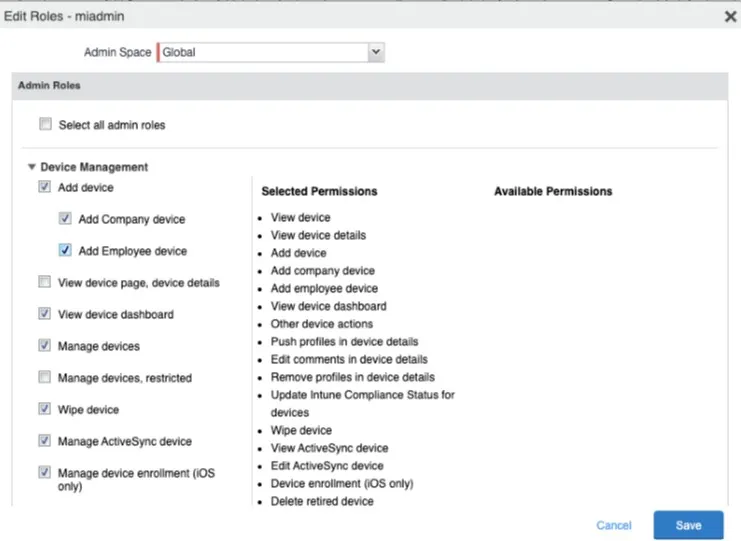
Edit Roles dialog box with View dashboard, device page, device details check box selected.
- Click Save.