
Installing VMware ISO
1 min
Complete the following steps to install Ivanti EPMM using VMware ISO distribution.
Procedure
- If you have not done so already, create a VM that meets the specifications recommended by Ivanti. See Virtual Ivanti EPMM requirements for recommended specifications.
- Make sure the MAC address is set to: Static allocation.
- Place the ISO distribution in an existing vSphere datastore.
- In the vSphere Client, select the Edit Settings option for the VM you created.
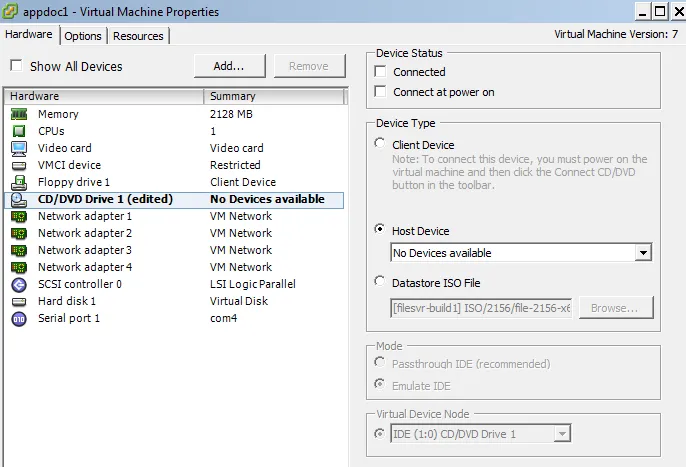
- Select Datastore ISO File.
- Click Browse to select the Ivanti EPMM ISO distribution.
- Make sure the Connected and Connect at power on options in the Virtual Machine Properties window are selected.
- Select Host Device.
- Click OK.
- Power on the VM. The VM automatically installs and reloads after a few minutes, and the installation program starts. See Installing Ivanti EPMM ISO onto an appliance for the next steps.