
Installing the Enterprise Connector ISO package
1 min
After the VM environment is set up, you can install the Connector ISO package.
Procedure
- Log in to the VM Client.
- In the directory tree on the left, right-click the device for which you want to install the package.
- Select Edit Settings from the drop-down menu.
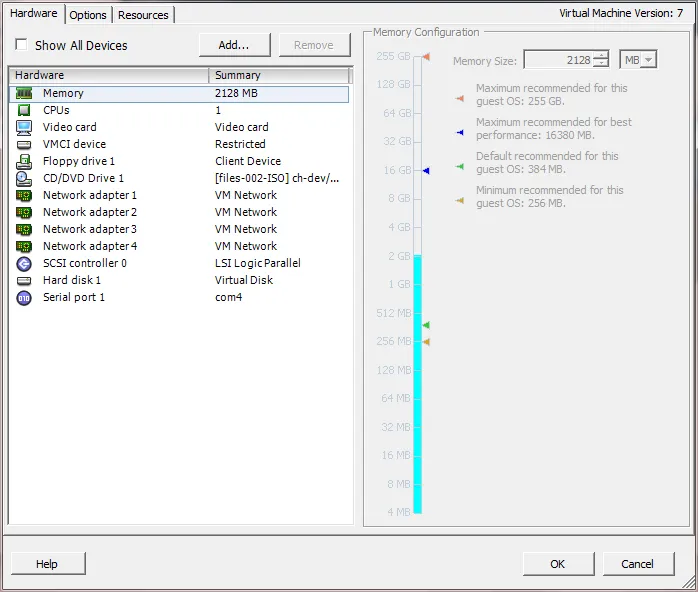
- Select CD/DVD Drive 1.
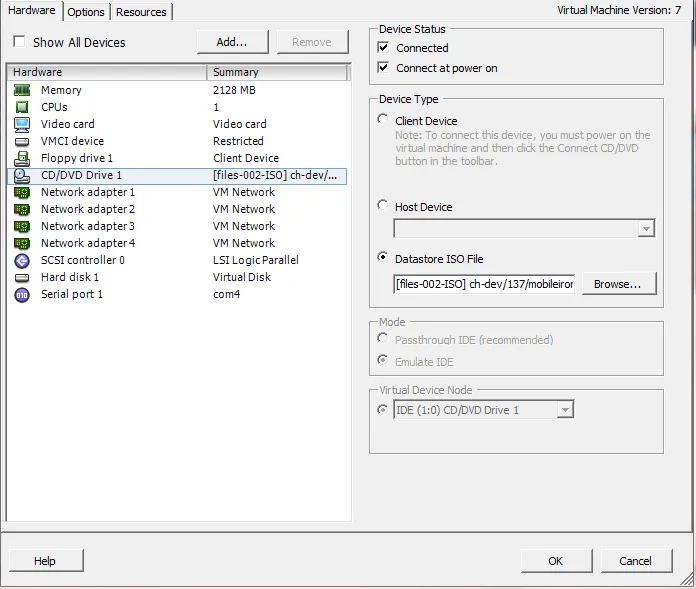
- Click the Datastore ISO File option.
- Click Browse and navigate to the directory where the ISO package is kept.
- Select the ISO package.
- Click Open to return to the VM Properties screen.
- Click OK to return to the previous screen.
- Right-click the device for which you will install the package.
- Select Power, then Reset. You are prompted to confirm that you want to proceed
- Click Yes to reset the virtual machine. The installer checks and formats the file system.
- Observe the status messages at the bottom of the screen. The VM automatically installs and reboots after a few minutes, after which it displays the configuration screen.
- Click the Console tab to specify the type of services you want to install.
- Type vm-install. The installer performs several minutes of file system formatting and image installation. When this step is finished, the installer starts the configuration wizard.
- Continue the installation with the configuration wizard. See Installing with the Configuration Wizard for details.